

Ready to Boost Your Productivity?
Save time and money while boosting your productivity with Zight — free tools for screen recording, screenshots, GIFs, and webcam capture.
Try Zight for FreeHow to Recolor an Image
Follow these simple steps to get started.
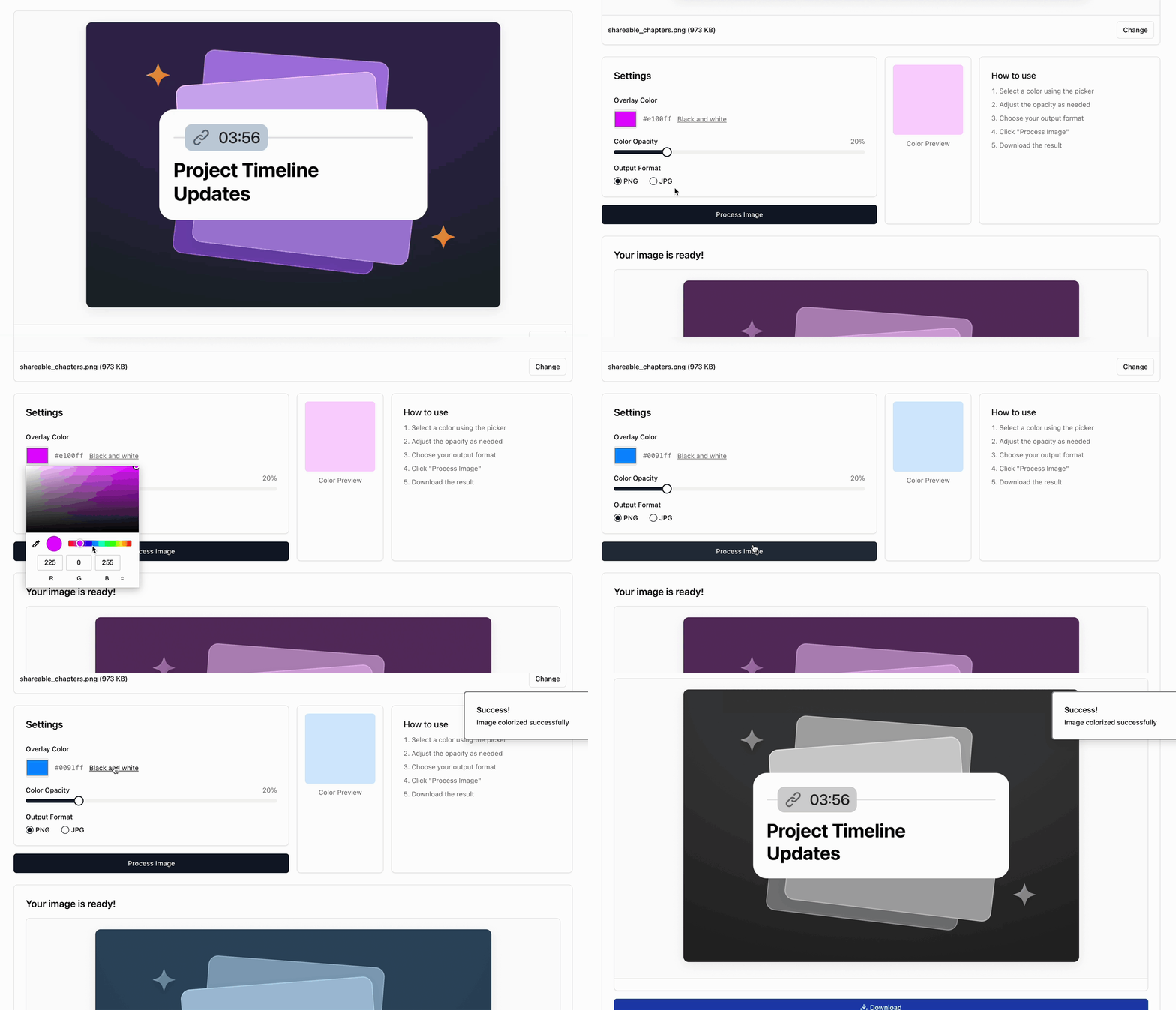
Upload Your Image
Choose any JPG or PNG file and it loads instantly into the preview.
Select an Overlay Color
Pick any color using the color picker or choose the “Black and white” option for a grayscale effect.
Adjust Opacity
Use the slider to control how strong the color overlay appears on your image.
Process and Download
Click “Process Image” and download your updated image.
Why Use a Color Overlay?
A color overlay is perfect for:
-
Making brand-consistent images
-
Applying a unified color theme to presentations or graphics
-
Creating header images, thumbnails, and social posts
-
Adding monochrome or duotone effects
-
Tinting images for marketing campaigns
-
Creating simple artistic styles
-
Muting or enhancing the mood of an image
More Than Just a Recolor Image Tool
Zight offers a suite of powerful tools designed to enhance productivity and content creation. Looking for more? Check out these additional features:
Screen Recording – Capture high-quality videos for presentations and tutorials.
Screenshot Tool – Take quick, annotated screenshots for feedback and collaboration.
AI (Artificial Intelligence) – Generate captions, summaries, and insights from your video content.
Merge Videos – Combine multiple video clips into a single seamless presentation.
URL Shortener – Generate trackable short links for easy sharing.

Supported Use Cases
Zight’s Recolor Image Tool is helpful for a wide range of creative and professional tasks, including:
-
Branding & Marketing: Apply brand colors to visuals for presentations, landing pages, ads, and social posts.
-
Social Media Content: Add stylistic color tones to photos, graphics, and thumbnails to create a consistent feed aesthetic.
-
Design Mockups: Quickly generate tinted placeholders or color-themed assets for Figma, Canva, or UI design work.
-
Black & White Conversion: Convert images to grayscale for documents, portfolios, or printing.
-
Content Templates: Recolor stock images so they match your company or project color palette.
-
Blog & Article Graphics: Add subtle tints to images to create a cohesive editorial style.
Ultimate Guide: How Color Overlay Recoloring Works
A color overlay adds a transparent color layer on top of your image. Unlike full recoloring or hue shifting, this method keeps the image intact while applying a tint that changes the overall mood or style.
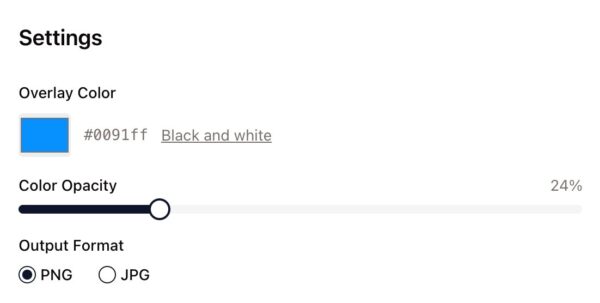
Overlay Color
Choose any color to apply as the visual filter. Great for brand colors or themed designs.
Opacity
Opacity determines how intense the overlay appears. Low opacity gives a subtle tint. High opacity creates a bold, stylized look.
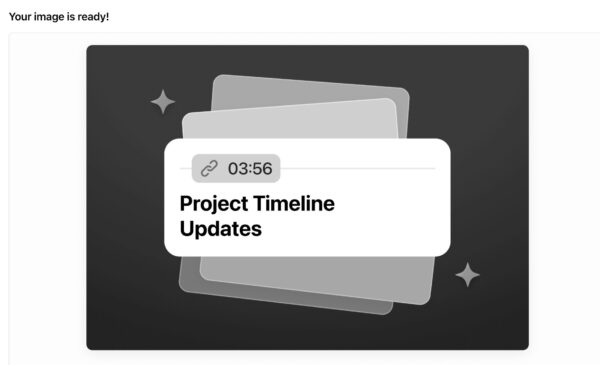
Black and White Mode
Convert your image into a grayscale version with a single click. Useful when you want a clean, neutral base.
Conclusion
Zight’s Recolor Image Tool makes it easy to apply color overlays and style your images in seconds. Choose a tint, adjust the opacity, and export a polished final image. Perfect for branding, content creation, and design work that needs quick, consistent visuals.
Try it now and create beautifully recolored images in just a few clicks.
Unlock More Tools
Expand your toolkit with these additional free tools
Frequently Asked Questions
You can upload PNG or JPG images.
This tool focuses on applying a color overlay. Full recolor features may be added in the future.
You can control the strength with the opacity slider.
Yes. If your original PNG has transparency, it will be preserved.
Yes. Use the “Black and white” option before processing.
No. Zight exports images in high quality.
No. Editing is processed in your browser for privacy.
Yes. The preview updates as you adjust the overlay.












