

Ready to Boost Your Productivity?
Save time and money while boosting your productivity with Zight — free tools for screen recording, screenshots, GIFs, and webcam capture.
Try Zight for FreeHow to Analyze Logs
Follow these simple steps to get started.
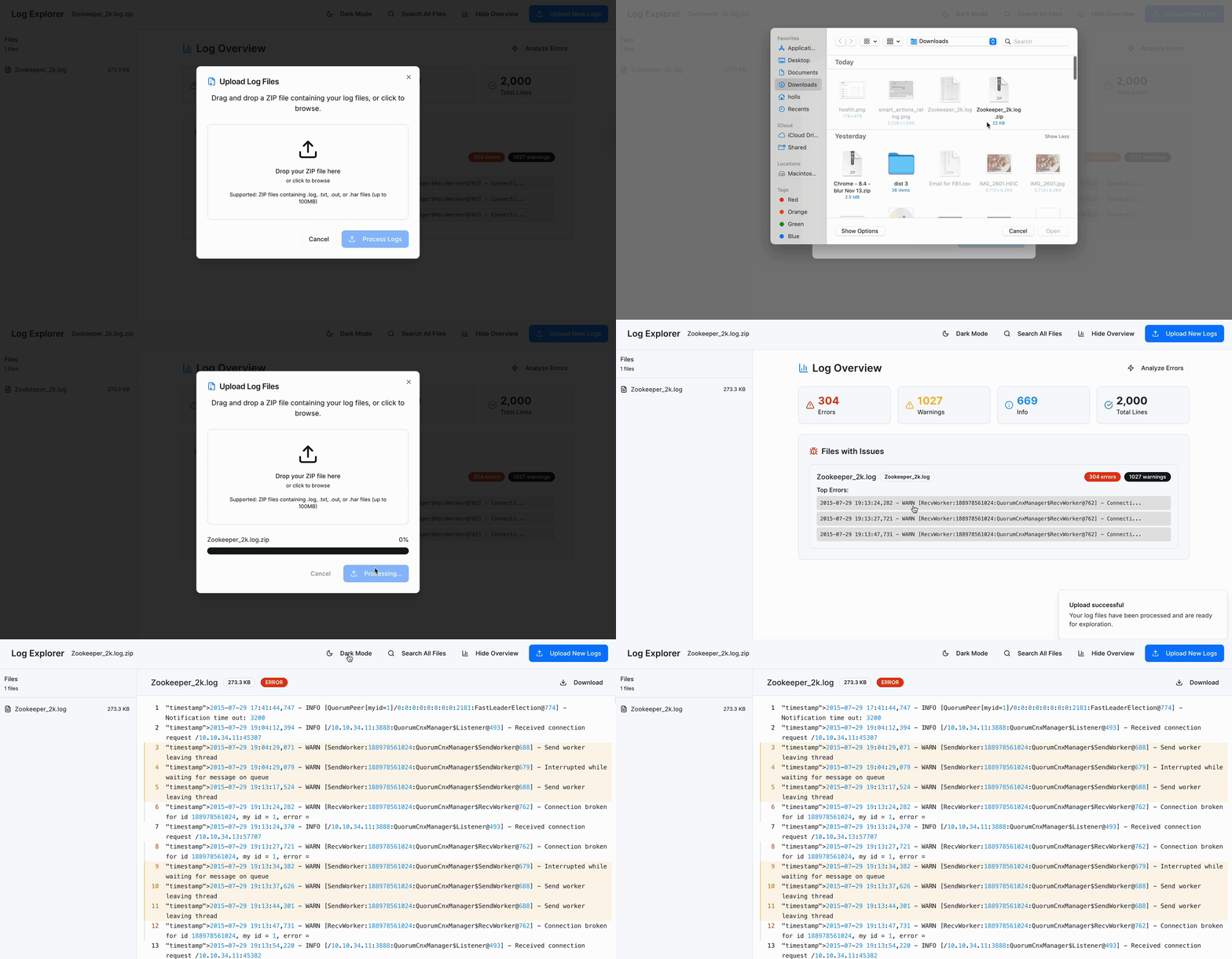
Upload Your Log Files
Drop in your .log, .txt, or zipped logs.
Review the Overview Metrics
Instantly see total errors, warnings, info entries, and total lines to understand log health.
Inspect Issues in Detail
Dive into specific files, scroll through entries, and filter or search to find exactly what you need.
Why Use Zight’s Log Explorer
Zight gives you an organized and distraction-free way to understand your logs. Instead of scrolling through plain text, you get a clean interface that highlights issues and groups them into meaningful sections. Every log is easier to read, easier to search, and easier to act on.
-
Automatic issue detection for errors and warnings
-
Search tools to locate error codes, patterns, and IDs
-
Multi-file support for analyzing several logs at once
-
No installation, no learning curve
Zight turns messy log files into actionable insights in just a few seconds.

More Than Just a Log Explorer Tool
Zight offers a suite of powerful tools designed to enhance productivity and content creation. Looking for more? Check out these additional features:
Screen Recording – Capture high-quality videos for presentations and tutorials.
Screenshot Tool – Take quick, annotated screenshots for feedback and collaboration.
AI (Artificial Intelligence) – Generate captions, summaries, and insights from your video content.
Merge Videos – Combine multiple video clips into a single seamless presentation.
URL Shortener – Generate trackable short links for easy sharing.

Supported Use Cases
For Developers
Identify crashes, exceptions, and stack traces faster. Quickly filter logs to debug code issues without manually scanning thousands of lines.
For DevOps & SRE Teams
Monitor system behavior, detect recurring failures, and trace issues across multiple services, especially in distributed environments.
For QA Engineers
Upload test environment logs to verify behavior, validate bug reports, and understand unexpected failures across builds.
For Customer Support & Technical Support
Review customer-provided logs, search for error codes, and pinpoint issues quickly to speed up ticket resolution.
For Product & Platform Teams
Analyze service logs during deployments or feature rollouts to confirm that systems are running as expected.
For Security Teams
Look for suspicious entries, authentication failures, and unusual activity patterns in log files.
Ultimate Guide: How to Analyze Logs Effectively
Analyzing log files is a key skill for debugging, monitoring performance, and understanding what is happening behind the scenes in your systems. Zight’s Log Explorer makes this process faster and more intuitive.
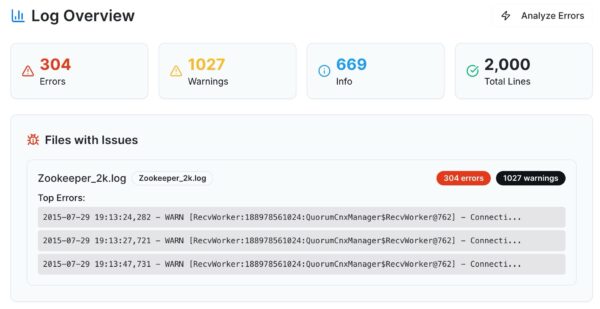
Start With the Overview
The dashboard helps you understand the scope of the issue. Look at error counts, warnings, timestamps, and total lines to get an immediate picture of system behavior.
Identify Problematic Files
Zight ranks files by severity so you know exactly where to begin. If one log file contains most errors, that is your first place to investigate.
Review Top Errors
The tool highlights recurring errors and warnings. These patterns reveal common failures like authentication issues, timeouts, or misconfigured services.
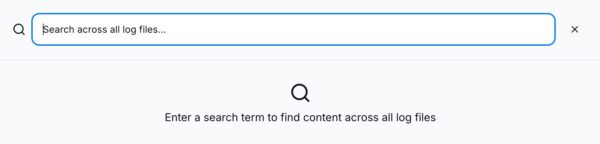
Use Search for Fast Debugging
Search for error codes, user IDs, function names, or system components to quickly jump to the relevant context. This is much faster than scrolling through raw logs.
Check Timestamp Patterns
Review logs around the time issues occurred to see what happened immediately before or after a failure.
Why Log Analysis Matters
Logs reveal everything: crashes, performance bottlenecks, configuration problems, and silent failures that dashboards do not always catch. Fast analysis reduces downtime, speeds up bug fixing, and improves overall system reliability.
Conclusion
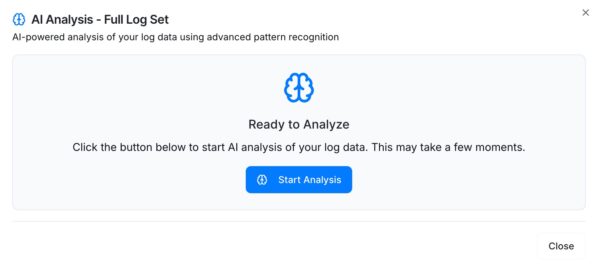
Zight’s Log Explorer makes troubleshooting faster and clearer. Upload your logs, get instant summaries, and dive into the details with powerful search and highlighted issues. Whether you are debugging a deployment, investigating errors, or assisting a customer, this tool helps you understand your logs in seconds.
Analyze logs quickly and confidently with Zight.
Unlock More Tools
Expand your toolkit with these additional free tools
Frequently Asked Questions
You can upload .log, .txt, or zipped logs.
Yes. Zight supports multi-file uploads and zip archives.
Yes. Recurring errors and warnings appear in the top error summaries.
No. Logs are processed temporarily and not stored long term.
No. Files remain unchanged. Zight only reads them.
Yes. The built-in search tool lets you find any term or pattern.
Most logs are supported, and larger files may take slightly longer to parse.
Yes. Zight runs fully in the browser.












