

Ready to Boost Your Productivity?
Save time and money while boosting your productivity with Zight — free tools for screen recording, screenshots, GIFs, and webcam capture.
Try Zight for FreeHow to Compress Videos for Discord
Upload Your Video
Drag and drop or select any MP4, MOV, or WebM file up to your preferred size. The tool supports videos from desktop, mobile, or cloud storage.
Adjust Compression Settings
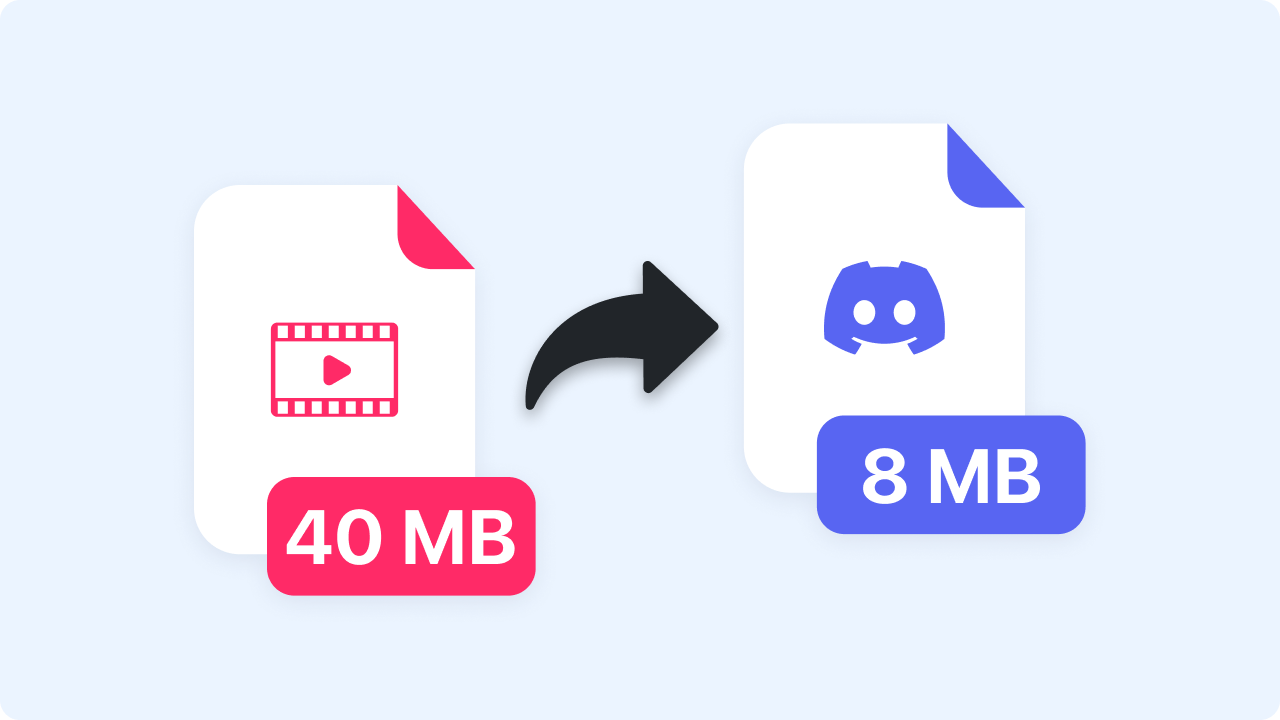
Choose your balance between quality and size. Set a target resolution (1080p, 720p, 480p) or a maximum file size under Discord’s upload limit (8MB for free users, 50MB+ for Nitro).
Download and Share
Preview the output, then download your smaller file. It’s ready to send in Discord chats, channels, or servers instantly.

Supported Formats and Options
Zight supports a wide range of video formats and codecs for Discord compatibility.
-
Input Formats: MP4, MOV, WEBM, AVI, MKV
-
Output Format: MP4 (H.264 codec recommended for Discord)
-
Compression Controls: Resolution, bitrate, frame rate, and audio optimization
You can also mute or trim clips before compression to reduce file size further.

Supported Use Cases
For Gamers
Share gameplay highlights, wins, and tutorials directly in chat.
For Streamers
Clip stream moments and post instantly to Discord communities.
For Teams
Compress work demos, screen recordings, or bug reports for quick feedback.
For Creators
Keep your short-form videos under size limits while maintaining HD quality.
Unlock More Tools
Expand your toolkit with these additional free tools
Ultimate Guide: Compressing Videos for Discord
Learn how to make your videos smaller and Discord-ready without sacrificing quality. Whether you’re posting highlights, tutorials, or memes, compression helps you share seamlessly.
Understanding Discord Limits
Free Discord accounts have an 8MB upload cap, which is often too small for uncompressed recordings. Nitro users get higher limits, but compression still improves upload speed and playback.
How Compression Works
Zight reduces file size by adjusting video bitrate, resolution, and encoding method. It keeps visual details intact by targeting efficient H.264 or H.265 codecs for compact, high-quality output.
Balancing Quality and Size
A small tweak in bitrate or frame rate can drastically lower file size without noticeable loss. Aim for 720p or 480p if you only need quick previews or clips for chat sharing.
Sharing After Compression
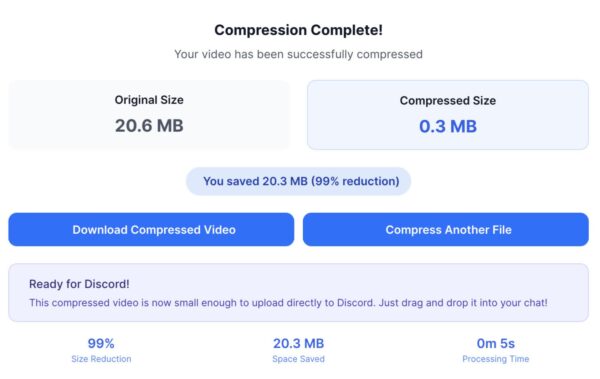
Once downloaded, your compressed file can be uploaded directly to Discord — no third-party hosting, links, or delays. Drag and drop into a channel and you’re done.
Conclusion
Zight’s Discord Video Compressor makes sharing videos simple, fast, and frustration-free. Compress any video to fit Discord’s upload limits while keeping quality intact — all directly in your browser.
Keep your conversations flowing without “file too large” interruptions.
Compress your video now with Zight.












