
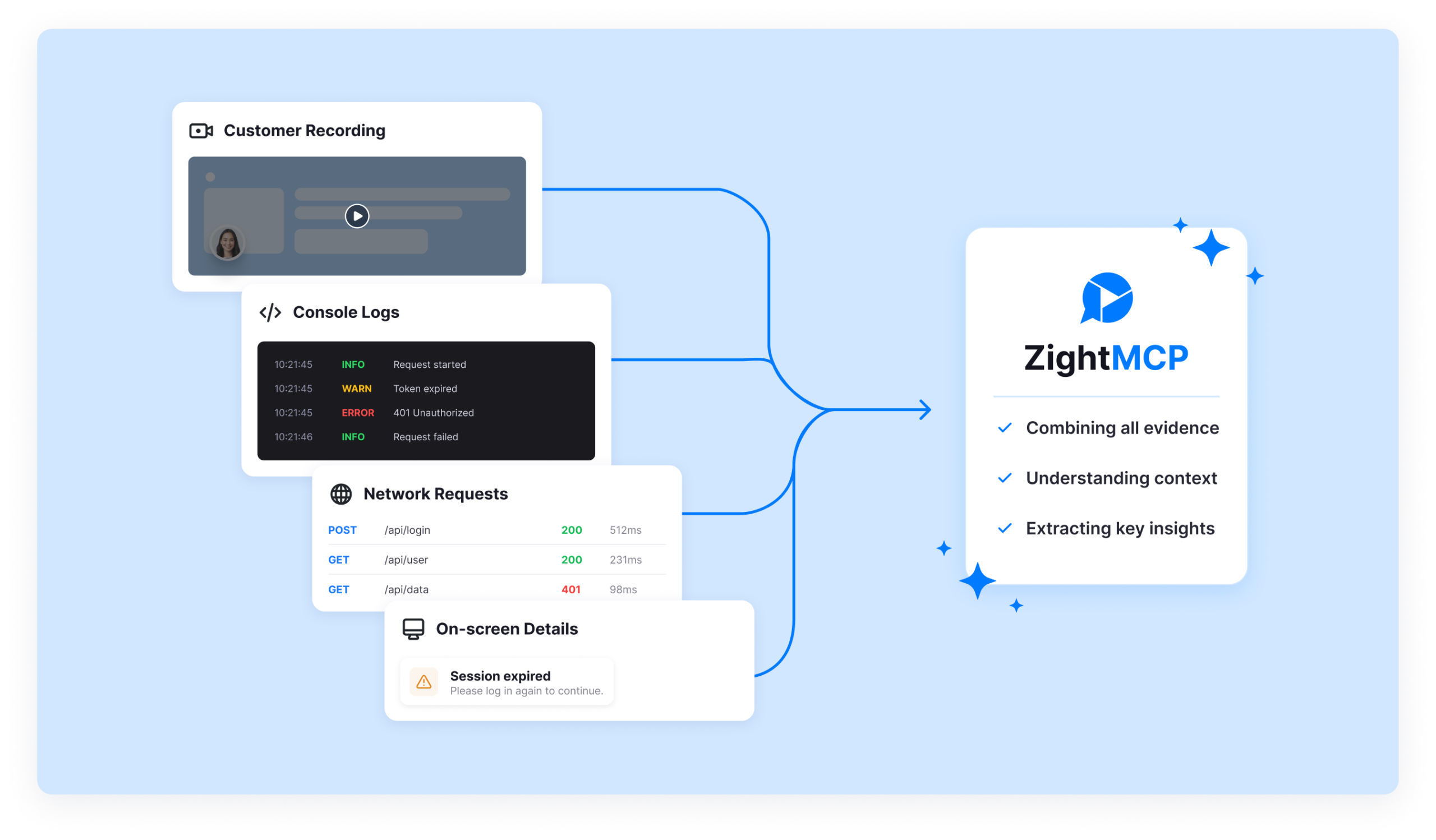
Most AI tools are only as good as the context you give them. That is a problem for visual work because the best evidence often lives inside a screen recording, request video, transcript, screenshot, console log, or network log instead of a tidy written prompt.
A customer records a bug. A support rep captures console errors. A product manager records a walkthrough. A teammate sends a Zight link that shows the exact moment something failed. The context exists, but someone still has to translate it into a prompt before an AI assistant can help.
Zight MCP Server helps bridge that gap. It lets MCP-compatible AI tools retrieve context from Zight links so the assistant can reason from the actual recording and supporting evidence, not only from a pasted summary.
What is Zight MCP Server?
Short answer: Zight MCP Server is a remote MCP server that gives AI agents approved access to the visual and technical context behind Zight links, including screen recordings, transcripts, OCR text, request videos, console logs, and network details when those are available.
MCP stands for Model Context Protocol. In practical terms, MCP gives AI tools a standardized way to connect to external systems. Instead of copying data out of Zight and pasting it into an assistant, teams can connect an MCP-compatible app and ask it to use the context behind a Zight link.
What is MCP visual context?
MCP visual context is the screen, audio, transcript, OCR, and diagnostic evidence that explains what happened in a visual workflow. For Zight customers, that context might include what a customer clicked, what appeared on screen, what the browser logged, what the customer said, and which steps led to the issue.
That matters because visual work loses value when it is flattened into a sentence like “the button is broken.” The recording may show the browser, account state, UI path, error message, environment details, and user expectation. Zight MCP Server helps AI agents work from that richer source evidence.
How to connect Zight MCP Server
Add the Zight MCP Server URL to your MCP-compatible AI app:
https://mcp.zight.com/mcpThen authorize your Zight account and ask your assistant to use context from a Zight link. For the step-by-step connector flow, use the Zight MCP setup guide.
Example prompts for Zight MCP
- Review this Zight link and summarize the customer’s issue, key evidence, and recommended next action.
- Use the transcript, OCR, console logs, and network logs from this request video to identify the likely root cause.
- Turn this recording into a support handoff with reproduction steps, observed behavior, expected behavior, and open questions.
- Create a Jira-ready bug report from this Zight recording, including evidence and suggested priority.
- Review this customer walkthrough and identify anything product, engineering, or customer success should follow up on.
Why Zight MCP matters for support and product teams
Most customer and product issues are visual. A bug report may include a screen recording, the customer’s browser and device details, console errors, network requests, OCR from the screen, and a transcript of what the customer said while recording.
Without Zight MCP, someone has to review all of that manually, summarize it, and hope the summary includes the details that matter. With Zight MCP, an AI assistant can use the source context directly and help the team move faster.
That is especially useful with Request Video and data logs, where a customer can send a recording with technical context attached. It is also useful for meeting follow-ups, QA reviews, onboarding walkthroughs, and product feedback captured with Zight screen recording.
What teams can do with Zight MCP
- Support: summarize a customer recording, identify missing details, and recommend the next reply.
- Engineering: combine reproduction steps with console and network evidence to debug faster.
- Product: turn customer walkthroughs into themes, pain points, and follow-up questions.
- Customer success: prepare cleaner handoffs from recorded customer feedback.
- Operations: convert visual explanations into SOPs, action items, and searchable documentation.
Zight already helps teams capture and share visual work. Zight MCP Server makes that captured context easier for AI agents to use. Instead of asking people to rebuild the story, the assistant can start from the recording, transcript, OCR, logs, and item details already in Zight.
How this fits with Zight AI
Zight AI already helps turn recordings into useful outputs like transcripts, summaries, chapters, and guides. MCP adds another layer: it lets external AI assistants use Zight context as part of their own workflow. A team can capture the work in Zight, then let an MCP-compatible assistant help analyze, summarize, or route the next step.
For example, a team might record a customer issue, collect technical logs, then ask an assistant to create a concise support escalation. Another team might record a product walkthrough and ask the assistant to identify gaps, decisions, and follow-up actions. The goal is the same: less manual translation, better context, and faster work.
Get started
Start with the Zight MCP Server landing page for the server URL and overview, then use the setup guide to connect your AI app. Once connected, paste a Zight link into your assistant and ask it to use the recording, transcript, OCR, logs, and available item context.
Zight MCP Server FAQ
What is Zight MCP Server?
Zight MCP Server is a remote MCP server that lets supported AI tools retrieve context from Zight links, including recordings, transcripts, OCR, request-video details, console logs, and network data when available.
What is MCP visual context?
MCP visual context is the screen, transcript, OCR, audio, and diagnostic evidence behind a Zight recording or request video. It gives AI agents the source context they need to summarize, debug, and prepare handoffs.
What is the Zight MCP server URL?
Use https://mcp.zight.com/mcp as the remote MCP server URL in MCP-compatible AI apps that support remote servers or custom connectors.
Which AI tools can connect to Zight MCP Server?
Any AI app that supports remote MCP servers or custom connectors may be able to connect, depending on the app’s MCP implementation, admin settings, and permissions.
What can AI agents use from a Zight link?
Depending on the Zight item, agents can use recordings, transcripts, OCR text, request-video submissions, console logs, network logs, summaries, and item metadata.












