
How to Record Screen on Windows 11: Two Methods (Built-In + Faster Cloud Alternative)
If you need to know how to record screen on Windows 11, you have two solid options: the free Xbox Game Bar already installed on your PC, or a purpose-built tool like Zight that records, uploads, and shares a link in one step. Whether you’re capturing a bug report, recording a product walkthrough, or saving a tutorial for a teammate, this guide walks you through both methods step by step — so you can pick the one that fits how you actually work.
⚡ Quick Answer
To record your screen on Windows 11 for free, press Win + G to open Xbox Game Bar, click the Record button, and save the MP4 to your Videos folder. For a faster workflow — especially if you need to share the recording — Zight is a screen recording, screenshot, and async video tool that instantly uploads your recording to the cloud and copies a shareable link to your clipboard. No file hunting, no uploading to Google Drive, no email attachments. Record → link → done.
Why You’d Want to Record Your Screen on Windows 11
Screen recording has gone from “nice-to-have” to daily necessity — especially for remote and hybrid teams. Here are the most common reasons people search for a Windows 11 screen recorder:
- Bug reports: Showing a developer exactly what happened is 10x faster than writing a paragraph describing it.
- Async walkthroughs: Onboard a new hire or explain a process without scheduling yet another meeting.
- Design feedback: Record your screen while narrating what works and what doesn’t — far clearer than Slack comments.
- Customer support: Walk a customer through a solution they can rewatch, reducing repeat tickets.
- Tutorials and documentation: Create internal knowledge base videos without expensive production.
The method you choose matters less than having one that doesn’t slow you down. Let’s start with what’s already on your PC, then show you a workflow that’s significantly faster for sharing.
Method 1: How to Record Screen on Windows 11 Using Xbox Game Bar (Free, Built-In)
Xbox Game Bar is Microsoft’s built-in screen recorder. It ships pre-installed with every copy of Windows 11, so there’s nothing to download. It was originally designed for capturing gameplay, but it works for any application window.
Step 1: Enable Xbox Game Bar
Xbox Game Bar should be enabled by default on Windows 11 (2024 and 2025 builds). To confirm:
- Open Settings (press Win + I).
- Navigate to Gaming → Xbox Game Bar.
- Make sure the toggle for “Open Xbox Game Bar using this button on a controller” is On. This also enables the keyboard shortcut.
If you don’t see the option, search “Xbox Game Bar” in the Microsoft Store and install it — it’s free.
Step 2: Open the App You Want to Record
Xbox Game Bar records one application window at a time — it cannot capture your full desktop, File Explorer, or the Windows desktop itself. Open the specific app (browser, Figma, VS Code, Slack, etc.) and make sure it’s in focus.
Step 3: Launch Xbox Game Bar and Start Recording
- Press Win + G to open the Game Bar overlay.
- Locate the Capture widget (it should appear automatically; if not, click the camera icon in the top toolbar).
- Click the ⏺ Record button (the circle icon) or use the shortcut Win + Alt + R to start recording immediately without opening the overlay.
- A small recording status bar appears in the top-right corner of your screen, showing elapsed time.
Tip: To record your microphone audio (for narration), click the microphone icon in the Capture widget before you start recording. By default, it captures system audio only.
Step 4: Stop the Recording
Click the ⏹ Stop button on the floating status bar, or press Win + Alt + R again. A notification will pop up saying “Game clip recorded.” Click it to open the file location.
Step 5: Find and Share Your Recording
Recordings are saved as MP4 files in:
C:\Users\[YourUsername]\Videos\CapturesFrom here, you’ll need to manually upload the file to Google Drive, Dropbox, Slack, or email to share it with anyone. This is where the workflow gets slow.
Xbox Game Bar Limitations to Know About
- No full desktop recording — only individual app windows.
- No webcam overlay — you can’t add a facecam to your recording.
- No annotation or drawing tools — you can’t highlight or mark up during recording.
- No cloud upload or link sharing — you get a local file and nothing else.
- No trimming or editing — you’ll need a separate tool to cut the video.
- Can’t record File Explorer or the desktop — a common frustration for IT teams.
For a quick one-off recording you’ll keep locally, Xbox Game Bar works. But if you’re recording to share with someone — a teammate, a customer, a stakeholder — the real bottleneck isn’t the recording. It’s everything that happens after.
Method 2: How to Screen Record on PC with Zight (Record + Share in One Step)
Zight is a screen recording, screenshot, GIF maker, and async video tool built for teams that need to share what’s on their screen — not just save it. Available on Windows, Mac, and Chrome, Zight eliminates the “record → save → find file → upload → copy link → paste” chain by doing it all in one action.
Here’s how to screen record on PC using Zight:
Step 1: Download and Install Zight for Windows
- Go to zight.com/windows and download the Windows app.
- Run the installer — setup takes under 60 seconds.
- Create a free Zight account (or sign in with Google).
Once installed, Zight lives in your system tray and is accessible via a global keyboard shortcut.
Step 2: Choose Your Recording Mode
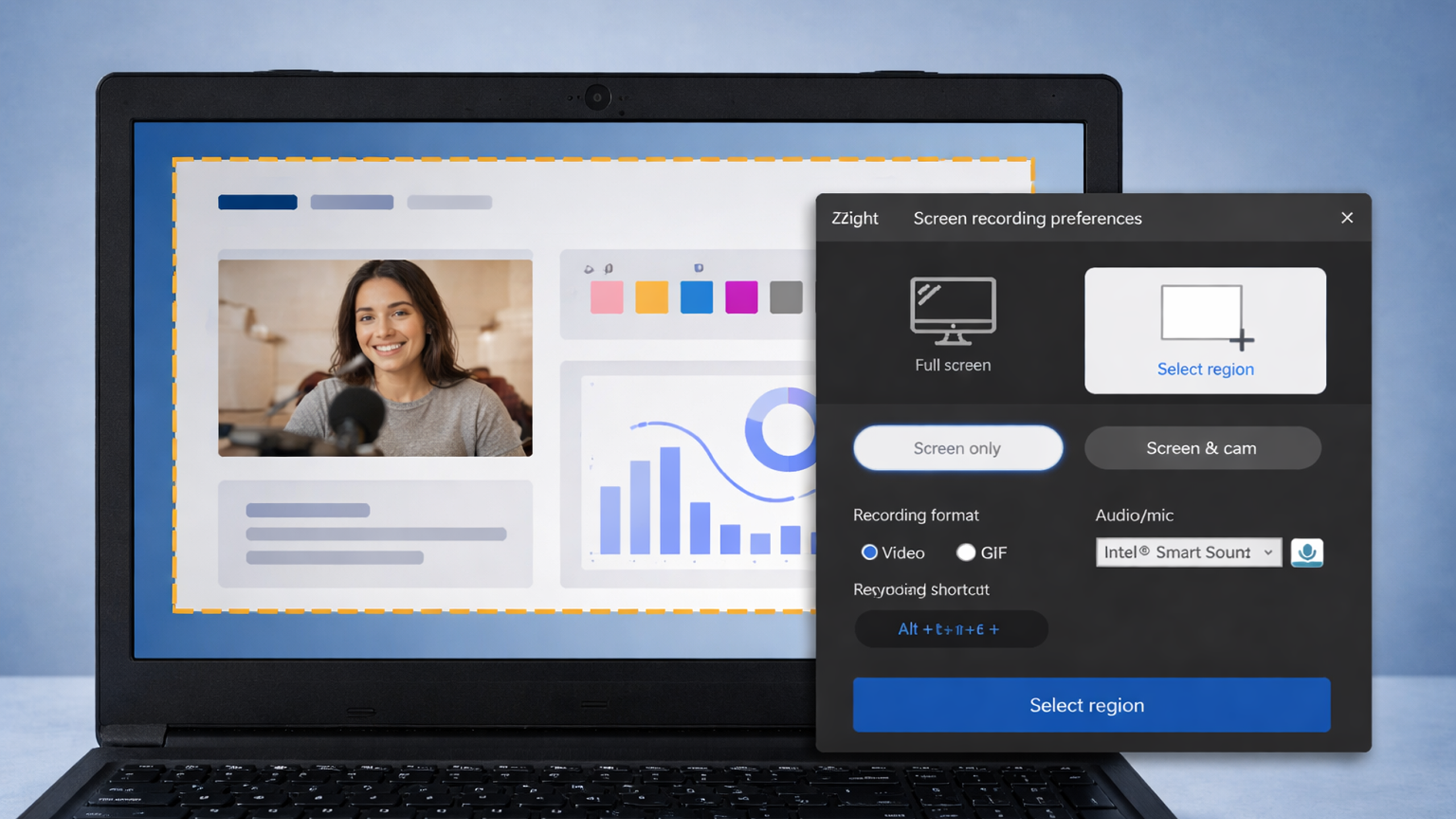
Click the Zight icon or use the keyboard shortcut to open the recording menu. You can choose:
- Full screen recording — captures everything on your display, including the desktop and File Explorer.
- Select region — drag to choose a specific area of your screen.
- App window — record a single application window.
- Webcam + screen — add a facecam overlay for walkthroughs, async standups, or customer explanations.
Toggle your microphone and system audio on or off before recording.
Step 3: Record Your Screen
- Click Start Recording (or press the keyboard shortcut).
- Walk through whatever you need to capture — a bug, a tutorial, a process, a feedback session.
- Use Zight’s annotation tools to draw arrows, highlight areas, or add text while recording.
Step 4: Stop Recording — Your Link Is Already Ready
Click the Stop button. Here’s what happens next — and this is the key difference:
- Zight automatically uploads your recording to the cloud.
- A shareable link is instantly copied to your clipboard.
- You can paste that link into Slack, Jira, Notion, email, a GitHub issue — anywhere.
No file hunting. No uploading to a separate service. No waiting for Google Drive to process. The link works immediately, and the recipient can watch it in their browser — no download required.
Step 5: Trim, Annotate, or Add Context (Optional)
After recording, Zight opens a preview page where you can:
- Trim the beginning and end of the video (no separate editing software needed).
- Add a title and description for context.
- Set expiration dates or password protection for sensitive content.
- View analytics — see who watched your recording and for how long.
Xbox Game Bar vs. Zight: Windows 11 Screen Recorder Comparison
Here’s an honest side-by-side to help you decide which Windows 11 screen recorder fits your workflow:
| Feature | Xbox Game Bar | Zight |
|---|---|---|
| Price | Free (built into Windows 11) | Free plan available; paid plans from $9/mo |
| Full desktop recording | ❌ No (app windows only) | ✅ Yes |
| Select region recording | ❌ No | ✅ Yes |
| Webcam overlay | ❌ No | ✅ Yes |
| Microphone + system audio | ✅ Yes (must enable mic separately) | ✅ Yes (one-click toggle) |
| Annotation while recording | ❌ No | ✅ Yes (arrows, text, highlights) |
| Auto cloud upload | ❌ No (saves locally) | ✅ Yes (instant) |
| Shareable link | ❌ No (manual upload required) | ✅ Yes (copied to clipboard automatically) |
| Trimming / basic editing | ❌ No | ✅ Yes (built-in) |
| Password protection | ❌ No | ✅ Yes |
| View analytics | ❌ No | ✅ Yes (who watched, how long) |
| GIF creation | ❌ No | ✅ Yes |
| Screenshot + annotation | Limited (Snipping Tool is separate) | ✅ Yes (all-in-one) |
| Works on Mac + Chrome too | ❌ Windows only | ✅ Yes |
The bottom line: Xbox Game Bar is fine for saving a quick local recording. Zight is built for people who record screens to communicate — and need the recording in someone else’s hands in seconds, not minutes.
When to Use Each Method
Use Xbox Game Bar when:
- You need a quick local recording and don’t plan to share it.
- You’re recording a single app window and don’t need annotation.
- You can’t install third-party software (strict IT policy).
- You’re capturing gameplay specifically (its original purpose).
Use Zight when:
- You’re recording to share with a teammate, customer, or stakeholder.
- You need full desktop or region recording.
- You want a webcam overlay for async standups or walkthroughs.
- You’re tired of the “record → save → upload → copy link” workflow.
- You work on a cross-platform team (Zight works on Windows, Mac, and Chrome).
- You need to know if the recipient actually watched your recording.
Pro Tips for Better Screen Recordings on Windows 11
Regardless of which tool you use, these tips will improve every recording:
- Close notifications before recording. Press Win + I → System → Notifications → turn on Do Not Disturb, or use Focus Assist. Nothing kills a professional recording like a personal notification sliding in.
- Use a decent microphone. Your laptop’s built-in mic is passable, but even a $30 USB mic dramatically improves audio clarity. If you’re recording walkthroughs regularly, it’s worth the investment.
- Plan your recording before hitting record. Spend 30 seconds mentally mapping what you’ll show and say. Recordings with a clear beginning-middle-end are far more useful than stream-of-consciousness captures.
- Keep recordings under 3 minutes. Research consistently shows engagement drops sharply after 3 minutes for async video. If you need more time, break it into parts.
- Use annotation to guide the viewer’s eye. If you’re using Zight, draw arrows or highlight the specific button, error message, or section you’re discussing. Don’t make your viewer hunt for the relevant area. For laptop-specific tips, check out our guide on how to screen record on HP laptops.
Real-World Use Cases: How Teams Use Screen Recording on Windows 11
Developers: Bug Reports That Actually Get Fixed
Instead of writing “When I click the submit button, sometimes nothing happens, but sometimes it works, and I think it might be related to the dropdown selection,” record a 45-second video showing the exact steps. Paste the Zight link in the Jira ticket. The engineer sees the problem immediately. Issue resolved in one cycle instead of three back-and-forth comments.
Product Managers: Async Demos and Feedback Requests
Record a 2-minute walkthrough of a new feature prototype. Share the Zight link in your Slack channel with “Feedback by Friday?” Stakeholders watch on their own time, at their own pace. No 30-minute meeting required for a 2-minute demo.
Customer Success: Support That Scales
Record a step-by-step walkthrough answering a common customer question. That single recording can be reused in help docs, shared in support tickets, and embedded in onboarding emails. One recording replaces dozens of live calls.
Frequently Asked Questions
Does Windows 11 have a built-in screen recorder?
Yes. Windows 11 includes Xbox Game Bar as a built-in screen recorder. You can access it by pressing Win + G or start recording directly with Win + Alt + R. However, it only records individual app windows — not your full desktop — and it saves files locally with no cloud sharing option. For full-screen recording with instant cloud sharing, tools like Zight’s screen recorder are a more complete solution.
How do I screen record on PC with audio?
With Xbox Game Bar, system audio is captured by default. To include your microphone, open the Game Bar overlay (Win + G) and click the microphone icon in the Capture widget before recording. With Zight, you toggle both microphone and system audio with a single click before you hit record — and the audio settings persist between sessions so you don’t have to reconfigure each time.
Can I record my full desktop screen on Windows 11?
Not with Xbox Game Bar — it’s limited to recording one application window at a time. You cannot capture the Windows desktop, File Explorer, or switch between multiple apps during a recording. Zight supports full-screen recording, region selection, and multi-monitor setups, making it a better fit when you need to record everything visible on your display.
Where are Xbox Game Bar recordings saved on Windows 11?
Xbox Game Bar saves screen recordings as MP4 files in C:\Users\[YourUsername]\Videos\Captures. You can change this location in Settings → Gaming → Captures. Keep in mind that these are local files — to share them, you’ll need to manually upload them to a cloud service or attach them to an email.
Is Zight free to use as a Windows 11 screen recorder?
Zight offers a free plan that includes screen recording, screenshots, and GIF creation with cloud storage and shareable links. Paid plans (starting at $9/month as of 2026) unlock additional features like longer recording durations, custom branding, view analytics, and advanced team collaboration tools. You can get started with Zight here.
Start Recording Your Screen on Windows 11 Today
You now know two proven methods for how to screen record on PC. Xbox Game Bar gets the job done for quick, local captures. But if you record screens to communicate — to explain, to teach, to report, to collaborate — the bottleneck was never the recording itself. It was getting that recording into the right person’s hands.
That’s exactly the problem Zight solves. Record your screen, get an instant shareable link, and move on with your day. No file management. No uploading. No waiting.













Leave a Reply