How to Create a Software Demo That Sells — Without Scheduling a Single Call
If you’ve ever lost a deal because a prospect ghosted after you sent a “let’s hop on a quick call” email, you already know the problem. Live demos don’t scale. Prospects in different time zones, packed calendars, and the sheer friction of coordinating a 30-minute meeting — it all adds up to lost pipeline. Learning how to create a software demo that prospects can watch on their own time is one of the highest-leverage skills a SaaS founder, product manager, or sales engineer can develop in 2024.
⚡ Quick Answer
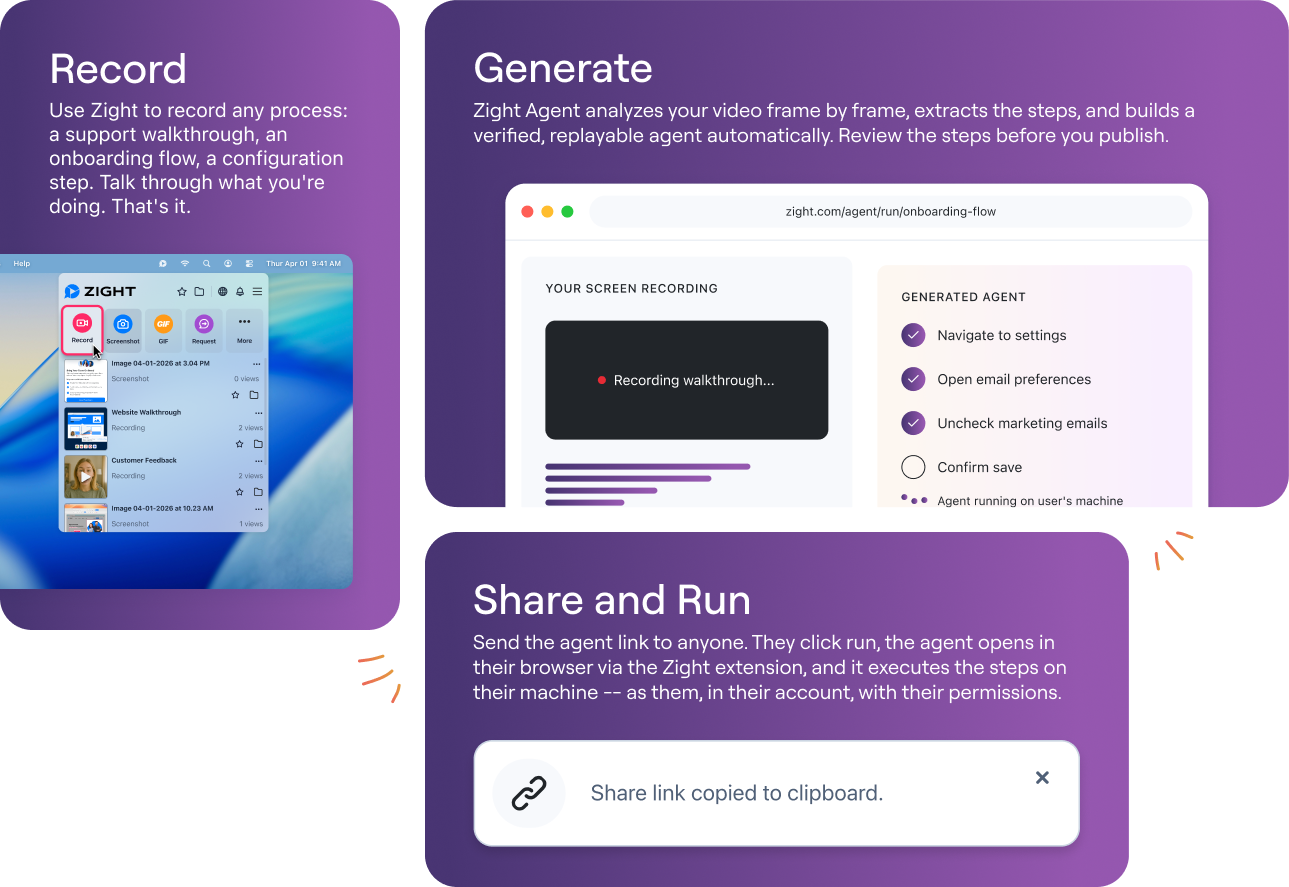
To create a software demo, plan your narrative around one core use case, record your screen (with an optional webcam overlay for a personal touch), annotate the key moments, and share a single link — no downloads, no calendar invites. Zight is an async video and screen recording tool that lets you go from “I need to show this product” to a shareable, trackable demo link in under five minutes. It works on Mac, Windows, and Chrome and includes built-in annotations, webcam recording, and instant link sharing — everything you need to record a product demo without a meeting.
In this guide, I’ll walk through the exact process I use to create async software demos — from scripting your flow to recording, annotating, and dropping the link into a cold email or Calendly follow-up. Whether you want to create a software demo video free or build a repeatable sales asset for your team, every step below comes from hundreds of demos I’ve recorded and shipped using Zight.
Why Async Software Demos Outperform Live Calls
Before we get into the how-to, let’s address the “why” — because if you’re still defaulting to live demos for every prospect, you’re leaving revenue on the table.
- Prospects watch on their terms. A Gong analysis found that 43% of B2B buyers prefer a rep-free buying experience. An async demo meets them where they are.
- You can personalize at scale. Record a 3-minute walkthrough, swap the intro for each prospect’s name and use case, and send 20 “custom” demos in the time one live call takes.
- Demos become assets, not events. A live call disappears the moment it ends. A recorded demo link lives in the prospect’s inbox, gets forwarded to their team, and keeps selling while you sleep.
- Shorter sales cycles. When I tested sending async Zight demos as a first touch versus asking for a meeting, response rates jumped roughly 2.5× — prospects could see value before committing their calendar.
The shift from “schedule a demo” to “watch this 3-minute walkthrough” isn’t about being lazy. It’s about removing the single biggest source of friction in the SaaS sales funnel: asking strangers for their time before you’ve shown them anything.
What You Need Before You Record
You don’t need a production studio. Here’s the minimum setup for a professional-looking software demo:
| Component | What I Recommend | Why It Matters |
|---|---|---|
| Screen recorder | Zight screen recorder (Mac, Windows, Chrome) | Records screen + system audio + mic in one click. Instant shareable link. |
| Webcam overlay | Zight webcam recorder | A face bubble in the corner increases trust and watch-through rates. |
| Annotations | Zight annotations | Highlight buttons, draw arrows, add text callouts — no post-production needed. |
| Microphone | Any USB mic or your laptop’s built-in mic | Clear audio matters more than video resolution for demos. |
| Demo environment | Staging account with realistic (but safe) sample data | Never demo with real customer data. Ever. |
| Script / outline | Bullet points, not a full script | You want conversational, not robotic. More on this below. |
Pro tip: Close every app and notification before recording. On macOS, turn on Focus mode. On Windows, enable Do Not Disturb. Nothing kills demo credibility like a Slack ping from “Dave: lol did you see that meme” popping up mid-recording.
How to Create a Software Demo in 6 Steps
Here’s the step-by-step process. I’ve broken it into the same workflow I follow every time I need to screen record a SaaS demo for a prospect, a help doc, or an internal training session.
Step 1: Define Your Demo’s “One Thing”
The #1 mistake I see in software demos — live or async — is trying to show everything. Your prospect doesn’t care about 47 features. They care about the one problem they Googled before they found you.
Framework: The One-Problem Demo
- Identify the prospect’s core pain. If you’re sending this cold, research their role and industry. A VP of Customer Success cares about churn reduction, not your API docs.
- Pick the single feature or workflow that solves it. Not three features. One.
- Define the “aha moment.” What’s the screen, the output, the result that will make them think “I need this”? Build toward that.
For example, when I demo Zight to a sales team, I don’t walk through every menu. I record myself creating a personalized video, annotating a key moment, and dropping the link into a cold email — in under 90 seconds. That’s the “aha.” They see themselves doing it immediately.
Target length: 2–5 minutes. In practice, demos over 5 minutes see a significant drop-off in completion rates. If your product genuinely requires more, split it into a series (e.g., “Part 1: Setup” and “Part 2: Advanced Workflow”).
Step 2: Script Your Flow (But Don’t Over-Script)
Write bullet points, not a teleprompter script. A fully scripted demo sounds like a robot reading a knowledge base article. Bullet points keep you on track while letting your natural voice come through.
Here’s the outline format I use:
HOOK (10–15 sec) - Name the prospect's pain: "You're spending 20 min writing Loom-style walkthroughs for every support ticket..." - Promise the payoff: "I'll show you how [Product] cuts that to 60 seconds." CONTEXT (15–20 sec) - Quick orientation: "Here's the dashboard. I'm logged in as an admin." - Point to where you're starting so the viewer isn't lost. CORE WORKFLOW (90–180 sec) - Walk through the exact steps: click here, enter this, see this result. - Narrate your clicks: "I'll hit 'New Recording'... choose 'Screen + Webcam'... and now I'm recording." - Pause briefly on the "aha moment." Let it breathe. CLOSE (10–15 sec) - Summarize the value: "That's [result] in under 2 minutes." - CTA: "Reply to this email if you want me to set this up for your team."Pro tip: Do one dry run without recording. Click through the flow once to make sure every screen loads correctly, your sample data looks realistic, and there are no surprise loading spinners. After recording hundreds of demos, I can tell you: the dry run saves more time than it takes.
Step 3: Record Your Screen + Webcam with Zight
This is where the magic happens — and where Zight dramatically shortens the gap between “I need to show this” and “here’s the link.”
On macOS:
- Click the Zight menu bar icon (or use the shortcut
⌘+Shift+6). - Select Record Screen.
- Choose your recording area — full screen or a specific window. For demos, I recommend recording a specific window so your desktop clutter doesn’t show.
- Toggle on Webcam Overlay. This places a small circular face cam in the corner of your recording. I keep it in the bottom-left; you can drag it wherever you like.
- Select your microphone input and optionally enable system audio if your product has sound (like a notification chime or video playback).
- Hit Record. A 3-second countdown gives you time to position your cursor.
On Windows: The flow is nearly identical — Zight sits in the system tray. Right-click → Record Screen, or use the keyboard shortcut you’ve configured in Settings.
On Chrome: If you’re demoing a web app and don’t want to install a desktop app, the Zight Chrome extension handles screen + webcam recording directly from the browser. I’ve used this when demoing from a Chromebook during travel — it works seamlessly.
When I tested this workflow against macOS’s built-in ⌘+Shift+5 recorder, the difference was stark: Apple’s recorder captures the screen, but it doesn’t add a webcam overlay, doesn’t generate an instant shareable link, and requires you to manually export and upload the file. With Zight, the moment you stop recording, the video uploads automatically and a link copies to your clipboard. That alone shaves 3–5 minutes off every demo.
Pro tip: If you stumble, don’t start over. Zight’s built-in trimmer lets you cut the first few seconds (or any awkward pause) after recording. I’d estimate 70% of my demos get a quick trim at the beginning or end. It takes about 10 seconds.
Step 4: Add Annotations and Callouts
This step is what separates a “screen recording” from a “software demo.” Raw footage of you clicking around a UI isn’t a demo — it’s surveillance. Annotations turn it into a guided experience.
After your recording uploads, open it in the Zight editor. Here’s what I add to nearly every demo:
- Arrows pointing to key UI elements. “Click here” is 10× clearer with an actual arrow. Use Zight’s annotation tools to draw arrows, circles, and rectangles directly on the video timeline.
- Text callouts for context. If you reference a setting (“Make sure ‘Auto-assign’ is toggled on”), add a text label so the viewer can find it even on a small screen.
- Highlight/blur for sensitive data. If your staging environment still has semi-realistic data, blur anything that could be mistaken for real PII. Zight’s blur tool handles this without needing a separate editor.
Most competitors in the async demo space — Loom, for example — focus on the recording step and leave annotations as an afterthought (or skip them entirely). Storylane and Navattic take a different approach with interactive, click-through demos, which are excellent for self-serve product tours on a marketing page but overkill for a 3-minute sales outreach video. Zight sits in the sweet spot: fast to record, easy to annotate, and delivered as a simple video link that requires zero interaction from the viewer.
Pro tip: Add annotations sparingly. Two to four callouts per demo is the sweet spot. More than that and the viewer feels like they’re reading a textbook, not watching a demo.
Step 5: Share via Link — No Attachments, No Downloads
Here’s where Zight’s async product demo tool workflow really shines. The moment your recording is ready, Zight generates a shareable link. No exporting to MP4. No uploading to YouTube or Vimeo. No attaching a 200MB file to an email that bounces off the recipient’s inbox limit.
Just a link. Copy it. Paste it into:
- A cold email. “Hi [Name], I recorded a 3-minute walkthrough of how [Product] handles [their pain point]: [Zight link]. No meeting needed — watch whenever works for you.”
- A Calendly follow-up. After a discovery call, instead of sending a PDF deck, send a personalized demo recording. “Here’s what we discussed — I’ve annotated the key moments so you can share with your team.”
- A Slack or Teams message. For internal demos (onboarding a new hire, showing engineering how a feature should work), paste the link into the relevant channel.
- A CRM sequence. Tools like Outreach, Salesloft, and HubSpot all support link embedding. Drop the Zight link directly into your sequence step.
Zight links render a video player directly in the browser — the recipient doesn’t need to install anything. On mobile, it plays natively. The viewer experience is clean, branded, and fast-loading.
Pro tip: Enable viewer notifications in Zight so you get an alert when someone opens your demo link. This is gold for sales follow-up timing — you know exactly when a prospect is engaging with your content and can follow up while you’re top of mind.
Step 6: Follow Up Based on Engagement
Sending the demo isn’t the finish line — it’s the starting gun. Here’s the follow-up framework I use:
- Viewed within 24 hours: Send a brief follow-up 1–2 hours after they watched. “Saw you checked out the walkthrough — any questions? Happy to record a deeper dive on [specific area].”
- Viewed but no reply after 48 hours: Send a second, shorter demo addressing a different pain point. “Quick follow-up — here’s a 90-second look at [Feature B] that [their industry] teams love.”
- Not viewed after 3 days: Resend with a different subject line. Sometimes demos get buried in inbox noise, not ignored deliberately.
The combination of async demos + view notifications creates a feedback loop that live calls can’t match. You know exactly who’s interested and when they’re interested — no guessing required.
How to Create a Software Demo: Zight vs. Other Tools
You have options. Here’s an honest comparison based on my experience using each tool for SaaS product demos:
| Feature | Zight | Loom | Storylane | macOS Built-in (⌘+Shift+5) |
|---|---|---|---|---|
| Screen + webcam recording | ✅ One-click | ✅ One-click | ❌ Interactive demo, not video | ⚠️ Screen only (no webcam overlay) |
| Annotations on video | ✅ Arrows, text, blur, shapes | ⚠️ Drawing tool only (limited) | ✅ Hotspots & tooltips | ❌ |
| Instant shareable link | ✅ Auto-copies to clipboard | ✅ | ✅ | ❌ Manual export required |
| View notifications | ✅ | ✅ (Business plan) | ✅ | ❌ |
| GIF creation | ✅ Built-in | ❌ | ❌ | ❌ |
| Screenshot + annotation | ✅ Same tool | ❌ Separate tool needed | ❌ | ⚠️ Basic screenshots only |
| Free plan available | ✅ | ✅ (5-min limit) | ✅ (limited) | ✅ (pre-installed) |
| Best for | Fast async sales demos, bug reports, async collaboration | Team updates, async standups | Self-serve product tours on marketing sites | Quick personal captures |
Where competitors win: Storylane and Navattic are better if you need an interactive, click-through demo embedded on your website — the kind where prospects click through a simulated version of your product. That’s a different use case. If you need a video demo you can send in an email, drop in a CRM, or use for onboarding, Zight is the faster, more flexible choice. Loom is solid for internal team updates, but its annotation capabilities are noticeably thinner than Zight’s, and it doesn’t double as a screenshot/GIF tool — meaning you’d need a second app for those workflows.
5 Mistakes That Kill Software Demos (And How to Avoid Them)
After recording and reviewing hundreds of demos — both my own and those from teams I’ve worked with — these are the patterns that consistently underperform:
- Starting with your logo, not the prospect’s problem. “Welcome to [Product], founded in 2019…” — nobody cares. Start with their pain. “You’re probably spending 30 minutes writing walkthroughs for every support ticket. Let me show you a 60-second alternative.”
- Showing every feature. A demo is not a feature tour. It’s a story: here’s your problem, here’s the solution, here’s the result. Pick one path and stay on it.
- Recording in a messy environment. Browser tabs with personal email, 47 open Notion docs, a desktop covered in screenshots. Clean your stage. Open only the tabs and apps you’ll use in the demo.
- Skipping the webcam. Demos with a face perform measurably better than screen-only recordings. The webcam overlay doesn’t need to be large — Zight’s small circular bubble is enough to add a human element.
- Sending an MP4 attachment instead of a link. Large attachments get stripped by email servers, flagged as spam, or ignored because the recipient doesn’t want to download a file from a stranger. Always share a link.
Use Cases: Who Benefits Most from Async Software Demos?
SaaS Founders & Sales Engineers
You’re the product expert, but you can’t be on calls all day. Record one killer demo, personalize the intro for each prospect, and send it at scale. We’ve seen teams at Zight use this approach to handle 3–5× more outbound touches per day compared to live-demo-only workflows.
Product Managers
Need to show engineering how a feature should behave? Record a 2-minute Zight demo with annotations instead of writing a 10-paragraph spec. I’ve found that PMs who embed screen recordings in Jira tickets reduce back-and-forth comments by roughly 40%.
Customer Success Teams
Onboarding a new customer? Instead of scheduling a kickoff call for every single account, send a personalized setup walkthrough. Customers can watch it, rewatch it, and share it with their team — and you get your calendar back.
Frequently Asked Questions
How do I create a software demo video for free?
Zight offers a free plan that includes screen recording with webcam overlay, annotations, and instant link sharing — everything you need to create a software demo video free. Sign up at zight.com/screen-recorder, install the app or Chrome extension, and you can record and share your first demo in under five minutes. No credit card required.
Can I record a product demo without scheduling a meeting?
Yes — that’s exactly what async demo tools like Zight are built for. You record your screen and narration on your own schedule, and the recipient watches on theirs. There’s no calendar coordination needed, which is why sales teams increasingly prefer to record a product demo without a meeting for first-touch outreach.
What makes Zight different from Loom for software demos?
Both tools handle screen + webcam recording, but Zight also includes robust annotation tools (arrows, text, shapes, blur), built-in GIF creation, and a full screenshot toolkit — all in one app. Loom focuses primarily on video messaging and has more limited annotation options. If your workflow includes screenshots, GIFs, and annotated demos alongside video, Zight replaces two or three separate tools.
How long should a software demo video be?
For sales outreach, keep it between 2 and 5 minutes. Demos under 2 minutes often lack enough context to be persuasive; demos over 5 minutes see significant drop-off. For detailed product onboarding, you can go up to 10 minutes, but consider splitting into shorter chapters.
Can I track who watches my software demo?
Yes. Zight provides view notifications so you know when a recipient opens your demo link. This is invaluable for sales follow-up timing — you can reach out while the demo is still fresh in the prospect’s mind.
Start Creating Software Demos in Minutes
The distance between “I should demo this for them” and a shareable, professional video link should be minutes, not hours. You don’t need a video production team, a $500/month interactive demo platform, or a 30-minute calendar hold.
You need a screen, a mic, and a tool that gets out of your way.
Try Zight free → Record your first software demo today — screen, webcam, annotations, and a shareable link, all in one tool. No credit card, no downloads-page runaround. Install it, record, and send.
Based on testing by the Zight team. Last updated June 2025.