
- Centralized Access: All files are stored in one place, ensuring everyone works with the latest version.
- Permanent Documentation: Changes, feedback, and decisions are tracked, creating a searchable archive.
- Reduced Real-Time Communication: Comments and updates can be shared directly on files, reducing the need for meetings.
- Better Feedback: Tools like annotations and version control make collaboration easier and more precise.
- Cross-Platform Use: These tools work seamlessly across devices, ensuring accessibility anytime, anywhere.
What Is Asynchronous Collaboration
Defining Asynchronous Workflows
Asynchronous collaboration is a work style where team members contribute at their own pace, rather than being tied to the same schedule. Instead of relying on real-time meetings or expecting immediate replies to messages, this approach uses tools like shared documents, project management software, and recorded communications. These tools allow people to access and respond to information when it suits them best. Unlike synchronous collaboration, which requires everyone to be present at the same time for instant feedback, asynchronous workflows give individuals the freedom to review and respond on their own schedule. This shift changes how communication flows. In an asynchronous setup, there’s no expectation for real-time interaction. When you send a message or share a document, colleagues can take the time to process the information and respond thoughtfully. This approach not only encourages deeper thinking but also creates a permanent, searchable record of discussions and decisions. By eliminating the need for constant real-time communication, asynchronous workflows reduce interruptions and pave the way for better productivity and inclusivity.Main Benefits of Asynchronous Collaboration
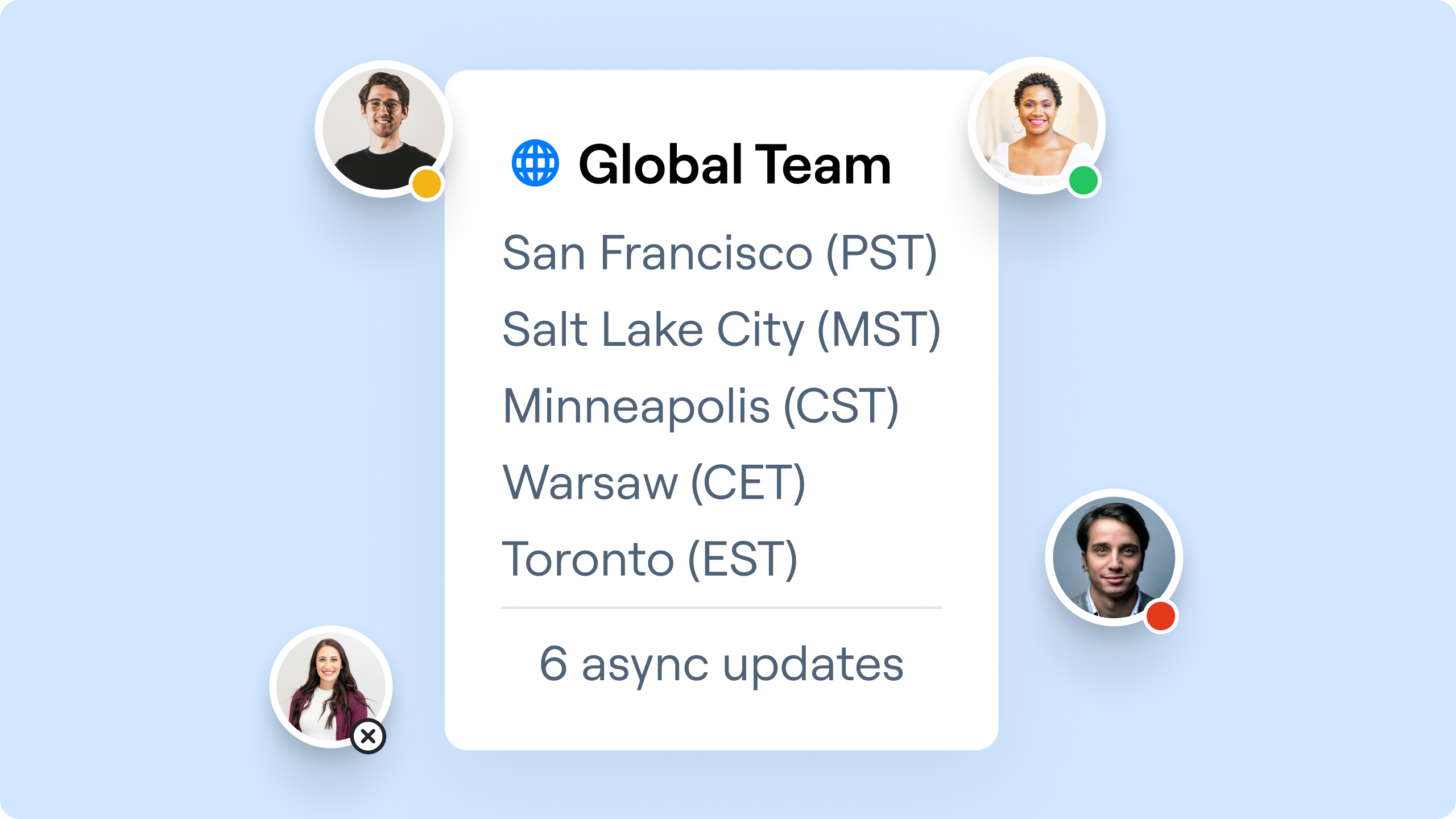
The unique structure of asynchronous collaboration brings more than just flexibility, it can significantly enhance how teams operate. For instance, 77% of millennials report that flexible hours improve their productivity. This boost stems from several factors that make asynchronous work so effective. One of its biggest advantages is time zone inclusivity. With remote work growing from 20% in 2020 to 28% by 2023, teams are increasingly spread across the globe. Asynchronous collaboration ensures that a developer in San Francisco doesn’t have to join a 6 AM call to work with a colleague in London. Everyone can contribute without sacrificing their personal schedules, making global teamwork smoother and more equitable.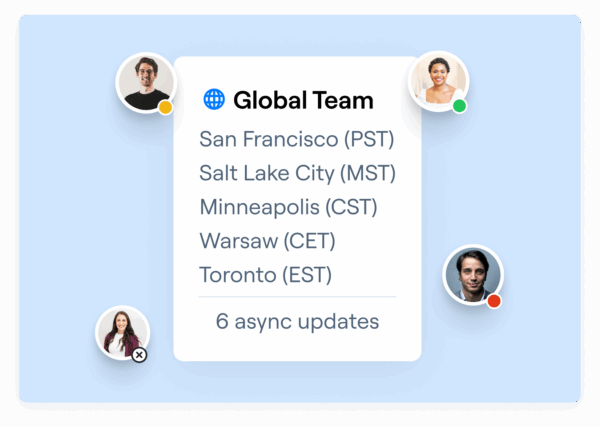 This inclusivity also supports overall team efficiency. By cutting down on unnecessary meetings, asynchronous workflows help reduce meeting fatigue, a common drain on productivity. File-sharing platforms and collaborative tools further replace real-time discussions, allowing team members to contribute when they’re most focused. Another benefit is the ability to foster enhanced focus and deep work. Without constant interruptions from meeting notifications or demands for immediate responses, people can dedicate uninterrupted time to their tasks. This approach minimizes context-switching, enabling team members to concentrate on meaningful work. Asynchronous collaboration also encourages more inclusive participation. In traditional meetings, dominant voices often overshadow quieter contributors or those who need extra time to process information. An asynchronous setup gives everyone the chance to share their thoughts, ensuring that all ideas are heard and considered. Additionally, better documentation naturally arises from this workflow. Written communication leaves behind a searchable record of decisions, feedback, and progress. This documentation proves invaluable for onboarding new hires, revisiting past decisions, and preserving institutional knowledge. That said, asynchronous collaboration isn’t without its challenges. Decision-making can slow down when input is needed from multiple people working on different schedules. There’s also a risk of miscommunication, as written discussions might not always capture the nuances of complex topics. To address these issues, teams often balance asynchronous workflows with occasional synchronous meetings for situations that require real-time interaction.
 How File Sharing Tools Improve Asynchronous Workflows
File sharing tools play a critical role in making asynchronous workflows more effective, especially for remote teams spread across different time zones. By offering centralized digital workspaces with constant access and tracking, these tools help teams stay organized and operate independently without losing efficiency. With these tools, teams can contribute, review, and track progress without needing to be online at the same time, ensuring everyone remains aligned and informed.Centralized Access and Permanent Documentation
One of the most valuable features of file sharing tools is their ability to centralize all team documents in one place. This eliminates the mess of scattered files and the confusion of working on outdated versions. When all team members have access to the latest updates in a single location, they can confidently work with the most accurate information, no matter when they log in. This single source of truth minimizes errors and ensures everyone stays on the same page.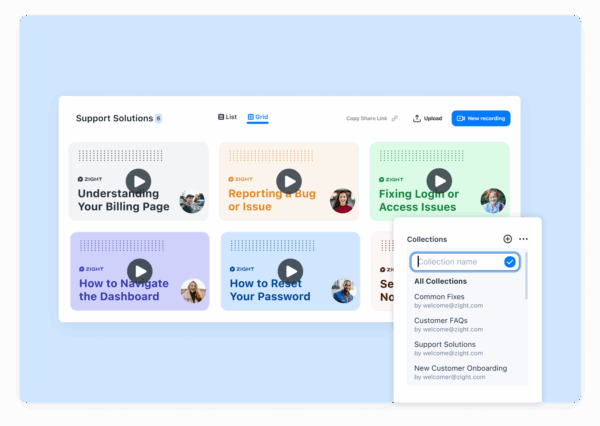 Another major advantage is the permanent documentation these tools provide. Every file upload, comment, or revision is saved, creating a searchable history that teams can revisit anytime – even months or years later. This is especially helpful during transitions, handoffs, or when reviewing past decisions. For example, if a new team member joins mid-project, they can quickly get up to speed by accessing this archive. Version control is another critical feature, keeping track of every change made to a document. This allows teams to experiment freely, knowing they can always revert to an earlier version if needed. It also ensures that one person’s updates don’t accidentally overwrite someone else’s work, fostering a more collaborative and secure environment. Transparency is a natural byproduct of centralized file sharing. Stakeholders can easily track progress, review deliverables, and understand key decisions, all without needing to schedule constant check-ins. This visibility allows managers to stay informed without micromanaging, freeing up time for more strategic tasks.
 Less Need for Real-Time Communication
File sharing tools also reduce the reliance on real-time communication by enabling contextual communication. Instead of scheduling meetings to discuss a document, team members can leave comments directly on specific sections, attach relevant files, and provide detailed feedback that others can address on their own schedule. This shift from verbal to written communication often leads to more thoughtful and precise discussions. Written feedback encourages clarity and reduces misunderstandings that might arise in spoken exchanges. For example, a team member can leave a detailed comment on a design mockup, explaining their thoughts with specificity that might be missed in a quick conversation. Status updates also become more efficient. Instead of dedicating meeting time to progress reports, team members can upload updated files or work-in-progress documents. Stakeholders can review these materials whenever it suits them, leaving comments or suggested edits as needed. This approach is especially valuable for global teams. A designer in New York can share files with a developer in Tokyo, who can then provide feedback and pass the work along to a teammate in London, all without anyone needing to adjust their schedules or sacrifice personal time for meetings. This flexibility ensures smoother collaboration across time zones.Better Collaboration and Feedback
File sharing tools take the hassle out of gathering feedback and make collaboration easier than ever. With collaborative editing features, multiple team members can work on the same document, even if they’re not online at the same time. Changes are tracked, conflicts are resolved automatically, and everyone can see who contributed what. This transparency simplifies teamwork and eliminates confusion. Annotation systems add another layer of precision to the feedback process. Instead of vague suggestions like “fix the third paragraph,” reviewers can highlight specific sections and leave detailed comments. This targeted feedback makes it easier for creators to understand and implement changes, saving time and avoiding unnecessary back-and-forth. Approval workflows built into these platforms further streamline the review process. Documents can be routed to the right people for approval, with visual indicators showing the status of each review. Any delays or bottlenecks become immediately visible, helping teams address issues quickly and keep projects moving forward. File sharing tools also support a variety of content types, making them ideal for multimedia collaboration. Teams can share and review design files, videos, presentations, and even interactive prototypes, each with specialized commenting and editing features. This versatility ensures that all types of creative and technical work benefit from asynchronous collaboration.Important Features of File Sharing Tools
File sharing platforms play a key role in improving asynchronous workflows by offering centralized access and better communication. But to truly support productivity, these tools need to go beyond simple file storage. They should make collaboration seamless, keep data secure, and fit into existing workflows. Knowing what features to look for can help organizations choose tools that genuinely enhance their operations.Basic Features for Collaboration
At the heart of any good file sharing tool is secure storage. Teams need to trust that their sensitive documents, designs, and data are protected. Encryption – both during transfers and while files are stored is a must. Most enterprise platforms ensure this level of security to keep confidential files safe from unauthorized access. Another essential is version control, which eliminates the mess of multiple drafts floating around. It allows teams to track edits, compare versions, restore earlier iterations, and merge changes without losing anything important. Permission settings are equally crucial. These allow administrators to control who can view, edit, or share files. Some team members might only need access to view documents, while others require full editing rights. This flexibility ensures sensitive information stays protected while enabling collaboration.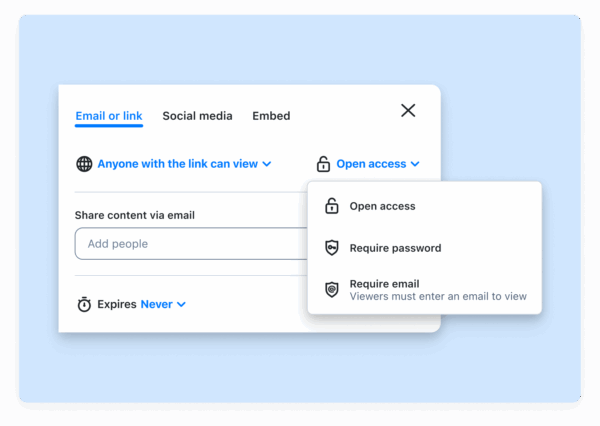 As file libraries grow, search functionality becomes a lifesaver. Advanced search tools make it easy to locate documents by name, tags, content, or even the person who last modified them. This feature saves countless hours that would otherwise be spent hunting through folders. Lastly, mobile access ensures team members can retrieve files anytime, anywhere. Apps with offline sync capabilities mean work doesn’t have to stop when internet connections are unreliable. These foundational tools make everyday collaboration easier, but advanced features can take teamwork to the next level.
 Advanced Features for Better Communication
Screen recording capabilities are a game changer for clear communication. Instead of writing out lengthy explanations, team members can record their screens while narrating. This makes it easier to explain software bugs, provide design feedback, or share ideas without confusion.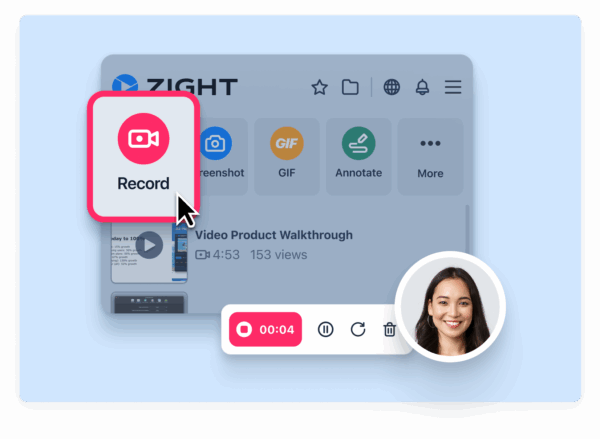 Visual annotations allow for precise feedback. By marking specific areas on a document or design, team members can give actionable guidance instead of vague comments. Multimedia support is essential for teams working with diverse content like videos, audio files, or interactive prototypes. A platform that supports these formats while maintaining collaboration features, like commenting and version tracking, keeps workflows smooth. Integration capabilities are another big plus. File sharing tools that connect with project management software, communication platforms, or design apps ensure files move seamlessly between stages of work without manual uploads or format headaches. Finally, AI-powered features are becoming increasingly valuable. Automatic transcription makes recorded content searchable and accessible, while translation tools help global teams collaborate across languages. Smart summaries can even extract key points from lengthy documents or meetings, saving time and effort.
 Feature Comparison Table
| Feature Category | Basic | Advanced | Enterprise |
|---|---|---|---|
| Storage & Security | Standard encryption, basic permissions | Advanced permissions, audit logs | Enterprise-grade security, compliance certifications |
| Collaboration | File sharing, basic comments | Real-time editing, visual annotations | Advanced workflows, approval processes |
| Communication | Text comments, file attachments | Screen recording, multimedia support | AI transcription, translation, smart summaries |
| Integration | Limited third-party apps | Popular tool integrations | Custom API access, enterprise integrations |
| Mobile Access | Basic mobile viewing | Full mobile editing capabilities | Offline sync, advanced mobile features |
| Analytics | Basic usage stats | Detailed collaboration metrics | Advanced reporting, team productivity insights |
Best Practices for Using File Sharing Tools in Workflows
How teams organize and use file sharing tools can make or break their efficiency. A poorly organized system turns these tools into a source of frustration, while a thoughtful setup transforms them into productivity powerhouses. When implemented well, file sharing tools not only simplify file management but also support independent and smooth progress in asynchronous workflows. A strong file setup becomes the backbone of clear communication and seamless collaboration.Setting Up and Organizing Files
Start with a folder structure that mirrors your workflow. Think of top-level folders as the “big buckets” for major projects, departments, or clients, and then create consistent sub-folders within them. For instance, a marketing team might use a structure like “Campaigns > 2025 > Q1 Product Launch > Creative Assets” instead of tossing everything into a generic “Marketing Stuff” folder. Use clear, descriptive file names to avoid confusion. Include details like dates, version numbers, and project codes. For example, instead of naming a file “presentation.pptx”, go for something like “Q1-2025-ProductLaunch-Deck-v3-Final.pptx.” This makes it easier to search for files and ensures everyone is working with the correct version. Set up template folders for recurring projects. If your team frequently starts similar campaigns or client projects, create reusable folder templates. This way, you can duplicate the structure instead of starting from scratch every time. It saves time and ensures nothing important gets overlooked. Archive completed projects regularly. Keep active folders clean by moving finished work into labeled archive folders organized by year and quarter. This keeps current projects front and center while preserving older files for reference when needed. Once files are neatly organized, the next step is to standardize documentation and communication to improve efficiency even further.Creating Standard Documentation and Communication
A well-structured file system is only as good as the rules that support it. Set access permissions early and stick to them. Not everyone needs full access to every file. Use three levels of permissions: view-only for those who just need updates, edit access for active contributors, and admin rights for project leads. This approach prevents accidental changes and helps protect sensitive information. Establish clear naming conventions and document them in a shared guide. This guide should include examples of proper file names, folder structures, and version numbering systems. Consistency here avoids the chaos of mismatched naming styles. Write project briefs for major initiatives. These briefs should outline the project’s goals, timelines, key stakeholders, and file organization standards. Store them at the top level of each project folder, so anyone joining mid-project can quickly get up to speed. Add README files to complex folder structures. A simple text document at the root of a folder can explain what’s inside and how files are organized. This is especially helpful for technical projects or when collaborating with external partners unfamiliar with your system. Document your review process. Be clear about how to request feedback, what format comments should take, and the expected response times. For visual work, clarify whether feedback should be provided through the file-sharing tool’s comment system or an external platform. Set communication guidelines for file sharing. Define when to use file comments versus separate messages, how to handle urgent requests, and what details to include when sharing files with external stakeholders. This keeps communication consistent and avoids unnecessary back-and-forth.Using Integrations with Other Tools
Beyond organizing and documenting, connecting your file-sharing tools with other platforms can supercharge your team’s workflow. Once your files are well-structured and your team is on the same page, integrations can make everything flow even better. Link your file-sharing tool to project management software. This allows files to be directly tied to tasks, so team members can access everything they need without jumping between apps. It reduces friction and keeps projects moving forward. Integrate with communication platforms like Slack or Microsoft Teams to receive automatic notifications about file updates. This keeps everyone informed without the need to constantly check for changes. Just make sure to configure notifications thoughtfully to avoid overwhelming your team. Sync with calendar apps to automatically create shared folders for upcoming meetings or deadlines. This ensures all relevant documents are ready and in one place when they’re needed most. Connect design and development tools directly to your file-sharing system. For example, designers can save their work, or developers can push code updates, and the files will automatically sync to shared folders. This eliminates the extra step of manually uploading files. Automate routine file management tasks with tools like rules or workflows. For example, set up automation to move screenshots to a “Visual Assets” folder or route any file with “contract” in its name to a legal review folder. This saves time and keeps your system tidy. Start simple – focus on basic organization and clear permissions first. Once your team is comfortable, you can gradually add integrations and automation. Regular check-ins will help fine-tune your setup, ensuring it continues to support your team’s productivity rather than slowing it down.Improving Asynchronous Collaboration with Zight
Key Zight Features for Asynchronous Teams
Zight stands out with features designed to improve asynchronous communication:- Screen recording: Instead of long emails or chats, team members can record their screens to provide detailed walkthroughs of bugs, processes, or designs. This adds context and clarity that text alone can’t deliver.
- GIF creation: For quick demonstrations, GIFs offer a concise way to highlight interactions or UI elements. These short clips are perfect for design feedback or troubleshooting without requiring a full video.
- AI-powered transcription and summaries: These tools make it easier to extract key points from recordings, catering to different work styles and ensuring no one misses critical details.
- Screenshot annotation: Instead of vague instructions like “move the button slightly”, team members can mark up screenshots with arrows, callouts, and measurements for precise feedback.
- Seamless integrations: Zight connects with platforms like Slack, Microsoft Teams, and Jira, embedding visual content directly into existing workflows. For example, a screen recording showing a bug fix can automatically appear in a Jira ticket and notify the team on Slack.
How Teams Use Zight
Zight’s tools are versatile and fit seamlessly into various team workflows:- Product development teams: Designers and developers can maintain momentum across time zones. A designer in San Francisco might record a walkthrough of a new interface, ensuring developers in London have all the context they need without scheduling a call.
- Customer support teams: Support agents can create visual guides for common issues, building a library of resources for both internal training and customer support. These recordings often replace lengthy help articles, offering clearer and faster solutions.
- Marketing teams: Reviewing creative work becomes easier with Zight. Team members can record their screens while providing feedback, combining verbal commentary with visual cues like cursor movements. This approach eliminates misunderstandings often caused by written feedback.
- Training and onboarding: Screen recordings allow new employees to learn at their own pace. Instead of juggling training sessions across time zones, experienced team members can create visual guides that remain accessible and up-to-date.
- Quality assurance teams: QA professionals can document bugs with screen recordings, showing the exact steps to replicate an issue. This visual context speeds up troubleshooting and ensures developers have all the details they need.
Security and Scalability for Remote Teams
Zight is built with the needs of remote teams in mind, offering robust security and scalability:- Enhanced security: With encryption protocols and admin controls, teams can ensure sensitive content stays protected. This is especially important when sharing product details or customer data.
- Cross-platform compatibility: Zight works on Mac, Windows, Chrome, and iOS, allowing team members to collaborate regardless of their device or operating system.
- Custom data retention: Teams can set policies for how long content is stored, balancing compliance requirements with storage management. Important recordings can be preserved, while less critical files are automatically deleted.
- Analytics tools: Managers can track how visual content is being used, identify engagement trends, and refine communication strategies based on real data.
- Streamlined user management: As teams grow, Zight simplifies onboarding new members, ensuring they get the right access and integration settings without added hassle.
Conclusion: Changing Workflows with File Sharing Tools
File sharing tools have reshaped how distributed teams work by centralizing documentation, enabling visual communication, and reducing the need for constant meetings. These changes directly tackle the hurdles faced by remote and hybrid teams. The move toward asynchronous collaboration has been a game-changer. It allows team members to provide thoughtful feedback on their own schedules, boosting efficiency across different time zones. With clear documentation and permanent records of decisions, no one is left out, even if they log in at different times. Platforms like Zight take these benefits further by offering advanced features that enhance asynchronous workflows. Zight combines file sharing with tools like screen recording, GIF creation, and AI-powered transcriptions. Plus, its integrations with popular platforms like Slack, Microsoft Teams, and Jira ensure that visual content blends smoothly into existing processes without disrupting them. Zight also prioritizes security, cross-platform compatibility, and flexible data retention, giving growing teams the control they need to stay productive. By adopting modern file sharing tools, teams can achieve smoother and more effective asynchronous collaboration. As remote and hybrid work continue to evolve, these tools will remain vital for keeping teams connected and productive. The real challenge isn’t whether to use them, it’s how quickly teams can adopt and integrate them to enhance collaboration and efficiency.FAQs
How do file sharing tools boost productivity in asynchronous workflows?
File sharing tools play a crucial role in improving productivity, especially in asynchronous workflows. By providing fast and easy access to shared files, they eliminate the hassle of endless email exchanges or waiting for physical document transfers. Team members can collaborate on files independently or even in real time, which cuts down the need for constant meetings and helps everyone manage their time more effectively. Another key advantage is how these tools centralize documentation. They create a single, organized space for files, notes, and updates, making it simple for everyone to find the information they need. This not only reduces miscommunication but also ensures that teams stay aligned, even when working across different time zones.
What features should a file sharing tool have to enhance remote team collaboration?
To support remote teams effectively, a file-sharing tool needs to prioritize security. Features like encryption and access controls are crucial for safeguarding sensitive data. On top of that, it should facilitate real-time collaboration, making it easy for team members to edit, comment, and provide feedback without delays. Equally important is organized file management. A system with clear folder structures and consistent naming conventions ensures workflows remain efficient and easy to navigate. Finally, seamless integration with widely-used communication and productivity platforms can streamline processes and improve team coordination. These capabilities help remote teams stay connected, work efficiently, and stay on the same page – even when working across different time zones.
How can teams reduce miscommunication when working asynchronously?
To reduce miscommunication in asynchronous work, it’s important for teams to establish clear communication guidelines and set expectations right from the beginning. This means outlining when and how updates should be shared and deciding which tools are best suited for various tasks. Encouraging team members to document their work thoroughly and use tools that promote effective file sharing and collaboration can make a big difference. For instance, platforms like Zight allow users to easily create and share videos, screenshots, and step-by-step guides, helping everyone stay on the same page without needing live discussions. By prioritizing clarity and accountability, teams can streamline their asynchronous workflows and work more cohesively.












