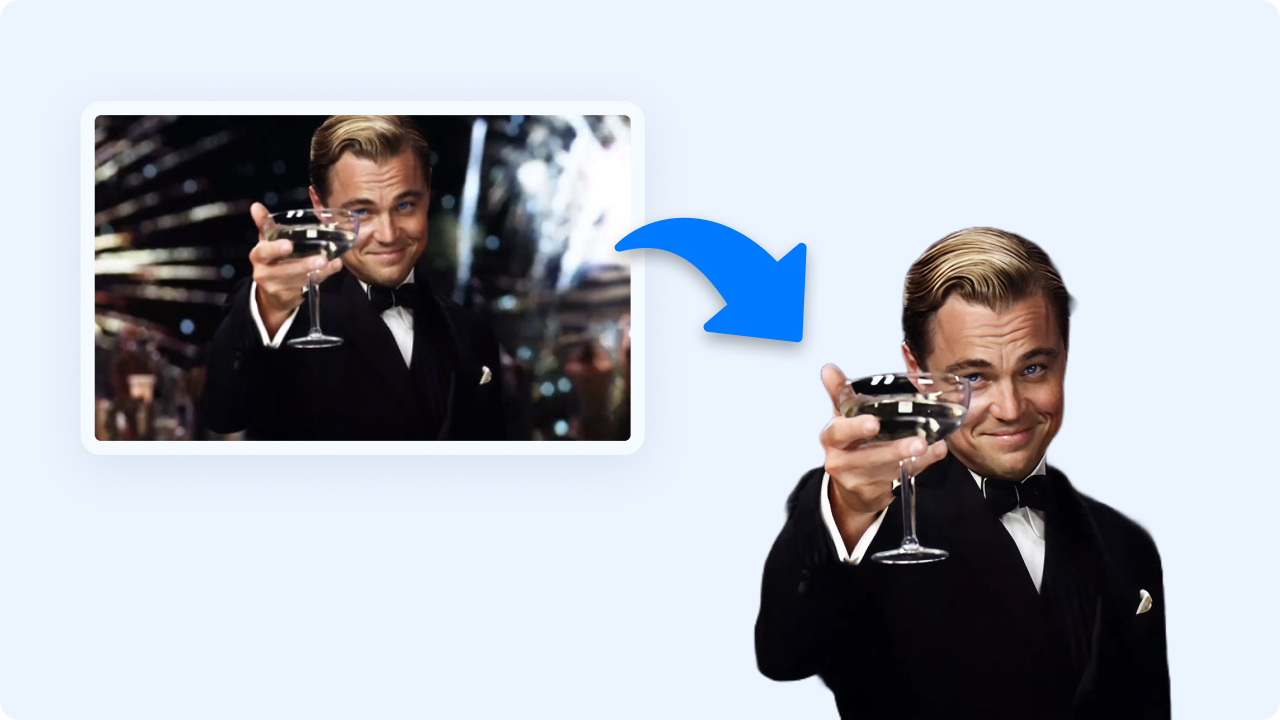
A GIF background remover is useful when the motion matters but the scene around it does not. Support teams may want a clean cursor or product-motion example. Marketers may want a looping product moment that sits naturally on a landing page. Trainers may want a distraction-free before/after animation. The trick is to remove the background without creating rough edges, unreadable UI, or a file that becomes too large to use.
When background removal is worth it
Use a GIF background remover when the subject is clear, the animation is short, and transparency will make the GIF easier to reuse. After removing the background, open the result in a GIF maker to crop, resize, caption, or adjust the final export.
Where transparent GIFs work well
- Product education: highlight a cursor path, menu change, or UI state without the full desktop background.
- Support replies: show the exact action a customer should take inside a short loop.
- Landing pages: add motion without embedding a full video player.
- Release notes: show a small interaction that would take several screenshots to explain.
Start with the right source GIF
Background removal is not magic. A GIF with a low-contrast subject, lots of hair/fur-like edges, fast camera movement, or heavy compression artifacts will be harder to clean. When possible, create the GIF from a higher-quality source video first, choose the shortest useful moment, and avoid unnecessary zoom or blur.
| Source quality | Expected result | Recommended fix |
|---|---|---|
| Clear subject, plain background | Cleanest transparent output | Remove background, then crop and optimize. |
| Busy background | Possible edge noise | Crop tighter or recreate the GIF from a cleaner recording. |
| Long looping clip | Large file size | Shorten the loop before export. |
| Text-heavy UI | Potential readability loss | Keep dimensions large enough for UI labels. |
Remove the background, then refine the loop
- Upload the GIF to the Zight GIF Background Remover.
- Preview the transparent result on light and dark backgrounds.
- Open the result in Zight GIF Maker if you need to resize, caption, crop, or rebuild the loop.
- Export a short, purposeful animation.
- Use the GIF in the support article, help reply, launch page, or social post where it actually clarifies the message.
Keep the export small enough for its destination
Transparent GIFs can get large quickly. Reduce dimensions when the animation will appear inline in an article. Remove extra frames at the start or end. Use captions only when they improve understanding. If the motion needs audio, long narration, or high visual fidelity, use video instead and share it with a Zight link.
Check edges on both light and dark backgrounds
A transparent edge that looks clean on white may show a dark halo on a colored page. Preview the full loop against at least two contrasting backgrounds. If the subject flickers or the outline changes between frames, crop closer, shorten the loop, or rebuild the GIF from a cleaner source rather than hiding the problem with more compression.
Keep UI labels large enough to read at the final embed size. A transparent product demo is only useful if viewers can still identify the menu, field, or cursor movement it was meant to explain.
Common mistakes
Do not remove the background from a long clip just because transparency is available. Do not put transparent UI on a background that makes text impossible to read. Do not assume a social platform will preserve transparency; some destinations convert GIFs to video or flatten the background.
Related Zight tools and guides
- Remove a GIF background — Create a transparent GIF from a short animation.
- Make or refine a GIF — Crop, resize, caption, and prepare the final animation.
- Convert video to GIF — Start from a video when the source GIF is too low-quality.
- Compress a GIF — Reduce the finished file after the loop and dimensions are final.
- Make a GIF from video — Plan better source clips before background removal.
FAQ
Can every GIF background be removed cleanly?
No. Results are best when the subject is distinct from the background and the clip has stable lighting, clear edges, and limited motion blur.
Does removing a GIF background make the file smaller?
Not always. Transparency can increase file size, so optimize frame count, dimensions, and colors after background removal.
What should I use after removing the background?
Use a GIF maker or editor to crop, resize, caption, and export the final animation for the destination.
When is a transparent GIF better than a video?
Use a transparent GIF for short looping UI moments, stickers, reactions, and lightweight visual explanations. Use video for longer walkthroughs or audio.