

- Choose the right tools: Look for centralized file access, role-based permissions, strong security, and integrations with platforms like Slack or Jira.
- Organize your files: Use clear folder structures, naming conventions (e.g.,
Project_Task_MMDDYYYY_vX), and shared guidelines. - Set permissions carefully: Assign access based on roles, regularly audit permissions, and use link-sharing for external collaborators.
- Integrate with communication tools: Connect your file-sharing platform to tools your team already uses to streamline updates and notifications.
- Document everything: Add clear instructions, change logs, and onboarding materials to reduce miscommunication.
- Set response time expectations: Define clear deadlines for feedback, tailored to task urgency and time zones.
- Prioritize security: Use encryption, role-based access, and train your team on secure sharing practices.
How to Choose File Sharing Tools for Asynchronous Work
Picking the right file sharing tool can make or break asynchronous collaboration. The wrong choice? It leads to confusion, security risks, and wasted time hunting for files. The right one? It becomes the glue that keeps your team aligned and productive, no matter where they are. Start by identifying your team’s unique needs. Consider factors like team size, industry-specific requirements, and your current tech stack before diving into a feature comparison.Key Features to Look For
Centralized file access is a must-have. A single, reliable location for storing and accessing files ensures everyone works with the latest version. This eliminates the risk of version mix-ups. Role-based permissions are essential for teams spread across time zones. Permissions let you control who can view, edit, or share files. For instance, contractors might only need read-only access, while full-time team members can edit. This level of control prevents accidental overwrites and safeguards sensitive information.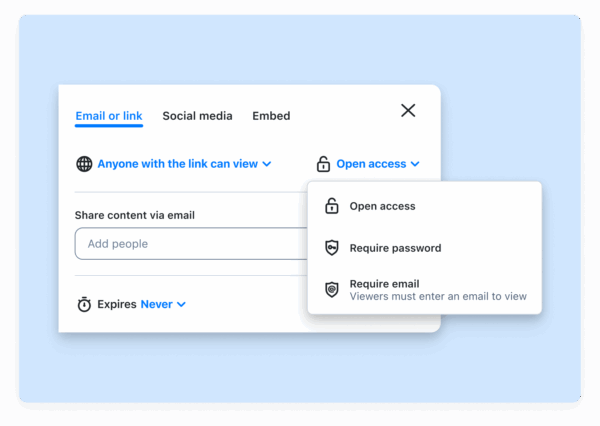 Strong security protocols are non-negotiable. Look for tools with encryption (both in transit and at rest), detailed audit logs, and compliance with regulations like GDPR or HIPAA. These measures protect your data and build trust, especially when working with external partners. Seamless integrations are critical for smooth workflows. Your file sharing tool should connect easily with platforms like Slack, Microsoft Teams, or Jira. This keeps everything in one place, reducing interruptions and making collaboration more efficient. Version control and threaded discussions keep feedback organized. For example, if a designer in Los Angeles reviews work from a developer in New York, having access to previous file versions and time-stamped comments ensures clear communication and reliable documentation of changes. Notifications and offline access are key for asynchronous teams. Tools should provide timely updates and let users access files offline, ensuring work continues even without an internet connection. Now, let’s see how Zight incorporates these features to streamline asynchronous file sharing.
 How Zight Supports Asynchronous File Sharing
Zight brings together file sharing and visual communication, making it a powerful ally for asynchronous teams. It doesn’t just store files, it adds context with tools like screen recordings, annotated screenshots, and step-by-step guides. Its AI-powered features are a game-changer for distributed teams. With automatic transcription, summaries, and translations, team members in different time zones or speaking different languages can quickly grasp shared content. This reduces delays and keeps projects moving forward. Zight also excels in integration with major collaboration platforms. By connecting directly with Slack, Microsoft Teams, and Jira, Zight allows teams to share visual explanations and file updates without leaving their usual workflows. The platform’s multi-format support is another highlight. Whether you’re sharing a quick GIF to demonstrate a simple process, a detailed screen recording for a complex task, or an annotated screenshot for specific feedback, Zight adapts to your needs. This flexibility reduces follow-up questions and improves overall understanding. Finally, Zight ensures cross-device availability on Mac, Windows, Chrome, and iOS. This means team members can access and share files no matter what device or operating system they prefer. When it comes to pricing, Zight offers options for teams of all sizes. Its free tier allows up to 5-minute recordings and access to the last 50 uploads, perfect for small teams testing the waters. For $9 per month, the Pro plan removes these limits, while the Team plan at $11 per user per month adds advanced collaboration features ideal for asynchronous workflows.Step-by-Step Setup Guide for Asynchronous File Sharing
Setting up file sharing for asynchronous workflows is all about creating a system that minimizes confusion, keeps delays at bay, and helps your team stay productive. Here’s how to put an effective structure in place.Create Folder Structures and Naming Rules
Start by organizing your files with a clear folder hierarchy. Use top-level project folders and create subfolders for specific categories like Design, Development, QA, and Documentation. To avoid mix-ups, establish a standard naming convention for files, such as ClientName_Project_Task_MMDDYYYY_vX. For example, a file named “AcmeApp_Design_Wireframe_11012025_v1” immediately tells you what it is, when it was created, and which version it represents. Stick to the MM/DD/YYYY format for dates, use whole numbers (v1, v2, etc.) for major revisions, and decimals (v1.1, v1.2) for minor updates. To make this system work seamlessly, create a shared documentation guide that outlines your folder structure and naming rules. Share this guide with your team and include it in onboarding materials. When everyone follows the same system, files become easier to locate, and you’ll spend less time clarifying things in real time. This setup ensures that team members can find what they need quickly, even when working across different time zones.Set Up Permissions and Access Levels
Permissions are the backbone of secure file sharing. Use role-based access controls to assign access levels based on team roles. For example, contractors might only need read-only access, while full-time employees can edit and share documents. If you’re using Zight, the Manage Users & Roles feature makes this process straightforward. You can organize users into groups based on departments or project teams, then assign consistent permissions for everyone in a group. This not only saves time but also reduces errors when managing permissions. When sharing files externally, take extra precautions. Instant link sharing is a great option for clients or partners who need to view or comment on files without needing to create accounts. It’s secure and keeps external collaboration simple. Regular permission audits are essential to keep access levels up to date. Remove access for team members who leave the project, and adjust permissions as roles evolve. To stay on top of this, set automated reminders to review permissions every quarter. Once permissions are set, the next step is to connect your file-sharing platform with the tools your team already uses for communication and task management.Connect File Sharing with Communication and Task Tools
Integrating your file-sharing platform with tools like Slack, Microsoft Teams, and Jira can make collaboration more efficient. It centralizes updates and file access, eliminating the need to juggle between multiple platforms. Zight, for example, works seamlessly with these tools, allowing you to share visual content directly within chat applications or project management systems. Kate Frappell, Senior Design Lead at Ofload, explains how she uses this integration:“Primarily I use it as a visual reference in Slack messages. I will write up instructions/updates etc., and link specific words to Zight screenshots to illustrate my point. As a designer, this happens a lot, so I’m doing quick UI mocks to get concepts across fast.”
 Automated notifications are another way to keep everyone on the same page without overwhelming their inboxes. Configure alerts for file updates, new comments, and permission changes, and make sure these notifications appear in your team’s primary communication channel. This way, no one misses critical updates. You can also link files directly to tasks in your project management system. For example, when a design file is updated, the related Jira task should reflect the change automatically. This creates a clear trail of updates and helps everyone understand the context behind each file. For team members who are visual learners, tools that support multiple content types can be a game-changer. Jennuel Venus Gonzales, Account Manager at Pandadoc, shares how Zight has been helpful for this:
 “Zight allows me to quickly capture and share GIFs or snapshots of instructional material for both my clients and colleagues. As a visual learner, it’s helpful to have a tool that lets you capture the whole instance and share it with just a link!”Before rolling out these integrations team-wide, test them thoroughly. Make sure notifications work as expected, links generate correctly, and permissions transfer smoothly between platforms. A well-tested system ensures a smoother transition and higher adoption rates among your team.
Best Practices for Efficient Asynchronous File Sharing
Once you’ve established a structured file-sharing system, the next step is fine-tuning your approach to keep your team running smoothly. As teams grow and projects evolve, maintaining efficiency in an asynchronous environment can be tricky. These tips will help you sidestep common hurdles and keep everyone on track.Organize Files for Quick Access
Consistency is the backbone of a well-organized file system. Whether your workflow revolves around client projects or sprint deliverables, stick to a grouping method that makes sense for your team. To streamline access, consider setting up shortcuts or bookmarks for files your team uses most, like templates, brand guidelines, or project specs. Pinning these resources in shared folders or creating quick links can save valuable time. Another idea? Use a “hot folder” system to keep active files front and center. Once a project phase wraps up, archive older files to keep your workspace clean and easy to navigate. If your team uses a centralized hub for asynchronous work, leverage search and tagging features. Assign keywords like “urgent”, “client-facing”, or “template” to files. This makes it much easier for team members to locate what they need, even in a sea of documents.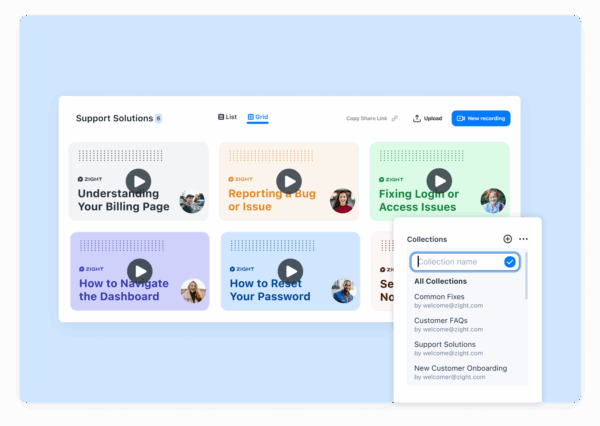
Add Clear Documentation to Shared Files
Good documentation can eliminate endless back-and-forth questions. Every shared file should clearly explain what it contains, why it’s important, and what needs to be done with it. For example, include short descriptions or change logs to highlight updates (e.g., “Pricing updated after Q3 review on 11/15/2025”). Keeping version histories is especially helpful in asynchronous setups, so everyone stays on the same page. Onboarding materials are another must-have. A guide outlining naming conventions, folder structures, and key processes can help new team members or external collaborators get up to speed quickly. Store this guide in an easily accessible location and reference it during project kickoffs. Tools like Zight can also be a game-changer. Use its features to embed annotated visuals or quick video explainers directly into your files to minimize misunderstandings.Set Response Time Guidelines
Clear expectations around response times can prevent delays and keep projects moving forward. Tailor these guidelines based on urgency. For routine reviews, a 48–72-hour response window gives team members enough time to provide thoughtful feedback without slowing progress. For urgent tasks, use a designated communication channel and clearly label files that need faster action, typically within 24 hours. To avoid bottlenecks, establish escalation procedures for missed deadlines. For instance, if a review request goes unanswered, the system could notify a manager or reassign the task to ensure the project stays on track. When working across time zones, clarify response times in business days and specify a reference timezone (e.g., “Feedback is due within 2 business days, starting from 9:00 AM Eastern Time”). Finally, build some breathing room into your project timelines. Asynchronous workflows often take longer than real-time collaboration, so planning for an extra 20–30% in review cycles can help set realistic expectations. Keep an eye on response times and adjust your guidelines based on actual performance to refine your process further. A structured approach like this not only boosts productivity but also supports a healthier work-life balance for your team.Security and Privacy for Asynchronous File Sharing
When your team operates across time zones and varying schedules, safeguarding sensitive data can become tricky. Asynchronous workflows often lack constant supervision, which can lead to risks like outdated or improperly shared files. To counter this, it’s essential to implement security measures that function automatically, even when no one is actively monitoring. According to IBM‘s 2024 Cost of a Data Breach Report, 83% of data breaches stem from human error, including mistakes in file sharing and weak access controls. This highlights the importance of minimizing human errors while maintaining a seamless workflow. One effective way to achieve this is through role-based access controls.Set Up Role-Based Access Controls
Role-based access control (RBAC) serves as the first layer of protection against unauthorized access. By assigning access permissions based strictly on job roles, you can limit exposure to sensitive information. Start by clearly defining roles within your organization. For instance, administrators might have full access, editors could modify files within their projects, and viewers might only be able to read specific documents. When implementing RBAC, think about both internal teams and external collaborators. For example, a marketing contractor may only need access to branding materials, while a client may only need to review project deliverables. Regularly review permissions, monthly audits can help remove outdated access and ensure external collaborators only have the access they need. Platforms like Zight simplify RBAC with features such as “Manage Users & Roles” and “Admin Controls”, enabling administrators to assign permissions based on roles. The platform also offers group management tools, making it easier to manage access for entire teams or departments. To make the system even more effective, document your permission structure. A simple chart showing which roles have access to specific files can be a helpful reference for onboarding new team members. Once roles are defined and permissions are set, the next step is training your team to use these controls effectively.Train Team Members on Secure Sharing Methods
In asynchronous workflows, where real-time checks are less frequent, strong security protocols are crucial to maintaining a secure environment. Even the most advanced security systems can fall short if your team isn’t properly trained. According to the SANS Security Awareness Report from 2024, 70% of organizations identify employee training as the most effective way to reduce security incidents involving file sharing. Focus on practical training scenarios. Teach team members how to verify permissions, set link expirations, and use strong passwords or two-factor authentication. If your organization uses single sign-on (SSO), ensure everyone knows how to securely access files through this method. Pay special attention to visual content security. Screenshots or video recordings can unintentionally expose sensitive information. Train your team to use redaction tools before sharing visuals that might contain confidential data.“A huge plus I haven’t found in other apps is that you can ‘pixel’ all the sensitive information perhaps you don’t want to share.” – Luisa Zapata García, Strategic Customer Success Manager, Globalization PartnersZight addresses this concern with its built-in “Blur & Redact” feature, allowing users to easily pixelate sensitive details in screenshots or videos. This helps prevent accidental exposure of client data, personal information, or other confidential details.
“Annotating is super simple and easy as well – calling out areas in the screenshot with either an arrow or highlighted box, and redacting any personal client information is a breeze.” – Justin Cash, Product Support Lead, L2Provide checklists for common sharing scenarios. For instance, before sending a client presentation, team members should confirm the recipient list, ensure no internal notes are visible, and verify that any shared links have expiration dates. Additionally, educate your team on identifying phishing attempts. Teach them to recognize suspicious access requests and verify unusual sharing requests through separate communication channels. In asynchronous workflows, malicious requests can slip through more easily without immediate verification. Lastly, consider running periodic security drills. These exercises simulate potential threats, helping to identify knowledge gaps and reinforce best practices in a low-pressure setting. Treat security training as an ongoing effort, regular refreshers will keep your team prepared as new tools and threats emerge.












