
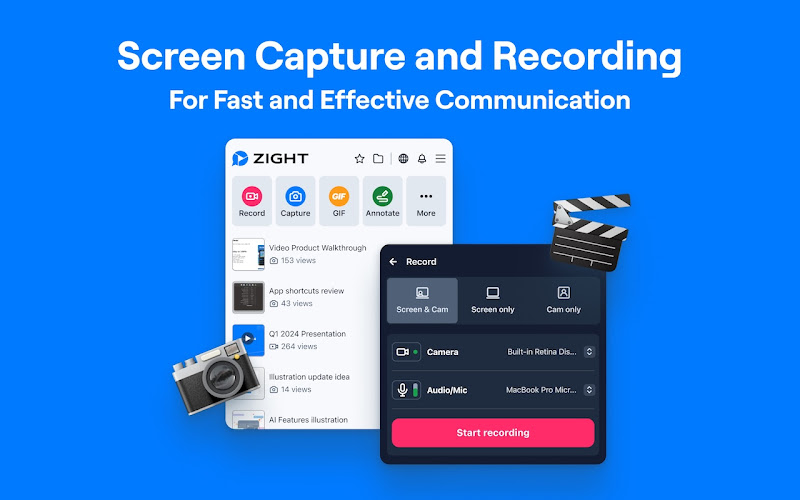
- Screen Recording: Captures video of your screen, often with audio. Best for tutorials, demos, training, or step-by-step guides.
- Screen Capture: Takes a static image of your screen. Ideal for quick references, bug reports, or documentation.
Quick Comparison
| Feature | Screen Recording | Screen Capture |
|---|---|---|
| Output | Video (e.g., MP4, MOV) | Image (e.g., PNG, JPG) |
| Content | Dynamic (motion + audio) | Static (snapshot) |
| Best For | Tutorials, demos, training | Bug reports, quick visuals |
| File Size | Larger | Smaller |
| Audio | Yes | No |
| Editing | Trim, annotate, merge | Annotate, highlight |
How to Record your Computer Screen for FREE
What is Screen Recording?
Screen recording captures everything happening on your screen in real time, creating a video instead of a single static image like a screenshot. This method records both screen actions and audio, making it a go-to option for demonstrating processes that unfold step by step. Let’s take a closer look at the features that make screen recording so effective.Screen Recording Definition and Features
At its core, screen recording software works by capturing a series of frames from your screen and compiling them into a video file. Modern tools go beyond simple recording, offering features like:- Audio recording: Add narration or capture system sounds.
- Annotation tools: Highlight key areas on the screen.
- Selective recording: Focus on specific apps or portions of your screen.
- Webcam overlay: Add a personal touch with a webcam feed.
- Basic editing tools: Trim, annotate, or enhance recordings directly within the software.
When to Use Screen Recording
Screen recording is a versatile tool for a variety of scenarios. It’s particularly useful for:- Demonstrating processes or workflows.
- Explaining complex tasks with step-by-step clarity.
- Onboarding new team members.
- Conducting employee training.
- Providing customer support.
- Remote collaboration.
- Creating sales demos or marketing content.
Zight‘s Screen Recording Tools
 Zight takes screen recording to the next level with tools designed for workplace productivity and seamless communication. The Zight screen recorder allows you to capture recordings with crisp audio, making it perfect for professional training materials, software demos, or team updates. Pro users enjoy unlimited recording time, and videos can be recorded in resolutions up to 4K, ensuring they look sharp on any device. Zight also simplifies post-recording tasks. You can trim unnecessary sections, add annotations, and include text callouts – all without needing extra software. Sharing is a breeze, thanks to integrations with tools like Slack and Microsoft Teams, where you can send recordings via shareable links right within your workflow. To make your content even more accessible, Zight includes AI-powered transcription and summaries, so your videos are easy to search and reference. Features like team workspaces and user management also ensure your recordings stay organized and secure, making Zight a powerful choice for modern teams.
 What is Screen Capture?
Screen capture is the process of creating a static image of your screen at a specific moment in time. Think of it as snapping a photo of your computer screen.Screen Capture Definition and Features
Screen capture tools allow you to save the visible state of your screen as an image file. Many tools today come with a variety of capture options to suit different needs:- Full-screen capture: Captures everything visible on your screen, including all open windows and your desktop.
- Window capture: Focuses on a single application or window, cropping out everything else automatically.
- Region capture: Lets you select a specific area of the screen to capture.
- Scrolling capture: Perfect for capturing long web pages or documents that extend beyond what’s visible on your screen.
When to Use Screen Capture
Screen capture shines in situations where you need to document something static or share a quick visual reference. Research indicates that visuals are processed 60,000 times faster than text. As the saying goes:“A picture is worth 1000 words.” – Usersnap BlogScreenshots are especially useful for reporting bugs, such as misaligned elements or incorrect text. Bug reports with screenshots help developers resolve issues 25% faster compared to text-only reports. Adding annotations to these screenshots further improves clarity and speeds up problem-solving. Here are some common scenarios where screen capture proves valuable:
- Technical documentation: Screenshots add context and clarity to technical manuals. For instance, ChartHop uses screenshots with fictional staff names from TV shows in their user guides to demonstrate employee profiles without exposing sensitive data.
- Multi-step processes: Capturing each step of a process creates easy-to-follow visual guides.
- Quick information sharing: Screenshots make it simple to show an error message, a specific setting, or any other detail without needing a lengthy video explanation.
Zight’s Screen Capture Tools
Zight takes traditional screen capture to the next level, turning it into a robust visual communication tool designed for modern workplaces. With the Zight screenshot tool, you can easily capture any part of your screen and share it seamlessly with your team, making asynchronous communication more efficient. What makes Zight stand out is its collaborative feedback system. Annotations and comments can be added directly to screenshots, making it an excellent tool for design reviews, bug reporting, and project feedback. These annotated visuals can also be saved for use in knowledge bases or training materials. Trusted by over 5 million users, Zight integrates with popular platforms like Slack, Microsoft Teams, and Jira, streamlining the sharing process. Instead of saving and uploading files manually, you can capture, annotate, and share screenshots directly within your workflow. Zight also offers advanced annotation tools and secure cloud storage. For teams creating visual guides or training content, Zight simplifies onboarding and software demonstrations. Its combination of instant capture, professional annotation features, and easy sharing makes it a complete solution for workplace communication.sbb-itb-5d91f01
Screen Recording vs Screen Capture: Main Differences
Both screen recording and screen capture are valuable tools for visual communication, but they serve different purposes. Knowing the key differences between these methods can help you decide which one fits your specific needs.Feature and Use Case Comparison
The primary difference lies in the type of output they produce and how that output is used. Screen recording creates a video file that captures everything on your screen – often including audio – while screen capture produces a single, static image.| Feature | Screen Recording | Screen Capture |
|---|---|---|
| Output Format | Video files (MP4, MOV, AVI) | Image files (PNG, JPG, GIF) |
| Content Type | Dynamic content with motion and audio | Static visual information |
| Audio Capability | Records microphone and system sounds | No audio capture |
| File Size | Larger files due to video format | Smaller files, quick to share |
| Editing Options | Trimming, cutting, merging clips, annotations | Annotations, arrows, text boxes, highlights |
| Best For | Tutorials, demos, process explanations | Bug reports, quick references, documentation |
| Sharing Method | Direct upload to video platforms | Instant sharing via messaging or email |
| Time Investment | Requires planning and potentially editing | Immediate capture and share |
How to Pick the Right Method
Choosing between screen recording and screen capture depends on the complexity and urgency of your message. The depth of information you need to convey will determine the best approach.- Use screen recording for tasks that require dynamic explanations, such as tutorials, software demonstrations, or highlighting bugs in action. It’s also ideal for presentations where step-by-step guidance with audio context is needed. This method is especially helpful for creating training materials or providing clear guidance in customer support scenarios.
- Use screen capture for static information, like error messages, visual elements, or documenting specific screen states. This method is particularly effective for bug reports, as developers can quickly understand and replicate issues.
Picking the Right Tool for Your Work
What to Consider When Choosing
When deciding between screen recording and screen capture, it’s important to weigh how each option aligns with your specific needs and workflow. For more guidance on selecting the right solution, check out our comparison of budget screen recording tools. Think about the complexity of your message. For straightforward explanations, emails or chats might do the trick. But when you’re dealing with intricate topics, it’s often better to show rather than tell. Screen recordings excel at walking viewers through detailed, step-by-step processes where visuals are more effective than lengthy text. Engagement matters too. Adding a webcam overlay to your screen recording can create a more personal connection, making it a great choice for training sessions, customer support, or sales presentations. This extra layer of engagement helps keep your audience focused. File size is another factor. Screen recordings tend to be larger, which can slow down sharing, while screen captures are quick and lightweight, offering instant shareability. Platform compatibility is key to ensuring your content is accessible to your audience. Make sure your chosen method works smoothly on the platforms your team and clients use every day. Annotation needs can also guide your choice. Screen capture tools often come with built-in annotation features, allowing you to quickly highlight areas, add arrows, or insert text boxes right after capturing. While screen recordings can include annotations, they usually take more time to set up and edit. For urgent communications, screen captures are ideal. Their immediacy makes them perfect for situations where time is of the essence. By keeping these factors in mind, you can choose the right tool to streamline your workflow and enhance communication.How Zight Makes Visual Communication Easier
Zight combines the best of both screen recording and screen capture into one convenient platform, eliminating the hassle of juggling multiple tools. This all-in-one solution simplifies your workflow while giving you the flexibility to communicate effectively in any scenario. The platform offers customizable recording options, letting you capture your screen with or without a webcam overlay. This means you can adapt your approach – whether you’re adding a personal touch to client presentations or focusing solely on technical details for documentation. Mac users can also take advantage of the dedicated screen recorder for Mac for an optimized experience. Collaboration is seamless with Zight’s shared collections feature. Teams can access and contribute to libraries of videos and annotated screenshots, ensuring everyone stays on the same page. This shared resource fosters better teamwork and keeps projects moving efficiently.“Zight helps me show my work with my team and our customers quickly and effectively. I love how easy it is to make sure we’re producing the highest quality work and can draw attention to the things that matter.”Zight also tackles one of the biggest workflow challenges: sharing. The platform automatically generates shareable links and copies them to your clipboard, making it easy to distribute content via email, messaging apps, or project management tools. No more wasting time with lengthy upload and download processes. With cloud storage integration, your visual content is always accessible, no matter where you are. This ensures smooth remote collaboration while maintaining strong security measures. Your recordings and screenshots sync across devices, supporting flexible work environments. Zight goes a step further with features like call-to-action buttons and templates, which help you create polished, engaging content without needing advanced editing skills. These tools make it simple for anyone to produce professional-grade visuals. Lastly, Zight’s compatibility with both Windows and Android ensures that your team can collaborate effectively, regardless of their preferred devices. This broad accessibility makes it easier for everyone to participate in visual communication, no matter their setup.
- Sara Pion, Customer Advocate & Marketing, Drift












