
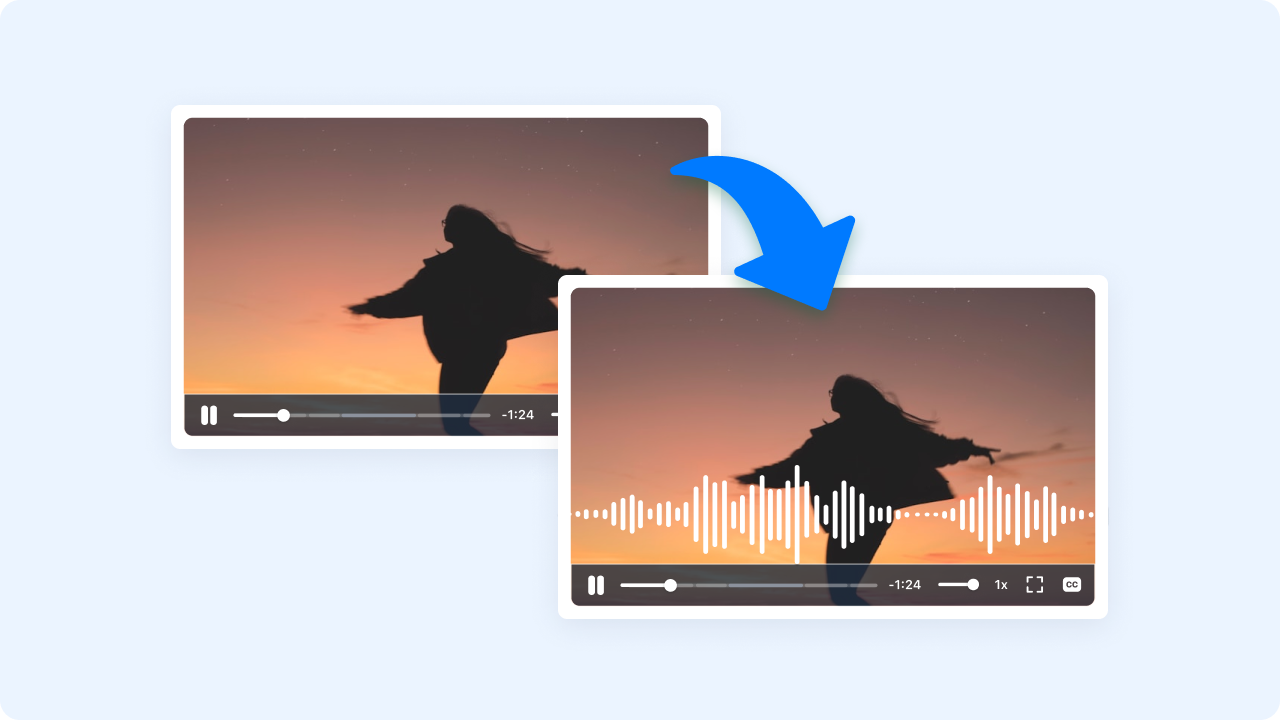
How to Add Audio or Music to a Video
Follow these simple steps to get started.
Upload Your Video
Choose a video file from your device or drag it into the editor. Zight supports MP4, MOV, and WebM formats for fast preview and editing.
Add Audio or Music
Upload an MP3, WAV, or M4A file. You can layer background music, narration, or sound effects over your video timeline.
Adjust Volume and Timing
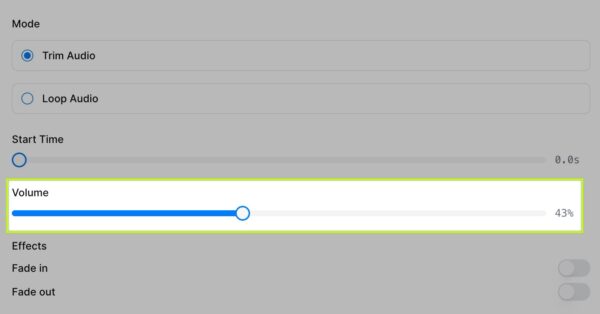
Control where your audio starts and ends, and if it will fade in or out.
Export and Download
Download the finished video and share on social media, email, or chat.
Ready to Boost Your Productivity?
Save time and money while boosting your productivity with Zight — free tools for screen recording, screenshots, GIFs, and webcam capture.
Try Zight for Free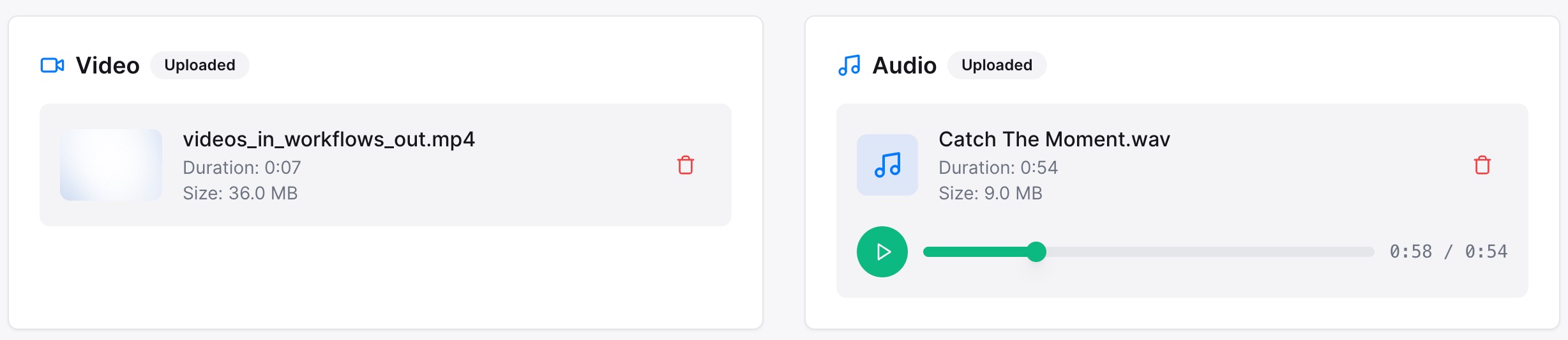
Why Add Music or Audio to Your Videos
Adding sound transforms a simple video into something more dynamic and engaging. With Zight’s tool, you can:
-
Enhance storytelling with background music or sound effects.
-
Add narration or commentary to explain visuals.
-
Make social clips stand out with music that fits the vibe.
-
Keep attention with seamless audio transitions and fades.
🔧 More Than Just a WEBP to PNG Converter
Instant Editing
Merge audio and video right in your browser — no downloads or installs.
Precise Control
Adjust timing, volume, and fade effects effortlessly.
Multi-format Support
Works with MP4, MOV, WebM, MP3, WAV, and more.
Private and Secure
All processing happens locally; your files are never uploaded or stored.
Fast and Free
Create and download professional-quality videos in seconds.

Supported Use Cases
For Creators
Add background tracks or custom sound design to make content more engaging.
For Businesses
Add branded jingles, intros, or narration to promotional and training videos.
For Educators
Add commentary or voiceover to lectures and recorded lessons.
For Streamers and Gamers
Add music, highlights, or reactions to clips before sharing.
Ultimate Guide: Enhancing Videos with Music or Audio
Sound is one of the fastest ways to make videos feel polished and professional. Here’s how to use Zight’s Add Audio to Video tool for maximum impact.
Choosing the Right Track
Select background music that fits your tone — upbeat for product demos, calm for explainers, or subtle for voiceovers. Instrumentals often work best when balancing narration.
Balancing Audio Levels
Keep your video’s native sound slightly louder than the background track. Zight’s volume sliders make it easy to adjust until everything sounds natural.
Using Fades for Smooth Transitions
Apply fade-in and fade-out effects to create professional-sounding audio transitions that feel seamless and non-abrupt.

Export and Share Anywhere
Once you’ve added your sound, download your new video in MP4 format — ready to upload to Discord, YouTube, Instagram, or Slack.
Conclusion
Zight’s Add Audio or Music to Video tool helps you enhance your videos instantly with sound that fits the moment. Upload your video and audio, sync them in seconds, and download a polished final version — no editing software required.
Create videos that sound as good as they look — fast, private, and free with Zight.
Unlock More Tools
Expand your toolkit with these additional free tools
Frequently Asked Questions
Zight supports MP4, MOV, WebM for video and MP3, WAV, M4A for audio.
Yes. You can trim or reposition the audio to start or end exactly when you want.
You can choose to keep, replace, or blend the existing video sound.
Yes. Zight lets you apply fade effects for smooth transitions.
Yes. Zight runs entirely in your browser and works on desktop or mobile devices.
No. All processing happens locally in your browser for total privacy.
You can layer multiple tracks by merging them before uploading or adding sequentially.
Yes. Zight’s Add Audio to Video tool is 100% free, no sign-up required.












