
Ready to Boost Your Productivity?
Save time and money while boosting your productivity with Zight — free tools for screen recording, screenshots, GIFs, and webcam capture.
Try Zight for FreeHow to Convert WAV to Video
Follow these simple steps to get started.
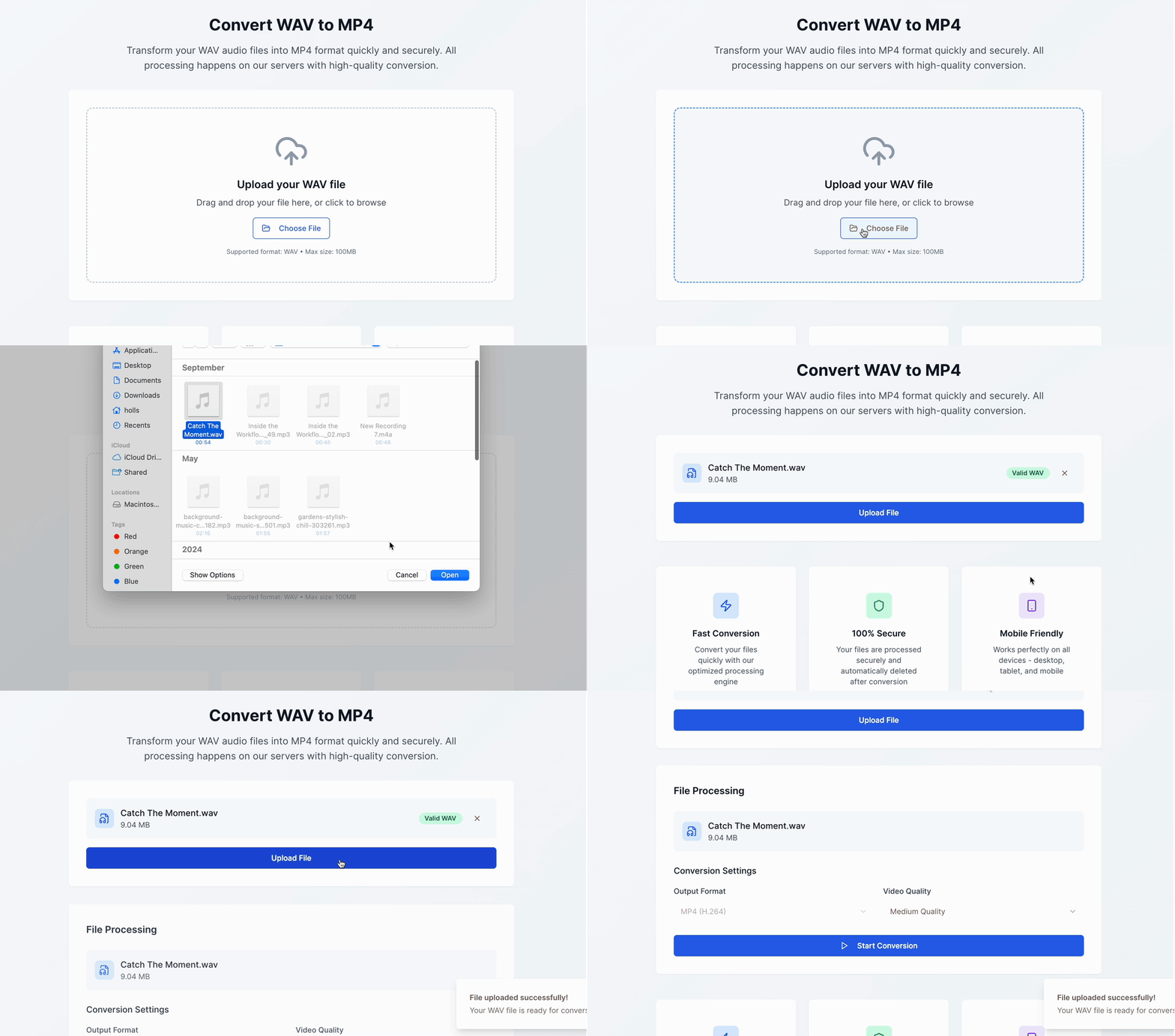
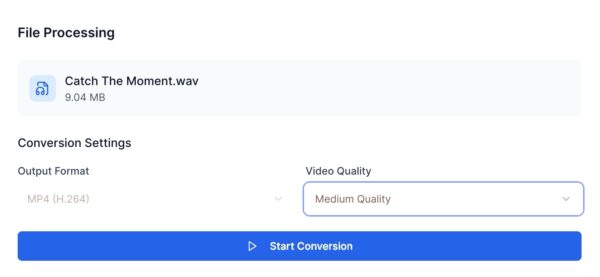
Upload Your WAV File
Select your WAV file from your device. Zight instantly prepares it for video conversion.
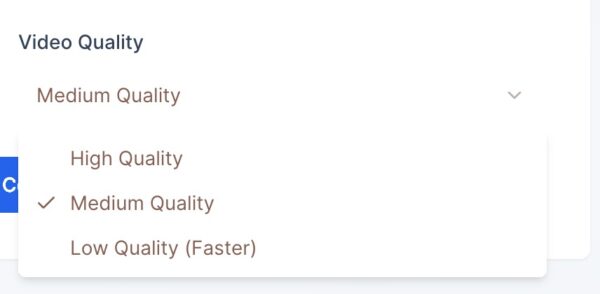
Choose Video Quality
Pick your preferred video quality — Low, Medium, or High. This determines the resolution and file size of your final MP4 output.
Download Video
Download your video immediately when processing is complete.
Why Convert WAV to Video?
Many platforms only accept video uploads, so converting audio helps you:
-
Upload your WAV file to YouTube, LinkedIn, TikTok, or other social apps
-
Share music, narration, or audio clips in video-friendly formats
-
Embed audio within slides, websites, or documentation
-
Make audio content more accessible and shareable
More Than Just a WAV to Video Converter
Zight offers a suite of powerful tools designed to enhance productivity and content creation. Looking for more? Check out these additional features:
Screen Recording – Capture high-quality videos for presentations and tutorials.
Screenshot Tool – Take quick, annotated screenshots for feedback and collaboration.
AI (Artificial Intelligence) – Generate captions, summaries, and insights from your video content.
Merge Videos – Combine multiple video clips into a single seamless presentation.
URL Shortener – Generate trackable short links for easy sharing.
Supported Use Cases
For Creators & Podcasters
Turn audio tracks into video files suitable for social posting.
For Teachers & Trainers
Convert audio lessons into MP4 for presentations and LMS platforms.
For Businesses
Share voiceovers, announcements, or audio notes in a universally compatible video format.
For Developers & Audio Teams
Quickly wrap WAV files in MP4 containers for easier distribution.
Ultimate Guide: Turning WAV Audio Into MP4 Video
Many platforms don’t support audio-only uploads — especially social platforms. Converting WAV to MP4 ensures your audio plays everywhere. Zight simplifies the process by letting you upload your audio, select quality, and instantly generate a clean video file.
How Quality Settings Affect Your Output
Higher quality settings give you sharper video output and a larger file size. Lower quality keeps the video lightweight and easier to upload or share. Since the content is audio-based, choose the option that fits your sharing platform best.
Why MP4 is the Best Output Format
MP4 is universally supported across browsers, devices, social platforms, and video players. By converting your WAV to MP4, you’re ensuring your file is playable anywhere without additional apps or plugins.
When This Tool Is Most Useful
-
Uploading audio to platforms that only allow video
-
Creating simple video wrappers for music, voiceovers, or narration
-
Sharing audio clips in messaging apps that don’t preview WAV files
-
Integrating audio into video workflows without editing software
Conclusion
Zight’s WAV to Video Converter is the simplest way to transform your WAV audio into an MP4 file that works everywhere. With quick upload, adjustable quality, and instant download, you can convert any audio into a universally shareable video in seconds.
Create videos from WAV files effortlessly with Zight.
Unlock More Tools
Expand your toolkit with these additional free tools
Frequently Asked Questions
Your WAV file is converted into an MP4 video (H.264).
No. It generates a simple video container for your audio without additional graphics or backgrounds.
Yes. The original WAV audio is preserved during conversion.
You can choose the video quality level, which determines the resolution and file size.
This tool is optimized for WAV, but Zight offers additional converters for other audio formats.
No. Everything runs in your browser.
Yes, as long as the file fits within your device’s processing capabilities.
No. Conversion happens directly on your device for complete privacy.












