
Share more than a processed file
Zight helps teams record, share, and discuss visual work with a link instead of a bulky attachment.
Get Zight freeHow to use this free tool
Complete the task in three browser-local steps.
1. Upload your video
Choose a short browser-compatible video with audio.
2. Set the boost
Choose a gain level and watch for the clipping guidance.
3. Export and share
Download the louder WebM or upload it to Zight.
Make quiet speech easier to hear
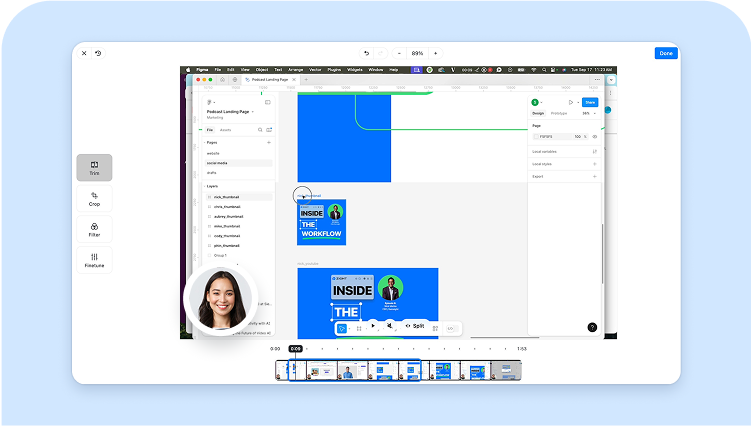
Increase the gain on walkthroughs, demos, interviews, and support recordings without installing a full editor.
Avoid audio clipping
A high boost can distort already-loud peaks. Start at 1.5×, preview the output, and increase only when needed.
Real-time browser processing
The browser re-records the video and boosted audio into WebM in real time, so keep the tab open until the clip ends.
Re-record clearly with Zight
When source audio is noisy or clipped, a fresh Zight screen recording with a checked microphone can produce a clearer result.
Related Zight tools and workflows
Boost quiet video audio from 0.5× to 3× and export a louder WebM directly in a current browser.
Ready to explain work visually?
Record your screen, webcam, and voice with Zight, then share one link for faster feedback.
Try Zight for freeFrequently Asked Questions
Upload the video, choose a boost level, and select Boost volume. Keep the tab open while the video processes.
Excessive gain can create clipping and distortion. Start with a moderate setting and preview the result.
Clipping happens when amplified audio exceeds the available range, producing harsh distortion.
Yes. The tool processes locally and exports WebM in current Chromium-based browsers.
A practical guide to video volume booster
Boost quiet video audio from 0.5× to 3× and export a louder WebM directly in a current browser.
Use the right next step
After completing this task, you can add music to video, trim a video, record clearer audio with Zight. Each option keeps the workflow focused without forcing an unrelated tool.
Privacy and browser support
The core task runs locally in your browser. Media codec, recording, and export support varies by browser and operating system, so use a current Chrome, Edge, Firefox, or Safari release and preview the result before sharing.