Create and review a silent copy
Choose the video, remove its audio track, preview the result, and download the muted file.
Choose a video
Upload a short browser-compatible video.
Remove the audio
The browser records a new video stream without audio tracks.
Preview and download
Download the muted WebM or upload the processed video to Zight.
Mute background noise
Remove background conversations, system sounds, or noisy microphone audio before sending a visual clip.
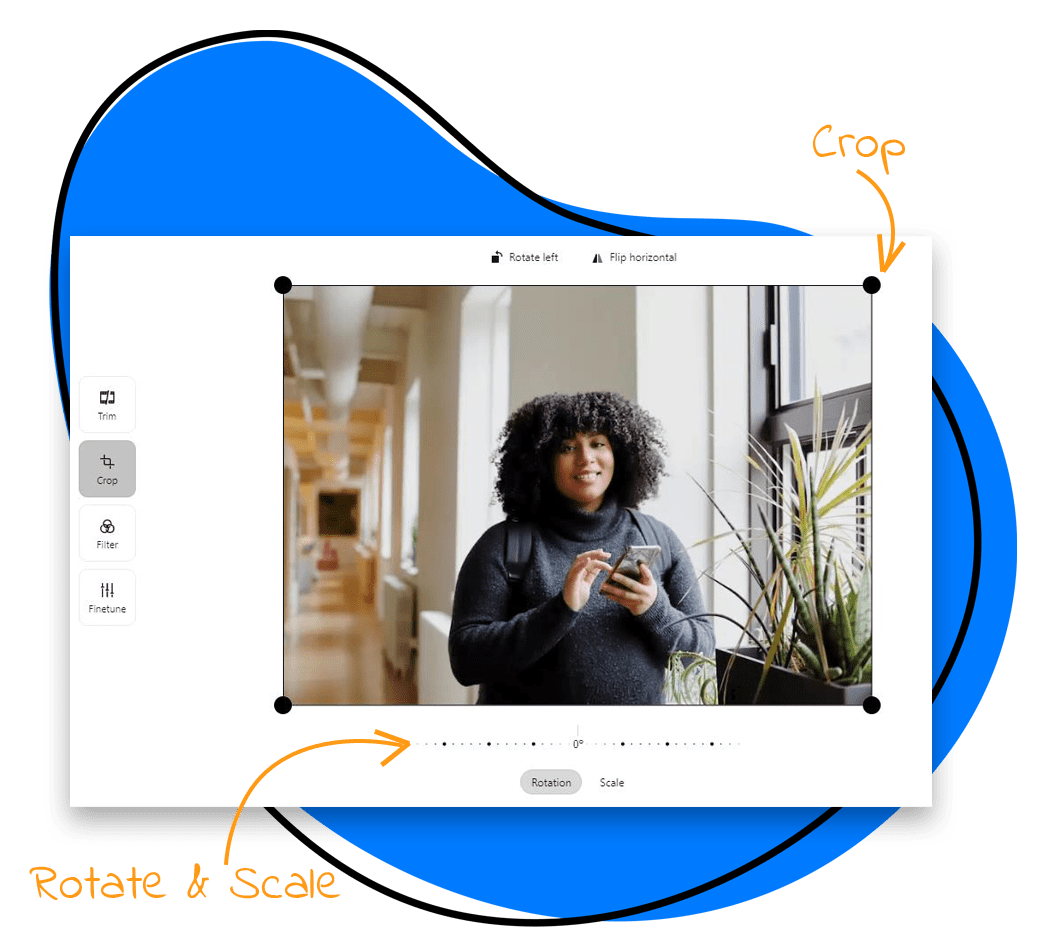
Preview before sharing
Check the silent output in the browser before downloading or uploading it.
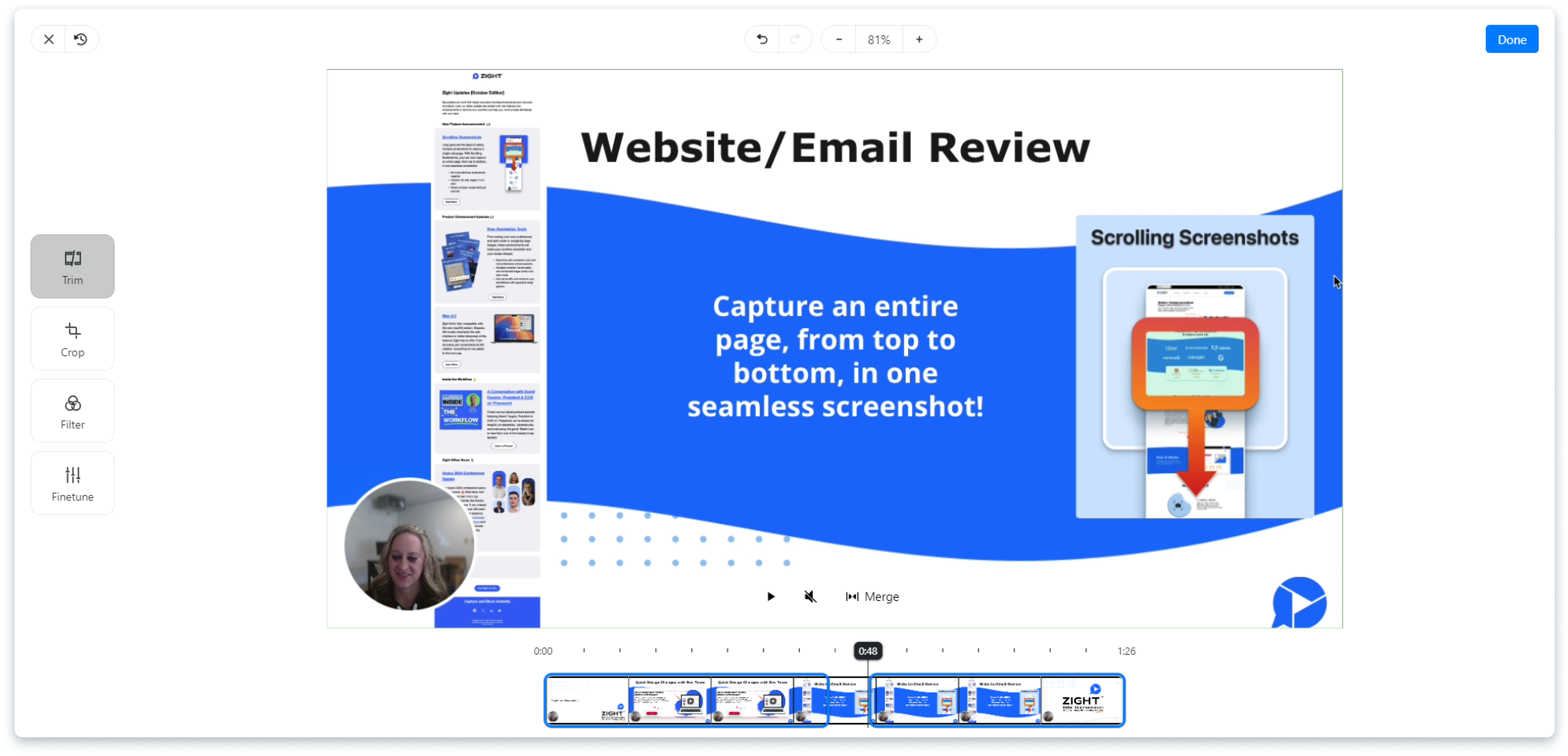
Local browser processing
The source video stays on your device. Only the processed output is uploaded if you choose Zight sharing.
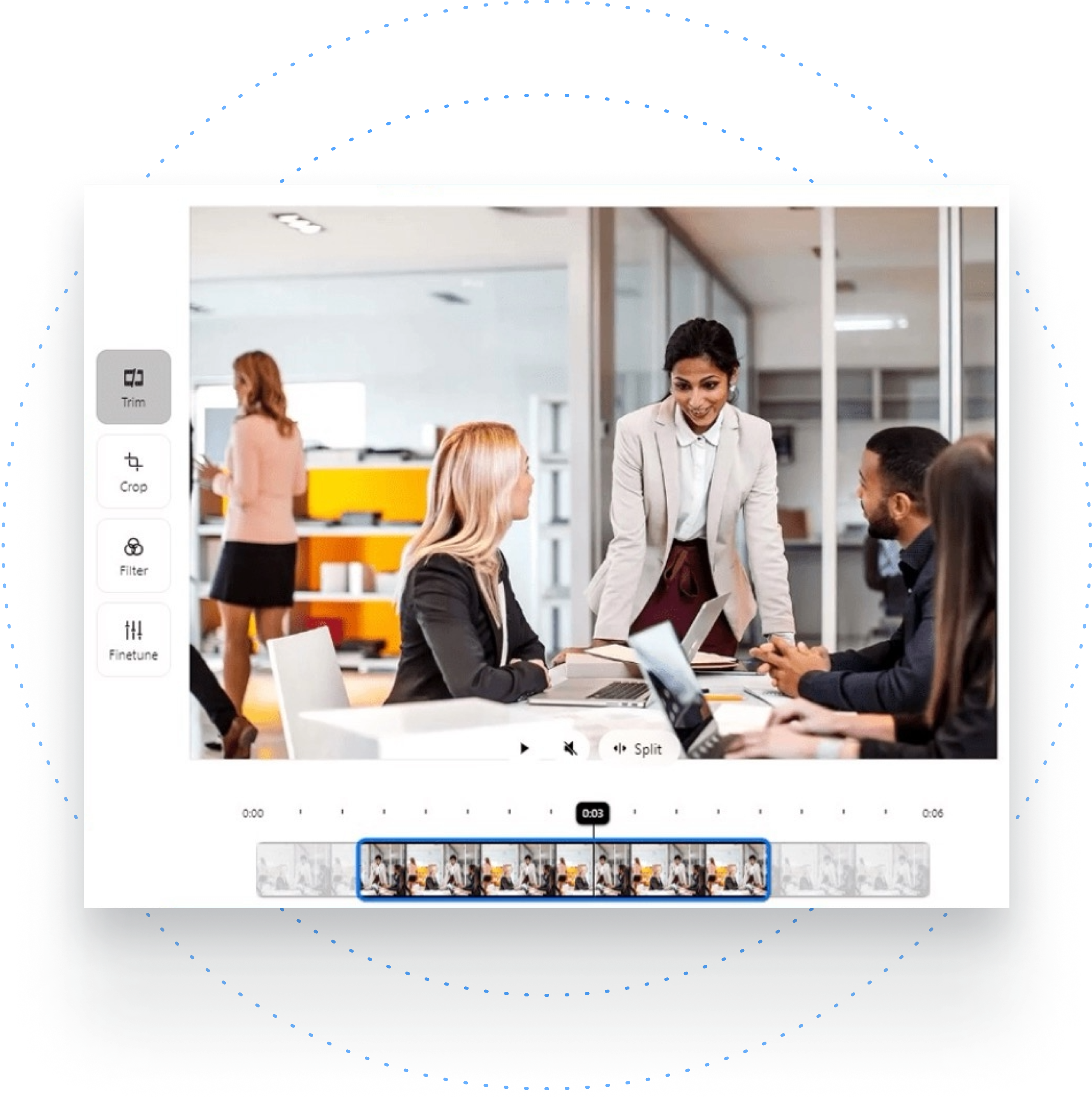
Share clean walkthroughs
A muted clip can be useful for documentation, product demos, and quick feedback where visuals matter most.
Prepare the muted video for its destination
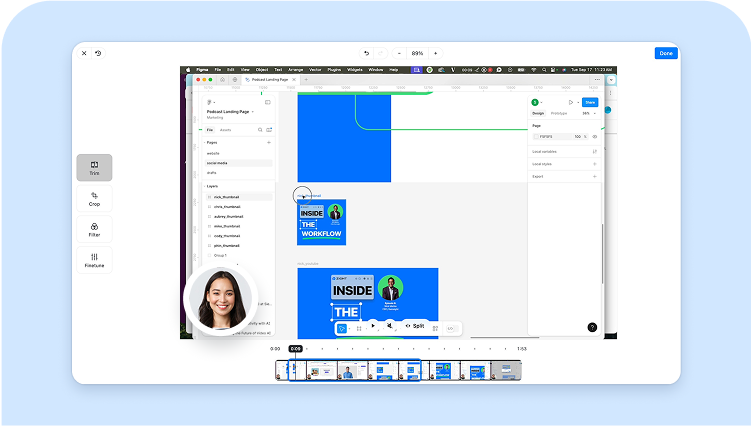
Trim dead time, reduce the file size, or create a link when the silent clip is ready to share.
Preview the entire muted file
The source video stays on your device unless you choose the optional Zight upload action. Watch the downloaded copy from start to finish to confirm the picture remains intact and no later segment still contains audio.
Frequently Asked Questions
Yes. Upload a supported video, process it locally, and download a muted copy.
No. The source file stays in your browser unless you choose to upload the processed result to Zight.
Yes. The output preview appears after processing.
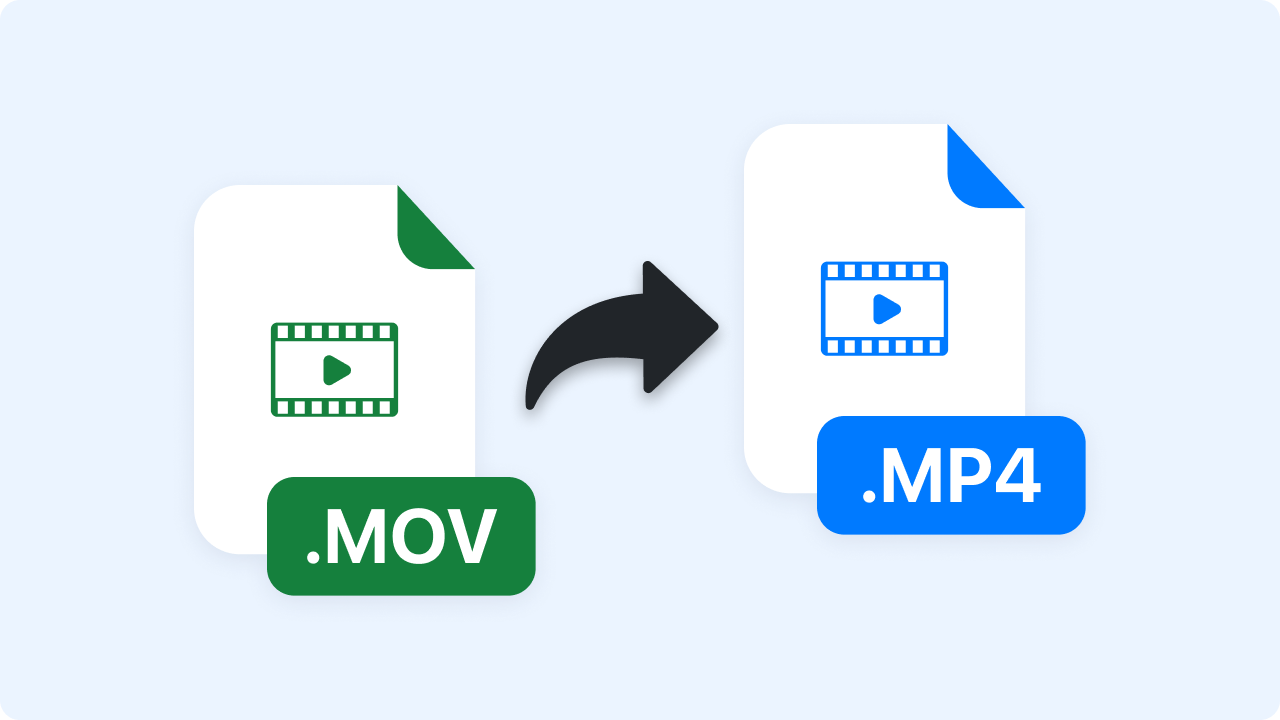
Browser-compatible MP4, MOV, and WebM files can work, depending on codecs and browser support.
Yes. Use the Upload to Zight button after the muted output is ready.
Share the muted clip with Zight
Send the finished video as a link instead of another large attachment.
Try Zight for free