
Ready to Boost Your Productivity?
Save time and money while boosting productivity with Zight — free tools for screen recording, screenshots, GIFs, webcam capture, and quick media prep.
Try Zight for FreeHow to Cut an MP3
Follow these simple steps to get started.
1. Upload Audio File
Select an MP3 or another browser-supported audio file from your device.
2. Choose Trim Points
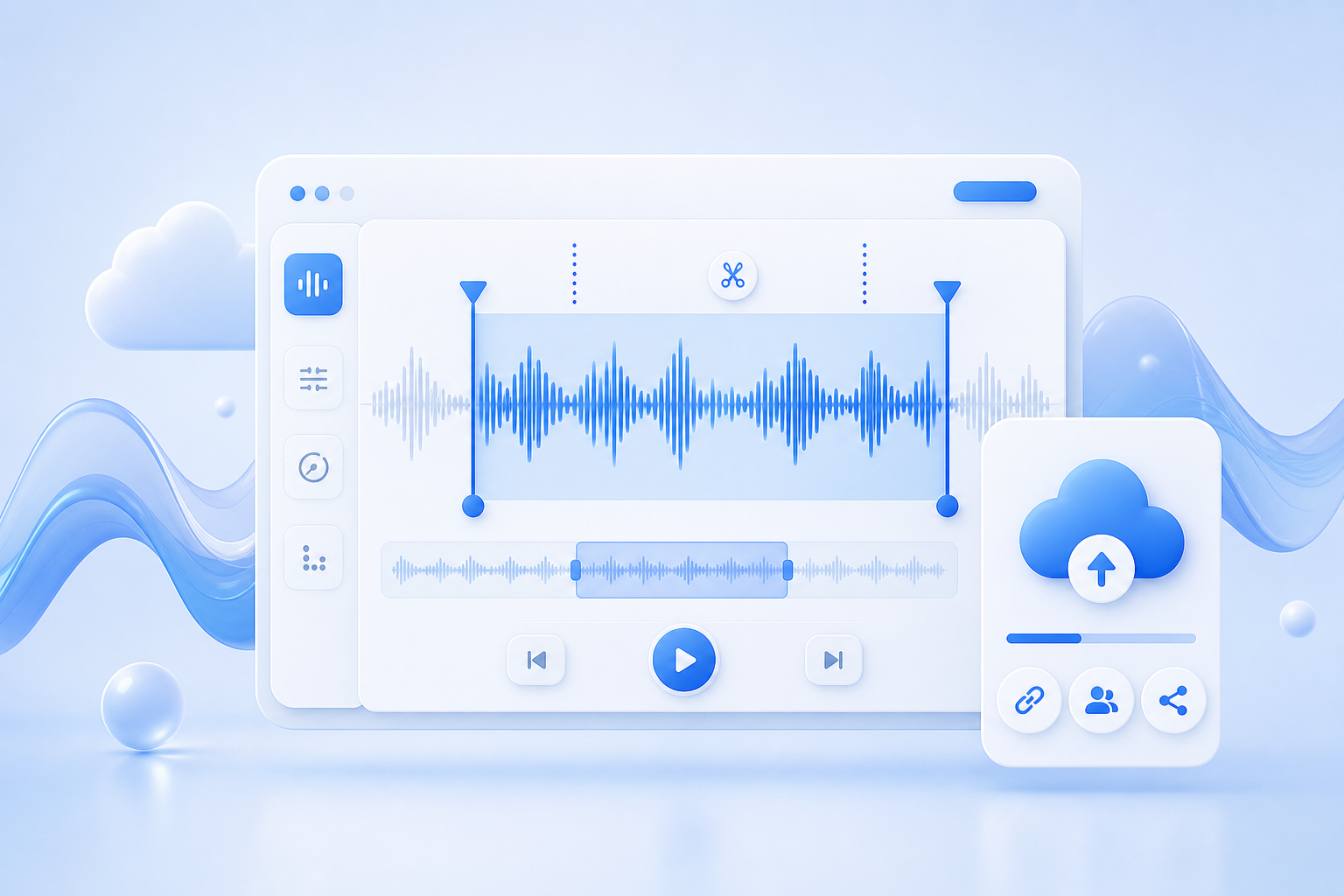
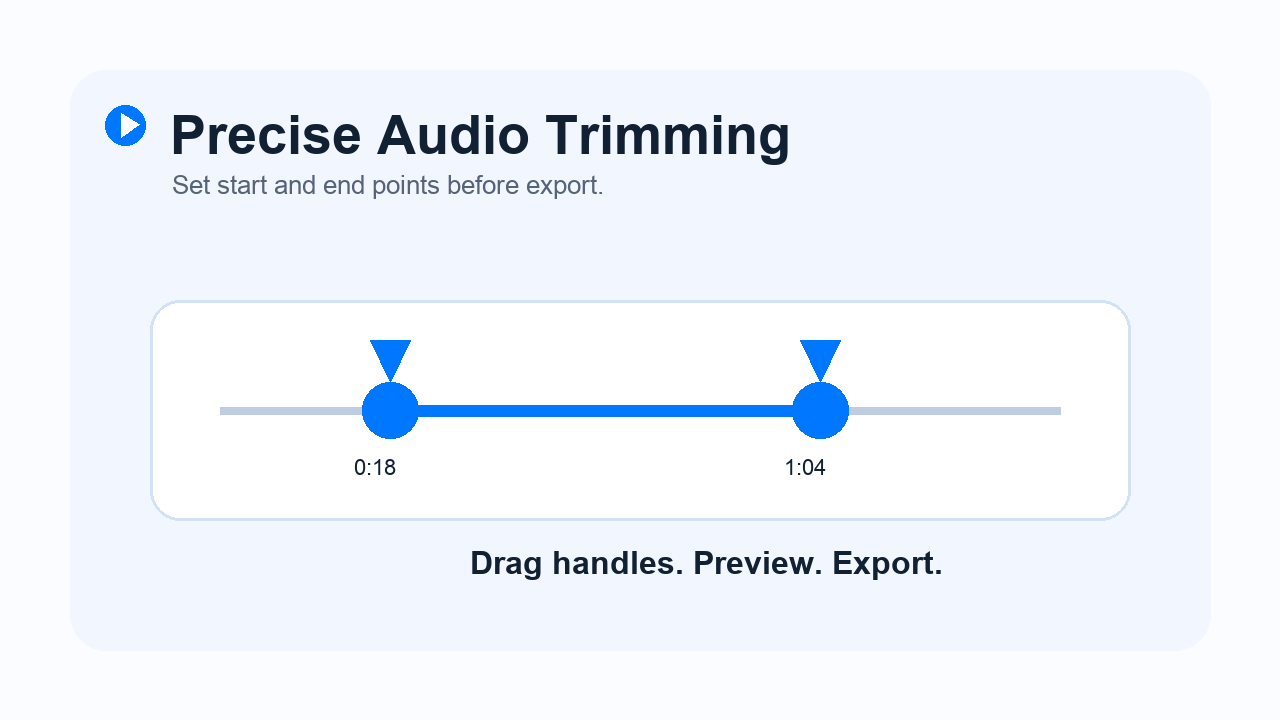
Set the start and end points, then preview the selected range before exporting.
3. Download Clip
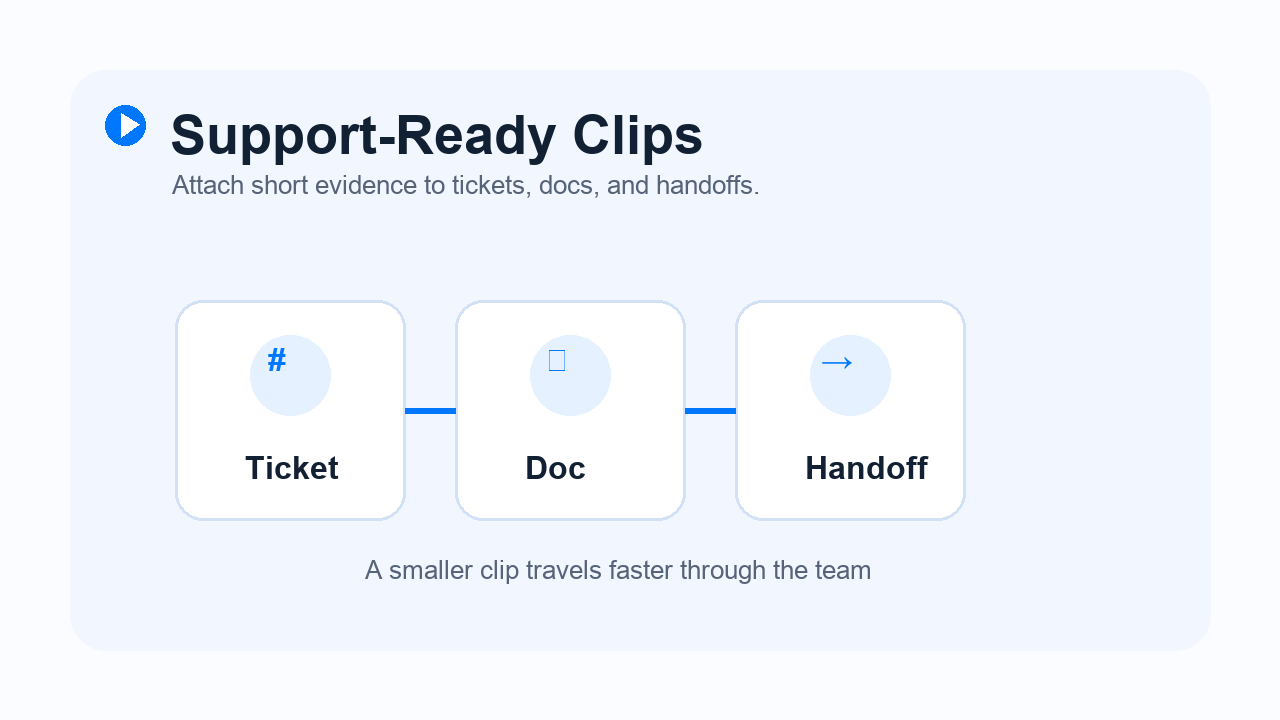
Download a focused WAV clip you can attach to tickets, docs, or team handoffs.
Choosing Between Long Recordings and Short Clips
Long recordings
Long recordings preserve full context, but they are harder to scan when a teammate only needs one customer quote, bug explanation, or escalation detail. They work best as the source of truth, not always as the handoff asset.
Short clips
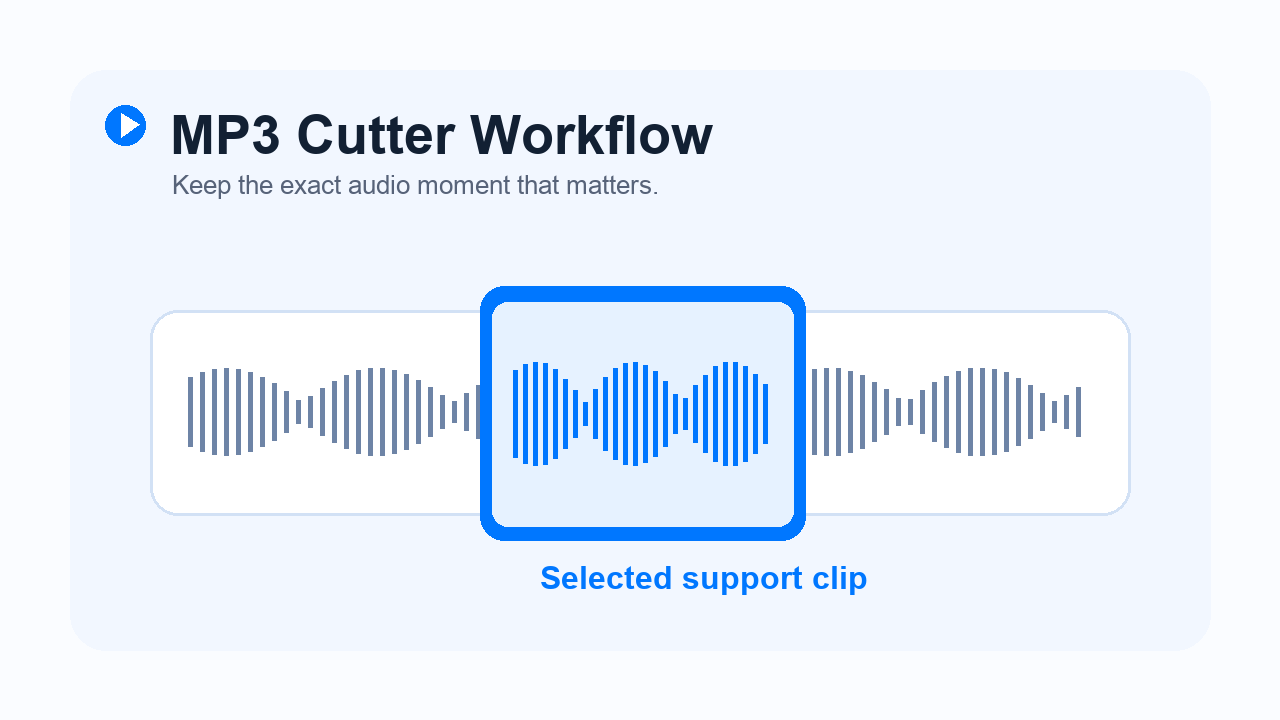
Short audio clips keep the useful moment easy to replay, attach, and share. Use a short clip when you need quick context without asking someone to scrub through a full call or walkthrough.
Audio Trimming and Workflow Speed
Move faster with focused evidence
Trimming removes silence, setup chatter, and unrelated context before a recording reaches a ticket, doc, or support handoff. A focused clip helps the next person understand the issue faster.
Keep the full context when needed
Use the clip for speed, then keep the original recording or a Zight link available when the team needs the complete story.
Supported Audio Uses and Sharing Moments
Where can you use audio clips?
MP3 and WAV clips are useful in customer support, QA reviews, onboarding notes, product feedback, training recaps, and internal documentation. A short clip works well anywhere a full meeting recording would slow people down.
Pair clips with Zight
When the audio needs visual context, pair it with a Zight screen recording, screenshot, transcript, or shareable link.
Perfect for Support, QA, and Team Handoffs
For Support Teams
Clip the exact customer explanation before escalating a ticket.
For QA and Product Teams
Share the short audio moment that explains what happened, then connect it to a visual bug report when needed.
For Internal Teams
Turn long walkthroughs and meeting recordings into quick notes people can actually use.
Unlock More Tools
Expand your toolkit with these additional free converters and utilities.
Ready to Simplify Your Audio Clip?
Quick, easy, and reliable audio trimming for support clips, QA notes, and team handoffs.
Upload NowFrequently Asked Questions
Yes. You can upload an audio file, choose trim points, preview the selected range, and export a clip from your browser.
No sign-up is required to use the cutter on this page. Zight sign-up is only needed if you want screen recording, screenshots, transcripts, and shareable links.
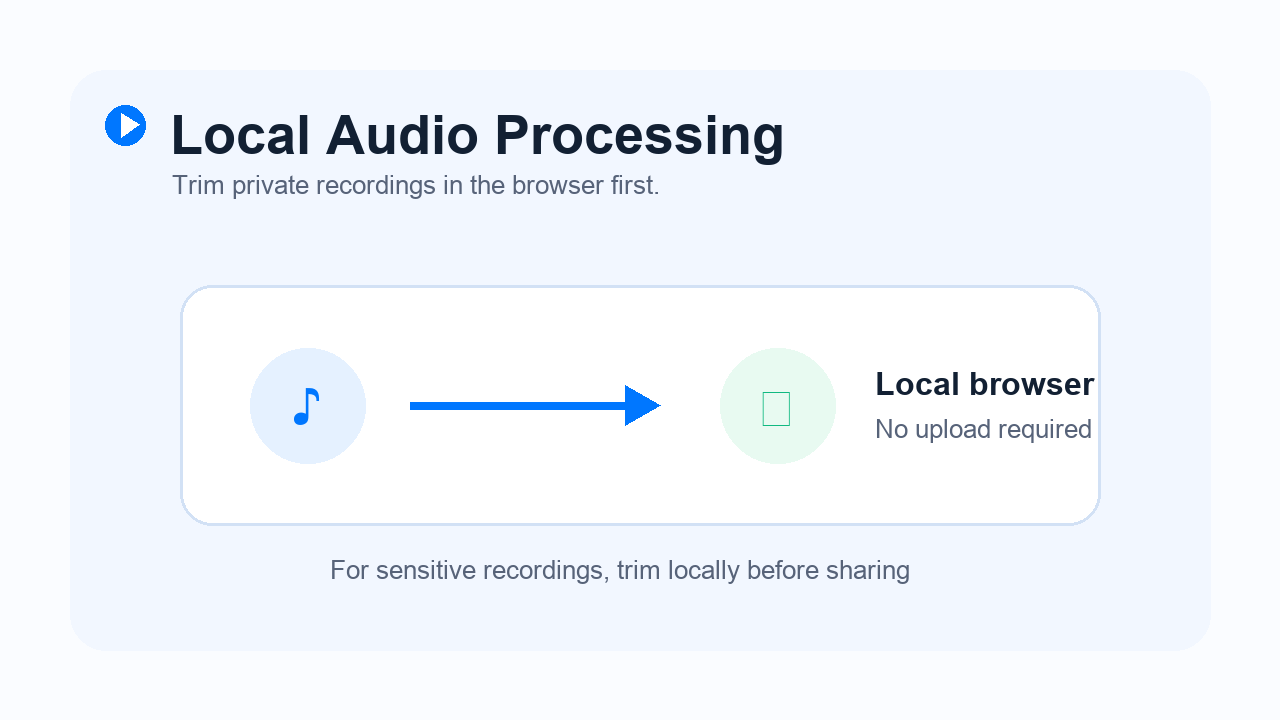
The current pilot processes audio locally in your browser. Your file is decoded on your device so you can trim before sharing.
The cutter accepts common browser-supported audio formats such as MP3, WAV, M4A, AAC, and OGG. Browser support can vary by device.
The pilot exports WAV because it is reliable for local browser processing without adding a heavy encoder. MP3 export can be added in a later production pass.
Yes. Set the start and end points, then use preview to hear the selected range before exporting.
The exported clip is generated from the decoded audio range. For most support and handoff use cases, the result is clear enough for review and documentation.
Yes. It is useful for shortening long calls into the exact customer quote, bug explanation, or escalation note a teammate needs.
No. Audio clips are useful, but Zight is better when your team also needs screen context, screenshots, transcripts, or a shareable visual walkthrough.
Use them as lightweight evidence in tickets, docs, QA notes, onboarding materials, and internal handoffs. Pair them with a Zight link when visual context matters.
Large files may take longer to decode or may hit browser memory limits. For best results, use focused recordings rather than multi-hour audio files.
Yes. Trimming creates a new downloaded clip and does not change your original file.
A Comprehensive Guide to Cutting MP3 Files for Faster Support Handoffs
Long audio recordings are useful when you need the full context of a customer call, onboarding walkthrough, QA review, or internal meeting. The problem is that most teammates do not need the entire recording. They need the exact quote, explanation, objection, or moment that moves the work forward.
That is where an MP3 cutter helps. Instead of sending a teammate a long recording and asking them to find the right moment, you can trim the useful section and share a focused clip. The result is easier to review, easier to attach to a ticket or doc, and easier to act on.
Zight’s MP3 cutter is designed for that workflow. It lets you upload an audio file, choose the start and end points, preview the selected range, and download a shorter clip directly from the browser.
Why Cut MP3 Files?
Audio files often include setup time, pauses, repeated context, side conversations, or unrelated details. Trimming turns the recording into a cleaner asset.
1. Save Time During Handoffs
When a support agent escalates a customer issue, the receiving teammate should not have to replay a full call to understand the problem. A short clip makes the handoff faster and more respectful of everyone’s time.
2. Keep the Useful Moment Easy to Find
Short clips are easier to name, attach, and reference later. They work well in tickets, docs, Slack threads, QA notes, and product feedback summaries.
3. Preserve Clarity Without Overloading the Viewer
A full recording can still exist as the source of truth, but the trimmed clip gives the team a lightweight evidence layer. That balance is especially useful when multiple people need to review the same issue.
Common Ways Teams Use Audio Clips
Customer Support Escalations
Support teams can cut the exact customer quote or issue description before sending a ticket to product, engineering, or customer success leadership.
QA and Bug Reports
QA teams can pair a short audio explanation with a screenshot or screen recording so engineers understand both what happened and why it matters.
Training and Onboarding
Managers and enablement teams can cut useful moments from longer training sessions and reuse them in onboarding docs or internal knowledge bases.
Product Feedback
When a customer explains a workflow problem in their own words, a trimmed clip can be more persuasive than a written summary alone.
How to Cut an MP3 with Zight
Step 1: Upload Your Audio File
Use the tool above to select an MP3 or another browser-supported audio file from your device. The page will decode the file locally and show trim controls.
Step 2: Choose the Start and End Points
Use the numeric fields or sliders to select the exact section you want to keep. Preview the selected range before exporting so you know the clip starts and ends cleanly.
Step 3: Download the Clip
Export the selected range and attach it wherever your team works. The current pilot exports a WAV clip for reliable local browser processing.
When to Use Zight Alongside an Audio Clip
Audio is helpful, but it does not always tell the whole story. If the issue depends on what happened on screen, pair the audio clip with a Zight screen recording, screenshot, transcript, or shareable link. That gives the team both the voice context and the visual evidence they need to act quickly.
Best Practices for Support-Ready Clips
- Trim around the key moment. Keep enough lead-in for context, but remove unrelated setup and silence.
- Name the clip clearly. Use a filename that describes the customer, issue, or workflow.
- Keep the original recording. A short clip is great for speed, but the source file can still be useful for deeper review.
- Add visual context when needed. Use Zight when a teammate needs to see the screen, cursor movement, or product state.
Beyond MP3 Cutting: What Else Can Zight Do?
Zight helps teams explain work with screen recordings, screenshots, GIFs, annotations, transcripts, and shareable links. Use the MP3 cutter when audio is enough. Use Zight when your team needs the full visual story.