
Add an Email Signature in Gmail
Want to make your emails look more professional and on-brand? This guide walks you through how to add an email signature in Gmail including your name, role, logo, and contact info.
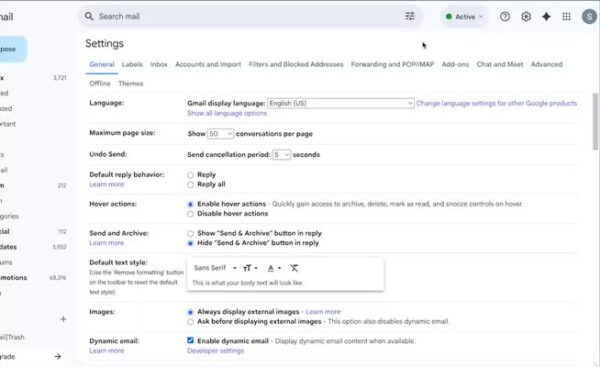
Step 1: Access Gmail Settings
- Go to the settings page of your Gmail account.
Step 2: Scroll to Signature Section to Create a Signature
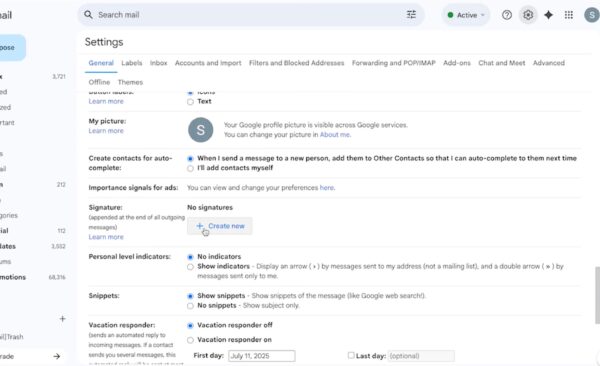
- Scroll all the way down until you reach the signature section.
- Click on “Create new” and name your signature.
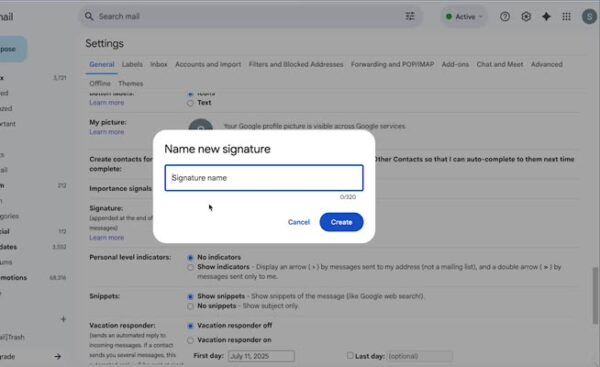
Step 3: Name Your Signature
- Label your signature, for example, “Zight”, and hit create.
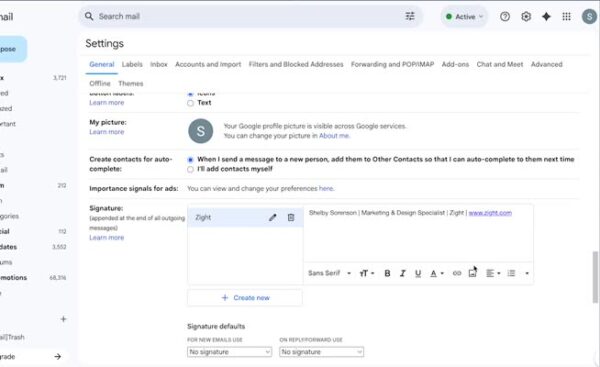
Step 4: Add Your Details
- Add your name, role, and the company you work at.
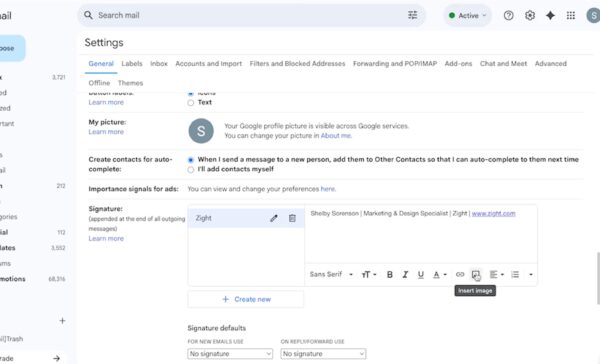
Step 5: Insert a Logo
- Go to “Insert image” to include a logo.
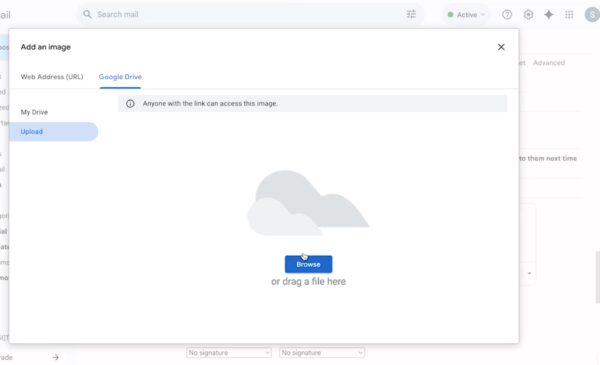
Step 6: Upload Your Image
- Select the photo from your computer.
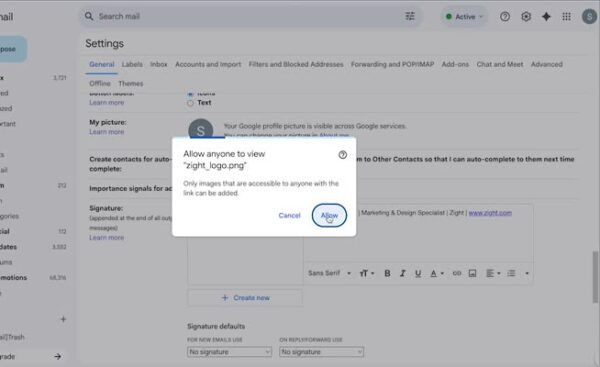
Step 7: Allow Anyone to View Signature
Step 8: Adjust Image Size and Save Your Signature
- Click on the image to adjust the size.
- Scroll down and click on save to finalize your email signature.

The Ultimate Guide to Adding an Email Signature in Gmail
Your email signature is more than just your name at the end of a message. It represents your brand, adds credibility, and makes your emails look polished and professional. Whether you are reaching out to clients, partners, or coworkers, a consistent and well-designed signature helps leave a positive impression.
Gmail makes it easy to create your own personalized signature that automatically appears at the end of every email. You can include your name, job title, company, logo, and contact information to make your messages stand out while staying on brand.
Why an email signature matters
Every email you send is an opportunity to present yourself or your business in a professional light. Adding a signature not only saves time but also ensures your information is always clear and consistent.
Here are a few reasons why adding an email signature is essential:
-
It adds credibility and professionalism to every email you send.
-
It helps recipients quickly identify who you are and how to reach you.
-
It reinforces your brand identity by including your company name and logo.
-
It creates a consistent communication style across your team or organization.
Think of your signature as a virtual business card. It delivers key details at a glance and helps build trust with every interaction.
What to include in your Gmail signature
A good email signature strikes a balance between being informative and visually clean. Avoid overcrowding it with unnecessary text or images. Here are the essential elements to include:
-
Full name
-
Job title and company name
-
Company logo or personal headshot
-
Contact information, such as phone number, website, or office address
-
Social media links, if relevant to your work (like LinkedIn or Twitter)
You can also include a simple call to action, such as “Schedule a meeting” or “Visit our website,” but keep it short and unobtrusive.
Customizing your Gmail signature
Once you have gathered all the details you want to include, it is time to add them to Gmail. You can access your Gmail settings by clicking the gear icon in the upper right corner and selecting See all settings. From there, scroll down to the Signature section.
Click Create new to make your first signature and give it a name. This is especially useful if you want to create multiple signatures for different purposes, like one for personal use and one for work.
Type in your information and format it using Gmail’s toolbar. You can bold your name, change font colors, or add hyperlinks to your website or social media pages. To insert your company logo or another image, click the image icon and upload it from your computer.
When the signature looks right, scroll down to the bottom of the page and click Save changes. Gmail will automatically insert your signature into every new email you send.
Tips for creating a professional signature
-
Keep it simple: Focus on your essential information and keep the design clean.
-
Stay consistent: Use the same font, size, and color scheme across all team members.
-
Use a small image: Oversized logos can look unprofessional or distort the layout.
-
Add links carefully: Link only to verified, professional pages or websites.
-
Preview before finalizing: Send a test email to check how your signature looks on both desktop and mobile.
Your goal is to make your signature visually appealing but functional. It should represent your brand without distracting from your message.
Maintaining multiple Gmail signatures
If you manage different projects or communicate with various audiences, Gmail allows you to create multiple signatures. For example, you might use one for customer communications and another for internal updates.
You can switch between signatures easily while composing an email. Simply click the pen icon at the bottom of your message and choose the appropriate signature from the dropdown list. This flexibility helps you stay organized while maintaining professionalism across contexts.
Common mistakes to avoid
While designing your Gmail signature, it can be tempting to include too much. Avoid adding long quotes, too many images, or multiple colors. These can make your emails appear cluttered or reduce readability.
Also, avoid including personal or unnecessary details like home addresses or unrelated social media accounts. Keep your signature focused on your role and how people can reach you professionally.
Conclusion
Adding an email signature in Gmail is a simple yet powerful way to enhance your professional communication. It helps every email you send reflect your brand identity while saving you time and effort.
A clean, consistent signature can make your messages look more polished, strengthen brand recognition, and help recipients find your contact information easily.
Whether you are representing your business or personal brand, take a few minutes to create your Gmail signature today. It is a small detail that makes a big impact on how your emails are perceived.
Frequently Asked Questions
Yes. Gmail lets you create multiple signatures (for example, one for internal emails and one for clients).
When composing an email, click the pen icon at the bottom of the message window and choose your preferred signature.
Yes. Use the Insert link icon to add clickable links or upload small social media icons.
Check your image’s sharing settings. It must be publicly viewable or stored directly in Gmail.












