
How to Trim a Video on Mac: 2 Fast Methods (Free & Shareable)
You just recorded a quick screen walkthrough, a product demo, or a bug report — but the first 15 seconds are you fumbling with tabs, and the last 10 are dead air. You need to know how to trim a video on Mac without downloading a bloated video editor or losing 20 minutes figuring out a timeline. The good news: macOS gives you a built-in option (QuickTime Player), and if you want to trim and share in one step, Zight makes it even faster.
⚡ Quick Answer — How to Trim a Video on Mac
The fastest free way to trim a video on Mac is to open it in QuickTime Player, go to Edit → Trim, drag the yellow handles to select the section you want, and click Trim. If you need to trim and instantly share a link (no file attachments), Zight — a screen recording, screenshot, and async video tool for Mac — lets you record, trim, annotate, and generate a shareable link in under 60 seconds. Zight’s built-in video editor is purpose-built for fast communication, not Hollywood production.
Why You Need to Trim Videos on Mac (And Why Speed Matters)
Trimming isn’t about making a movie. It’s about removing the noise so the person on the other end gets exactly what they need — nothing more, nothing less. Whether you’re a developer sharing a bug reproduction, a product manager leaving async feedback, or a customer success rep walking a client through a feature, an untrimmed video wastes everyone’s time.
Here’s the real problem: most Mac users either don’t know they already have a video trimmer on Mac built into the OS, or they use one that makes them export a file, attach it to an email, and pray the recipient’s inbox doesn’t reject it because it’s 85 MB.
This guide covers two methods — one you already have (QuickTime), and one that solves the sharing problem entirely (Zight). Let’s start with the free built-in option.
Method 1: How to Trim a Video on Mac with QuickTime Player (Free)
QuickTime Player ships with every Mac. It’s free, it’s already installed, and it handles basic trimming without needing any additional software. If all you need is to chop the beginning or end off a video file that lives on your hard drive, this is the simplest path. Here’s how to trim a video on Mac free using QuickTime:
Step 1: Open Your Video in QuickTime Player
Find the video file in Finder. Right-click it and select Open With → QuickTime Player. If QuickTime is your default video player, you can simply double-click the file. QuickTime supports .MOV, .MP4, .M4V, and most common video formats natively on macOS Sonoma and Sequoia (2024–2025).
Step 2: Open the Trim Tool
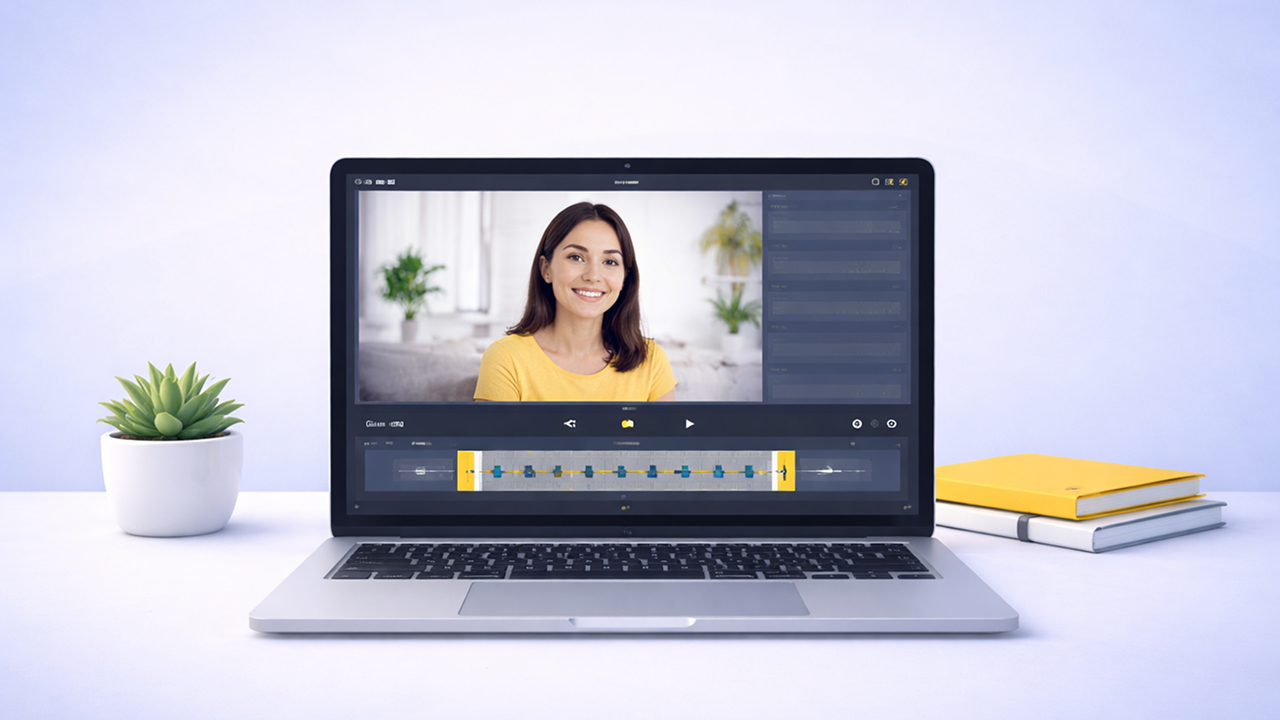
With the video open, go to the menu bar and click Edit → Trim (or press ⌘T). A yellow trimming bar will appear at the bottom of the video window, overlaid on the timeline. This is your trim interface — it’s minimal by design.
Step 3: Drag the Yellow Handles to Select Your Clip
You’ll see two yellow handles — one on the left, one on the right. Drag the left handle to set where your trimmed video should start. Drag the right handle to set where it should end. Everything inside the yellow selection is what you’ll keep; everything outside gets removed.
Use the spacebar to preview playback within the selected range before committing. This helps you make sure you’re not cutting off the middle of a sentence or important screen action.
Step 4: Click “Trim”
Once you’re happy with the selection, click the Trim button on the right side of the trimming bar. QuickTime will instantly cut the video down to your selected range. The change isn’t saved to the original file yet — you’re working on an in-memory edit.
Step 5: Save or Export the Trimmed Video
Go to File → Save (⌘S) to overwrite the original file, or File → Export As to save a new copy at your preferred resolution (480p, 720p, 1080p, or 4K). QuickTime exports in .MOV format. If you need .MP4, you’ll need a separate converter or a different tool entirely.
QuickTime Trimming: What It Does Well (and Where It Falls Short)
Pros: Free, no download required, simple two-handle interface, works on any Mac video file.
Cons: Exports only in .MOV, no annotations or callouts, no way to share a link — you still have to attach the file manually. For teams that communicate asynchronously, the “trim then email a giant file” workflow is a bottleneck. That’s exactly the problem Zight solves.
Method 2: How to Trim a Video on Mac with Zight (Trim + Share Instantly)
Zight is a screen recording, screenshot, and async video tool built for teams that need to communicate visually — without scheduling another meeting. It runs on Mac, Windows, and Chrome, and it includes a built-in video editor that lets you trim, crop, annotate, and generate an instant shareable link. No exporting files. No email attachments. No file-size limits blocking your message.
If you’re already using Zight to record your screen on Mac, trimming happens right inside the tool — you never have to open a separate app. Here’s the full walkthrough:
Step 1: Record or Upload Your Video in Zight
If you’re recording a new video, open the Zight Mac app (or Chrome extension) and start a screen recording, webcam recording, or both. When you stop recording, the video is automatically uploaded to your Zight account — no file management required.
Already have a video file? You can drag and drop any .MP4, .MOV, or .WEBM file into Zight to upload it. Once uploaded, you’ll see it in your Zight dashboard.
Step 2: Open the Zight Video Editor
Click on the video in your Zight dashboard to open it. You’ll see an Edit button (or pencil icon) — click it to launch the built-in video editor. This editor is intentionally lightweight: it’s designed for fast, functional edits, not color grading or multi-track timelines.
Step 3: Trim the Start, End, or Both
In the Zight editor, you’ll see a visual timeline of your recording. Drag the trim handles to cut unwanted footage from the beginning or end. You can also use the editor to cut out sections in the middle — something QuickTime can’t do without splitting and re-joining clips manually.
Preview your edits in real time before saving. Need to make additional edits to your video recordings? You can add annotations, text overlays, blur sensitive information, or crop the frame — all inside the same editor.
Step 4: Save and Share a Link Instantly
Click Save, and Zight generates a shareable link automatically. The link is copied to your clipboard the moment you save. Paste it into Slack, Jira, Notion, email, a support ticket, a GitHub issue — anywhere that accepts a URL.
No exporting a file. No uploading to Google Drive. No attachment size limits. Your recipient clicks the link and watches the trimmed video instantly in their browser. You can also set link permissions (password protection, expiration dates, or team-only access) for sensitive content.
Step 5: Track Views (Optional but Powerful)
Once you’ve shared the link, Zight tells you when someone views it. This is especially useful for customer success teams (“Did the client actually watch the walkthrough?”) and for sales teams sending video proposals. QuickTime can’t tell you anything about what happens after you hit “Save.”
QuickTime vs. Zight: Video Trimmer Mac Comparison
Here’s a side-by-side breakdown to help you decide which Mac video trimmer fits your workflow:
| Feature | QuickTime Player | Zight |
|---|---|---|
| Price | Free (built into macOS) | Free plan available; paid plans from $9/mo |
| Trim start/end | ✅ Yes | ✅ Yes |
| Cut middle sections | ❌ Not natively (requires split + rejoin) | ✅ Yes |
| Annotations / text overlays | ❌ No | ✅ Yes |
| Blur sensitive info | ❌ No | ✅ Yes |
| Instant shareable link | ❌ No — must export & attach file | ✅ Auto-generated on save |
| View tracking | ❌ No | ✅ Yes — see who watched |
| Export format | .MOV only | Cloud-hosted link (MP4 download available) |
| Screen recording built-in | Basic (⌘⇧5) | Full: screen, webcam, audio, system sound |
| Best for | Quick local trims of existing files | Record → trim → share workflows for teams |
Bottom line: QuickTime is fine for one-off trims of files already on your Mac. Zight is built for people who trim videos because they need to share them with someone — and want to skip the export-upload-attach dance entirely.
When to Use Each Method
Use QuickTime When…
- You have a video file on your Mac and just need to shorten it for personal use.
- You don’t need to share the trimmed video online.
- You want a zero-install, zero-signup solution.
- The video is already in .MOV format and you don’t need format conversion.
Use Zight When…
- You recorded a screen walkthrough, demo, or bug report and need to share it with a teammate or client.
- You want to trim and add annotations, callouts, or blur sensitive data.
- You’re tired of exporting files, uploading them to Drive, and pasting download links.
- You want to know whether the recipient actually watched the video.
- Your team communicates asynchronously via Slack, Jira, Notion, or email.
Pro Tips for Trimming Videos on Mac
Regardless of which tool you use, these tips will help you create cleaner, more professional-looking trimmed clips:
- Start recording 3 seconds early, stop 3 seconds late. This gives you a trim buffer so you don’t accidentally cut into your content. It’s much easier to trim excess than to re-record because you cut too close.
- Trim to the first useful frame. Viewers decide within 2–3 seconds whether to keep watching. Don’t make them sit through your desktop loading or a cursor hovering over the wrong window.
- Use keyboard shortcuts. In QuickTime, ⌘T opens trim instantly. In Zight, the editor is one click from the recording preview. Speed compounds when you’re trimming 5–10 clips per week.
- Don’t over-edit. If you’re sharing a bug report or a quick walkthrough, a clean trim is all you need. Perfectionism kills async communication speed — the point is clarity, not polish.
- Add context with annotations instead of longer video. Instead of recording a longer explanation, trim the video tight and use Zight’s text overlays or arrows to highlight the key part. A 15-second annotated clip beats a 90-second unedited one.
Frequently Asked Questions
Can you trim a video on Mac without downloading any software?
Yes. Every Mac running macOS 10.10 (Yosemite) or later includes QuickTime Player, which has a built-in trim function. Open any supported video file, press ⌘T, adjust the yellow handles, and click Trim. No additional downloads are required for basic start/end trimming.
How do you trim the middle of a video on Mac?
QuickTime Player only supports trimming the start and end of a video — it can’t cut out a section in the middle without a complex split-and-rejoin process. Zight’s video editor supports cutting middle sections directly: select the portion you want to remove, delete it, and the editor automatically joins the remaining clips. This is ideal for removing pauses, mistakes, or irrelevant sections from screen recordings.
Is there a free video trimmer for Mac that also lets you share a link?
Zight offers a free plan that includes screen recording, basic video editing (including trimming), and automatic shareable link generation. Unlike QuickTime — which only saves files locally — Zight hosts your trimmed video in the cloud and gives you an instant link to paste into Slack, email, Jira, or any other communication tool. Paid plans (starting at $9/month in 2026) unlock additional features like custom branding, longer recording limits, and advanced analytics.
What video formats does QuickTime support for trimming on Mac?
QuickTime Player natively supports .MOV, .MP4, .M4V, and .MPEG-4 files for trimming. However, it only exports trimmed videos in .MOV format. If you need your trimmed video in .MP4 format for broader compatibility, you’ll need to use a separate converter or a tool like Zight that provides cloud-hosted playback regardless of format.
Can I trim a screen recording on Mac right after recording it?
If you use macOS’s built-in screen recorder (⌘⇧5), the recording saves as a .MOV file that you can open in QuickTime and trim. With Zight, trimming is even more seamless: after you stop a screen recording, the video opens directly in the Zight editor where you can trim, annotate, and share — all without leaving the app or handling files manually.
Stop Trimming and Start Communicating
Knowing how to trim a video on Mac is the easy part — QuickTime handles it in four clicks. But trimming is rarely the end goal. You trim a video because you need someone else to see something. The real question is: how fast can you get from “I recorded this” to “they watched it”?
With QuickTime, the answer is: trim → export → find the file → attach it → hope the file size works → wait. With Zight, the answer is: trim → done. Link’s on your clipboard.
If you’re part of a remote team, a SaaS company, or any group that communicates asynchronously, the workflow difference adds up fast. Five videos a day × five minutes saved per video = over two hours back every week.
Ready to try it? Get started with Zight for free — record your screen, trim the video, and share an instant link in under 60 seconds. No file exports. No attachment limits. Just clear, fast visual communication.












