
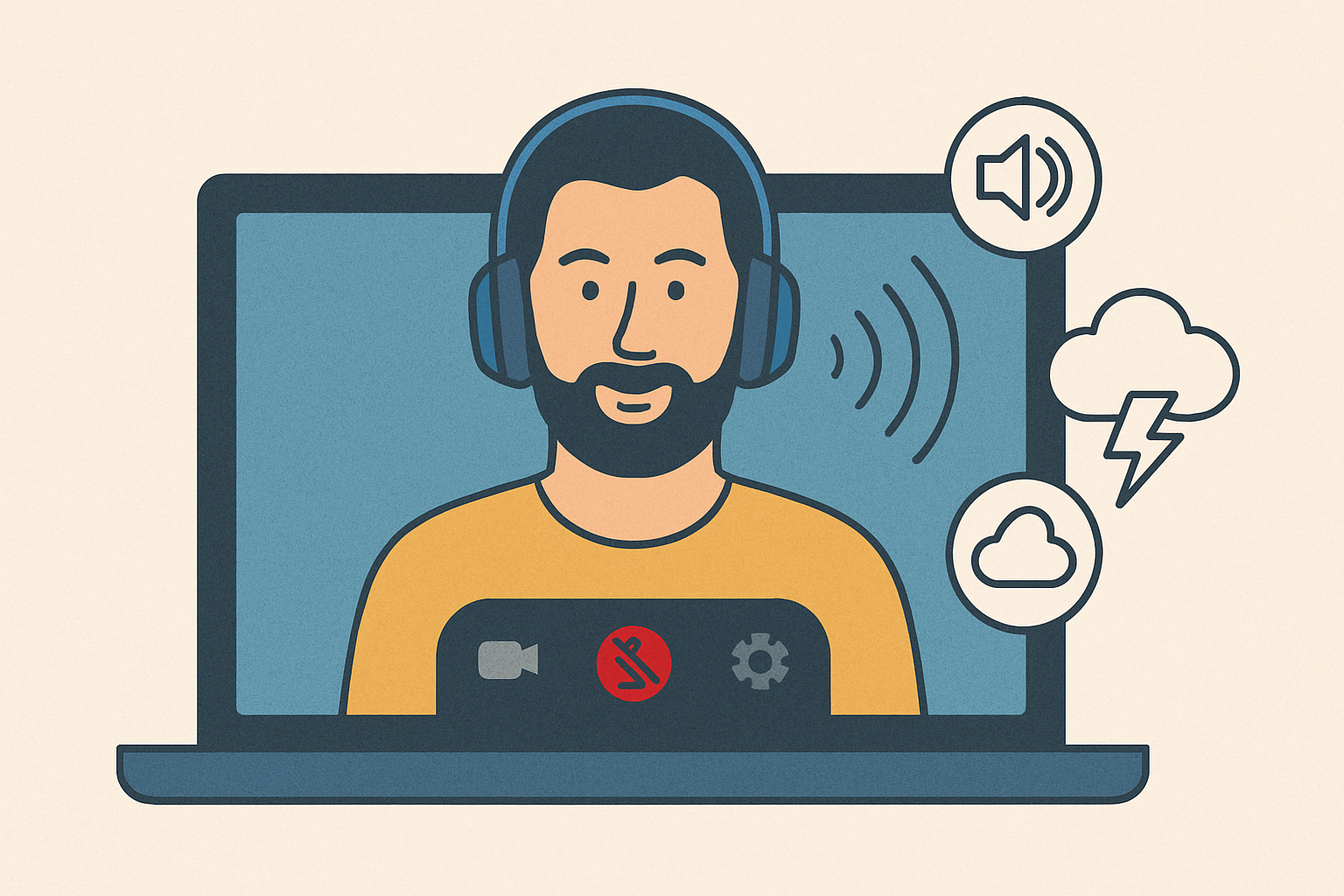
Bad audio can ruin your message. Whether it’s an air conditioner hum or keyboard clicks, background noise distracts your audience and makes your content hard to follow. Clean audio is essential for maintaining focus, trust, and accessibility.
Here’s how to ensure clear audio in your recordings:
- Choose a quiet room: Avoid spaces with street noise, household sounds, or echoes. Use soft furnishings like rugs, curtains, or blankets to absorb sound.
- Position your microphone properly: Keep it 4–8 inches from your mouth, slightly off-center, and away from noisy equipment. Use a pop filter and a boom arm for the best results.
- Adjust microphone settings: Select the right input device, set gain levels, and enable noise reduction filters or a noise gate to block unwanted sounds.
- Use real-time noise reduction tools: Software like OBS Studio or AI tools like Krisp.ai can minimize background noise as you record.
- Edit audio post-recording: Tools like Audacity can remove persistent noise and fine-tune frequencies for clarity.
How To Remove Background Noise From Video LIVE! Krisp Review
Set Up Your Recording Space
Your recording environment plays a bigger role in audio quality than even the fanciest equipment. Getting your space right upfront can prevent noise issues, saving you hours of editing headaches later.
Pick a Quiet Room
Where you record matters – a lot. Look for a room that’s naturally shielded from noise, like street traffic, HVAC hums, or household commotion. Basements and interior rooms often work better than spaces with windows or walls facing busy streets.
Before recording, turn off anything that creates background noise, like air purifiers, fans, or even fluorescent lights, which can emit a faint buzz that microphones pick up. Timing also helps. Record during quieter times, like early mornings, and if you’re near an airport or train tracks, check their schedules to avoid peak noise periods.
Close doors to block sound from other parts of your home. Even distant conversations can creep into your recording, creating a muffled murmur that’s hard to edit out. Once you’ve minimized external noise, focus on reducing echoes in your space.
Control Echo and Sound Reflections
Hard surfaces can make your voice sound hollow or distant by bouncing sound waves around. Soft materials, on the other hand, absorb these reflections, giving your audio a cleaner, more polished feel.
Heavy curtains are great for dampening sound from windows and walls. No curtains? No problem – thick blankets or moving pads work just as well. Even a bookshelf packed with books can act as a natural sound absorber, and upholstered furniture like couches or armchairs helps too.
Avoid recording in spaces like bathrooms, kitchens, or empty rooms with bare walls and tile floors. These areas amplify sound and create an echo chamber effect that’s almost impossible to fix later.
If your room has hardwood or tile floors, throw down a thick rug to help absorb sound. Even a yoga mat can make a noticeable difference. And don’t forget the ceiling – rooms with standard 8-foot ceilings generally produce better audio than those with vaulted or cathedral ceilings, which can add unwanted reverb.
Once your room is set up, the next step is getting your microphone placement just right.
Place Your Microphone Properly
Where and how you position your microphone can make or break your recording. Aim to place it 4–8 inches from your mouth and slightly off-center. Use a pop filter to cut down on plosive sounds (like harsh “P” and “B” noises) and breathing.
If you’re using a directional microphone with a cardioid pattern, you’re in luck. These mics are designed to focus on sound coming from the front while ignoring noise from the sides and back. Point the front of the microphone directly at your mouth and the back toward the quietest part of the room.
Keep the mic away from noisy equipment like your keyboard or mouse. Even subtle clicks can get amplified in the recording. A boom arm or microphone stand can help position the mic perfectly without placing it on your desk, where vibrations from typing can travel through.
Before you hit record, test your setup. Speak at your normal volume and monitor the audio through headphones. You should hear your voice clearly, with minimal room echo or background noise interfering. A little preparation here goes a long way toward professional-quality audio.
Configure Your Microphone Settings
Getting your microphone settings dialed in is just as crucial as positioning it correctly. Poor settings can lead to unwanted background noise, but with the right device selection and level tweaks, most of these issues can be avoided.
Choose the Right Input Device
Your computer needs to know which microphone to use, and this choice isn’t always automatic. Many systems come with multiple input options – like your webcam’s built-in mic, a headset microphone, or an external USB mic – and they often default to the least effective one.
To ensure the best audio quality, head to your system’s sound settings and select the microphone you want to use. An external microphone is usually the better option, with dynamic microphones being particularly effective at cutting down background noise compared to condenser mics or built-in options.
Don’t forget to check the audio settings in your recording software as well. Platforms like Zoom, Google Meet, or Discord may override your system’s default settings, so make sure your preferred microphone is selected there too.
For extra help with noise reduction, consider AI-based tools like NVIDIA RTX Voice or Krisp.ai. Once you’ve chosen the right mic, it’s time to adjust its levels to suit your recording environment.
Adjust Input Levels and Filters
Set your microphone gain so your voice comes through clearly without distortion. If your mic or software offers a high-pass filter, enable it to eliminate low-frequency background noise.
If you’re using Windows, you can fine-tune your microphone settings by navigating to Control Panel > Sound > Recording tab, right-clicking your mic, and selecting Properties. Look under tabs like “Enhancements” or “Advanced” for options that allow noise reduction or level adjustments.
Use a Noise Gate
A noise gate can be a game-changer for your recordings. This tool automatically mutes your microphone during silent moments and activates it only when you speak. It’s especially helpful for blocking out room noise or hums during pauses.
Set the noise gate’s threshold slightly above the level of your ambient noise. Test it by recording natural pauses to ensure your voice is picked up fully while background sounds stay out.
Before diving into any critical recordings, run a few tests. Record a short segment with pauses, then listen back to check that your voice isn’t being cut off and unwanted noise is kept to a minimum. A properly configured noise gate can elevate your audio from basic to polished and professional.
Use Real-Time Noise Reduction
Real-time noise reduction helps clean up your audio as you record, cutting down editing time and providing instant feedback.
Set Up Noise Suppression in OBS Studio
OBS Studio comes with a Noise Suppression filter that can reduce mild background sounds like PC fan hums or subtle ambient noise. However, it’s not powerful enough to completely remove loud or intrusive background sounds.
Here’s how you can set it up:
- Open OBS Studio and locate your microphone in the Audio Mixer section. If your microphone isn’t listed, add it by creating an “Audio Input Capture” source.
- Once your microphone is visible, click the ⚙️ icon next to it.
- From the menu that appears, select Filters to access audio processing tools.
- In the Filters window, click the “+” button and choose Noise Suppression from the list.
- Enable the filter and test your setup to make sure the audio quality meets your needs.
This feature is a quick way to improve your audio quality without spending hours in post-production.
sbb-itb-5d91f01
Fix Audio Issues After Recording
Post-production editing is where you can clean up any lingering noise and improve the overall quality of your audio.
Remove Specific Background Noises
Once you’ve finished recording, audio editing software can help you isolate and remove specific background noises. Tools like Audacity, which is free, come with noise reduction features designed to handle sounds like computer fans, air conditioners, or electrical hums.
Start by identifying a section of your recording where only the background noise is present – this is often found at the beginning or end of the track. Use this noise sample to create a profile, then apply it to the entire recording.
When reducing noise, take it slow. Overdoing it can leave your voice sounding distorted or unnatural. Test small portions of your track first, adjusting settings until you strike the right balance between clearing the noise and keeping your voice clear.
Focus on Speech Frequency Range
Human speech generally falls between 85 Hz and 8,000 Hz, so you can safely remove frequencies outside this range without affecting voice clarity.
Use a high-pass filter set to around 80–100 Hz to cut out low-frequency rumbles, such as vibrations or distant traffic sounds. On the other end, a low-pass filter set between 8,000–10,000 Hz can help eliminate high-frequency hisses or electrical interference.
To enhance clarity, try using equalization (EQ) to slightly boost the 1,000–3,000 Hz range, where speech typically sounds the clearest. This adjustment makes your voice stand out while masking any faint background noise that remains.
Check Final Audio Levels
Aim for audio levels around -16 LUFS (Loudness Units relative to Full Scale) to ensure consistent playback across various devices and platforms. This level keeps your voice clear without being overly loud or distorted.
The background noise, or noise floor, should be at least 40–50 decibels quieter than your voice. If unwanted sounds persist during pauses, consider applying more noise reduction or even re-recording those sections.
Finally, listen to your edited audio on a range of devices – headphones, computer speakers, and phone speakers. What sounds great on studio headphones might reveal flaws when played through smaller, less precise speakers.
These steps will help you polish your audio and get it ready for further optimization in Zight.
Apply These Tips in Zight

Now that you’ve got the basics of noise reduction down, it’s time to see how these techniques can elevate your experience with Zight’s webcam recording workflow. Zight’s recording and sharing tools shine when paired with solid audio preparation.
Prepare Before Starting Your Zight Recording
Start by positioning your microphone about 6–8 inches from your mouth. Set your noise gate and test your input levels before diving into Zight.
Run a quick 30-second test recording to ensure your audio is clean. Pay attention to any background hums, echo, or distortion that might have snuck in since your last recording. Also, close any unnecessary applications to minimize unwanted noise during your session.
One common mistake? Accidentally recording with your laptop’s built-in mic instead of your external USB microphone. Double-check your settings to avoid this and save yourself the frustration of a ruined recording.
Monitor Audio During Recording
Once your setup is ready, focus on monitoring your audio in real time. Wearing headphones while recording in Zight can help you catch any issues as they happen.
Keep your microphone distance consistent throughout. Moving too close can amplify your signal and trigger noise gate issues, while moving too far might allow background noise to creep in. A steady distance is key.
If an unexpected noise – like a passing truck or a lawnmower – interrupts your session, pause your recording. It’s much easier to redo a small section than to deal with major noise problems later. Zight’s editing tools are great for trimming brief pauses, but they’re not meant to fix significant audio issues.
Use Zight’s Tools for Review and Sharing
After recording, take advantage of Zight’s built-in tools to review your work. Use the AI transcription feature to spot areas where the audio might be unclear. If you notice garbled text or missing words, it’s a sign that those sections have audio issues your audience will notice too.
Play back your recording, paying close attention to quieter moments where background noise tends to stand out. If you find problem areas, trim long pauses with Zight’s editing features or re-record specific segments if needed.
Finally, use Zight’s sharing options to distribute your polished recording. With integrations for Slack, Microsoft Teams, and other workplace tools, you can easily share professional-quality audio with your audience. Clean sound combined with Zight’s seamless sharing ensures your content leaves a strong impression and keeps your viewers engaged.
Summary: Steps for Clean Webcam Audio
Achieving clean webcam audio starts with careful preparation and making the right technical adjustments. The environment you record in plays a huge role – pick a quiet space with soft furnishings to minimize sound reflections. Position your microphone about 6–8 inches from your mouth for the best sound capture.
Getting your microphone settings right is critical. Adjust input levels to prevent clipping, enable noise suppression filters, and set up a noise gate to block faint background sounds. Always run a quick test of your setup before you begin recording to catch any potential issues early.
For real-time noise reduction, tools like OBS Studio can give you fine control while recording. Use noise suppression and a noise gate together, but be cautious not to overdo it – too much processing can make your voice sound unnatural.
Using these techniques ensures clear audio from the start, making tools like Zight’s webcam recording features even more effective. Zight’s AI transcription tool can identify unclear audio, allowing you to trim or re-record flagged sections using its editing capabilities.
Post-production editing should be a backup plan, not your main strategy. If you’ve followed good recording practices, you’ll rarely need heavy editing. Focus on removing unwanted noise in specific frequency ranges – typically below 80 Hz and above 8,000 Hz for speech recordings.
Create a pre-recording checklist to streamline your process. Check your microphone, test input levels, and listen for any background noise. This simple routine can save you hours of editing and help ensure every Zight recording reaches a professional level.
FAQs
What are the best tools to reduce background noise in real-time during webcam recordings?
When recording with a webcam, background noise can be a real distraction. To tackle this, you can rely on real-time noise reduction tools to improve audio clarity. Some standout options include AI-powered apps like Krisp, which effectively cancels out background noise during calls, and Media.io Noise Reducer, which automatically eliminates unwanted sounds from both audio and video files. If you’re using OBS streaming software, its built-in Noise Suppression filter is another excellent choice for live recordings.
These tools work to instantly enhance audio quality, helping your recordings and calls sound polished and free from distractions.
How can I adjust my microphone settings to reduce background noise during webcam recordings?
To cut down on background noise, start by adjusting your microphone’s sensitivity or gain. Lowering these settings reduces how much ambient sound your microphone picks up. Most devices and recording software make these adjustments straightforward.
Many video conferencing and recording apps come with built-in noise suppression tools. Turn these on and choose a setting that balances reducing noise with keeping your voice clear. For instance, a ‘Low’ noise suppression setting often preserves a more natural sound while still cutting out unwanted noise.
Positioning your microphone correctly also makes a big difference. Keep it about 6 to 12 inches (15 to 30 centimeters) from your mouth and place it away from noise sources like fans or air vents. This setup ensures your voice comes through clearly while keeping distractions to a minimum.
What can I do if there’s still background noise in my recording, and how can editing improve the audio?
If background noise sneaks into your recording, don’t worry – post-production editing can work wonders. Noise reduction software is specifically designed to eliminate distractions like hums, fan noise, or static. These tools analyze a noise sample from a silent part of your recording and then apply a filter to clean up the entire audio track.
Some popular choices include desktop programs like Audacity and Adobe Audition, along with AI-based tools you can access online. With a few tweaks, you can dramatically improve your audio’s clarity, making it sound polished and professional.












