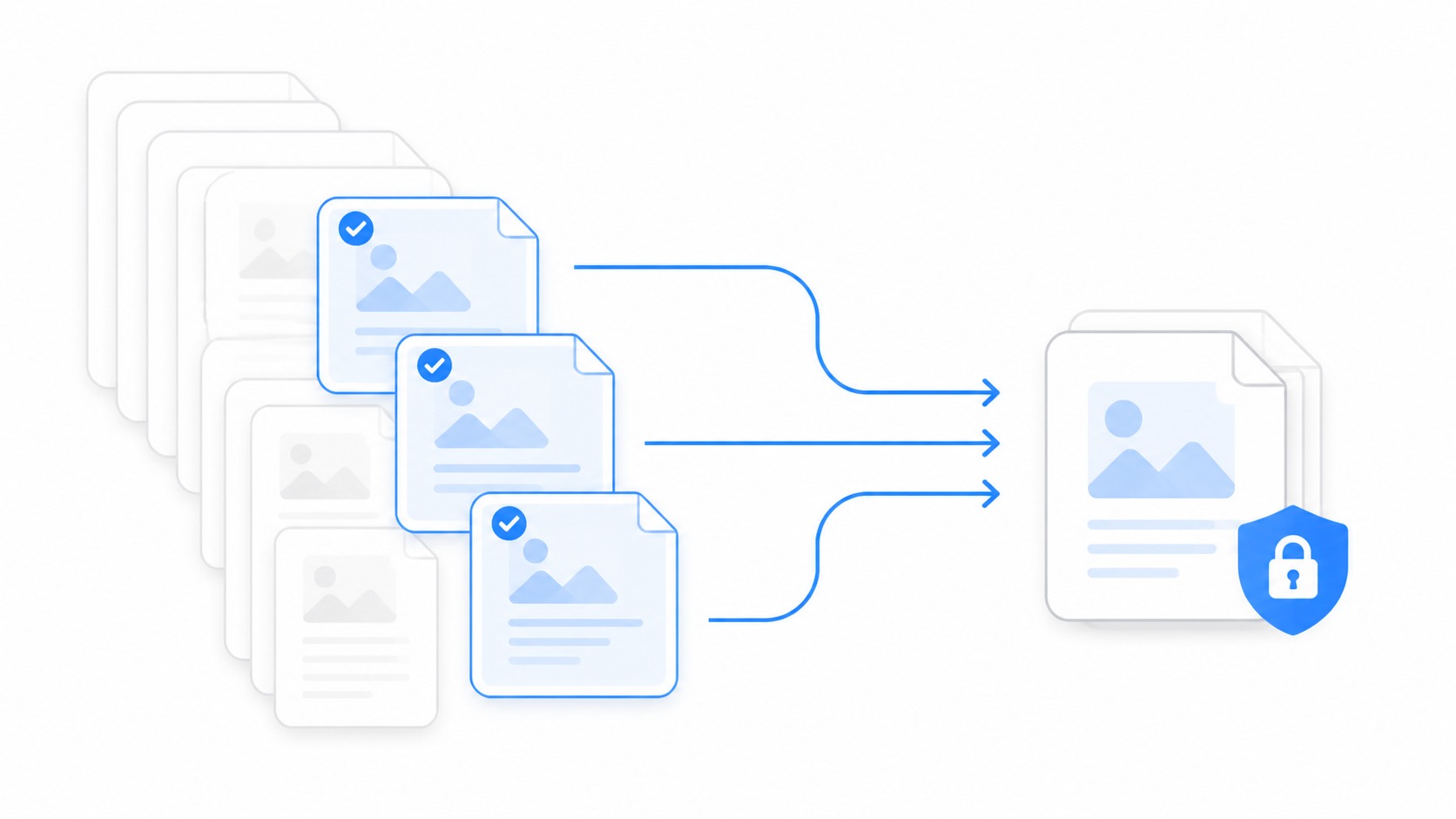
Most people extract pages from a PDF because the full document is too much to send. Maybe a contract has one relevant schedule, a report has two charts, or a customer only needs pages 6 through 9. The risk is that the extra pages often contain exactly the information you should not share.
Quick answer
To extract pages from a PDF before sharing, identify the exact page range, duplicate the original, export only those pages into a new PDF, open the new file to confirm page order and formatting, check for hidden or sensitive information, rename the file clearly, and compress it only after the extracted version is correct.
Decision table
| Sharing situation | Extract these pages | Extra check |
|---|---|---|
| Contract review | Only the clauses, schedules, or signature pages requested. | Remove unrelated pricing, personal data, and internal comments. |
| Customer support | The pages that show the setting, invoice line, or instructions. | Confirm account details and private fields are not included. |
| Report summary | Executive summary, chart pages, or appendix tables. | Keep labels and page references understandable out of context. |
| Design proof | Only the approved mockups or marked pages. | Check version name, comments, and hidden layers if applicable. |
| Training handout | The relevant lesson or checklist. | Add a clear filename so learners know what the excerpt covers. |
Why extracting beats forwarding the whole PDF
A full PDF can contain old comments, pricing, signatures, personal information, internal pages, draft sections, or appendix material that does not belong in the conversation. Extracting pages creates a narrower file that is easier to review and safer to share.
It also respects the recipient’s time. A three-page excerpt is easier to open, scan, and approve than a sixty-page document with a note that says see page 42. Good sharing removes work from the next person.
Confirm page numbers before exporting
PDF page numbers can be confusing. The viewer may show page 7 while the document footer says page 3 because front matter, covers, or roman numerals are included. Confirm the page range using the PDF viewer’s actual page positions, not only the printed numbers on the page.
When accuracy matters, write down both references: viewer pages 8 to 10, labeled pages 4 to 6. That helps reviewers understand exactly what was extracted and prevents the wrong section from being sent.
Duplicate the original first
Never work directly on the only copy of a source PDF. Duplicate it, then extract from the copy. That protects the original document and makes it easier to return if the page range, order, or output settings are wrong.
Use a simple naming pattern: original filename, page range, and purpose. For example, vendor-agreement-pages-12-15-renewal-review.pdf is much clearer than new.pdf or cropped-contract-final2.pdf.
Export pages into a new PDF
Use an extract, print-to-PDF, or page organization workflow that creates a new file containing only the selected pages. Avoid screenshots when the recipient needs selectable text, sharp charts, or accessible content. Screenshots are useful for quick visual reference, but they are not the same as a clean PDF excerpt.
If the recipient needs images instead of a document, use PDF to JPG after deciding that image pages are acceptable. For most business sharing, keep the extracted result as a PDF first.
Check the new file like a recipient
Open the extracted PDF from disk, not from the export preview. Scroll every page. Confirm page order, rotation, margins, links, charts, signatures, and any form fields. If the document was scanned, zoom in to make sure text is still readable.
This is also the moment to check whether bookmarks, page labels, or references still make sense. An excerpt that starts by saying as shown on the previous page may need a short note in the email or ticket.
Privacy review before sharing
Look for names, addresses, emails, account IDs, payment details, comments, tracked changes, internal notes, signatures, and metadata. If the information should not be shared, do not rely on extraction alone. Redact from the source with an appropriate redaction workflow, then create a new PDF.
Deleting visible pages is not the same as removing all sensitive content from a badly prepared document. If the PDF contains layers, attachments, scripts, form data, or comments, use a proper PDF tool and confirm the output.
When to convert PDF pages to Word
If the recipient must edit the extracted text, a PDF excerpt may not be enough. Use PDF to Word when editing is the point, then review the converted document carefully. PDF-to-Word conversion can change spacing, tables, headers, and line breaks.
After edits are complete, use Word to PDF to send a stable final version. Keep the extracted original separate from the editable working document so people know which file is authoritative.
Compress only after the excerpt is correct
Compression is a final delivery step, not the first step. Extract the right pages, check the result, then use compress PDF if the file is still too large for email, upload, or chat. Compressing first can make text and scans harder to inspect during review.
For scanned PDFs, test compression carefully. Heavy compression can blur signatures, labels, and small table text. A slightly larger file is better than an excerpt that forces the recipient to ask for the original.
Sharing by link instead of attachment
Large PDFs and sensitive excerpts are often better shared with a managed link than as a loose attachment. Review file sharing options when you need a URL, access choices, or a cleaner handoff. Add a short note that states exactly which pages are included and why.
A link does not remove the need for privacy review. It simply changes delivery. The file itself should still contain only what the viewer needs.
Use a screen recording when context matters
If you are extracting pages because someone cannot find the right section, a short screen recording may be more helpful than another file. Show where the section lives, explain what changed, and then attach or link the extracted pages as the durable reference.
This works well for onboarding, customer support, and complex review packets. The recording explains the path; the PDF excerpt provides the source material.
Common extraction mistakes
The biggest mistake is sending the wrong page range because the PDF viewer number and printed page number did not match. Another is forgetting that the excerpt still includes a header, footer, watermark, or comment with sensitive information.
People also forget to reopen the new file. Export dialogs can be misleading. The only file that matters is the final one the recipient will receive.
A repeatable checklist
Define the purpose, note the exact page range, duplicate the original, export into a new PDF, open the new file, check page order, inspect sensitive information, rename clearly, compress if needed, and then share with a short explanation.
That checklist may feel slow the first time. It is faster than sending the wrong document, recalling an email, or explaining why a customer received internal pages.
How to choose the right page range
Start with the recipient’s decision. If they need to approve a clause, send the clause and enough surrounding context to understand it. If they need to review a chart, send the chart page and any page that defines the terms. If they need a signature page, include the page that identifies the agreement.
Avoid sending pages only because they are nearby. Every extra page adds review work and potential exposure. At the same time, do not strip so much context that the excerpt becomes confusing or misleading. The right page range is the smallest range that still lets the recipient make the requested decision.
For regulated, legal, HR, or finance documents, ask the document owner before extracting if you are unsure. A technically simple extraction can still be a policy-sensitive share.
Use cases for PDF page extraction
Sales teams extract proposal sections when a buyer only needs a pricing page, implementation outline, or signature block. The excerpt should be named clearly and paired with a note that explains whether the full document is available on request.
Support teams extract invoice pages, setup pages, or policy pages when a customer needs a specific answer. They should check account details carefully and avoid including unrelated customer data from neighboring pages.
Operations teams extract training handouts, checklists, and process pages so people can act without scanning a long source document. In that case, the excerpt should include enough title information that it still makes sense after being separated from the original.
Troubleshooting extraction problems
If the new PDF has blank pages, the source may contain unusual page boxes, layers, or scanned pages. Try exporting through a different PDF workflow and inspect the result page by page. Do not assume a blank preview means the source is empty.
If links or form fields stop working, decide whether they are needed in the excerpt. Some extraction methods preserve interactive elements and some flatten them. For review copies, flattening may be acceptable. For forms, it may break the workflow.
If the file size barely changes, the selected pages may contain high-resolution scans or embedded images. Compress the extracted file after review, but keep a readable copy if signatures, tables, or small text matter.
A final review checklist
Open the final PDF, confirm the first and last pages, check page order, search for sensitive terms, inspect comments or form fields, and verify that the filename matches the contents. If the excerpt will be forwarded, assume it may travel beyond the first recipient.
Write a short message with the share: which pages are included, why they are being sent, and what action is needed. That note makes the excerpt easier to trust and reduces the chance that someone asks for the full document just to understand the context.
How to brief someone else before they do the work
If you hand this task to a teammate, do not just say extract pages from pdf. Give them the purpose, audience, destination, and constraint. A support reply, a public help article, an internal review, and a customer handoff all require different tolerance for file size, context, privacy, and polish.
Use the decision table as a short brief. If the job looks like Contract review, name that explicitly and explain why. If it looks more like Customer support, tell the teammate what trade-off matters most. A clear brief prevents the editor from optimizing the wrong thing and creating another review cycle.
What to save for audit or reuse
Keep the source file, the delivery file, and a short note about what changed. That note does not need to be formal. It can be as simple as the page range used, the bitrate chosen, the crop reason, the compression setting, or the link destination. The point is to make the work repeatable.
This matters most when the asset supports a customer, prospect, legal review, bug report, or training workflow. Someone may need to know whether the file was edited, why a section was removed, or where the original lives. A clean delivery file plus a traceable source is easier to defend than a mystery attachment.
How to review the result with a non-expert
Ask the reviewer what they understand from the final file before explaining your choices. If they can identify the point quickly, the how to extract pages from a pdf before sharing it workflow probably worked. If they ask where to look, what changed, or why the file was sent, the asset needs more context or a different format.
Review against real conditions. For Report summary, test the destination where the viewer will open it. For Design proof, check whether the chosen format still supports the viewer’s decision. For Training handout, confirm that you did not accidentally replace an archive-quality source with a smaller delivery copy.
When to stop optimizing
Optimization has a point of diminishing returns. Stop when the file is clear, safe to share, accepted by the destination, and small enough for the workflow. Chasing a smaller number can waste time and damage the part of the asset that actually helps the viewer.
A useful test is whether another round of editing would change the viewer’s outcome. If it would not help them understand, approve, reproduce, or act faster, stop. Send the file with a clear note and move on to the next step in the workflow.
Documentation habits that prevent repeat mistakes
Create a tiny internal note for recurring extract pages from pdf tasks. Include preferred settings, naming examples, privacy checks, and the approved place to store originals. Teams do not need a long policy for every asset, but they do need a shared default that keeps quality consistent.
Update that note when a tool, CMS, ticket system, or sharing workflow changes. Many quality problems come from old instructions that were correct for last year’s destination. A five-minute update can prevent dozens of bad exports, oversized attachments, or confusing handoffs.
Handoff examples you can copy
For an internal teammate: I prepared this for extract pages from pdf and optimized it for review, not archiving. The source file is still available, the delivery version is the one attached or linked here, and the main thing to check is whether the viewer can understand the point without extra explanation.
For a customer or prospect: I pulled together the smallest useful version so you do not have to sort through unrelated material. Please review the visible section, file, or recording linked here and use the written note as the source for what action is needed next.
For documentation or enablement: this asset should support the written process, not replace it. Add the file near the step where it helps, label it with the product area and date, and remove it when the workflow changes. That keeps how to extract pages from a pdf before sharing it work from becoming stale visual clutter.
For support or engineering: include the context that a viewer cannot infer from the asset. Add account type, browser or device where relevant, the expected result, the actual result, and whether the file has been edited for privacy or size. The more sensitive the workflow, the more important that note becomes.
For a manager reviewing the process: judge the output by whether it reduced confusion, not by whether every possible setting was perfect. A clean, timely, well-labeled delivery file is usually better than an overworked asset that arrives after the decision has already moved on.
What good looks like after sharing
A good extract pages from pdf outcome is quiet. The recipient opens the asset, understands why it was sent, and can act without asking for a cleaner file, a missing page, a different format, or the original context. That is the standard to use when judging the final result. If the next message is a decision, approval, reproduction note, or useful question, the asset did its job.
The file should also be easy for your own team to recognize later. Clear title, clear destination, clear source, and clear owner matter more than people expect. Many teams lose time not because the asset was bad, but because nobody can tell which version should be used. Put the final version where the next person will naturally look for it.
Finally, the workflow should be repeatable by someone who was not present for the first request. If another teammate can follow the same notes and produce a similar result for extract pages from pdf, you have a working process rather than a one-off fix.
That repeatability is what separates a useful content operation from a collection of improvised exports. The goal is not to make every asset perfect. The goal is to make the next share clear, appropriately scoped, and easy to trust. When in doubt, choose the version that makes the recipient’s next action obvious.
Useful Zight workflows
- compress a PDF
- convert PDF to JPG
- convert PDF to Word
- convert Word to PDF
- share files by link
- record a walkthrough
Frequently asked questions
Can I extract pages from a PDF without changing the original?
Yes. Duplicate the original or use an export workflow that creates a new PDF. Keep the source file unchanged until the excerpt is verified.
Why do PDF page numbers not match?
The PDF viewer counts every page in the file, while printed page numbers may start after a cover, table of contents, or front matter. Confirm both before extracting.
Should I compress a PDF before or after extracting pages?
Extract first, verify the excerpt, then compress the smaller file if needed. This keeps review clearer and avoids unnecessary quality loss.
Is extracting pages the same as redacting a PDF?
No. Extraction removes unselected pages from the new file, but it is not a full redaction process for sensitive information inside selected pages or hidden document data.
When should I convert extracted pages to JPG?
Use JPG when the recipient needs image pages for a visual workflow. Use PDF when text selection, document structure, or printing quality matters.
Next step
Share only the pages people need, verify the excerpt, then use PDF compression or file sharing when the final document is ready.