

- Zight: Focuses on visual communication with screen recording, GIF creation, and AI tools like transcription. Integrates with Slack, Teams, and Jira. Starts at $7.95/month.
- Google Drive: Offers real-time editing, version history, and integration with Google Workspace. Free plans include 15GB storage; paid plans start at $1.99/month.
- Microsoft OneDrive: Works seamlessly with Microsoft 365, supports co-authoring, and offers advanced security. Pricing starts at $1.99/month for personal use.
- Dropbox: Excels in syncing and media collaboration with tools like Dropbox Paper and Smart Sync. Plans start at $11.99/month.
| Tool | Best For | Starting Price | Key Features |
|---|---|---|---|
| Zight | Visual communication | $7.95/month | Screen recording, AI tools, integrations |
| Google Drive | Document-heavy collaboration | $1.99/month | Real-time editing, 15GB free storage |
| OneDrive | Microsoft 365 users | $1.99/month | Co-authoring, advanced Office integration |
| Dropbox | Media-heavy projects | $11.99/month | Smart Sync, Dropbox Paper, strong security |
20 File-Sharing Apps for Easy Collaboration
1. Zight
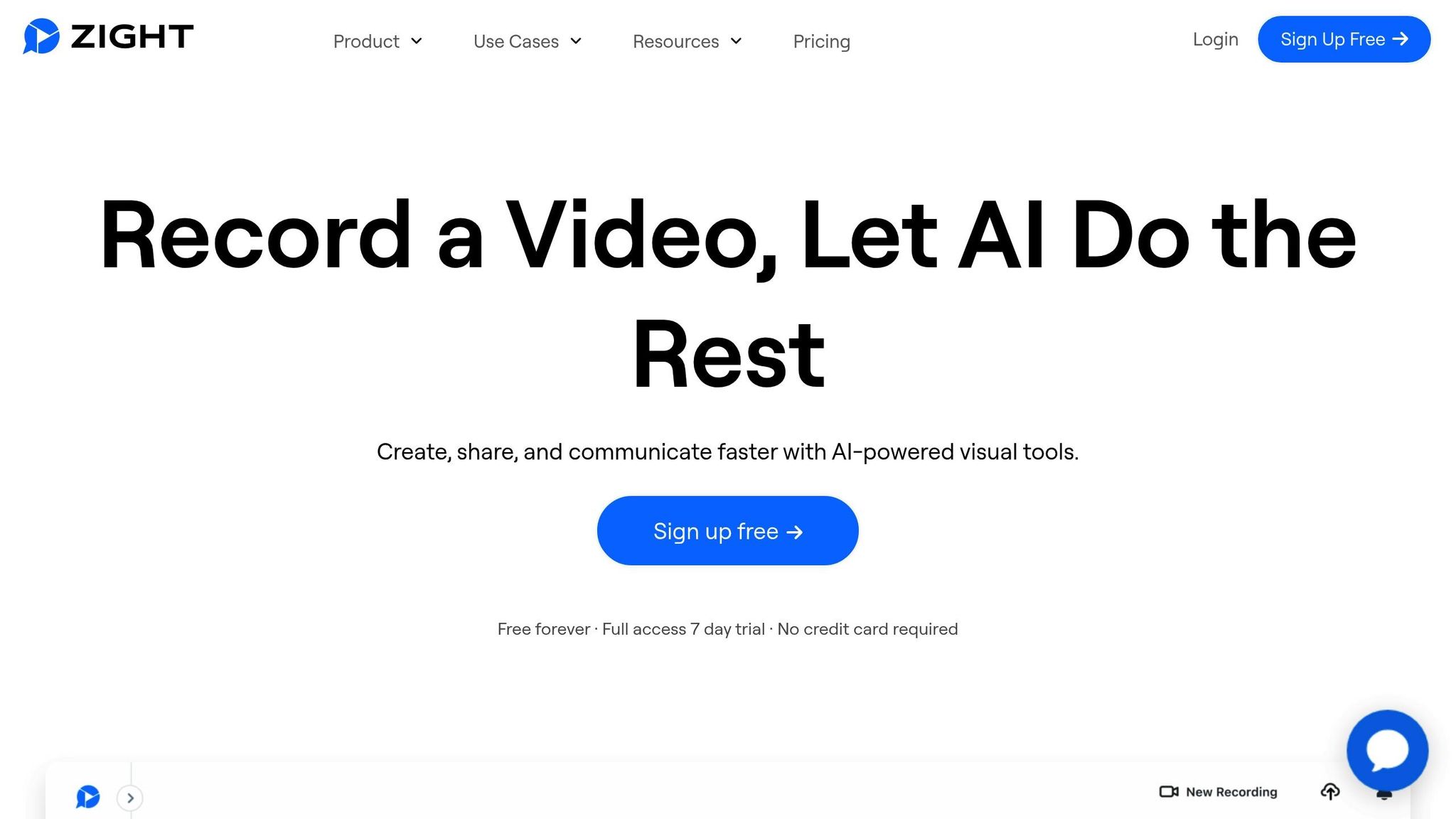 Zight takes file sharing to the next level by combining visual content creation and sharing into one seamless platform. Unlike traditional tools that focus purely on document storage, Zight emphasizes visual communication through features like screen recording, screenshot capture, GIF creation, and file sharing – all in one place. The platform works across multiple devices, including Mac, Windows, Chrome, and iOS, ensuring users can create and edit visual content no matter what device they’re using. This cross-platform functionality makes it incredibly convenient for teams with diverse tech setups. Zight also includes AI-powered tools that enhance collaboration without requiring everyone to be online at the same time. For instance, it can automatically generate transcriptions, summaries, and translations for recorded content. This means team members can quickly get the gist of a shared video without having to watch the entire thing. Another standout feature is its integration with popular workplace tools like Slack, Microsoft Teams, and Jira. These integrations allow users to share visual content directly within their existing workflows. For example, a developer troubleshooting a bug can record a demonstration, annotate it, and attach it to a Jira ticket – providing clear, actionable context. Security is a major focus for Zight. It offers enterprise-grade protection, including 256-bit SSL encryption, multi-layered access controls, Two-Factor Authentication, and admin features like domain lockdown and Single Sign-On (SSO). Additionally, Zight complies with rigorous standards like GDPR, CCPA, and SOC II Type 2, giving users peace of mind when sharing sensitive information. Pricing is flexible, too. Individual plans start at $7.95 per month, offering unlimited uploads and recording time. Teams can opt for a $8 per user per month plan, which includes features like user management and team workspaces. For larger organizations, Enterprise plans provide custom data retention and advanced analytics to meet specific needs. Zight isn’t just about storing files – it’s about creating a visual communication hub. Teams can use tools like annotated screenshots, step-by-step guides, and recorded demos to explain complex ideas more effectively, cutting down on lengthy emails and unnecessary meetings.
 2. Google Drive
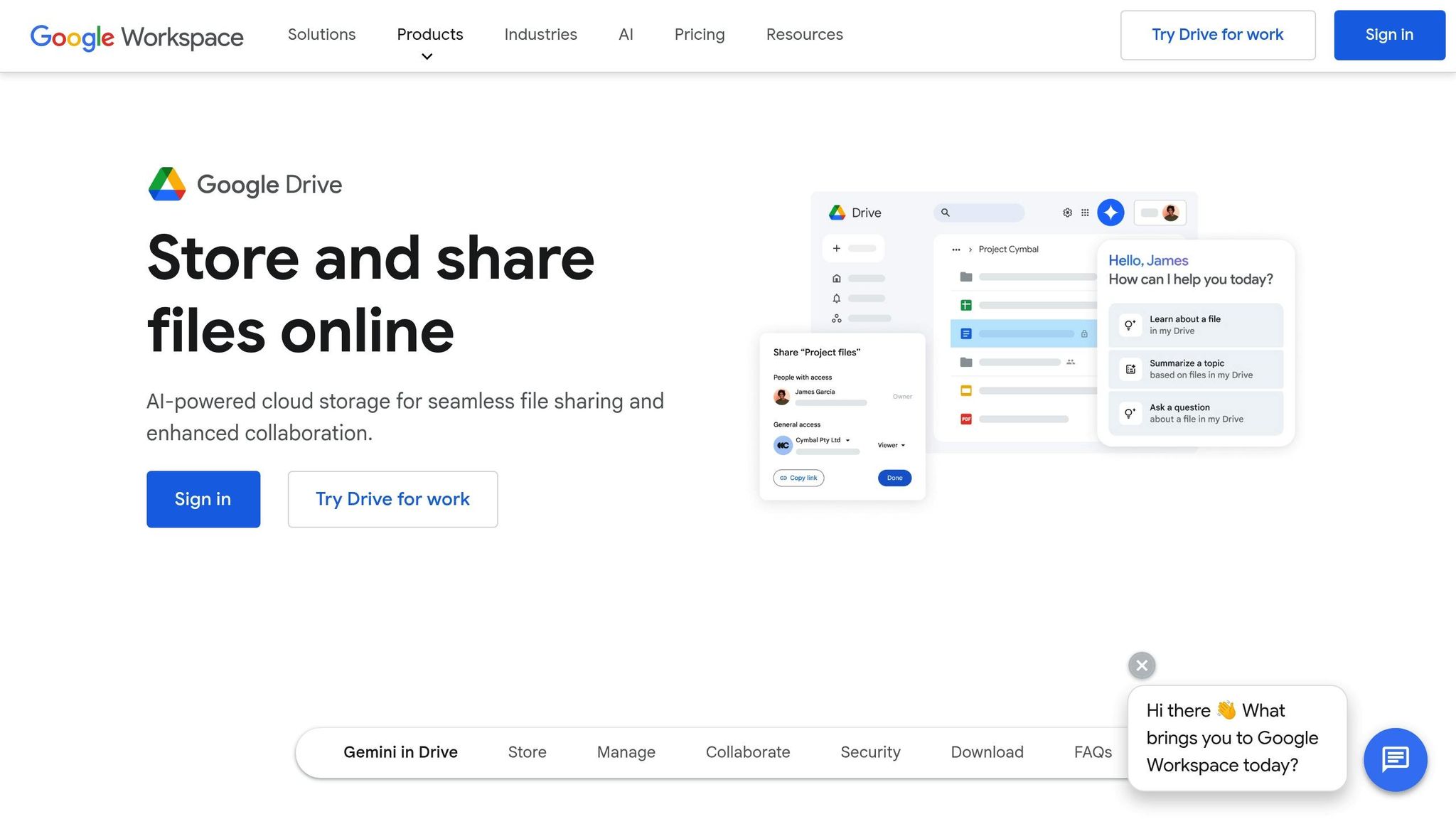 Google Drive is a powerful tool for enabling asynchronous collaboration, thanks to its real-time editing capabilities and seamless integration with Google Workspace apps like Docs, Sheets, and Slides. These features make it easy for teams to work together, even when they’re not online at the same time. One of its standout features is automatic saving and version history. Changes are saved instantly, and a full revision record allows team members to track updates and see who contributed what. This eliminates the hassle of juggling multiple file versions through email. Another big perk is its cross-platform accessibility. Whether you’re on Windows, Mac, iOS, Android, or a web browser, Google Drive ensures you can access your files from anywhere, anytime. The commenting and suggestion tools make it easy to provide feedback without the need for meetings. Plus, its notification system keeps users informed about changes, even when they’re offline. Google Drive also connects with a wide range of third-party apps through the Google Workspace Marketplace. This integration helps teams streamline their workflows without constantly switching between tools. When it comes to security, Google Drive doesn’t cut corners. It uses 256-bit SSL/TLS encryption for data in transit and AES 256-bit encryption for data at rest. Enterprise users get even more with features like Data Loss Prevention (DLP), advanced audit logs, and customizable retention policies. Compliance with standards like SOC 2, ISO 27001, and GDPR adds an extra layer of trust. For pricing, individual plans start at $1.99 per month for 100GB, with a 2TB option available for $9.99 per month. Business plans start at $6 per user per month, offering 30GB of storage per user and a shared pool. Enterprise plans include unlimited storage and advanced admin controls. Google Drive’s Smart Canvas features take collaboration to the next level with AI-powered smart chips that update information automatically, cutting down on the back-and-forth often needed in group projects. That said, Google Drive’s collaboration model works best for those familiar with Google’s ecosystem. Organizations deeply tied to Microsoft Office workflows may face challenges, especially when it comes to maintaining complex document formatting.
 3. Microsoft OneDrive
 Microsoft OneDrive stands out for asynchronous collaboration, thanks to its seamless integration with the Microsoft 365 ecosystem. It’s designed to work effortlessly across Windows, Mac, iOS, Android, and web browsers. Teams can collaborate on Word documents, Excel spreadsheets, and PowerPoint presentations in real time, with files automatically syncing across devices. This ensures everyone always has access to the latest version, no matter where they are or what device they’re using. Plus, offline editing is supported, and changes sync automatically once you’re reconnected. These syncing capabilities enable features like version tracking and tagging team members directly within documents. OneDrive’s co-authoring tools are particularly helpful for remote teams. Multiple users can edit the same document asynchronously, with a detailed version history that tracks every change. This makes it easy to see who made specific edits and when, eliminating the need for endless status updates. Another standout feature is @mentions, which streamlines communication within documents. Team members can tag colleagues to request feedback or assign tasks, and the tagged person receives an email notification – even if they’re not currently online. This keeps workflows moving without relying on separate messaging tools. Integration with Microsoft Teams takes collaboration even further. Shared files are automatically saved to OneDrive, making them easy to access and manage. Files can also be shared directly through Teams chats without leaving the app, simplifying the process of sharing and editing documents. When it comes to security, OneDrive delivers with Advanced Threat Protection, which scans files for malware and suspicious activity. Data encryption follows AES 256-bit standards, both in transit and at rest. For enterprise users, additional features include Data Loss Prevention policies, eDiscovery tools, and compliance with standards like SOC 1, SOC 2, HIPAA, and GDPR. Pricing is flexible, catering to both personal and business needs. Personal plans start at $1.99 per month for 100GB of storage, while Microsoft 365 Personal costs $6.99 per month and includes 1TB of storage along with access to full Office applications. Business plans begin at $5 per user per month for 1TB of storage, with enterprise options offering unlimited storage and advanced administrative controls. For larger organizations, the SharePoint integration adds another layer of collaboration. Teams can create document libraries with custom permissions, set up automated workflows, and implement approval processes – all asynchronously. Features like content types and metadata make organizing and locating files effortless, even without real-time collaboration. That said, OneDrive works best within the Microsoft ecosystem. Organizations that primarily use Google Workspace or other productivity tools might not benefit as much from its integrations. Additionally, some advanced collaboration features require a Microsoft 365 subscription rather than standalone OneDrive plans.
 sbb-itb-5d91f01
4. Dropbox
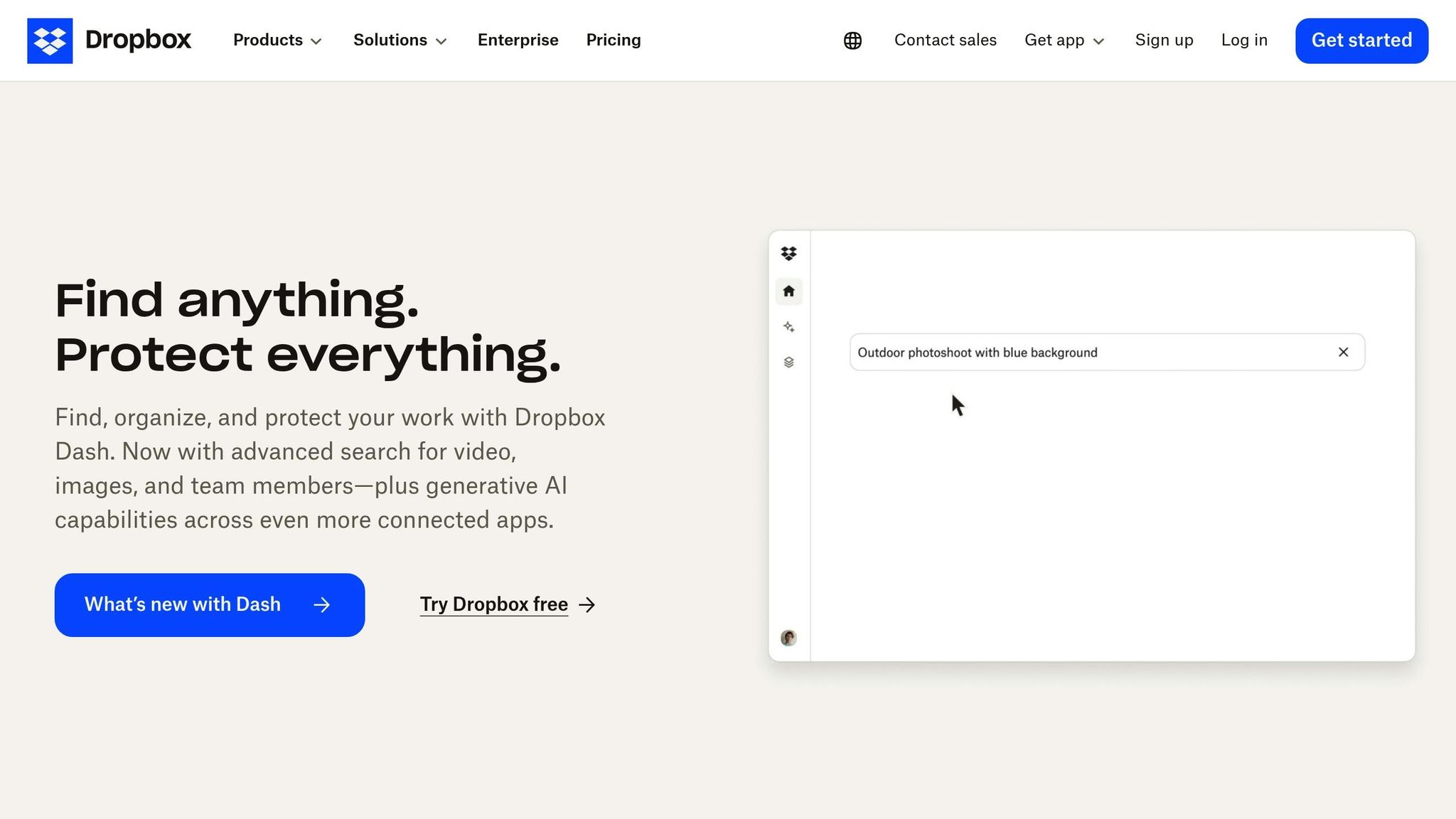 Dropbox stands out as a top choice for asynchronous collaboration, offering seamless functionality across platforms like Windows, Mac, Linux, iOS, and Android. Its automatic syncing ensures that remote teams working on different schedules can access up-to-date files without any hassle. One of Dropbox’s standout features is Smart Sync, which displays all files in the Dropbox folder without taking up local storage. Files download only when needed, allowing team members to browse project folders and access files quickly without worrying about storage limitations or lengthy downloads. In addition to its reliable file syncing, Dropbox enhances teamwork with Dropbox Paper. This tool combines document creation, editing, and project management into a single space. Teams can create documents that include embedded media, task lists, and timelines. The threaded commenting system allows for in-document discussions, and @mentions send email notifications to keep everyone in the loop – even when team members are offline. This helps projects stay on track without requiring everyone to be online at the same time. For design-heavy projects, Dropbox integrates smoothly with tools like Adobe Creative Cloud, Figma, and Sketch. Designers can save their work directly to Dropbox, while team members can provide feedback using annotation tools that link comments to specific sections of media files. This eliminates the back-and-forth confusion often seen in email-based reviews. The version history feature is another valuable addition, saving previous file versions for up to 180 days on business plans. This allows team members to restore earlier versions, compare changes, and see who made specific edits, ensuring nothing gets lost in the shuffle of asynchronous work. Dropbox also includes Dropbox Capture, a built-in tool for screen recordings and screenshots. This feature is perfect for demonstrating ideas or sharing updates, with files instantly shareable via Dropbox links. Integration is another strong point for Dropbox. It works with popular tools like Slack, Zoom, and Trello, and offers an API for creating custom workflows. Shared files automatically sync to Dropbox, centralizing project assets. Security is a top priority, with measures like AES 256-bit encryption protecting files both at rest and in transit. Business accounts gain additional safeguards such as two-factor authentication, single sign-on (SSO), and device management, which allows administrators to remotely wipe company data from lost or stolen devices. For sensitive files, Dropbox Vault provides extra layers of protection with PIN access and enhanced encryption. Pricing starts at $11.99/month for the Dropbox Plus plan, which includes 2TB of storage. Business plans begin at $18 per user/month, with enterprise options offering unlimited storage and advanced controls. A robust file recovery system adds another layer of security, allowing personal users to restore deleted files within 30 days, while business accounts extend this window to 180 days. Dropbox also includes ransomware detection, alerting users to suspicious file changes and helping to restore affected files. These features are particularly valuable for teams working across varying security environments. While Dropbox offers a powerful ecosystem for collaboration, some advanced features, like real-time collaborative editing, are tied to Dropbox Paper rather than native applications. This could be a consideration for teams already invested in other productivity tools. Still, for teams looking for a reliable and secure platform, Dropbox delivers a well-rounded solution.
 Strengths and Weaknesses
Choosing the right file-sharing tool for asynchronous collaboration involves weighing the strengths and limitations of each platform. Here’s a closer look at how some of the most popular tools stack up:| Tool | Strengths | Weaknesses |
|---|---|---|
| Zight | Focuses on visual communication with features like screen recording, GIF creation, and AI-powered transcription; integrates smoothly with Slack, Microsoft Teams, and Jira; offers enterprise-level security with SSO support; competitively priced starting at $7.95/month. | Limited traditional file storage compared to dedicated cloud platforms; newer platform with a smaller user base. |
| Google Drive | Enables real-time collaboration in Docs, Sheets, and Slides; offers 15 GB of free storage; integrates well with Gmail and Google Workspace; includes automatic version history. | Privacy concerns; requires a Google account; offline functionality is limited unless configured beforehand. |
| Microsoft OneDrive | Seamlessly integrates with Microsoft Office; provides excellent version control and co-authoring features; includes robust security for enterprises; offers 1 TB of storage with Office 365 subscriptions. | Can experience performance issues when syncing large files; permission settings can be complex; primarily optimized for Windows users. |
| Dropbox | Reliable cross-platform syncing; Smart Sync optimizes storage; supports extensive third-party integrations; offers strong security with AES 256-bit encryption. | Higher pricing at $11.99/month for the basic plan; lacks advanced collaborative editing features. |












