
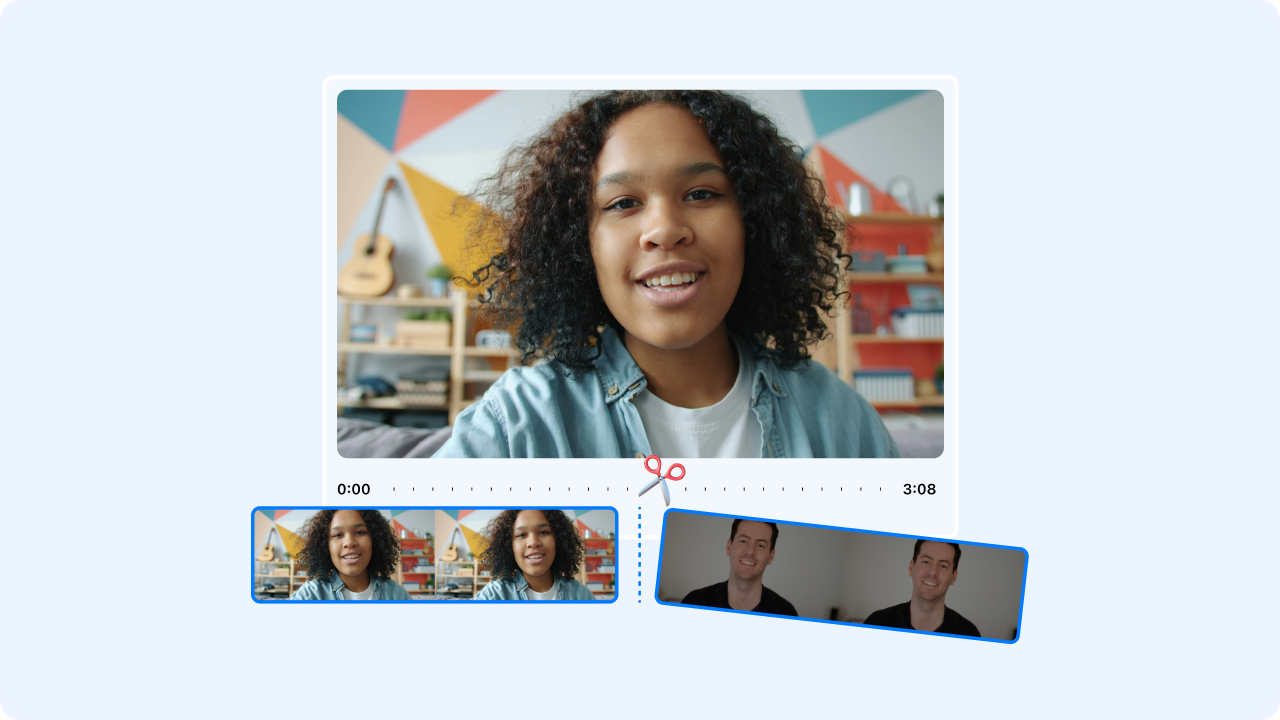
You just finished a screen recording, a product walkthrough, or a quick feedback video — and now you need to chop off that awkward first 8 seconds where you were fumbling to find the right tab. You don’t need Adobe Premiere. You don’t need a 45-minute YouTube tutorial on timeline editing. You need a free video trimmer that lets you cut the dead weight and share the result in under a minute. Zight is an all-in-one screen recording, screenshot, and async video tool that includes a built-in free video trimmer — no export queue, no watermark, no separate editing app. After testing more than a dozen free video trimmers over the past four years, I keep coming back to Zight’s built-in trimmer because it collapses what used to be a three-app workflow into a single click-and-drag action.
For a deeper quality workflow, read how to trim MP4s without losing quality.
For quick browser-based edits, Zight’s video trimmer can cut a clip before you share or upload it.
A practical way to trim a video online
Zight is a screen recording, screenshot, GIF maker, and async video platform (Mac, Windows, Chrome) with a built-in free video trimmer available on its free plan. After you record or upload a video, you trim the start and end points directly inside the web dashboard, then share a link instantly — no watermark, no file-size cap, no re-encoding wait. For professionals who need to cut the fluff from screen recordings, product walkthroughs, and bug reports, Zight eliminates the need for a standalone video editing app entirely.
TL;DR workflow: Record → trim start/end in the browser → copy shareable link → done in under 60 seconds.
In this step-by-step guide, I’ll walk you through exactly how to trim videos for free using Zight and compare it against seven other popular free video trimmers so you can pick the right tool for your specific workflow. Whether you’re a developer trimming a bug reproduction, a customer success rep cleaning up a walkthrough, or a PM cutting a product demo down to size, this post has you covered.
Why You Need a Free Video Trimmer (and Why Most Options Waste Your Time)
Let me paint the picture I see constantly across SaaS teams: someone records a 90-second video to explain a UI issue. The first 12 seconds are dead air while they navigate to the right page. The last 15 seconds are “okay, uh, I think that’s it.” The actual useful content is 63 seconds long — but every person who watches that video sits through the fluff, or mentally fast-forwards, losing context along the way.
A quick trim solves this instantly. According to Wistia’s engagement data, viewer drop-off is steepest in the first 10 seconds of any video. Dead air at the start doesn’t just waste time — it actively kills engagement. When I started trimming every screen recording before sharing it, I noticed teammates actually watched them to completion instead of skimming or asking follow-up questions about things I’d already covered.
But here’s the problem with most free video trimmers I’ve tested:
- Browser-based trimmers (like Kapwing, Clideo, or 123apps) require you to upload the file, wait for server-side processing, trim, then download — and many slap a watermark on the free tier, cap resolution at 720p, or limit file size to 250 MB–500 MB.
- Desktop editors (like iMovie, DaVinci Resolve, or Shotcut) are powerful but wildly overkill for a 10-second trim. Launching DaVinci Resolve to cut 8 seconds off a screen recording is like renting a bulldozer to plant a flower — and the render time alone can eat 2–3 minutes.
- OS-level tools (macOS Quick Look trim via
⌘+T, Windows Clipchamp) technically work but don’t give you a shareable link. You’re left with a local file you still need to upload to Slack, Google Drive, or email. - Adobe Express offers a free online video trimmer with a clean interface, but it funnels you into Adobe’s ecosystem — and the free tier has storage limits, occasional watermarks on certain export types, and no native screen recording integration.
The ideal workflow is: record → trim → share a link, all in one tool, in under 60 seconds. That’s what Zight does, and it’s why I stopped bouncing between three different apps years ago.
How to Trim Videos for Free Using Zight (Step-by-Step)
Zight is a screen recording, screenshot, and async video tool built for modern teams. The trimming feature is baked directly into the recording workflow — no exporting, no re-importing, no switching apps. Here’s the exact process I follow multiple times a week:
Step 1: Record Your Video (or Upload an Existing File)
If you’re starting from scratch, open Zight from your menu bar (Mac), system tray (Windows), or the Chrome extension. Click Record Screen or use the keyboard shortcut — on Mac, that’s ⌘+Shift+6 by default; on Windows, it’s Alt+Shift+6. Choose your recording area (full screen, specific window, or custom region), toggle webcam and audio on or off, and hit Record.
If you already have a video file saved locally — maybe a Zoom recording, a Loom export, or footage from your phone — you can drag and drop it directly into the Zight dashboard to upload it. The platform accepts MP4, MOV, WebM, and other common formats up to generous file-size limits even on the free plan.
Pro tip: If you know you’ll need to trim before you even start recording, don’t stress about a perfect start. Just hit record, do your thing, and clean it up afterward. The trimmer is fast enough that “fix it in post” takes literally 10 seconds — I’ve timed it.
Step 2: Open the Video in Zight’s Editor
After your recording finishes, Zight automatically uploads it to the cloud and opens the shareable link page. You’ll see a video player with your recording, plus an Edit button below the player controls. Click it — this is where the free video trimmer lives.
The editor opens a timeline scrubber directly below your video preview. There’s no loading screen, no format conversion step, and no “please wait while we process your video” spinner. It’s immediate — the kind of instant response that makes you realize how much time other tools waste on unnecessary processing steps.
Step 3: Drag the Trim Handles to Cut Your Video
You’ll see two handles on the timeline — one at the start and one at the end. Drag the left handle to remove dead time from the beginning. Drag the right handle to cut the trailing seconds. The preview updates in real time so you can see exactly which frame you’re cutting to.
In practice, 90% of my trims are exactly this: shave off the first few seconds of tab-switching, shave off the trailing “okay bye” moment, done. The whole interaction takes fewer clicks than unlocking your phone.
Pro tip: Use the frame-by-frame arrow keys to nail the exact cut point if you need precision. This is especially useful when you’re trimming a bug reproduction and need the video to start at the exact moment the error appears.
Step 4: Save and Share Instantly
Click Save, and the trimmed video replaces the original on the same shareable link. No new file to manage, no second upload, no “trimmed_final_v2.mp4” cluttering your desktop. Anyone who already has the link sees the trimmed version.
This is the detail that separates Zight from every standalone free video trimmer I’ve used. The output isn’t a file — it’s a link. You paste it into Slack, Jira, Notion, email, or a GitHub issue and the recipient watches it inline. No downloads, no codec compatibility issues, no “can you re-send that as an MP4?” messages.
The entire record-trim-share cycle? Under 60 seconds. I’ve done it during live meetings without anyone noticing I stepped away.
Free video trimmers compared
I’ve personally tested each of these tools for the same task: trimming a 90-second screen recording down to about 60 seconds and sharing it with a teammate. Here’s how they stack up:
| Tool | Platform | Watermark on Free? | Shareable Link? | Trim Speed | Max Free Resolution | Built-in Recording? |
|---|---|---|---|---|---|---|
| Zight | Mac, Windows, Chrome, Web | ❌ No watermark | ✅ Yes — instant link | ~10 seconds | Up to 4K | ✅ Yes |
| Adobe Express | Web | ❌ No (most exports) | ❌ Download only | ~45–90 seconds (upload + process) | 1080p | ❌ No |
| Kapwing | Web | ❌ No (removed in 2023) | ✅ Yes | ~60–120 seconds | 1080p (free), 4K (paid) | ❌ No |
| Clideo | Web | ✅ Yes (free tier) | ❌ Download only | ~60–90 seconds | 720p (free) | ❌ No |
| iMovie | Mac only | ❌ No watermark | ❌ Local file export | ~30 seconds + render | 4K | ❌ No |
| Clipchamp (Windows) | Windows, Web | ❌ No watermark | ❌ Local file (or OneDrive) | ~30–60 seconds + render | 1080p (free) | ✅ Basic |
| DaVinci Resolve | Mac, Windows, Linux | ❌ No watermark | ❌ Local file export | ~2–5 minutes (launch + render) | 8K+ | ❌ No |
| VLC Media Player | Mac, Windows, Linux | ❌ No watermark | ❌ Local file only | ~60–90 seconds | Unlimited | ❌ No (basic capture) |
Key takeaway: If your goal is trim-and-share (which it is for 80%+ of professional use cases), Zight is the only tool on this list that doesn’t require a separate upload or file-management step. Every other tool ends with a file on your hard drive that you still need to get to the person who needs to see it.
When to Use a Free Video Trimmer vs. a Full Video Editor
I want to be honest about this because I’ve seen too many “best free video trimmer” posts that pretend a simple trimmer replaces professional editing software. It doesn’t. Here’s the decision framework I use:
Use a Free Video Trimmer (Like Zight) When:
- You need to cut the beginning and/or end of a screen recording, walkthrough, or async video
- The video is for internal communication — Slack, Jira, email, Notion, a support ticket
- Speed matters more than cinematic polish
- You want a shareable link, not a file
- You’re trimming 1–20 videos per week as part of your normal workflow
Use a Full Video Editor When:
- You need to cut sections from the middle of a video (not just trim ends)
- You’re adding transitions, text overlays, music, or multi-track audio
- The video is customer-facing marketing content, a YouTube video, or a polished product demo
- You need to combine multiple clips into one video
- Color grading, speed ramping, or effects are involved
Zight’s video trimmer is not a replacement for Premiere Pro, DaVinci Resolve, or Final Cut. It’s a replacement for the 90% of cases where those tools are overkill. I still use DaVinci Resolve for polished customer-facing content — but for the 15+ quick trims I do every week? Zight every time.
5 Real-World Use Cases for a Free Video Trimmer
After recording hundreds of screen sessions and trimming most of them, these are the patterns that come up most frequently:
1. Bug Reports That Start Clean
Developers don’t want to watch you navigate to the page where the bug lives. They want to see the bug. I trim every bug recording so it starts at the exact moment the issue appears. A 90-second recording becomes a 20-second reproduction that an engineer can watch, understand, and fix without back-and-forth. We’ve seen teams at Zight cut their average bug resolution time after adopting this habit — fewer clarifying questions, fewer “can you show me exactly what you mean?” Slack threads.
2. Customer Success Walkthroughs
When a CS rep records a walkthrough for a customer, the raw recording usually includes setup time, momentary pauses to think, and a trailing sign-off. Trimming the first and last 10–15 seconds makes the video feel polished and professional — even though it was recorded in one take with zero preparation. The customer sees competence; the rep spent 10 extra seconds in Zight’s trimmer.
3. Onboarding Videos Without the Fluff
New hire onboarding is one of the biggest async video use cases. When you’re building a library of “how to do X” videos, every second of dead air compounds — a new hire watching 30 onboarding videos with 15 seconds of wasted time each has lost 7.5 minutes before they’ve learned anything. Trimming makes your onboarding library tight, scannable, and respectful of people’s time.
4. Product Demo Clips for Sales
Sales teams often record full demo flows and then need to pull out a specific segment to send to a prospect. Rather than re-recording, trim the start and end to isolate the relevant feature walkthrough. The prospect gets a focused 45-second video instead of a 6-minute recording where they have to hunt for the part that matters.
5. Design Feedback Without Scheduling a Meeting
Instead of writing a 400-word comment on a Figma file or scheduling a 15-minute sync, record your screen while clicking through the design and narrating your thoughts. Trim the dead air, share the link. The designer watches it on their own time, in their own timezone, and gets richer context than any written comment could provide. Pair this with a quick annotated screenshot for the most critical points and you’ve given feedback that would’ve taken a 30-minute meeting — in about 3 minutes of asynchronous work.
Tips for Better Video Trims (From Someone Who Does This Daily)
After four years of trimming screen recordings almost every workday, here are the patterns that consistently produce the best results:
- Trim to the first meaningful frame. Don’t leave a 1-second buffer “just in case.” The viewer’s attention is highest in the first second — make it count. Start the video at the exact moment the relevant content begins.
- Cut the sign-off unless it adds value. “Okay, so that’s how you do it, let me know if you have questions” is fine in a live meeting. In an async video, it’s dead weight. The link you share can include a text note if you need a call-to-action.
- Record with trim in mind. I intentionally start recording 3–5 seconds early and end 3–5 seconds late. This gives me a clean margin to trim into without risking cutting off the actual content.
- Name your videos before sharing. Zight lets you rename the video on the shareable page. “Bug: Dropdown menu fails on Safari 17.4” is infinitely more useful than “Screen Recording 2025-01-15 at 14.32.07.” A good title + a tight trim = a video people actually watch.
- Use the trim for GIFs too. Zight’s GIF maker has the same trimming interface. If your “video” is really a 6-second UI interaction, trim it into a GIF instead — it’ll autoplay in Slack and Notion without the recipient clicking anything.
How Zight’s Free Video Trimmer Compares to Adobe Express
Adobe Express is one of the top-ranking free video trimmers on Google, so it deserves a direct comparison. I’ve used both tools extensively, and the honest assessment is that they serve different audiences.
Where Adobe Express wins: If you need to trim a video and add text overlays, transitions, stock music, or branded templates in the same session, Adobe Express has a richer editing toolkit. It’s also free to use without creating a Zight account, which matters for one-off tasks.
Where Zight wins: Speed and workflow integration. Adobe Express requires you to upload a file from your local machine, wait for it to process (typically 30–90 seconds for a 2-minute video), make your trim, then download the result. You then need to upload that file again to wherever you want to share it. Zight skips all of that because the recording, trimming, and sharing happen in one continuous flow. There’s no local file at any point — it’s cloud-native from the moment you click Record.
When I tested both tools with a 2-minute, 1080p screen recording, the complete workflow (from “I have a raw recording” to “my teammate has a watchable link”) took ~15 seconds in Zight and ~3 minutes in Adobe Express (upload, trim, download, re-upload to Slack). For one video that difference is minor. For 10 videos a week, it’s 25+ minutes saved.
How to Trim a Video on Mac and Windows Without Zight
If you’re not ready to install Zight — or you’re trimming a personal video that doesn’t need a shareable link — here are the built-in options on each operating system:
macOS: Quick Look Trim
- Select the video file in Finder.
- Press
Spaceto open Quick Look. - Click the Trim icon (scissors) in the toolbar.
- Drag the yellow handles to set your start and end points.
- Click Done → Save as New Clip (or replace the original).
Limitation: The output is a local file. You still need to upload it somewhere to share. Also, Quick Look’s trim is non-destructive only if you choose “Save as New Clip” — otherwise it overwrites your original. And there’s no annotation layer, no auto-generated link, and no cloud backup.
Windows: Clipchamp
- Open Clipchamp (pre-installed on Windows 11, or download free from the Microsoft Store).
- Create a new project and import your video file.
- Drag the clip onto the timeline.
- Drag the edges of the clip on the timeline to trim the start and end.
- Click Export → choose 1080p (free) → wait for the render to complete.
Limitation: Clipchamp is more of a full editor forced into a trimming role. The export/render step takes 30–120 seconds depending on video length, and the free tier caps exports at 1080p. Like macOS Quick Look, the result is a local file — no shareable link.
Frequently Asked Questions About Free Video Trimmers
Is Zight’s video trimmer really free?
Yes. The trimming feature is available on Zight’s free plan with no watermark, no resolution cap, and no per-video limit. You can record, trim, and share videos without entering a credit card. The paid plans add features like custom branding, longer recording limits, team workspaces, and advanced analytics — but the core record-trim-share workflow works fully on free.
Can I trim a video online without downloading software?
Yes. Zight’s web dashboard lets you upload and trim videos entirely in your browser. You can also use browser-based tools like Kapwing, Adobe Express, or Clideo — though these require uploading your file, processing it on their servers, and then downloading the result. Zight’s advantage is that if you recorded with Zight, the video is already in the cloud and ready to trim with zero upload time.
What video formats can I trim for free?
Zight supports MP4, MOV, WebM, and other common video formats for upload and trimming. Videos recorded natively in Zight are automatically in a web-optimized format. Most browser-based trimmers accept similar formats, though some struggle with MKV or AVI files — if you’re working with an unusual format, convert to MP4 first using a free tool like HandBrake.
Can I trim videos on mobile for free?
Both iOS and Android include built-in video trimmers in their Photos apps — and they’re genuinely good for basic start/end trims. However, they output local files, not shareable links. If you need the link-sharing workflow, you can upload a mobile-recorded video to Zight’s web dashboard from your phone’s browser and trim it there.
Does trimming a video reduce its quality?
It depends on the tool. Some browser-based trimmers re-encode the entire video during the trim, which can introduce compression artifacts — especially on free tiers that cap output at 720p. Zight’s trimmer preserves the original recording quality because it’s adjusting playback boundaries rather than re-rendering the entire file from scratch.
What’s the difference between trimming and splitting a video?
Trimming removes content from the start and/or end of a video — like cutting the crust off a sandwich. Splitting (or cutting) removes a section from the middle, which requires a more advanced editor. Zight’s free trimmer handles start/end trims. For mid-video cuts, you’d need a tool like Kapwing, Clipchamp, or DaVinci Resolve.
Is Zight better than Adobe Express for trimming videos?
For professional screen recordings and async team communication — yes. Zight’s integrated record-trim-share workflow is significantly faster than Adobe Express’s upload-trim-download-reshare flow. Adobe Express is a better choice if you need to add text, transitions, or visual effects alongside the trim. For a pure “cut the fluff and share” workflow, Zight wins on speed by a wide margin.
The Bottom Line: Stop Over-Engineering Your Video Trims
The best free video trimmer is the one that doesn’t make you think about trimming as a separate step. After testing dozens of tools — from heavyweight editors like DaVinci Resolve to lightweight browser tools like Clideo — the pattern is clear: the fastest workflow is the one where recording, trimming, and sharing are the same tool.
Zight handles this better than anything else I’ve found because trimming isn’t a feature bolted onto a screen recorder — it’s part of the same flow. You record, you drag two handles, you copy a link. Done. No file management, no export settings, no watermarks, no “upgrade to remove branding” pop-ups.
If you’re a developer, PM, designer, customer success rep, or anyone who records screen videos as part of your daily work, try Zight’s free plan and trim your next recording. The 10 seconds it takes will save everyone who watches the video from sitting through your tab-switching and sign-off rambling. Your teammates will thank you — probably by actually watching the whole video for once.
Written and tested by the Zight team. Last updated January 2025. Tool versions and pricing verified at time of publication.












