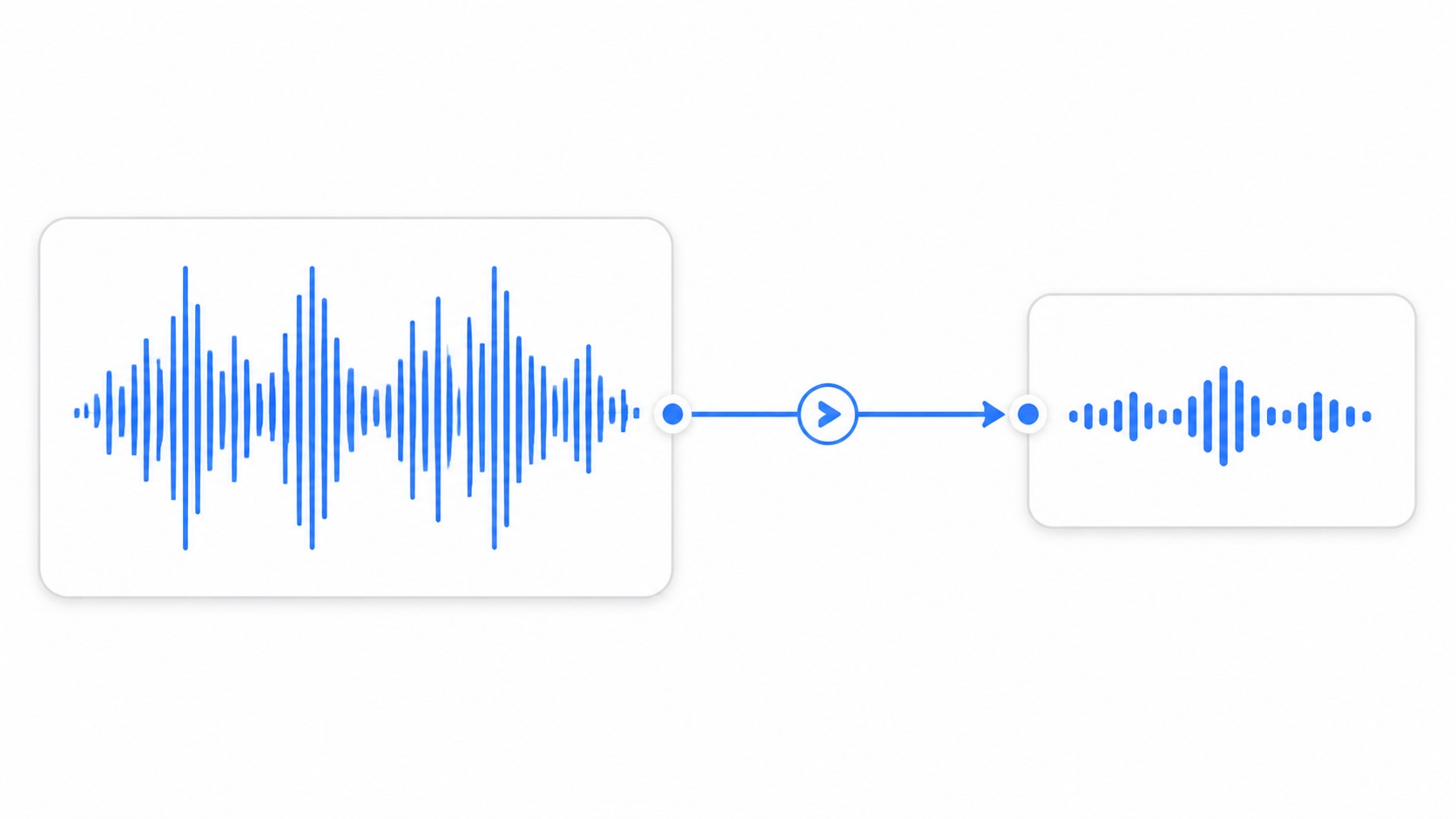
FLAC is great when you want a high-quality archive. It is not always great when you need to send a voice note, demo narration, interview clip, or audio reference through a normal team workflow. Converting FLAC to MP3 is usually about making the file easy to share without making it sound careless.
Quick answer
For most shareable FLAC to MP3 conversions, use MP3, variable bitrate, stereo for music, mono for voice-only recordings, 128 to 192 kbps for speech and general sharing, and 192 to 256 kbps for music references. Keep the FLAC original as the archive and listen to the MP3 before sending.
Decision table
| Source audio | Recommended MP3 setting | Reason |
|---|---|---|
| Voice memo or meeting excerpt | Mono, 96 to 128 kbps. | Speech stays clear and the file stays small. |
| Narrated product demo | Mono or stereo, 128 to 160 kbps. | Keeps voice clear with modest file size. |
| Podcast draft | Mono for single speaker, stereo for mixed program, 128 to 192 kbps. | Good review quality without a huge attachment. |
| Music reference | Stereo, 192 to 256 kbps. | Preserves more detail for listening decisions. |
| Archive replacement | Do not replace FLAC. | MP3 is lossy and should be a delivery copy. |
Why convert FLAC to MP3 at all
FLAC is lossless, which means it preserves the audio information from the source without the same kind of quality loss as MP3. That makes it useful for archiving, production handoff, and high-quality storage. It also means the files can be larger than people want for everyday sharing.
MP3 is a delivery format. It is widely supported, easy to preview, and practical for email, chat, tickets, and shared folders. The trade-off is that MP3 compression permanently removes audio information, so the FLAC original should remain your master copy.
Start with the job: voice, music, or review
The best setting depends on what the listener needs to judge. A customer support voice explanation does not need the same bitrate as a music reference. A narrated product demo needs intelligible speech and maybe some system audio. A mix review needs more detail.
Do not use one universal setting for every file. Choose the smallest setting that preserves the part of the audio people actually need to hear.
Bitrate basics without the jargon
Bitrate controls how much data the MP3 uses per second. Higher bitrate usually means better quality and larger files. Lower bitrate means smaller files and more risk of swishy high frequencies, dullness, or rough speech sounds.
For voice, 96 to 128 kbps mono is often enough for review and sharing. For general stereo audio, 160 to 192 kbps is a practical middle ground. For music references, 192 to 256 kbps gives the listener more detail without sending the original FLAC.
Mono versus stereo
If the file is one person speaking into one microphone, mono is usually the right delivery choice. Stereo doubles channels even when there is no meaningful stereo information, which can waste space. Mono also keeps voice centered and predictable across devices.
Use stereo when the source contains music, left-right effects, room sound that matters, or multiple audio elements that were intentionally mixed in stereo. Do not collapse music to mono unless you have listened and confirmed it still works.
Variable bitrate is usually a good default
Variable bitrate lets the encoder use more data for complex moments and less for simple moments. That is useful when a file alternates between silence, speech, and fuller sound. It can produce a smaller file than constant bitrate at similar perceived quality.
Constant bitrate can still be useful when a legacy system expects it. For normal team sharing, variable bitrate is a sensible default as long as the destination accepts standard MP3 files.
Speech settings for meetings and demos
For voice-heavy files, start with the MP3 converter and choose mono when the source is a single speaker. Use 96 kbps for quick internal review, 128 kbps for safer customer-facing speech, and 160 kbps if the recording includes important system audio or room tone.
Listen on laptop speakers or earbuds, not only studio headphones. Most recipients will hear the file in ordinary conditions. If consonants blur or background noise becomes distracting, raise the bitrate or clean the source before converting again.
Music and rich audio settings
For music references, keep stereo and use a higher bitrate. A 192 kbps MP3 can be fine for quick comments. A 256 kbps MP3 is better when the listener needs to judge tone, balance, or arrangement. If the listener is making final production decisions, send FLAC or WAV instead.
When someone specifically needs an uncompressed production handoff, use a format such as WAV. The MP3 to WAV workflow can help with compatibility, but converting MP3 back to WAV does not restore information that MP3 removed.
Editing before conversion
Trim silence, remove mistakes, and normalize obvious level problems before making the MP3. Use audio editing to create the exact segment people need. A shorter clean file beats a longer file compressed aggressively.
If the source starts with ten seconds of room noise or ends with a long pause, compression will preserve that waste. Editing first reduces file size and improves the listening experience.
Extracting audio from video sources
Sometimes the audio you need is inside a video file, not a FLAC. Use MP4 to MP3 when the source is a recorded demo, webinar clip, or exported screen recording. Then choose settings based on whether the audio is voice, music, or both.
If you need to create a new recording with narration, use the screen recorder and then share the recording or export audio based on the use case.
Tags, filenames, and version control
A small MP3 with a vague filename still creates friction. Include a short descriptive name, date, version, and purpose. For example, onboarding-script-v2-review.mp3 is more useful than audio-final-new.mp3.
If the file will live in a shared library, fill in basic title and artist or organization tags where your workflow supports them. Metadata will not fix bad audio, but it helps people identify the right file later.
Common FLAC to MP3 mistakes
The biggest mistake is deleting the FLAC after conversion. MP3 is a delivery copy, not a lossless archive. Another mistake is using very low stereo bitrates for voice when mono would sound cleaner at the same file size.
People also skip listening to the export. A conversion can technically succeed while clipping, level problems, or background noise make the MP3 unpleasant. Always play the file before sending it to a customer, candidate, partner, or team.
Sharing the final MP3
If the MP3 is still large or needs controlled access, use file sharing instead of attaching it everywhere. A link keeps the handoff cleaner and avoids sending multiple versions through different threads.
Add one sentence of context with the link: what the listener should review, whether comments are needed, and whether the FLAC original exists. That prevents a small audio file from becoming a vague task.
How to pick a setting without guessing
Make one short test export before converting a long file. Choose a thirty-second section with the hardest audio: loud words, music, background noise, or the most important detail. Export that sample at two settings and listen before committing.
Use ordinary playback devices for the final decision. If the MP3 is meant for a prospect, customer, or teammate, laptop speakers and earbuds are more realistic than studio monitors. A setting that survives normal playback is usually good enough for sharing.
Write down the chosen setting for repeat workflows. If your team regularly shares interview clips, demo narration, or podcast drafts, a small standard prevents every user from reinventing the export decision.
Use cases for FLAC to MP3 conversion
Researchers and customer teams convert interview excerpts when stakeholders need to hear a quote without downloading a large archive. Keep the clip focused and label the speaker or topic clearly.
Sales and enablement teams convert narration, call snippets, or demo audio when a lightweight file is easier to route through review. The MP3 should include only the relevant moment and enough context to understand it.
Creative teams convert music references when the listener needs convenient review, not final mastering quality. Keep the lossless source available and make it clear that the MP3 is a reference copy.
Troubleshooting audio problems
If the MP3 sounds dull, raise the bitrate or return to the source and avoid repeated conversions. Encoding a file that has already been compressed can make artifacts more obvious. Start from the FLAC whenever possible.
If the voice is too quiet, fix level before conversion instead of relying on the listener to turn up the volume. If background noise is the problem, a higher bitrate may preserve the noise more clearly without improving intelligibility.
If the exported file will not upload, check the platform’s size and format rules. A standard MP3 should work in most places, but very long files may still need trimming or link-based sharing.
A final review checklist
Play the MP3 from start to finish, confirm the beginning and ending are clean, check volume, verify the filename, and confirm the file opens in the destination app. If the audio supports a business decision, include a note that identifies the source and the reason for sharing.
Keep the FLAC source in the archive and store the MP3 as a delivery copy. That way the team can create a different export later without compounding quality loss. If the listener asks for higher fidelity, return to the FLAC and make a fresh export instead.
How to brief someone else before they do the work
If you hand this task to a teammate, do not just say flac to mp3. Give them the purpose, audience, destination, and constraint. A support reply, a public help article, an internal review, and a customer handoff all require different tolerance for file size, context, privacy, and polish.
Use the decision table as a short brief. If the job looks like Voice memo or meeting excerpt, name that explicitly and explain why. If it looks more like Narrated product demo, tell the teammate what trade-off matters most. A clear brief prevents the editor from optimizing the wrong thing and creating another review cycle.
What to save for audit or reuse
Keep the source file, the delivery file, and a short note about what changed. That note does not need to be formal. It can be as simple as the page range used, the bitrate chosen, the crop reason, the compression setting, or the link destination. The point is to make the work repeatable.
This matters most when the asset supports a customer, prospect, legal review, bug report, or training workflow. Someone may need to know whether the file was edited, why a section was removed, or where the original lives. A clean delivery file plus a traceable source is easier to defend than a mystery attachment.
How to review the result with a non-expert
Ask the reviewer what they understand from the final file before explaining your choices. If they can identify the point quickly, the flac to mp3: best settings for smaller shareable audio files workflow probably worked. If they ask where to look, what changed, or why the file was sent, the asset needs more context or a different format.
Review against real conditions. For Podcast draft, test the destination where the viewer will open it. For Music reference, check whether the chosen format still supports the viewer’s decision. For Archive replacement, confirm that you did not accidentally replace an archive-quality source with a smaller delivery copy.
When to stop optimizing
Optimization has a point of diminishing returns. Stop when the file is clear, safe to share, accepted by the destination, and small enough for the workflow. Chasing a smaller number can waste time and damage the part of the asset that actually helps the viewer.
A useful test is whether another round of editing would change the viewer’s outcome. If it would not help them understand, approve, reproduce, or act faster, stop. Send the file with a clear note and move on to the next step in the workflow.
Documentation habits that prevent repeat mistakes
Create a tiny internal note for recurring flac to mp3 tasks. Include preferred settings, naming examples, privacy checks, and the approved place to store originals. Teams do not need a long policy for every asset, but they do need a shared default that keeps quality consistent.
Update that note when a tool, CMS, ticket system, or sharing workflow changes. Many quality problems come from old instructions that were correct for last year’s destination. A five-minute update can prevent dozens of bad exports, oversized attachments, or confusing handoffs.
Handoff examples you can copy
For an internal teammate: I prepared this for flac to mp3 and optimized it for review, not archiving. The source file is still available, the delivery version is the one attached or linked here, and the main thing to check is whether the viewer can understand the point without extra explanation.
For a customer or prospect: I pulled together the smallest useful version so you do not have to sort through unrelated material. Please review the visible section, file, or recording linked here and use the written note as the source for what action is needed next.
For documentation or enablement: this asset should support the written process, not replace it. Add the file near the step where it helps, label it with the product area and date, and remove it when the workflow changes. That keeps flac to mp3: best settings for smaller shareable audio files work from becoming stale visual clutter.
For support or engineering: include the context that a viewer cannot infer from the asset. Add account type, browser or device where relevant, the expected result, the actual result, and whether the file has been edited for privacy or size. The more sensitive the workflow, the more important that note becomes.
For a manager reviewing the process: judge the output by whether it reduced confusion, not by whether every possible setting was perfect. A clean, timely, well-labeled delivery file is usually better than an overworked asset that arrives after the decision has already moved on.
What good looks like after sharing
A good flac to mp3 outcome is quiet. The recipient opens the asset, understands why it was sent, and can act without asking for a cleaner file, a missing page, a different format, or the original context. That is the standard to use when judging the final result. If the next message is a decision, approval, reproduction note, or useful question, the asset did its job.
The file should also be easy for your own team to recognize later. Clear title, clear destination, clear source, and clear owner matter more than people expect. Many teams lose time not because the asset was bad, but because nobody can tell which version should be used. Put the final version where the next person will naturally look for it.
Finally, the workflow should be repeatable by someone who was not present for the first request. If another teammate can follow the same notes and produce a similar result for flac to mp3, you have a working process rather than a one-off fix.
That repeatability is what separates a useful content operation from a collection of improvised exports. The goal is not to make every asset perfect. The goal is to make the next share clear, appropriately scoped, and easy to trust. When in doubt, choose the version that makes the recipient’s next action obvious.
Useful Zight workflows
- convert audio to MP3
- convert MP4 to MP3
- convert MP3 to WAV
- edit audio files
- record screen and audio
- share files by link
Frequently asked questions
Does converting FLAC to MP3 reduce quality?
Yes. MP3 is lossy, so it removes some audio information. Keep the FLAC as the archive and use MP3 as the smaller delivery copy.
What bitrate should I use for voice?
For voice-only sharing, mono at 96 to 128 kbps is a practical starting point. Use 128 to 160 kbps when the recording is customer-facing or includes important background audio.
Should music stay stereo when converted to MP3?
Usually yes. Music references should generally stay stereo at 192 to 256 kbps unless you have a specific reason to make a mono delivery file.
Is variable bitrate okay for MP3 sharing?
Yes for most modern workflows. Variable bitrate can keep quality where the audio needs it while saving space during simpler passages.
Can I convert MP3 back to FLAC later?
You can create a FLAC file from an MP3, but it will not restore the audio information removed during MP3 compression. Keep the original FLAC.
Next step
Keep FLAC as the source, create a smaller MP3 for delivery, and use the MP3 converter when the file is ready to share.