
Async Video Messaging: The Complete How-To Guide for Remote Teams in 2026
You just spent 47 minutes in a meeting that could have been a two-minute video. Sound familiar? Async video messaging is how modern teams eliminate unnecessary meetings, reduce miscommunication, and actually get deep work done — by recording short videos instead of scheduling live calls. It’s the fastest-growing communication method for distributed teams, and for good reason: a 2024 Loom study found that the average knowledge worker spends 31 hours per month in unproductive meetings. Asynchronous video communication replaces the bulk of those hours with concise, replayable messages that recipients watch on their own time. Zight is an async video and screen recording tool for Mac, Windows, and Chrome that lets you record, annotate, and share video messages in seconds — no file uploads, no calendar invites, no waiting.
For async updates, Zight’s shareable video link tool makes it easier to send a recording without attaching a bulky file.
⚡ Quick Answer: What Is Async Video Messaging?
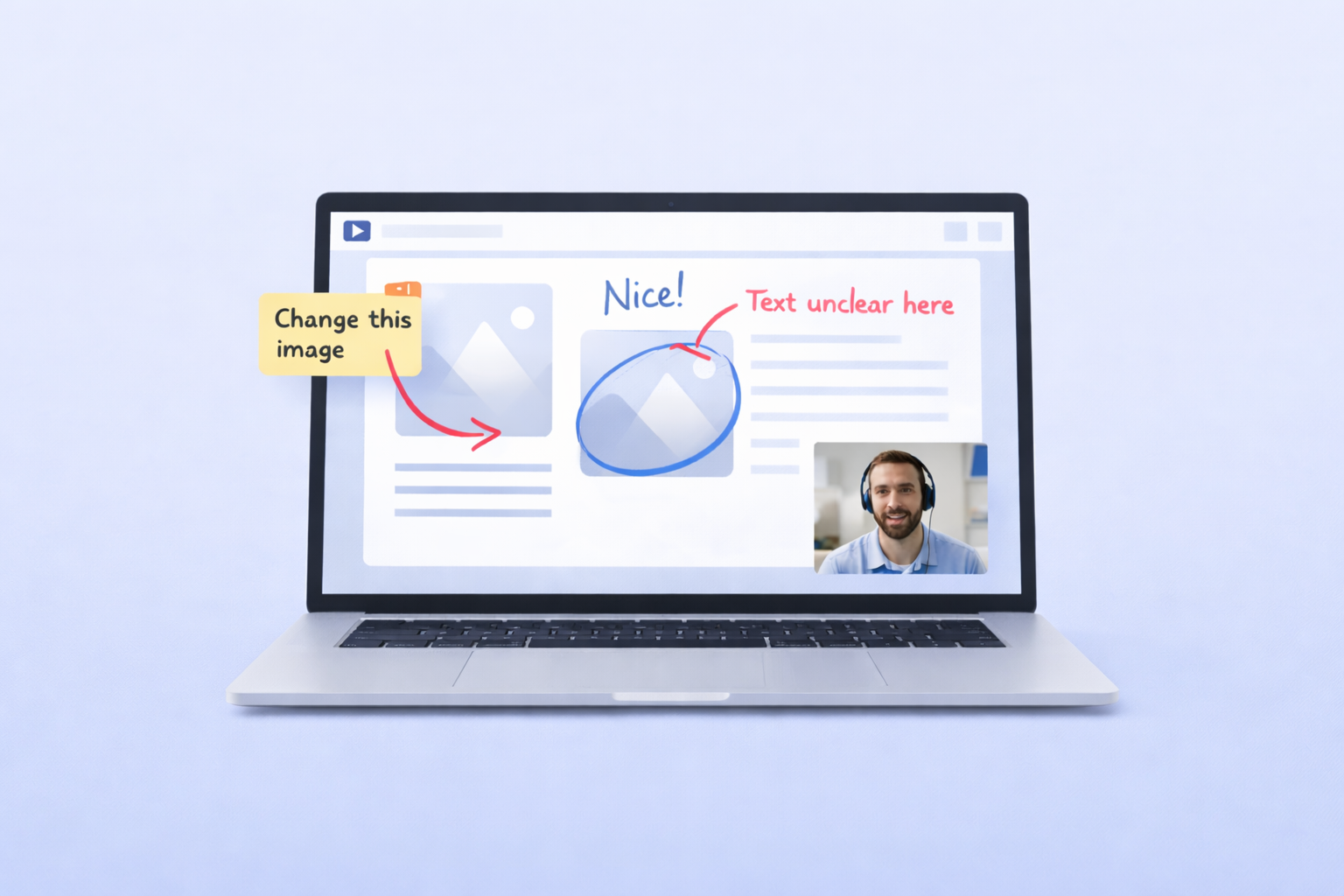
Async video messaging is the practice of recording short videos — screen recordings, webcam messages, or both — and sharing them via link so recipients can watch and respond on their own schedule. Instead of coordinating calendars for a live call, you hit record, explain your point visually, and send. Zight lets you record your screen, webcam, or both, then instantly generates a shareable link with viewer analytics, timestamped comments, and emoji reactions — no file uploads required. It works on Mac, Windows, and Chrome.
In this guide, you’ll learn exactly what async video messaging is, why high-performing remote teams rely on it, how to implement it step-by-step using Zight, and how it compares to other async video tools. Whether you’re a developer trying to explain a bug without writing a 10-paragraph email, a product manager giving design feedback across time zones, or a customer success lead onboarding clients without back-to-back Zoom calls, this guide is for you.
📖 Table of Contents
- What Is Async Video Messaging (And Why Does It Matter)?
- Why Teams Use Async Video Messaging in 2026
- 7 High-Impact Use Cases for Async Video
- How to Implement Async Video Messaging with Zight (Step-by-Step)
- Async Video Best Practices: Lessons from 1,000+ Recordings
- Async Video Tool Comparison: Zight vs. Loom vs. Vidyard vs. Vimeo Record
- How to Measure the Impact of Async Video on Your Team
- Overcoming Common Objections to Async Video
- Frequently Asked Questions
What Is Async Video Messaging (And Why Does It Matter)?
Async video messaging is a communication method where one person records a video — typically of their screen, their face, or both — and shares it with one or more recipients who watch and respond at a time that works for them. There’s no requirement for everyone to be online simultaneously.
Think of it as the evolution of the voice memo, but with visual context. Instead of describing a UI bug in a Slack thread with six screenshots and a paragraph of caveats, you record a 90-second video showing exactly what happened. Instead of scheduling a 30-minute Zoom call to walk a new hire through your CRM setup, you record it once and share it forever.
When I first started using async video in 2020, the workflow was clunky — record with one tool, upload to another, paste a link, and hope the recipient could play the format. In 2026, tools like Zight have collapsed that entire process into a single keyboard shortcut. You press ⌥⌘+5 on Mac (or Alt+Shift+5 on Windows), record your message, and a shareable link is copied to your clipboard before you’ve even switched tabs. That friction reduction is what turns async video from a novelty into a daily habit.
Synchronous vs. Asynchronous Video Communication
The difference between synchronous and asynchronous video communication comes down to one question: does everyone need to be present at the same time?
| Factor | Synchronous (Zoom, Meet, Teams) | Asynchronous Video (Zight, etc.) |
|---|---|---|
| Scheduling | Requires calendar coordination | Record anytime, watch anytime |
| Time zones | Someone always compromises | No overlap needed |
| Replay value | Limited — requires recording + storage | Built-in — every video has a shareable link |
| Deep work impact | High interruption cost (23 min to refocus, per UC Irvine research) | Zero interruption — watch between tasks |
| Documentation | Often lost unless someone takes notes | The video is the documentation |
| Average duration | 30–60 minutes | 1–5 minutes |
| Cost per interaction | High (multiple people × meeting time) | Low (one person records, many benefit) |
| Emotional tone | Full — live facial expressions and voice | High — face and voice present, just time-shifted |
The insight is simple: most meetings exist because text is ambiguous and scheduling a call feels like the only way to add clarity. Async video for remote teams fills the gap — it adds the visual clarity and human tone of a live call without the scheduling overhead. It’s not about eliminating meetings entirely. It’s about reserving live meetings for high-value discussions like brainstorming, relationship-building, and complex negotiations — and using async video for everything else.
If you’ve been feeling the weight of back-to-back video calls, you’re not alone. We wrote about why many teams are saying goodbye to Zoom fatigue and shifting to async-first communication models.
Why Teams Use Async Video Messaging in 2026
Adoption of asynchronous video communication has accelerated dramatically. Here’s why remote, hybrid, and even co-located teams are making the shift:
1. Meeting overload is a measurable productivity crisis
Microsoft’s 2025 Work Trend Index found that the average worker attends 3x more Teams meetings per week than they did in 2020. Otter.ai’s 2025 meeting cost calculator estimates that a 10-person team with five hours of meetings per week burns over $150,000/year in salary cost alone — not counting the context-switching tax. Async video directly targets this problem. When I tested replacing our Monday status meeting with a round of 3-minute Zight videos, we reclaimed 4.5 hours per week across the team — and the updates were actually more detailed because people could re-record until they got the message right.
2. Distributed teams span too many time zones for real-time calls
If your engineering team is in Lisbon, your customer success team is in Austin, and your design lead is in Sydney, there is literally no time slot that works for everyone without someone joining at an unreasonable hour. Async video for remote teams eliminates this constraint entirely. A product manager in Austin records a feature walkthrough at 2 PM CST, the engineer in Lisbon watches it the next morning at 9 AM WET, and the designer in Sydney responds with annotated feedback before either of the others wakes up. We’ve seen teams using Zight span six or more time zones without a single recurring synchronous meeting.
3. Video carries nuance that text and screenshots cannot
Text is efficient but brittle. A Slack message reading “the button is broken” triggers five follow-up questions. A 45-second screen recording showing exactly which button, what you clicked, what you expected, and what actually happened triggers zero. In practice, the difference between a text-based bug report and an async video bug report is 3–5 fewer round-trips and a fix that ships hours sooner. The same applies to design feedback, process documentation, and sales demos — any scenario where “show, don’t tell” reduces ambiguity.
4. Async video creates reusable institutional knowledge
A meeting is ephemeral. An async video is documentation. When a senior engineer records how they debug a production issue, that video becomes an onboarding asset for every engineer who follows. When a customer success manager records the ideal QBR walkthrough, every new CSM can study it. Zight’s Collections feature lets teams organize these videos into searchable libraries — turning tribal knowledge into scalable training. After recording hundreds of screen sessions, the pattern that works best is organizing by workflow (e.g., “Onboarding,” “Bug Triage,” “Sprint Review”) rather than by team or date.
5. It preserves deep work while maintaining connection
Cal Newport’s research on deep work has entered mainstream team culture. Managers now understand that every meeting fragments a maker’s schedule. Async video lets teammates communicate with full visual and emotional context — you can see facial expressions, hear vocal tone, and follow on-screen demonstrations — without requiring anyone to break flow. The recipient controls when they consume the message, typically batching async videos into a dedicated “inbox check” once or twice per day.
7 High-Impact Use Cases for Async Video Messaging
After working with thousands of Zight users, these are the use cases where async video messaging delivers the highest return on the time invested to record:
1. Bug reports and QA walkthroughs
Record your screen while reproducing the bug. Show the URL, the browser console, the steps, and the unexpected result. In Zight, the recording automatically captures your cursor movement and clicks, so engineers can see exactly what happened without guessing. Pro tip: Use Zight’s annotation tools to draw an arrow pointing to the problematic element before you start recording — it frames the viewer’s attention from second one.
2. Design and product feedback
Instead of dropping a screenshot in Figma with a comment that says “this doesn’t feel right,” record a 2-minute video walking through the prototype and narrating your experience. Your tone of voice conveys whether something is a minor polish item or a deal-breaker — context that gets lost in text. We’ve seen teams at Zight reduce design review cycles by 40% after switching from comment-based feedback to async video feedback.
3. Employee onboarding and training
Record your tool setup, process walkthroughs, and “how we do things here” explanations once. New hires watch on day one, rewatch on day 30 when they’ve forgotten, and you never repeat yourself. One Zight customer told us they reduced their onboarding lead’s time commitment from 15 hours per new hire to 3 hours — the rest was covered by a library of async videos.
4. Sprint standups and status updates
Replace the daily 15-minute standup with a round of 90-second async videos. Each team member records what they did yesterday, what they’re doing today, and any blockers — then posts the link in Slack or your project management tool. The manager watches all updates in under 10 minutes, and nobody’s morning is interrupted.
5. Customer success and client updates
Instead of scheduling a 30-minute call to walk a client through their monthly metrics, record a personalized video showing their dashboard, highlighting wins, and explaining next steps. The client watches when convenient and feels personally attended to. Viewer analytics in Zight show you whether they actually watched — and which sections they replayed — so you know what resonated before your next check-in.
6. Sales prospecting and follow-ups
A personalized async video in a cold email outperforms plain text. Record a quick screencast of the prospect’s website with a genuine observation, then pivot to how your product helps. Vidyard’s data shows video emails get 3x higher reply rates than text-only emails. Zight makes this fast because you record, get a link, and embed a GIF thumbnail — all without leaving your email draft.
7. Internal announcements and leadership communication
A CEO recording a 3-minute video explaining a strategic shift lands differently than a 1,200-word email. Async video preserves the leader’s tone, facial expressions, and conviction — it feels personal even at scale. Several Zight customers use this for quarterly updates, policy changes, and culture moments that deserve more than a Slack message.
How to Implement Async Video Messaging with Zight (Step-by-Step)
Here’s the exact workflow I use and recommend to every team getting started with async video for remote teams. Total setup time: under 15 minutes.
Step 1: Install Zight on your platform
Download Zight’s screen recorder for Mac or Windows, or install the Chrome extension if you work primarily in a browser. Create your free account — the onboarding takes about 60 seconds. Zight 6.x (the current version as of early 2026) includes automatic cloud upload, which means your videos are shareable the instant you stop recording.
Step 2: Record your first async video
Click the Zight menu bar icon and select Record Screen, or use the keyboard shortcut (⌥⌘+5 on Mac, Alt+Shift+5 on Windows). You’ll see three recording modes:
- Screen only — ideal for bug reports, walkthroughs, and demos
- Webcam only — ideal for personal updates, leadership messages, and quick explanations
- Screen + webcam — the sweet spot for most async messages, giving the viewer both visual context and your face in a small bubble overlay
Select your area (full screen, a specific window, or a custom region), hit record, and talk through your point. Don’t aim for perfection — aim for clarity. The best async videos feel like a conversation, not a presentation.
Pro tip: Before you hit record, spend 10 seconds mentally outlining your three key points. This single habit cuts average recording time by 30% and eliminates most “uh, let me start over” moments.
Step 3: Trim and annotate
After recording, Zight opens a quick editor. Use the trim handles to cut dead air from the beginning and end — Zight’s one-click trim (introduced in version 5.x) makes this a 5-second task. You can also add annotations: arrows, text boxes, highlight rectangles, and blur zones for sensitive information. For most async messages, a simple trim is all you need. Zight’s video editor is not a replacement for Premiere or Final Cut — and that’s by design. It’s optimized for speed, not Hollywood production.
Step 4: Share the auto-generated link
The moment you finish recording, Zight automatically uploads your video to the cloud and copies a shareable link to your clipboard. Paste it into Slack, email, Jira, Linear, Notion, Confluence, or any tool your team uses. Recipients click the link and watch in their browser — no downloads, no accounts required. Zight also generates a GIF thumbnail preview, which is incredibly useful when pasting into email or chat — it gives the recipient a visual preview that dramatically increases click-through rates.
Step 5: Track engagement and collect responses
Zight’s viewer analytics show you who watched your video, how far they got, and when they viewed it. This is surprisingly powerful for accountability — if you send a process update to a team of 12 and only 4 people watch it, you know to follow up. Recipients can leave timestamped comments directly on the video (“at 1:23 — should this button be blue instead?”) and react with emojis. This creates threaded, visual conversations that are far richer than email replies.
Step 6: Build a team library of reusable videos
As your team records more async videos, organize them into Zight Collections. Create collections for “Onboarding,” “Product Demos,” “Engineering Runbooks,” and “Customer FAQ.” This transforms one-off recordings into a living knowledge base. When a new hire asks “how do I deploy to staging?”, you don’t repeat yourself — you share the link. When you bring on a new team, the onboarding library is already built.
Async Video Best Practices: Lessons from 1,000+ Recordings
After recording and reviewing hundreds of async videos (and watching thousands from our user base), here are the patterns that separate effective async communicators from everyone else:
Keep it under 5 minutes
Zight’s internal data shows that viewer completion rates drop from 85% for videos under 3 minutes to under 50% for videos over 7 minutes. The sweet spot is 1–4 minutes. If your message exceeds 5 minutes, break it into two or three focused videos — each covering a single topic with a clear subject line.
Start with the conclusion
Don’t bury the lead. Open with “Here’s what I need from you” or “The main takeaway is X” — then provide supporting context. This respects the viewer’s time and lets them decide how much detail they need. It’s the inverted pyramid from journalism, applied to video.
Use screen + webcam for most messages
The small webcam bubble in the corner adds a surprising amount of human connection. It turns a screen recording from “documentation” into “a message from a real person.” In practice, the difference between screen-only and screen+webcam recordings is measurable in response rates — people reply faster and with more warmth when they can see your face.
Add a clear call to action
End every async video with a specific ask: “Please review and drop a comment by Thursday,” “Let me know if approach A or B makes more sense,” or “No action needed — this is just an FYI.” Ambiguous endings create reply-all confusion.
Don’t over-polish
Async video is not a YouTube production. A small “um” or a brief pause is fine — it signals authenticity. If you find yourself re-recording the same video three times, you’re overthinking it. The whole point is that async video should be faster than a meeting, not slower than a blog post.
Pro tip: Set a personal rule: one take, one trim, send. You can always record a follow-up video if you missed something. This mindset keeps async video sustainable rather than becoming another perfectionism trap.
Async Video Tool Comparison: Zight vs. Loom vs. Vidyard vs. Vimeo Record (2026)
If you’re evaluating async video messaging tools, here’s an honest feature-by-feature comparison based on hands-on testing by the Zight team. We include areas where competitors have genuine strengths — our goal is to help you make the right choice, not just pick us.
| Feature | Zight | Loom | Vidyard | Vimeo Record |
|---|---|---|---|---|
| Screen recording | ✅ Full screen, window, or region | ✅ Full screen, window, or tab | ✅ Full screen or tab | ✅ Full screen or tab |
| Webcam overlay | ✅ Resizable bubble | ✅ Resizable bubble | ✅ Bubble | ✅ Bubble |
| Screenshots & annotations | ✅ Built-in (arrows, blur, text, shapes) | ⚠️ Limited | ❌ No | ❌ No |
| GIF creation | ✅ Native GIF recording | ❌ No | ❌ No | ❌ No |
| Instant link sharing | ✅ Auto-copied to clipboard | ✅ Auto-copied | ✅ Auto-copied | ✅ Auto-copied |
| Viewer analytics | ✅ Views, watch %, viewer identity | ✅ Views, watch %, CTA clicks | ✅ Deep analytics (sales-focused) | ✅ Basic analytics |
| Timestamped comments | ✅ Yes + emoji reactions | ✅ Yes + emoji reactions | ⚠️ Limited | ✅ Yes |
| AI transcription & summary | ✅ Auto-transcription | ✅ AI summary, chapters, tasks | ✅ Transcription | ✅ Transcription |
| Native desktop apps | ✅ Mac + Windows | ✅ Mac + Windows | ⚠️ Chrome-focused | ⚠️ Chrome-focused |
| Password-protected links | ✅ Yes | ✅ Yes (Business plan) | ✅ Yes | ✅ Yes |
| Team workspaces | ✅ Collections + shared folders | ✅ Team library | ✅ Team folders | ✅ Team library |
| All-in-one (video + screenshot + GIF) | ✅ Single tool does all three | ❌ Video only | ❌ Video only | ❌ Video only |
| Free plan | ✅ Yes (generous limits) | ✅ Yes (5-min limit per video) | ✅ Yes (25 videos) | ⚠️ Limited |
| Best for | Teams needing video + screenshots + GIFs in one tool | Async video as a standalone category | Sales teams needing CRM integrations | Teams already on Vimeo |
Honest assessment: where competitors win
Loom has invested heavily in AI features — their auto-generated chapters, task extraction, and AI summaries are currently best-in-class. If your primary use case is leadership comms where a 10-minute video needs to be summarized into bullet points, Loom’s AI layer is genuinely impressive. Vidyard is the strongest choice for sales-specific workflows, with deep Salesforce and HubSpot integrations that trigger actions based on viewer behavior. Vimeo Record is ideal if you’re already paying for Vimeo’s video hosting platform and want to consolidate.
Why teams choose Zight
Zight’s differentiator is breadth. Most async video tools are only video tools. Zight combines screen recording, annotated screenshots, and GIF creation into a single app. For a developer who needs to file a bug with a screen recording, annotate a screenshot for a PR review, and send a GIF of a UI animation to design — all in the same hour — having one tool instead of three eliminates tool-switching friction and reduces SaaS spend. That all-in-one approach is why Zight is the default visual communication toolkit for cross-functional teams.
How to Measure the Impact of Async Video on Your Team
Adopting async video messaging is a behavior change, and behavior changes need measurable proof to sustain. Here are the metrics we recommend tracking:
- Meeting hours per week — Track before and after adopting async video. Most teams see a 25–50% reduction within the first month.
- Average async video length — If your team’s average video length creeps above 5 minutes, coach them to be more concise.
- Videos recorded per team member per week — Low adoption (below 2 videos/week per person) usually means the tool is too hard to access or the culture hasn’t shifted yet.
- Viewer completion rate — Available in Zight’s analytics. Completion rates below 60% suggest videos are too long or unfocused.
- Cycle time on feedback loops — Measure how long it takes from “feedback sent” to “feedback acknowledged” for design reviews, code reviews, and client updates. Async video typically cuts this by 30–60%.
- Employee satisfaction survey scores — Many teams report improved work-life balance and reduced meeting fatigue after adopting async video practices.
Pro tip: Run a two-week pilot with one team before rolling out company-wide. Pick the team with the most meeting pain (usually product or engineering), have them replace one recurring meeting with async video, and measure the results. The data from that pilot will sell the approach to the rest of the organization more effectively than any memo.
Overcoming Common Objections to Async Video
Every team that adopts async video messaging runs into the same pushback. Here’s how to address each objection:
“I hate being on camera”
Good news: you don’t have to be. Screen-only recordings are perfectly effective for walkthroughs, bug reports, and documentation. When you do use webcam, remember — async video is not a TED talk. Nobody expects studio lighting or a perfect background. The bar is “would I say this in a Zoom call?” — because async video is just a Zoom call where the other person doesn’t have to be there.
“It takes longer than just typing a message”
For a simple “yes/no” question, text is faster — and you should use text. Async video isn’t meant to replace every Slack message. It replaces the messages that would otherwise require five follow-up replies, a screenshot, and eventually a Zoom call anyway. For anything that requires showing rather than telling, a 90-second video is faster than a 400-word Slack message that still gets misunderstood.
“What about sensitive or confidential content?”
Zight offers password-protected links, expiring links, domain-restricted access, and SSO integration for enterprise teams. You can revoke access to any video at any time. For teams in regulated industries, Zight’s SOC 2 compliance and admin controls provide the guardrails needed. That said, use good judgment — the same content policies that apply to email and Slack apply to async video.
“Our team won’t adopt it”
Adoption follows leadership. When managers start sending async videos instead of scheduling meetings, the team follows. The most effective adoption strategy we’ve seen: a team lead replaces one recurring meeting with async video for two weeks, then asks the team to vote on whether to keep the meeting or the async format. The async format wins nearly every time.
Frequently Asked Questions About Async Video Messaging
What is async video messaging?
Async video messaging is a communication method where one person records a short video — of their screen, webcam, or both — and shares it via link so recipients can watch and respond on their own schedule. No live meeting or calendar coordination is required.
How is async video different from a Zoom call?
A Zoom call requires everyone to be online at the same time. Async video lets the sender record once and share a link — recipients watch whenever it suits them, can replay sections, and respond with comments. The average async video is 1–5 minutes versus 30–60 minutes for a typical Zoom meeting. Many teams are moving away from Zoom-heavy workflows toward async-first models.
What are the best async video messaging tools in 2026?
Top async video messaging tools include Zight, Loom, Vidyard, and Vimeo Record. Zight stands out for combining screen recording, screenshots, GIF creation, and annotations into a single tool with instant link sharing and viewer analytics — available on Mac, Windows, and Chrome.
Is async video messaging secure for business use?
Yes. Enterprise-grade async video tools like Zight offer password-protected links, expiring links, SSO integration, SOC 2 compliance, and admin controls for who can view and share content. You can restrict access to specific email domains or individual recipients.
How long should an async video message be?
Aim for 1–5 minutes. Viewer engagement drops significantly after 5 minutes. If your message exceeds 5 minutes, break it into multiple shorter videos, each covering a single topic. The best async videos start with the conclusion and use the remaining time for supporting context.
Can async video replace all meetings?
No — and it shouldn’t try. Async video is best for status updates, walkthroughs, feedback, bug reports, and onboarding. High-value discussions like brainstorming, sensitive conversations, and complex negotiations still benefit from live, synchronous meetings. The goal is to use async for the 60–70% of meetings that don’t require real-time interaction.
Does Zight work on Mac, Windows, and Chrome?
Yes. Zight has native desktop apps for macOS and Windows, plus a Chrome extension for browser-based recording. All three platforms share the same cloud library, so your videos are accessible from any device. You can download Zight’s screen recorder to get started.
Start Sending Async Videos Today
Async video messaging isn’t a trend — it’s a structural shift in how knowledge work gets done. Teams that adopt it recover hours per week, communicate with more clarity, and build reusable documentation that compounds in value over time. The teams that wait will keep burning time in meetings that could have been a two-minute video.
The fastest way to start: install Zight, record your next status update or feedback message as a video instead of typing it, and share the link. One video is all it takes to feel the difference. And when your team is ready to go async-first, Zight for Teams gives you the shared workspace, analytics, and admin controls to scale.
This guide is based on hands-on testing and real-world usage by the Zight team. Product details are accurate as of March 2026. Competitor features were verified at time of writing — check vendor sites for the latest.












