
Async Video Messaging: The Complete How-To Guide for Remote Teams in 2026
You just spent 47 minutes in a meeting that could have been a two-minute video. Sound familiar? Async video messaging is how modern teams eliminate unnecessary meetings, reduce miscommunication, and actually get deep work done — by recording short videos instead of scheduling live calls. It’s the fastest-growing communication method for distributed teams, and for good reason: a 2024 Loom study found that the average knowledge worker spends 31 hours per month in unproductive meetings. Asynchronous video communication replaces the bulk of those hours with concise, replayable messages that recipients watch on their own time.
⚡ Quick Answer: What Is Async Video Messaging?
Async video messaging is the practice of recording short videos — screen recordings, webcam messages, or both — and sharing them via link so recipients can watch and respond on their own schedule. Instead of coordinating calendars for a live call, you hit record, explain your point visually, and send. Zight is an async video and screen recording tool that lets you record your screen, webcam, or both, then instantly generates a shareable link with viewer analytics, comments, and emoji reactions — no file uploads, no calendar invites, no waiting.
In this guide, you’ll learn exactly what async video messaging is, why high-performing remote teams rely on it, and how to implement it step-by-step using Zight. Whether you’re a developer trying to explain a bug without writing a novel, a product manager giving design feedback across time zones, or a customer success lead onboarding clients without back-to-back Zoom calls, this guide is for you.
What Is Async Video Messaging (And Why Does It Matter)?
Async video messaging is a communication method where one person records a video — typically of their screen, their face, or both — and shares it with one or more recipients who watch and respond at a time that works for them. There’s no requirement for everyone to be online simultaneously.
Think of it as the evolution of the voice memo, but with visual context. Instead of describing a UI bug in a Slack thread with six screenshots and a paragraph of caveats, you record a 90-second video showing exactly what happened. Instead of scheduling a 30-minute Zoom call to walk a new hire through your CRM setup, you record it once and share it forever.
Synchronous vs. Asynchronous Video Communication
| Factor | Synchronous (Zoom, Meet, etc.) | Asynchronous Video (Zight, etc.) |
|---|---|---|
| Scheduling | Requires calendar coordination | Record anytime, watch anytime |
| Time zones | Someone always compromises | No overlap needed |
| Replay value | Limited — requires recording + storage | Built-in — every video has a shareable link |
| Deep work impact | High interruption cost | Zero interruption — watch between tasks |
| Documentation | Often lost unless someone takes notes | The video is the documentation |
| Average duration | 30–60 minutes | 1–5 minutes |
| Cost per interaction | High (multiple people × meeting time) | Low (one person records, many benefit) |
The insight is simple: most meetings exist because text is ambiguous and scheduling a call feels like the only way to add clarity. Async video for remote teams fills the gap — it adds the visual clarity and human tone of a live call without the scheduling overhead. It’s not about eliminating meetings entirely. It’s about reserving live meetings for high-value discussions like brainstorming, relationship-building, and complex negotiations — and using async video for everything else.
If you’ve been feeling the weight of back-to-back video calls, you’re not alone. We wrote about why many teams are saying goodbye to Zoom fatigue and shifting to async-first communication models.
Why Teams Use Async Video Messaging in 2026
Adoption of asynchronous video communication has accelerated dramatically. Here’s why remote, hybrid, and even co-located teams are making the shift:
1. Time Zone Coverage Without Burnout
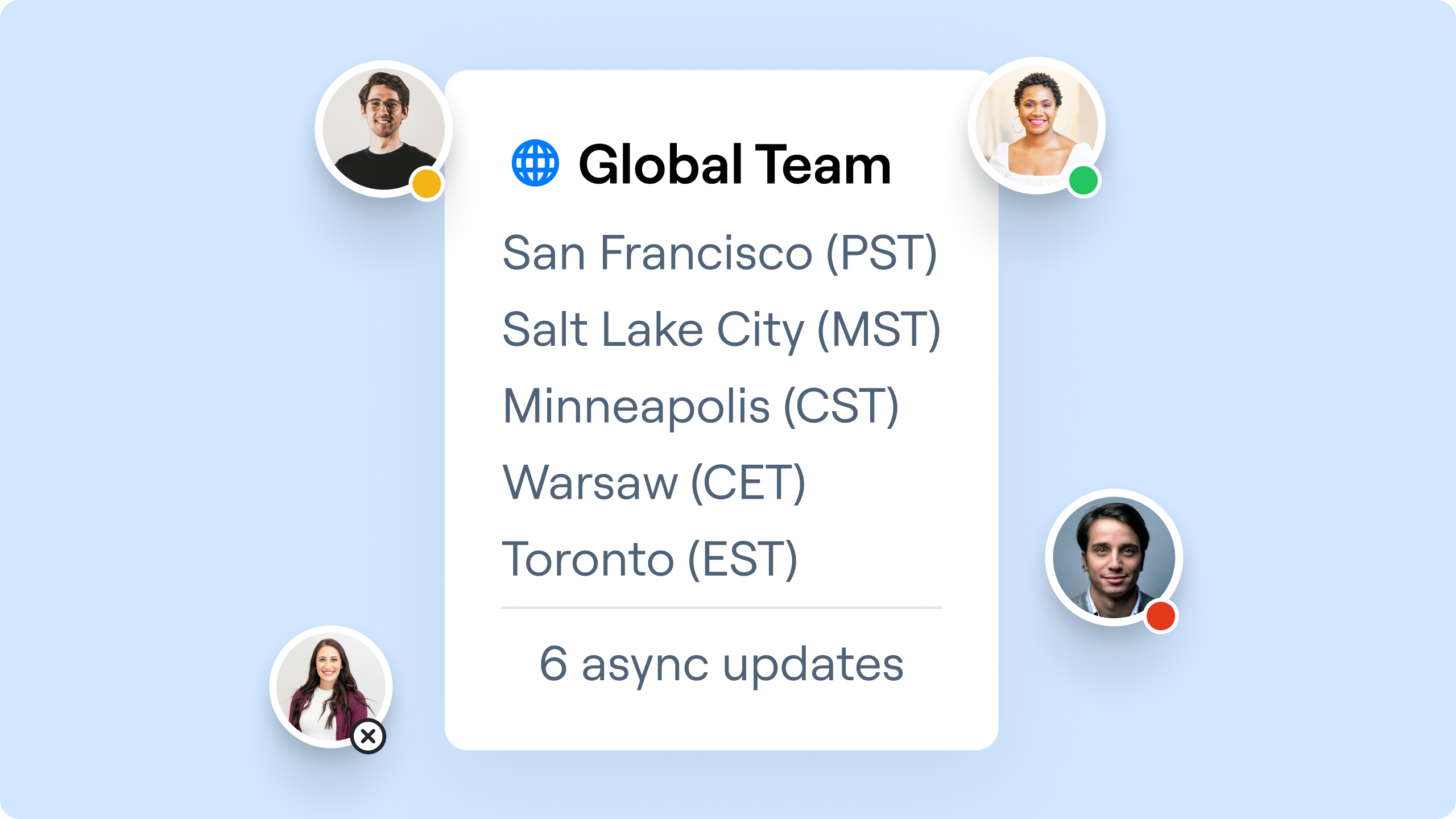
Distributed teams spanning multiple continents can’t sustainably schedule overlapping hours. A product manager in Berlin can record a five-minute sprint update that a developer in Austin watches at 8 AM local time — no one sacrifices their evening or morning routine.
2. Faster Bug Reports and Design Feedback
Developers and designers know the pain: a Jira ticket says “the button doesn’t work” with no context. With async video, the reporter records their screen showing the exact steps to reproduce the bug, the browser console errors, and the expected behavior. What used to require a 15-minute triage call now takes a 60-second recording.
3. Scalable Onboarding and Training
Customer success teams and HR leads record walkthroughs once, then share them with every new hire or customer. One Zight user reported cutting their onboarding call volume by 60% after building an async video library — because the same explanation, recorded well once, serves hundreds of people.
4. Protecting Deep Work
Research from Microsoft’s Work Trend Index shows that the average employee switches between apps 1,200 times per day. Every live meeting is an interruption that fractures focus. Async video respects everyone’s flow state — the sender records when they’re ready, and the viewer watches when they have a natural break.
5. Built-In Documentation
Live calls evaporate. Async videos persist. Every recording becomes a searchable artifact your team can reference weeks or months later. No more “What did we decide in that meeting last Tuesday?”
How to Implement Async Video Messaging With Zight: Step-by-Step
Here’s a practical, step-by-step guide to going from “we have too many meetings” to “our team communicates asynchronously with video.” We’ll use Zight as the primary tool, but the principles apply regardless of your stack.
Step 1: Install Zight on Your Devices
Start by getting Zight on the platforms your team actually uses. Zight offers native apps for Mac, Windows, and Chrome (as a browser extension). The installation takes under two minutes.
- Download the desktop app from Zight’s screen recorder page for full-featured recording (screen + webcam, system audio, annotations).
- Install the Chrome extension for quick browser-based recordings — ideal for capturing web apps, dashboards, or Figma files.
- Ensure every team member creates an account so recordings are organized in a shared workspace.
Pro tip: If you’re rolling this out to a team, use Zight for Teams to manage permissions, shared collections, and branding from a single admin dashboard.
Step 2: Define Which Meetings Async Video Replaces
Not every meeting should become a video. The goal is to identify the low-value, high-frequency meetings that drain your calendar. Audit your last two weeks of meetings and categorize them:
| Replace With Async Video ✅ | Keep as Live Meeting 🗓️ |
|---|---|
| Status updates and standups | Brainstorming / ideation sessions |
| Bug reports and QA walkthroughs | Conflict resolution or sensitive feedback |
| Design review feedback | Strategic planning workshops |
| Feature demos for stakeholders | 1-on-1 relationship-building |
| Client onboarding walkthroughs | Complex negotiations |
| Process documentation | Retrospectives requiring real-time discussion |
A simple rule of thumb: if the meeting is mostly one person talking while others listen, it should be an async video.
Step 3: Record Your First Async Video
Open Zight and choose your recording mode:
- Screen + Webcam (recommended for most use cases): Your screen provides visual context while your webcam bubble adds a human, personal touch. This is ideal for feature walkthroughs, feedback, and updates.
- Screen Only: Best for technical walkthroughs, bug reproductions, and tutorials where your face isn’t necessary.
- Webcam Only: Use this for personal messages, team announcements, or anything where the content is your words, not your screen.
Click record, say what you need to say, and stop. Zight automatically uploads the video and copies a shareable link to your clipboard. No rendering wait. No file management. No uploading to Google Drive and then pasting the link into Slack. It just works.
Step 4: Add Context With Annotations and Trimming
Before sharing, polish your recording using Zight’s built-in editing tools:
- Trim dead air from the beginning and end — respect your viewer’s time.
- Annotate key moments with arrows, text callouts, or highlights to direct attention.
- Add a title so the link preview in Slack, email, or your project tool shows clear context (e.g., “Bug: Checkout form crashes on Safari 17.4”).
The difference between an okay async video and a great one is editing. A two-minute trimmed recording with clear annotations communicates more than a rambling ten-minute screen share.
Step 5: Share the Link in Your Existing Workflow
Zight doesn’t force your team onto a new platform. Every recording generates an instant shareable link that you paste wherever your team already works:
- Slack / Microsoft Teams: Paste the link in a channel. It unfurls with a thumbnail preview so people know what the video covers before clicking.
- Jira / Linear / Asana: Embed the link in a ticket for visual bug reports or feature specs.
- Email: Replace that three-paragraph email with a single line: “Here’s a quick video walkthrough: [link].”
- Notion / Confluence: Embed recordings into documentation pages for living, visual wikis.
The key insight: async video works because it fits into your workflow, not alongside it. You don’t need to convince your team to adopt a new communication platform — you just need to share better links.
Step 6: Enable Responses and Feedback
Async video is not broadcast-only. Zight includes built-in viewer engagement features that close the communication loop:
- Timestamped comments: Viewers can leave comments at specific moments in the video, so feedback is precise (“At 0:42, the dropdown should show three options, not two”).
- Emoji reactions: A quick 👍 or 🎉 signals that the message was received without cluttering a thread.
- View tracking: See who watched, when they watched, and how much they viewed — so you know if your message landed or needs a follow-up.
This transforms async video from a monologue into a conversation — just a conversation that happens on everyone’s own schedule.
Step 7: Build an Async Video Library for Repeated Use Cases
The compounding value of async video becomes obvious once you start building a library. In Zight, organize recordings into Collections by team, project, or use case:
- “New Hire Onboarding” — Tool setup walkthroughs, team introductions, process overviews.
- “Client Onboarding” — Product tours, setup guides, FAQ responses.
- “Sprint Demos” — A weekly archive of shipped features for stakeholder review.
- “How We Work” — Process documentation that new team members can self-serve.
Every recording you make today saves you from re-explaining the same thing next month. Teams using Zight for Teams report that their async video libraries become some of their most valuable internal resources within weeks.
Step 8: Establish Team Norms for Async Video
Tools don’t change culture — norms do. Set clear expectations with your team to make async video stick:
- Keep videos under 5 minutes. If you need more time, break it into multiple recordings with clear titles. Respect is measured in brevity.
- Always add a title and text summary. Not everyone can watch a video immediately. A one-sentence summary + link lets people triage and prioritize.
- Set response expectations. “Please watch and comment by EOD tomorrow” is clearer than “let me know what you think.” Async doesn’t mean “whenever” — it means “on your own schedule within a reasonable window.”
- Default to async, escalate to sync. Start with a video. If the response thread reveals that a live conversation is needed, schedule a focused 15-minute call — not an hour-long catch-all.
- Celebrate adoption. Shout out teammates who send great async videos. Behavioral change sticks when it’s positively reinforced.
Real-World Async Video Messaging Use Cases
Async video for remote teams isn’t theoretical — here’s how specific roles use it daily:
For Developers
Record a screen share showing the bug reproduction steps, console output, and network tab. Paste the Zight link in the Jira ticket. The QA engineer or fellow developer gets full context without a meeting — and can replay it at 1.5× speed.
For Product Managers
Record a five-minute product requirements walkthrough showing the mockup, the user flow, and the edge cases. Share it with engineering before sprint planning. The live meeting becomes a focused 15-minute Q&A instead of a 45-minute presentation.
For Customer Success Teams
Instead of scheduling a call every time a customer asks “How do I set up the integration?”, record the answer once with Zight’s screen recorder and send the link. Reuse it for every future customer who asks the same question. One recording, infinite value.
For Sales Teams
Send personalized video pitches to prospects — record your webcam alongside their website or LinkedIn profile to show you’ve done your research. Async video pitches see 3× higher response rates compared to plain-text cold emails, according to Vidyard’s 2024 benchmark data.
Why Zight Is Built for Async Video Messaging
There are several async video tools on the market. Here’s what makes Zight the choice for teams that care about speed, simplicity, and workflow integration:
- Instant link sharing: The moment you stop recording, Zight copies a shareable link to your clipboard. No upload progress bars, no waiting. This matters because even a 30-second delay kills adoption.
- Screen recording + screenshots + GIFs in one tool: Most async communication doesn’t need a video. Sometimes a screenshot with an annotation is faster. Zight handles all three, so your team needs one tool instead of three.
- Native Mac, Windows, and Chrome apps: No browser-only limitations. Record system audio, capture any app, and use keyboard shortcuts that feel native to your OS.
- AI-powered features: Zight automatically generates titles, summaries, and transcripts for your recordings — making them searchable and accessible without extra effort.
- Team workspace and analytics: With Zight for Teams, admins get centralized content management, viewer analytics, and custom branding — essential for organizations scaling async communication.
- Privacy and control: Password-protect videos, set expiration dates, and restrict access by domain. Enterprise teams trust Zight with sensitive product and customer data.
Common Mistakes to Avoid With Async Video
Async video messaging is simple in theory but easy to get wrong in practice. Avoid these pitfalls:
- Recording 20-minute monologues. If your video is longer than five minutes, you’re probably covering too much. Break it into focused segments with descriptive titles.
- Skipping the text summary. Always include a one-sentence written summary alongside your video link. Some people are in low-bandwidth situations. Others need to triage before watching.
- Not trimming. The first 10 seconds of most raw recordings are “Okay, let me just… okay, is this recording? Right, so…” Trim that. First impressions matter even in internal communication.
- Using async video for everything. Sensitive feedback, complex emotional conversations, and brainstorming sessions still benefit from live interaction. Async video is a tool, not a religion.
- Not tracking views. If you don’t know whether someone watched your video, you can’t follow up effectively. Zight’s view tracking eliminates the guesswork.
Frequently Asked Questions
What is async video messaging and how does it differ from a regular video call?
Async video messaging is a communication method where you record a video and share it via link for others to watch on their own time. Unlike a regular video call (Zoom, Google Meet, etc.), it doesn’t require participants to be online simultaneously. The sender records when it’s convenient for them, and the viewer watches when it’s convenient for them. This eliminates scheduling overhead and time zone conflicts while preserving the visual clarity and personal tone of video communication.
Is async video messaging suitable for large teams?
Yes — async video becomes more valuable as teams grow. A live meeting with 15 people costs 15× the time. An async video costs the same whether one person watches or one thousand. Tools like Zight for Teams provide centralized workspaces, admin controls, and analytics that make async video manageable at scale. Companies with 500+ employees regularly use Zight to replace all-hands updates, cross-team demos, and training sessions.
How long should an async video message be?
Aim for one to five minutes. Data from async video platforms consistently shows that viewer engagement drops sharply after the five-minute mark. If your topic requires more time, break it into multiple short videos with descriptive titles (e.g., “Part 1: Setting up the API key” and “Part 2: Configuring webhooks”). Zight’s trim tool makes it easy to cut dead air and keep recordings concise.
Can I use Zight for free to send async video messages?
Yes. Zight offers a free plan that includes screen recording, webcam recording, screenshot capture, and instant link sharing. Paid plans unlock additional features like longer recording durations, AI-generated summaries, custom branding, advanced analytics, and team management. You can start recording and sharing async videos within minutes of creating a free account at zight.com.
What’s the difference between async video messaging and asynchronous video communication?
They refer to the same concept. “Async video messaging” typically describes the act of sending individual video messages (like a video email or Slack message), while “asynchronous video communication” is the broader practice that includes video messaging, recorded presentations, video documentation, and video-based onboarding. Both fall under the umbrella of replacing live, synchronous calls with recorded, on-demand video content.
Start Sending Async Video Messages Today
Every meeting you replace with a well-crafted async video gives time back to your entire team. Not just 30 minutes — 30 minutes multiplied by every person who would have attended. For a team of eight, one replaced meeting per day saves over 160 hours per month.
Zight makes the switch effortless. Install the app, hit record, share the link. No new platform for your team to learn, no complex onboarding, no file management. Just faster, clearer communication that respects everyone’s time and attention.
👉 Get started with Zight’s free screen recorder and send your first async video in the next five minutes. Your calendar will thank you.













Leave a Reply