
At some point in every team’s day, a message stalls progress:
- “It’s not working, but I’m not sure how to explain it.”
- “I think this is a bug, but I can’t reproduce it.”
- “Can you show me what you’re seeing?”
Most of the time, the problem isn’t effort. It’s that text is a poor substitute for context.
Request Video was built for those moments. Instead of asking people to describe what’s happening, it gives them a simple way to show you.
What is Request Video?
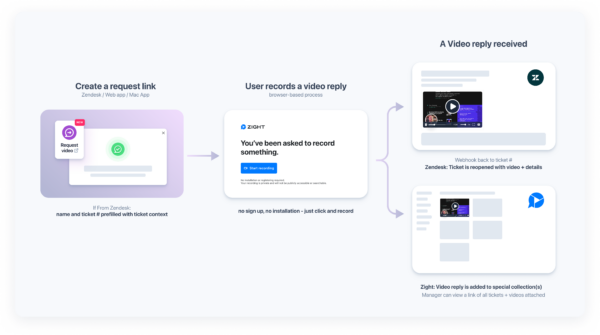
Request Video lets you send a link that prompts someone to record their screen and voice in response to a specific request.
You decide what you want to see by writing a short title and description. The person receiving the request clicks the link, records their screen, and submits. The video comes back to you with the context you asked for, ready to review or share.
There are no accounts to create, no tools to install, and no learning curve for the person recording.
Why Request Video works when other tools don’t
Teams already ask for screenshots, screen recordings, or calls. The problem is that these approaches introduce friction:
- Screenshots miss timing and flow
- Live calls require scheduling and coordination
- Asking users to “record a video and send it” assumes they know how
Request Video removes that friction by combining three things:
- Clear direction – your title and description tell the recorder exactly what to show
- Zero setup – one link, one page, one action
- Structured context – the response comes back labeled and easy to use
That combination is what turns “I’ll get to it later” into an actual response.
Where Request Video lives and how responses are saved
Request Video is available in the Chrome extension, the Zight web app, and the Mac desktop app. Windows desktop support is coming soon.
Once a request link is shared, the experience is the same every time: the recipient records their screen and voice, and the response is sent back to Zight.
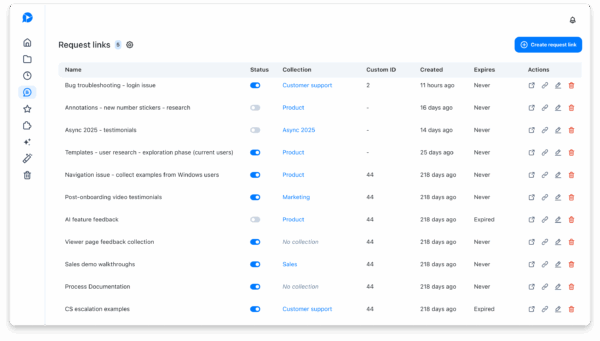
All video replies are saved in the Zight web app under Request Links, where each request keeps its responses organized in one place. You can revisit past recordings, share them with your team, or reference them later without digging through messages.
Request Video links can be reused, making it easy to collect multiple responses to the same question or workflow over time.
5 Teams that use Request Video
Request Video is intentionally flexible. Teams don’t use it for “video” as a goal. They use it to unblock work.
Below are some of the most common and impactful ways it shows up across teams.
1. Support and IT: seeing the problem instead of guessing
Support teams are often stuck in a loop of clarification:
- “Which browser are you using?”
- “Can you send a screenshot?”
- “What happens when you click that button?”
Request Video short-circuits that loop.
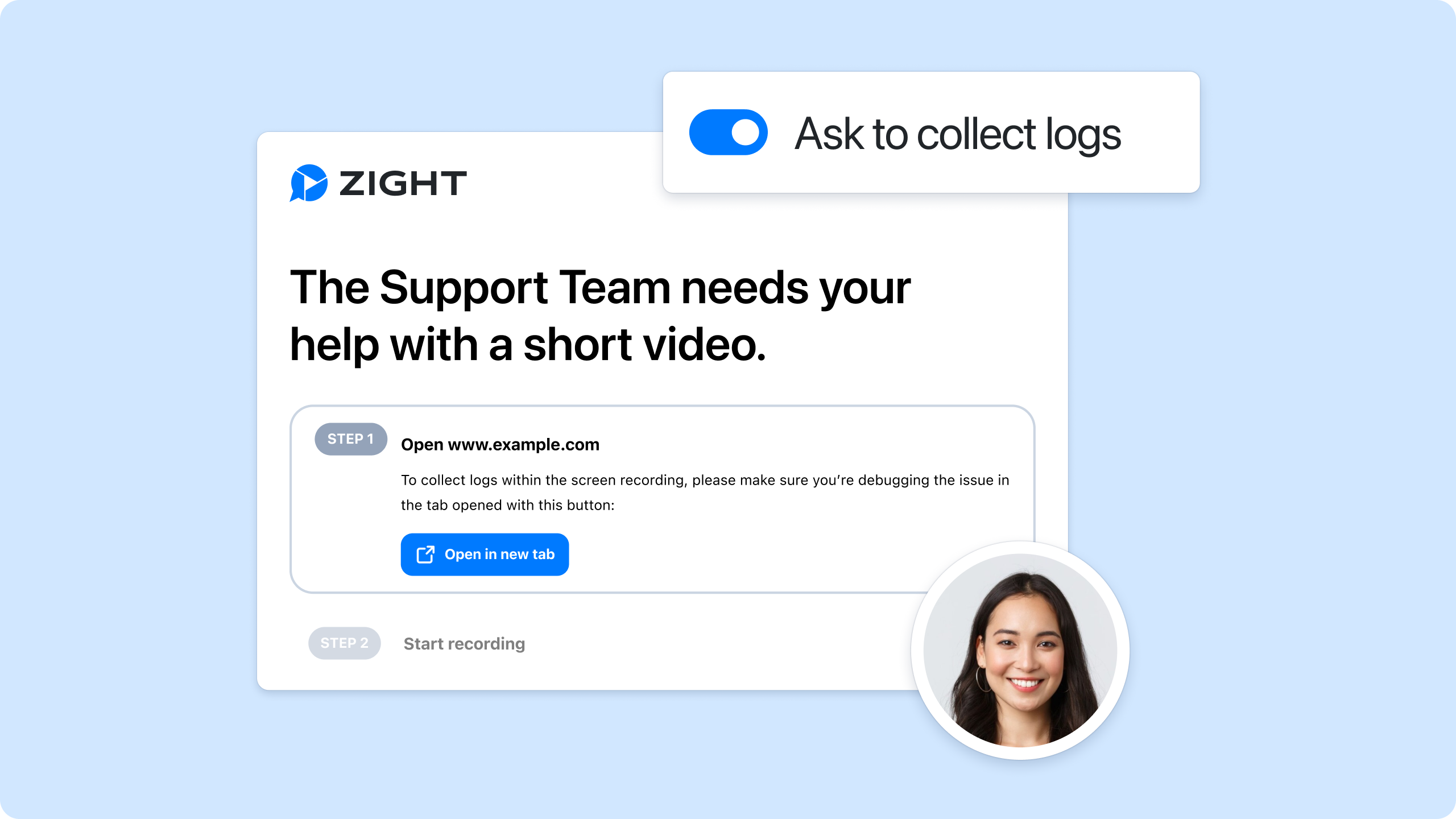
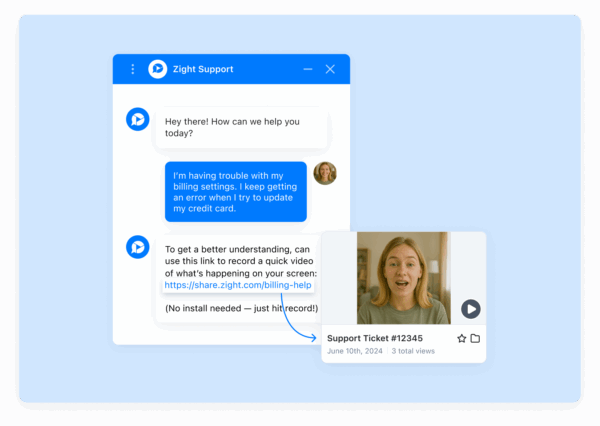
Instead of asking multiple follow-up questions, support teams send a Request Video asking the user to walk through the issue as it happens. The recording shows clicks, errors, timing, and behavior that would be difficult to describe in text.
When Data Logs are enabled, each video also includes technical context like browser, OS, screen size, console errors, and network activity, removing even more guesswork.
Outcome: fewer replies, faster resolution, and less frustration on both sides.
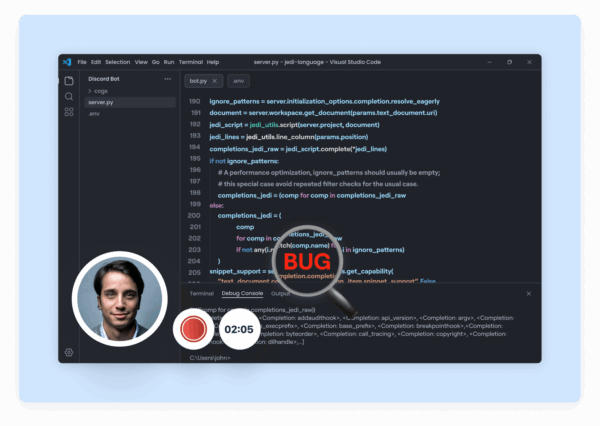
2. Engineering and QA: cleaner bug reports and repro steps
Engineering teams often receive bug reports that are technically accurate but incomplete. The issue “exists,” but no one can quite recreate it.
Request Video helps teams capture:
- The exact steps taken
- The state of the UI at each moment
- What the user expected versus what happened
Instead of scheduling a screen-share or recreating the environment manually, engineers can watch a short recording that shows the bug in context.
Outcome: faster debugging and fewer stalled tickets.
3. Product and design: understanding real behavior
Product feedback often sounds reasonable in writing but looks very different in practice.
Request Video allows teams to see:
- Where users hesitate
- What they try before getting stuck
- How they interpret labels, flows, or empty states
Because the feedback is recorded in the product itself, it reflects real usage rather than remembered behavior.
Outcome: better product decisions grounded in real experience.
4. Internal teams: async updates instead of meetings
Not every update needs a meeting. Many exist simply because someone needs to “show” progress, context, or changes.
Teams use Request Video to replace:
- Status updates
- Walkthroughs
- Review sessions
A short recording gives everyone the same context, without forcing calendars to align.
Outcome: fewer meetings, more flexibility, and reusable context.

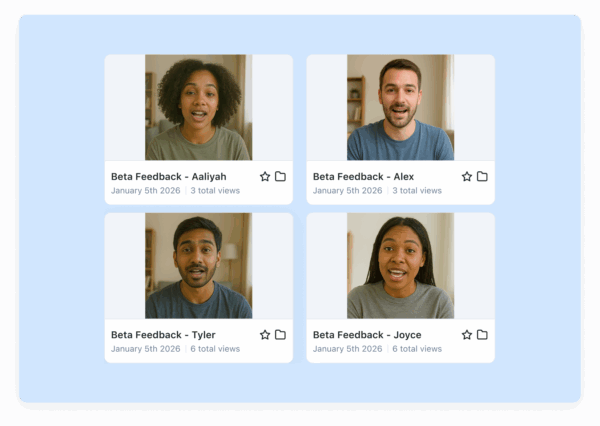
5. Feedback, reviews, and testimonials
Asking for video feedback is often awkward or inconvenient for the person being asked. Request Video removes the pressure by making it quick and informal.
Instead of coordinating tools or file uploads, teams send a single link with a clear prompt.
Outcome: higher response rates and more authentic feedback.

Making Request Video part of your workflow
The teams that get the most value from Request Video don’t treat it as a special tool. They treat it as a default response when words fall short.
A simple mental shift helps:
If you’re about to ask someone to explain what they see, ask them to show you instead.
Over time, Request Video becomes less about “sending videos” and more about removing friction from communication.
What teams gain by showing instead of telling
Across roles and industries, teams report similar outcomes:
- Less time spent clarifying
- Fewer meetings added to the calendar
- Faster progress on issues that used to stall
Request Video doesn’t change what teams are trying to do. It changes how easily they get there.
Still need help with Request Video? Check our support page.












