
7 Ways to Improve Team Communication with Visuals
Clear communication is critical for team success, especially with remote work and global teams. Visuals make complex ideas simple, reduce errors, and improve engagement. Research shows visuals are processed 60,000x faster than text and can boost engagement by 43%. Here’s how to enhance your team’s communication with visuals:- Screen Recordings: Replace long emails with clear, step-by-step visual explanations.
- Annotations: Highlight key details directly on images or videos for better clarity.
- Real-Time Collaboration: Use visual tools for live brainstorming and feedback.
- Diagrams & Workflows: Simplify complex processes into easy-to-follow visuals.
- Step-by-Step Guides: Standardize instructions with visual guides to reduce errors.
- Organized Sharing: Store and share visuals securely and efficiently.
- Track Performance: Use analytics to measure and improve visual communication.
Tips to Improve Team Communication with Visuals: Patti Dobrowolski
1. Use Screen Recording for Clear Explanations
Screen recordings are a game-changer when it comes to breaking down complex information. They eliminate the need for lengthy emails or confusing phone calls, offering a visual solution that cuts through the guesswork – and prevents the errors and delays that come with miscommunication. Here’s a striking example: businesses can slash support costs by 30% by using video tutorials, while poor communication costs companies a staggering $37 billion each year. Recording your processes provides the kind of context that plain text simply can’t deliver.As Anjali Sud, CEO of Vimeo, puts it: “Being video-first and visual in your workplace communication is a powerful antidote. It forces you to remove the mask and protection of written and edited comms.”Screen recordings are particularly effective because they show both the “what” and the “how.” Your team can see your cursor movements, hear your explanations, and follow along step-by-step. This combination of visuals and audio caters to different learning styles, making misunderstandings far less likely.
How to Use Screen Recording in Your Team
Screen recordings bridge communication gaps in many scenarios. For instance, onboarding new team members becomes more seamless when you can visually walk them through software systems, showing exactly where to click and what to expect. Training sessions benefit too – team members can learn at their own pace by rewatching recordings, which is especially helpful for remote teams spread across various time zones. Need to provide project updates or feedback? A screen recording makes it easy to visually demonstrate changes, cutting down on endless email threads. Even bug reporting and troubleshooting become more efficient when team members record their screens while replicating an issue. To make the most of screen recordings, keep these tips in mind: plan a short script, minimize distractions, test your audio beforehand, and aim to keep recordings under five minutes. Using Zight’s tools can make this process even more efficient.Zight‘s Screen Recording Features
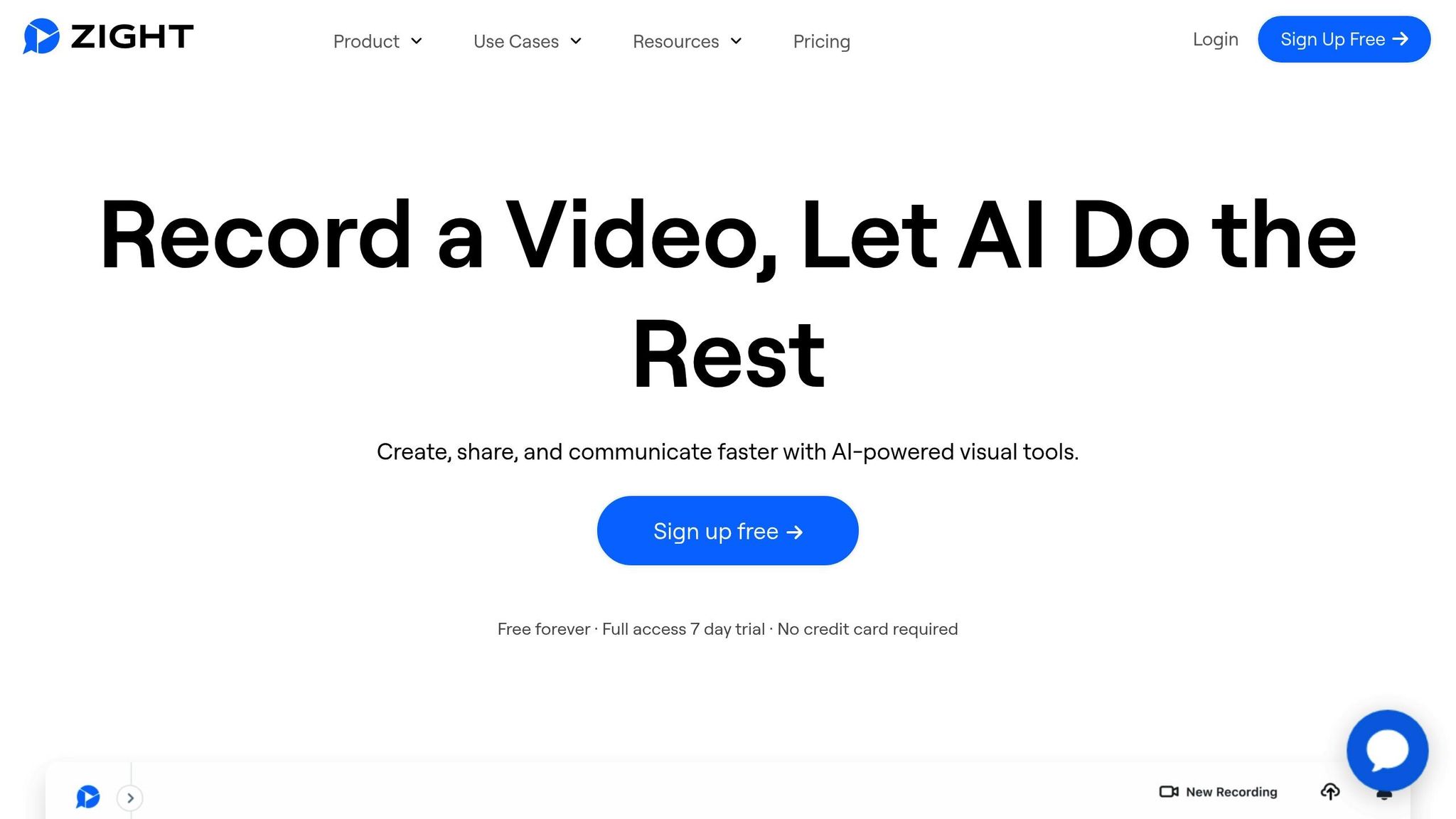 Zight offers a suite of screen recording tools tailored for team communication. Whether you’re on Mac, Windows, Chrome, or iOS, you can record your entire screen, a specific section, or even use your webcam. Depending on your needs, you can choose between video or GIF formats. Once you’ve recorded, Zight’s editing tools let you trim, cut, split, and merge your content, all without needing additional software. AI-powered features like automatic video summaries, smart titling, and instant transcription in multiple languages make your recordings easy to search and share. Sharing is simple too. Zight generates links automatically, so you can share your recordings anywhere URLs are accepted. Plus, it integrates seamlessly with tools like Slack and Microsoft Teams. With a team license, you get unlimited screen recording, advanced editing capabilities, custom branding, enhanced security, and detailed analytics – all designed to elevate your team’s visual communication.
 “Zight helps me show my work with my team and our customers quickly and effectively. I love how easy it is to make sure we’re producing the highest quality work and can draw attention to the things that matter.”Drift’s team leveraged Zight to improve their knowledge base by embedding videos and annotated screenshots directly into help documentation. Sara Pion also used Zight links to answer customer questions via chat and created visuals on the fly for internal communication. The result? Faster, clearer explanations and more digestible information. And with high-resolution 4K recording, your content will look professional across all devices.
- Sara Pion, Customer Advocate & Marketing, Drift
2. Add Annotations to Highlight Key Information
Annotations are like visual spotlights, bringing clarity and focus to your screen recordings or images. When words alone aren’t enough, annotations step in to make your message clear. Think of them as tools that visually highlight what’s most important. Instead of writing a lengthy email to explain changes needed in a design mockup, you can simply circle the issue, draw an arrow, and add a quick note. By turning visuals into interactive tools, annotations remove guesswork and cut down on unnecessary revisions. A simple arrow, highlight, or text box can often communicate more effectively than paragraphs of text, ensuring your message gets across quickly and clearly. The real strength of annotations lies in their ability to provide instant visual context. Whether you’re giving feedback on a website layout, reviewing a presentation, or explaining a software bug, annotations help pinpoint exactly what you’re referring to. This precision reduces confusion, minimizes back-and-forth questions, and keeps everyone aligned.Benefits of Annotated Visuals
Annotated visuals aren’t just helpful in the moment – they also serve as a record of decisions, changes, and feedback. This transparency makes it easier for teams to track progress and understand why certain choices were made. They also save time by simplifying feedback. Instead of typing out a detailed description like, “the button in the upper-right corner near the navigation menu”, you can simply circle the button. This visual clarity helps avoid misunderstandings and speeds up the review process. Annotations are especially useful for real-time collaboration. They allow team members to provide instant feedback and make quick adjustments without the need for extra meetings or calls. For remote teams, this feature can be a game-changer, helping to keep projects on track without delays. For training and onboarding, annotations offer step-by-step guidance that’s easy to follow and revisit later. New team members can see exactly where to click, what to look for, and how to complete tasks – all without needing constant oversight.Using Zight’s Annotation Tools
Zight equips you with a versatile set of annotation tools to improve visual communication. You can use arrows, shapes, text boxes, highlights, pen tools, blurring options, and even emojis to make your points clear and professional. One standout feature is the redact tool, which allows you to blur sensitive information like customer data, financial details, or proprietary processes. This ensures that your visuals can be shared safely, even when they contain confidential content. Zight also integrates seamlessly with other workflow tools, embedding annotated visuals directly into your team’s existing project management and communication platforms. This way, your feedback becomes part of the larger workflow rather than existing in isolation. The platform’s annotation tools are flexible and adaptable, allowing small teams to use basic features while larger organizations can implement standardized symbols and color-coded systems for more complex workflows. Zight is particularly effective for remote teams, enabling them to collaborate visually without needing to be in the same room. This helps projects move forward efficiently, eliminating the need to wait for scheduled meetings or calls. Next, we’ll explore how you can use Zight to streamline your workflow even further.3. Work Together in Real Time with Visual Platforms
Collaborating in real time with visual tools has revolutionized how teams brainstorm, review projects, and provide feedback. By allowing live input, these platforms cut down on delays caused by long email threads or waiting for scheduled meetings, helping projects move faster and communication become clearer. Visual platforms act as shared workspaces where everyone can contribute at the same time. Whether it’s reviewing a website design, troubleshooting a software issue, or mapping out a marketing strategy, these tools ensure that everyone stays aligned. Team members can easily pinpoint key elements, propose changes, and see updates instantly. The benefits are especially noticeable during project reviews and feedback sessions. Instead of trying to explain changes through lengthy descriptions, team members can use tools like screen recordings, annotated screenshots, or live demonstrations to show exactly what they mean. This approach minimizes confusion and speeds up revisions. Want to see how Zight fits into this process? Keep reading. For brainstorming, these platforms are a game-changer. One team member can share their screen to sketch out ideas while others add input through annotations or visuals. This dynamic interaction often leads to more creative and effective solutions compared to traditional text-based discussions.Team Collaboration with Zight
Zight takes real-time visual collaboration to the next level by integrating visual tools directly into the platforms your team already uses. Whether it’s Slack, Microsoft Teams, Jira, or Asana, Zight makes it easy to incorporate visual communication into your workflow. With Zight, you can instantly share screen recordings or annotated screenshots without juggling multiple tools. For example, Zight’s Slack integration allows team members to drop visuals directly into Slack channels, creating a centralized space for feedback and decision-making. When it comes to project management, Zight works seamlessly with Jira and Asana. Imagine attaching a screen recording to a bug report that shows exactly how to reproduce an issue – developers can resolve it much faster. Or, picture a design review where annotated mockups provide actionable feedback right in the task or ticket. Zight also includes AI-powered features like automatic transcriptions, smart titles, and translations. These tools ensure visual content is accessible to team members who speak different languages or prefer written summaries of videos. Security is another priority. Zight offers enterprise-grade features like content expiration dates, which automatically delete visuals after a set time to protect sensitive information during collaboration.Best Practices for Visual Collaboration
- Set Clear Goals: Clearly define the purpose of your session, whether it’s brainstorming, reviewing progress, or gathering feedback. This keeps everyone focused and ensures productive discussions.
- Standardize Annotations: Use consistent colors, shapes, and symbols in your visual feedback. For example, red circles could mark critical issues, while yellow highlights suggest improvements. This reduces confusion and speeds up reviews.
- Monitor Progress: Track review cycles, revisions, and team engagement with visual tools. Use this data to improve your collaboration process over time.
- Organize Your Assets: Store visual content – like screenshots and recordings – in project-specific folders within Zight. Quick access to these resources saves time during live sessions.
- Create Reusable Resources: Develop templates or standard screen recordings for frequently discussed topics. This ensures consistency and saves time during collaboration.
- Set Response Expectations: Define how quickly team members should respond to shared visuals. This keeps projects moving and maintains momentum.
4. Create Diagrams and Visual Workflows
Visual diagrams are a great way to simplify complex processes and abstract ideas. They help teams understand multi-step procedures, identify potential bottlenecks, and align on project requirements – all without wading through long explanations or technical jargon. Think of diagrams as a universal language that cuts across departments. For example, a software development team can use a visual workflow to explain their deployment process to marketing, while operations can show customer service how returns are handled. These visual tools eliminate confusion and promote a shared understanding. Plus, they make it easier to spot inefficiencies, redundancies, or missing steps that written procedures might overlook.“Diagrams are powerful – but without context, they can be misinterpreted or misunderstood.” – ZightTo avoid misinterpretation, pair static diagrams with a short screen recording to provide full context. Visual workflows also act as living documents that grow as your processes evolve. Unlike static documents that quickly become outdated, these workflows can be updated, annotated, and refined over time. This ensures that everyone is working with the latest information, reducing the risk of miscommunication during transitions or training.
Build Diagrams with Zight
Zight makes creating diagrams easy by using your existing visuals with simple screenshot capture and annotation tools. You can integrate Zight with tools like Lucidchart and Lucidspark to add context directly to your diagrams, cutting down on unnecessary meetings. For instance, you can create GIFs or annotated screenshots for UX flows or product plans, then link them directly into shared Lucid boards for easy team access. If your team already uses Lucid tools, Zight adds an extra layer of clarity that static diagrams alone can’t provide. Record quick videos summarizing whiteboard sessions or strategic plans and share them for asynchronous review. This is particularly helpful for teams spread across different time zones. Here’s how the process works:- Use Lucidchart or Lucidspark to create your visual content.
- Record a video, GIF, or screenshot using Zight’s desktop app or browser extension.
- Paste your Zight link directly into your Lucid document’s comments, sticky notes, shapes, or external link fields.
Keeping Visual Workflows Updated
The value of visual workflows drops quickly if they don’t reflect current processes. To keep them accurate and useful, make updates a regular part of your workflow management. Here are some strategies to stay on top of updates:- Embed videos for context: Add short videos to your diagrams to capture feedback or clarify changes when processes evolve.
- Organize with folders: Use Zight folders with clear naming conventions to make visuals easy to find and update.
- Schedule regular reviews: Set reminders to revisit critical workflows quarterly or after major process changes. During these reviews, ensure diagrams are up-to-date and fix any outdated information or broken links.
- Version control: For complex diagrams that change often, keep previous versions organized. This allows teams to reference past workflows or roll back changes if needed.












