
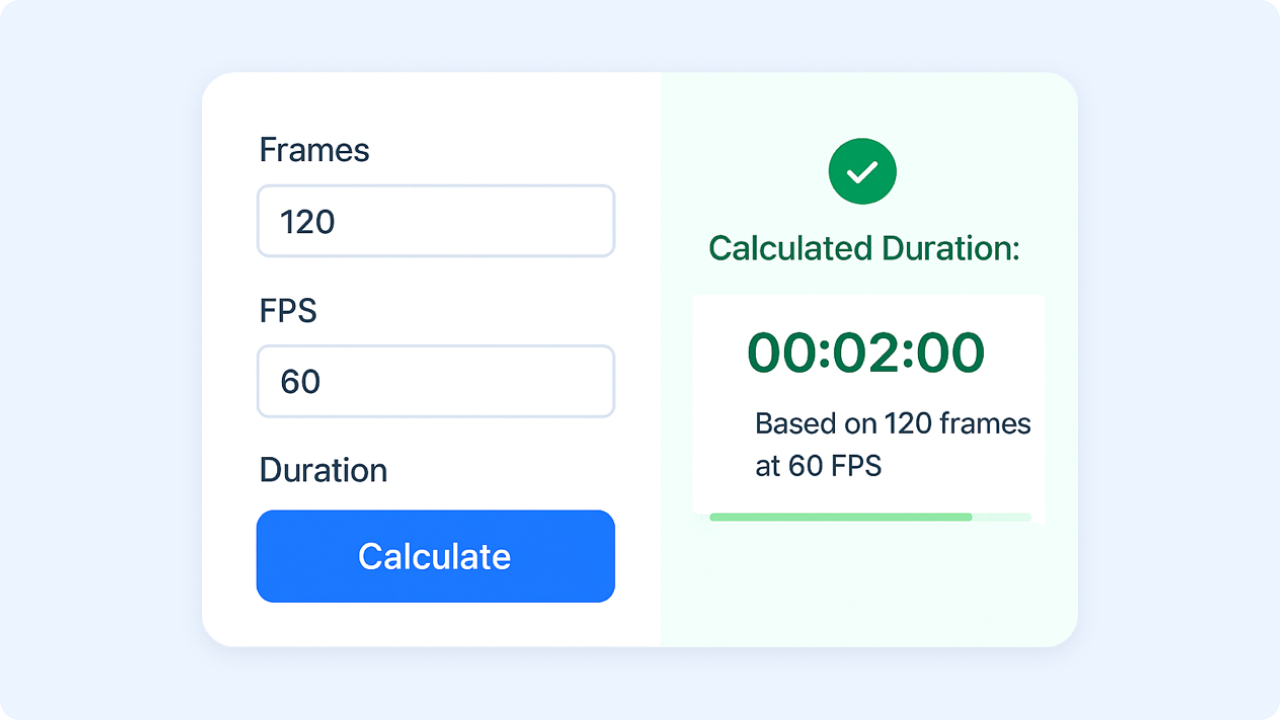
Unlock Video Timing with a Video Length Calculator
If you’ve ever struggled to figure out the exact runtime of a video or how many frames fit into a specific duration, you’re not alone. Video editing and animation often involve juggling numbers like frame counts and frame rates, and doing the math manually can eat up valuable time. That’s where a tool to calculate video duration comes in handy, simplifying the process with just a few clicks.
Why Timing Matters in Video Projects
Whether you’re crafting a short film, a YouTube clip, or a game cutscene, precision in timing is everything. Knowing how frame rates—like 24 fps or 60 fps—translate to actual playback time helps you plan edits, sync audio, and meet project deadlines. A reliable video timing tool takes the guesswork out of these conversions, letting you focus on creativity instead of calculations. Plus, it’s a lifesaver for spotting errors, like mismatched inputs, before they mess up your workflow.
Beyond the Basics
Beyond just crunching numbers, tools like these are perfect for beginners and pros alike. They offer clarity on how different inputs interact, ensuring your final output aligns with your vision. Next time you’re deep in a project, skip the manual math and let a calculator streamline your process.
FAQs
How do I calculate video duration from frames and frame rate?
It’s pretty straightforward with our tool! Just input the total number of frames and the frame rate (frames per second). The calculator divides the frame count by the frame rate to get the duration in seconds, then converts it to an HH:MM:SS format for easy reading. For example, 2400 frames at 24 fps equals 100 seconds, or 1 minute and 40 seconds. We round to the nearest second to keep things tidy.
What if I enter invalid data, like a negative frame count?
No worries, we’ve got you covered. If you accidentally input something like a negative number or non-numeric text, the tool will flag it and show an error message. It’ll prompt you to double-check your values and try again. This way, you won’t get stuck with weird results—just a gentle nudge to fix the input.
Can this tool help with different frame rates like 30 fps or 60 fps?
Absolutely, it works with any frame rate you throw at it—whether it’s 24 fps for film, 30 fps for TV, or 60 fps for gaming footage. Just enter the frame rate alongside either the frame count or duration, and the tool will handle the rest. It’s built to be flexible for all kinds of video projects, big or small.

Ready to Boost Your Productivity?
Save time and money while boosting your productivity with Zight — free tools for screen recording, screenshots, GIFs, and webcam capture.
Try Zight for Free











