

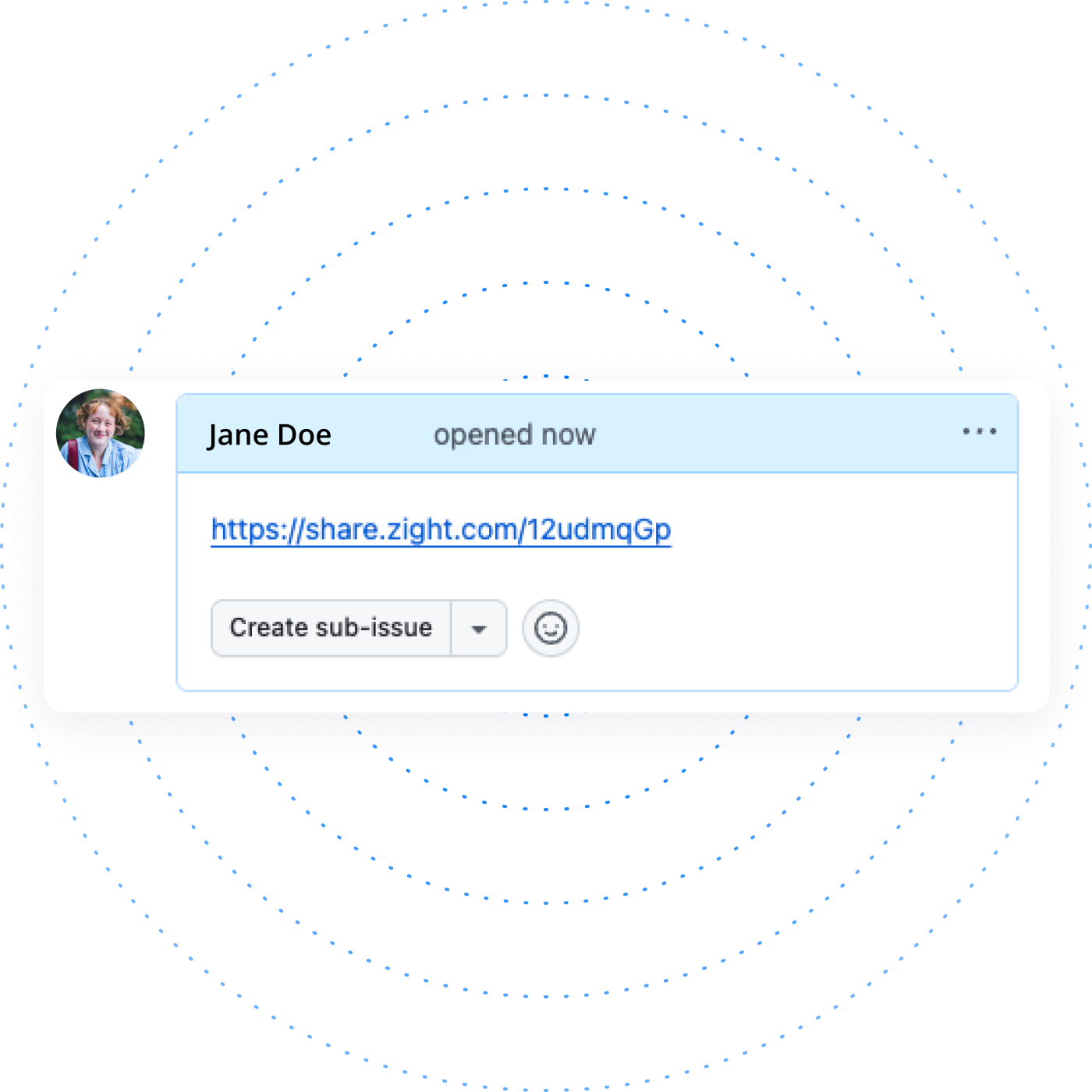
Powering the World’s Best Teams
Join 5m+ users who rely on Zight to increase their productivity







Why Integrate Zight with GitHub?
Clearer Pull Requests
Add visuals to explain code changes or UI updates.
Faster Issue Resolution
Show bugs or steps to reproduce with videos or screenshots.
Streamlined Collaboration
Help teammates understand feedback quickly and clearly.
Better Documentation
Support your READMEs and wikis with visuals.
Zight + GitHub in Action
🚧 More use cases and workflows coming soon!
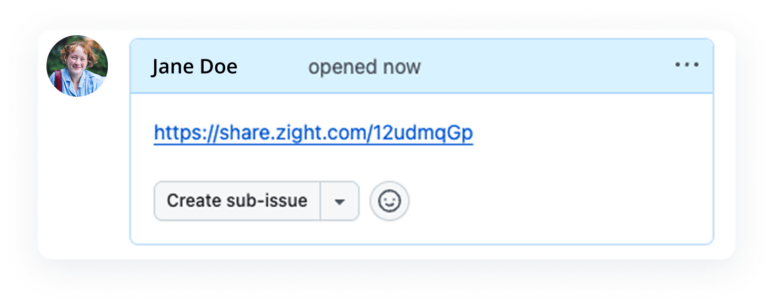
Share Instantly
Upload and paste your visuals directly into GitHub issues, PRs, or comments.
Integration Highlights
Seamless Sharing
Paste Zight links into GitHub issues, pull requests, and discussions.
Cloud-Based Storage
No need for large attachments—just accessible links.
Multi-Format Support
Share videos, GIFs, and annotated images effortlessly.
Real-Time Collaboration
Resolve issues and review code faster with visual input.
Join over 5m+ users today
Get Zight for FreeFrequently Asked Questions
Simply capture your screenshot or video using Zight, copy the shareable link, and paste it into a GitHub issue, pull request, or comment.
No extra software is required! Zight works effortlessly with GitHub by using shareable links.
Yes! You can highlight key points, add text, and draw directly on your screenshots and videos before sharing.
Zight offers a free plan with core features, while integrations are included in our paid plans. Visit our pricing page for more details.
Absolutely! Anyone with the link can view and provide feedback on shared visuals, making collaboration easier and more efficient.
Zight GitHub Integration: Supercharge Developer Workflows with Visual Collaboration
Introduction
In the world of software development, clarity and speed are critical. Whether you’re submitting a pull request, reviewing code, or reporting a bug, visual communication can make the difference between confusion and quick resolution. That’s where the Zight + GitHub integration comes in.
Zight enables you to capture and share annotated screenshots, screen recordings, and GIFs. When connected to GitHub, it empowers development teams to visually communicate updates, issues, and feedback—without leaving their workflow. In this guide, we’ll explore how the Zight GitHub Integration works, its benefits for development teams, and how you can start using it today.
What is Zight?
Zight is a powerful visual communication platform that lets users record their screen, annotate images, and share content quickly. It’s used by professionals across design, engineering, customer support, and product teams to streamline their communication and documentation processes.
Why Integrate Zight with GitHub?
GitHub is the leading platform for version control and collaboration, especially for developers working on shared codebases. But text-only communication in issues, commits, and pull requests can sometimes fall short—especially when dealing with complex UI bugs, behavior changes, or deployment issues.
Here’s how Zight fills the gap:
-
Visual Context: Provide screen recordings or annotated screenshots to explain what code changes do, what bugs look like, or how features behave.
-
Faster Reviews: Replace multi-paragraph explanations with a 30-second video demo that tells the story faster.
-
Fewer Misunderstandings: Ensure that teammates, reviewers, and stakeholders are always on the same page.
Key Features of the Zight GitHub Integration
1. Attach Visuals to Pull Requests and Issues
Easily attach Zight content—like GIFs, videos, or screenshots—directly into GitHub issues or pull requests. This enables:
-
Developers to demonstrate the effects of their code visually.
-
QA teams to show bugs in action, making it easier for developers to understand and fix them.
-
Designers to share feedback on UI changes clearly and quickly.
2. Instant Video and GIF Embeds
Once you capture a screen recording with Zight, it generates a shareable link that can be embedded directly into GitHub comments. It renders instantly—no download required—so reviewers can view it in context and reply immediately.
3. Automatic Link Previews
Paste a Zight link into GitHub and a thumbnail preview appears. This lets collaborators see a summary of the visual before clicking, streamlining communication across the repo.
4. Centralized Visual Library
All visuals shared through Zight are automatically stored in your Zight library, where they can be searched, reused, and shared again for future tickets or documentation.

How to Set Up the Zight GitHub Integration
-
Log In to Zight: Head to your Zight dashboard and click on the “Integrations” tab.
-
Choose GitHub: Select GitHub from the list of available integrations.
-
Authorize Access: Grant Zight permission to access your GitHub account or organization. This allows seamless linking and sharing from Zight to GitHub.
-
Start Sharing: Once connected, simply copy your Zight links and paste them into GitHub issues, PRs, or comments. The previews will appear automatically.
Use Cases: Real-World Developer Scenarios
The Zight GitHub Integration fits perfectly into multiple points of the developer lifecycle:
🐞 Bug Reporting
QA teams can record bugs using Zight’s screen recorder, add annotations pointing out the problem, and paste the link directly into a GitHub issue. Developers no longer need to guess what the user meant—they can see it firsthand.
💬 Pull Request Reviews
Developers can create a short walkthrough video of what their PR is doing—especially helpful for UI or front-end updates. This reduces review time and avoids the dreaded “can you clarify what this does?” loop.
🧪 Test Result Demos
For automated tests or feature validations, teams can attach GIFs or videos showing the test or result in action. This can be especially helpful for remote teams working across different time zones.
📚 Internal Documentation
Embed visuals into GitHub wiki pages or README files to provide better onboarding for new developers or to explain complex workflows. A video is often worth a thousand lines of documentation.

Tips for Maximizing the Integration
-
Use Descriptive Titles: When sharing videos or screenshots, use clear, keyword-friendly titles (e.g., “Search Bar Bug – Mobile View”) to make them searchable and understandable.
-
Keep Visuals Short: Aim for quick, to-the-point recordings. A 30-second clip is often all you need to get your message across.
-
Standardize Use: Encourage your dev team to use Zight for all visual communication in GitHub—especially for UI reviews, bug reports, and design feedback.
-
Use Zight’s AI Features: Automatically generate summaries, titles, and even multilingual transcripts for your recordings to make them even more accessible and useful.
Common Questions About Zight + GitHub
Q: Can I use Zight in private GitHub repositories?
Yes. Once the integration is set up and authorized, you can paste Zight links into any repository—public or private.
Q: Does Zight store my GitHub content?
No, Zight stores the content you create (like videos and screenshots), not your GitHub code or data. Your visuals stay on Zight’s secure servers.
Q: Can I revoke access later?
Absolutely. You can manage or remove the integration from your GitHub settings at any time.
Q: Does Zight work with GitHub Actions or bots?
While not directly integrated into GitHub Actions, Zight content can be referenced in automation messages or CI/CD workflows with links and previews.
Security and Compliance
Zight takes your privacy and security seriously. For enterprise customers, the platform offers:
-
SOC 2 Compliance
-
End-to-end encryption
-
Single sign-on (SSO)
-
Admin-level controls
This makes it a great fit for teams working in regulated industries or enterprise environments.
Final Thoughts
The Zight GitHub Integration is a must-have tool for modern development teams. Whether you’re squashing bugs, reviewing UI changes, or explaining new features, visual communication adds clarity and speed to every part of your workflow.
By connecting Zight to GitHub, your team gains a powerful way to improve collaboration, reduce friction, and accelerate development cycles. Start using Zight with GitHub today and bring your code to life—visually.












