

Powering the World’s Best Teams
Join 5m+ users who rely on Zight to increase their productivity






Why Integrate Zight with ClickUp?
Boost Team Efficiency
Reduce back-and-forth conversations with clear visual explanations.
Enhance Task Clarity
Attach annotated images and videos to tasks for better context.
Improve Project Updates
Share quick video walkthroughs instead of lengthy text updates.
Speed Up Approvals
Get instant feedback on designs, reports, and other assets.
Zight + ClickUp in Action
🚧 More use cases and workflows coming soon!
Share Instantly
Upload and attach your visuals directly to ClickUp tasks and updates.
Enhance Collaboration
Keep your team in sync with easy-to-understand visual instructions.
Integration Highlights
Drag & Drop Simplicity
Easily add visuals to ClickUp tasks and updates.
Cloud-Based Sharing
No need for large attachments—just accessible links.
Multi-Format Support
Share videos, GIFs, and annotated images effortlessly.
Real-Time Collaboration
Improve feedback loops with clear, visual discussions.
Join over 5m+ users today
Get Zight for FreeFrequently Asked Questions
Simply capture your screenshot or video using Zight, copy the shareable link, and paste it into your ClickUp task or update.
No extra software is required! Zight works effortlessly with ClickUp by using shareable links and embeds.
Yes! You can highlight key points, add text, and draw directly on your screenshots and videos before sharing.
Zight offers a free plan with core features, while integrations are included in our paid plans. Visit our pricing page for more details.
Absolutely! Your team can view, comment, and provide feedback on visuals shared in ClickUp, making collaboration more efficient.
The Ultimate Guide to Using Zight with ClickUp: Boost Collaboration with Visual Communication
When it comes to project management, clarity and speed are everything. That’s why integrating Zight with ClickUp is a game-changer for teams looking to streamline collaboration, improve task management, and boost productivity with visual, human communication.
In this guide, we’ll explore how Zight’s visual communication platform enhances the ClickUp experience through video, screenshots, GIFs, and AI-powered tools. Plus, we’ll share best practices, real-world use cases, and step-by-step setup tips to help your team get the most out of this powerful integration.
Why Visual Communication is a Game-Changer in ClickUp
Writing long task descriptions or commenting back and forth can slow projects down and create confusion. Visual communication tools like Zight solve that problem by letting teams:
-
Record short videos or screen shares to explain project updates
-
Annotate screenshots to clarify task details
-
Create GIFs to demonstrate quick processes or workflows
-
Use AI Smart Actions to auto-summarize discussions and generate task follow-ups
By embedding these visuals directly into ClickUp tasks, comments, and docs, you create faster understanding, stronger alignment, and smoother workflows.
Top Use Cases for Zight in ClickUp
1. Faster Task Explanations
Instead of writing long task notes, record a quick video walking through exactly what needs to be done.
2. Project Updates Made Personal
Send personalized video updates to stakeholders and team members to keep everyone in the loop without endless meetings.
3. Bug Reporting and Process Feedback
Capture issues or improvement ideas with annotated screenshots or recordings, and attach them directly to tasks for immediate context.
4. Onboarding New Team Members
Create short onboarding videos or visual SOPs linked in ClickUp Docs and Tasks to help new hires ramp up faster.

How to Set Up Zight with ClickUp
Step 1: Download the Zight app for desktop or browser.
Step 2: Connect your Zight account.
Step 3: Create videos, GIFs, or screenshots directly from your computer.
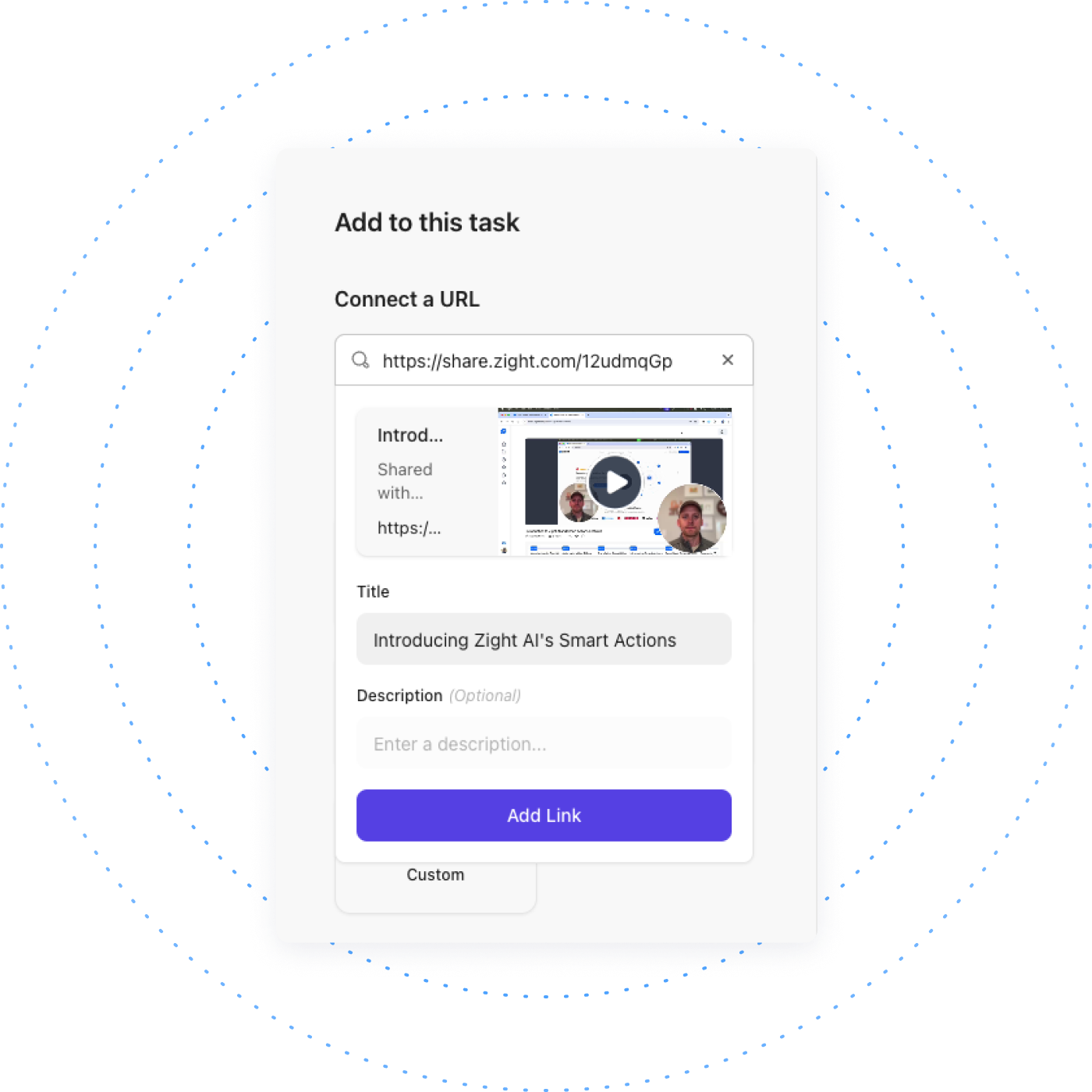
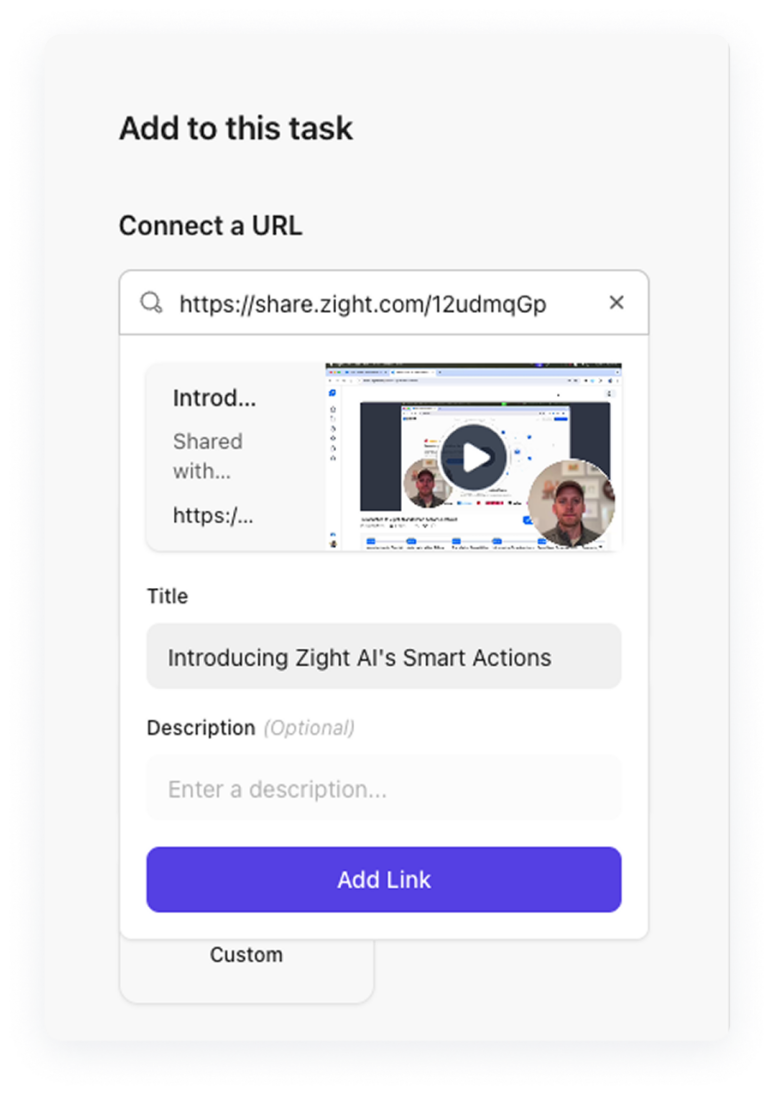
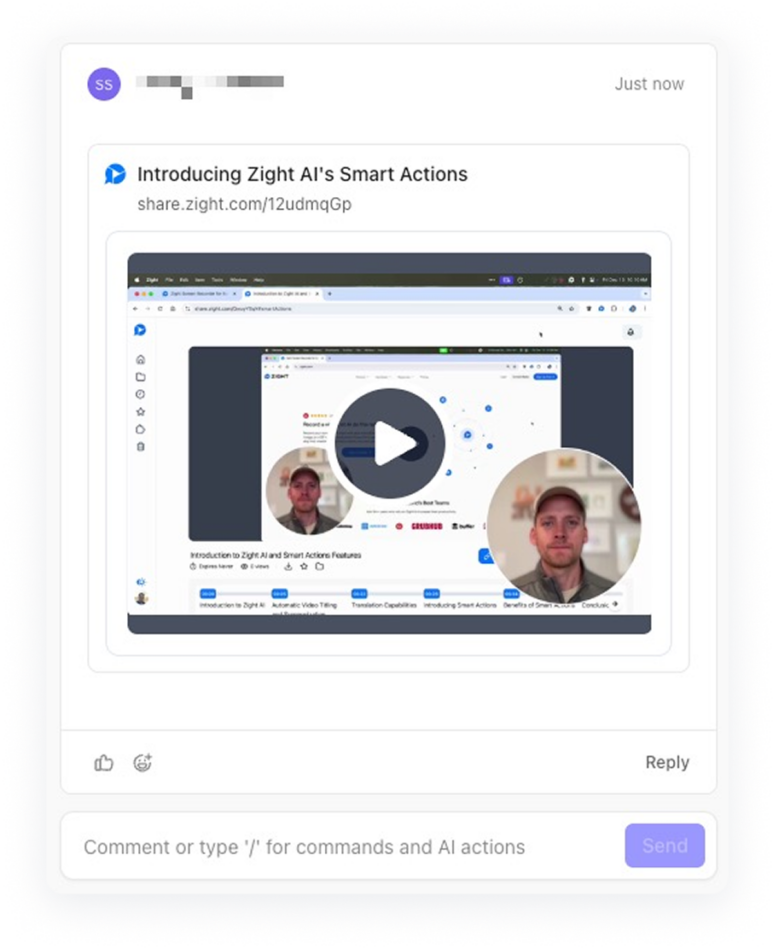
Step 4: Paste your Zight links into ClickUp tasks, comments, or Docs.
Each link unfurls into a clickable thumbnail with built-in analytics, so you know when team members engage.
Real Results: Zight in Action
Case Study: Streamlining Project Kickoffs by 35%
A marketing agency integrated Zight into their ClickUp workflows and cut project kickoff times by 35%. Instead of lengthy written briefs, they shared 2-minute explainer videos outlining project goals, deliverables, and timelines.
Customer Quote:
“We used to have endless clarification meetings. Now, a quick Zight video clears everything up before we even start.”
FAQ: Zight + ClickUp
Can I track if a teammate watched my video?
Yes—Zight provides view notifications and analytics so you can follow up confidently.
Does this work with ClickUp Docs and Comments?
Absolutely. Drop Zight links directly into Docs, task descriptions, or comment threads for instant clarity.
Will using Zight slow down ClickUp workflows?
Nope. Zight speeds things up by reducing unnecessary typing, meetings, and misunderstandings.
Pro Tips for Using Zight in ClickUp
-
Create templates with Zight videos for recurring projects or workflows
-
Organize your Zight content into folders for quick task attachments
-
Use AI Smart Actions to summarize video instructions into task lists
-
Include visual walkthroughs in Docs and SOPs to make them more engaging

Final Thoughts
Visual communication isn’t just a nice-to-have in project management—it’s a must-have. By combining Zight with ClickUp, your team can deliver faster, clearer, and more personal collaboration at scale.












