Organize Your Browser Tabs with Chrome Tab Groups
Who else struggles with having way too many tabs open? This quick guide shows you how to use Chrome Tab Groups to keep your tabs tidy, color-coded, and easy to manage.
Step 1: Hover Over the Tab
- Hover over the tab you want to group in Google Chrome.
- Right-click on the tab to open a context menu.

Step 2: Select “Add Tab to Group” and Create a New Group
- Choose the “Add tab to group” option from the menu.
- Click on “New group” to start creating a group.
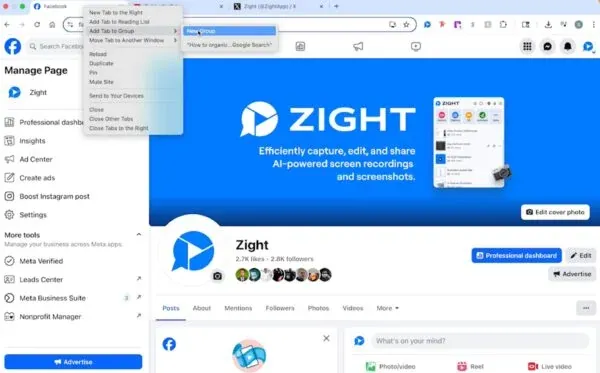
Step 3: Label and Assign a Color to the Group
- Enter a name for the group.
- Choose a color for the group.
- Hit enter to save the group settings.

Step 4: Add Tabs to the Group
- Drag and drop the tab into the group.
- Or Right-click on the tab and add it to the group.
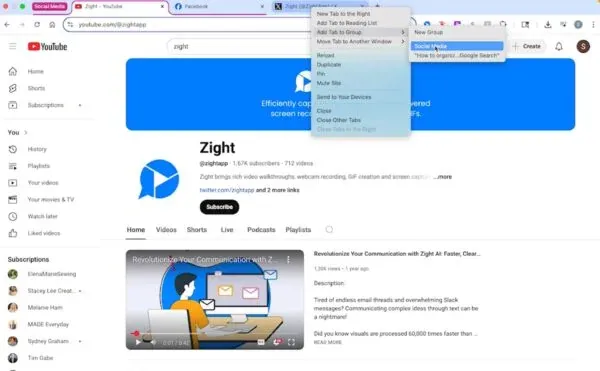
Step 5: Collapse the Group
- Click on the group label to collapse and hide the tabs.
- To expand the group, click on the label.

The ultimate guide to organizing your browser tabs with Chrome Tab Groups
If you’ve ever looked at your browser and seen dozens of tiny unreadable tab titles stretching across the top of your screen, you’re not alone. Managing too many open tabs is one of the most common productivity challenges for modern web users. Thankfully, Google Chrome Tab Groups are here to help.
Chrome Tab Groups make it easy to organize your tabs by category, project, or priority, keeping your workspace clean and easy to navigate. Whether you’re managing research for work, juggling multiple personal projects, or trying to avoid digital clutter, this simple feature can transform how you browse.
Why Chrome Tab Groups are a game-changer
When you’re working across different topics or projects, tabs can pile up quickly. Chrome Tab Groups allow you to cluster related tabs together under a single label. You can color-code them, name them, and even collapse or expand them as needed.
For example, you might have one group for work-related websites, another for personal research, and a third for entertainment. Instead of flipping through dozens of tabs to find what you need, you can instantly access everything in an organized, visually distinct way.
This feature is especially handy for people who multitask or switch between projects frequently. It keeps your browser tidy and helps you focus on one group of tasks at a time.
Getting started with Chrome Tab Groups
Creating tab groups in Chrome is simple and intuitive. You can start by right-clicking on any open tab and choosing the “Add tab to group” option. From there, you can either create a new group or add the tab to an existing one.
Each group can have a name and color, which helps visually separate them. For instance, you might label a group “Research” in blue, “Work” in green, and “Personal” in pink. Once you’ve set your preferences, Chrome automatically saves your tab groups, so they stay organized even after restarting your browser.
The ability to collapse or expand groups is another useful feature. Collapsed groups free up space on your tab bar while still keeping your work accessible. It’s like having a digital filing system right inside your browser.
Best practices for keeping your tabs organized
To make the most of Chrome Tab Groups, it helps to follow a few simple practices. Start by creating clear, descriptive group names that make sense at a glance. Using color strategically also helps — assign one color per type of task or category so your brain recognizes them quickly.
If you often work on multiple projects, try keeping separate Chrome windows for distinct workflows, each with its own tab groups. This way, you can fully focus on one project at a time without distractions.
Regularly review and tidy your tabs. Over time, it’s easy for groups to accumulate extra sites that are no longer relevant. Close unneeded tabs and update your groups to reflect your current tasks.
Lastly, if you use Chrome profiles, you can assign specific tab groups to different profiles. This approach helps you separate personal browsing from professional work while maintaining organization in both areas.
Why organization matters for productivity
Digital organization plays a huge role in productivity. A cluttered browser can lead to distractions, lost time, and frustration. Chrome Tab Groups minimize visual noise, making it easier to stay on task.
By grouping tabs together, you’re effectively reducing cognitive load — you no longer have to remember which tab corresponds to which project. Everything is visually sorted and accessible.
Even better, when you collapse unused groups, you can focus on the task at hand without constantly seeing unrelated tabs. This structure encourages single-tasking, which often leads to better work quality and efficiency.
Using Chrome Tab Groups across workflows
Tab groups aren’t just for work. They can be used for a wide range of purposes across different parts of your life.
For students, Chrome Tab Groups are perfect for organizing research papers, lecture notes, and course materials. Freelancers can use them to keep client projects separate and organized. Developers might use tab groups to separate documentation, testing environments, and project dashboards.
Even outside of work, tab groups are handy. You can create a “Travel” group for trip planning, a “Recipes” group for cooking inspiration, or a “Shopping” group for comparing products.
The versatility of Chrome Tab Groups means you can adapt them to whatever suits your workflow best.
Syncing and saving your tab groups
One of the most convenient features of Chrome is that tab groups can sync across devices if you’re signed into your Google account. This means your organized tabs will follow you from your desktop to your laptop, making it easy to pick up where you left off.
You can also save and reopen tab groups later, which is especially useful for recurring projects. For example, if you regularly research industry trends, you can save your “Market Research” group and reopen it whenever you need it, without starting from scratch.
Conclusion
Chrome Tab Groups are a simple yet powerful way to take control of your digital workspace. By grouping, naming, and color-coding your tabs, you can reduce clutter, stay focused, and easily switch between projects without losing track of what matters.
Whether you’re a busy professional, a student, or someone who just wants a cleaner browser, this feature can make your online experience much smoother. Spend less time hunting through tabs and more time focusing on the task at hand — because organized tabs lead to a more organized mind.
Frequently Asked Questions
Chrome Tab Groups let you organize open tabs into labeled and color-coded clusters for easier navigation and cleaner browsing.
Yes, each group can have a name and color. This helps you quickly identify different sets of tabs, such as work, personal, or research.
Click on the group label to collapse or expand it. Collapsing helps you save space on your tab bar.
Yes. You can drag and drop tabs into an existing group or right-click a tab and choose “Add to group.”
If Chrome’s “Continue where you left off” setting is enabled, your groups will reopen automatically the next time you launch the browser.
Tab groups are available in the Chrome mobile app on Android, though functionality may vary depending on your version.
Yes. You can use colors strategically to indicate categories, like blue for research, green for work, or purple for creative projects.
Yes, as long as you’re signed into your Google account and have sync enabled, your tab groups will appear on all devices where you use Chrome.


