
Video to GIF Converter: How to Turn Any Video Into a GIF in Seconds
⚡ Quick Answer
A video to GIF converter turns video files (MP4, MOV, WebM, AVI) into lightweight, looping GIF animations. The fastest way to create a GIF in 2025 is to skip the conversion step entirely: Zight is a screen recording and GIF maker tool for Mac, Windows, and Chrome that lets you record your screen and export a GIF with a shareable link in one step — no upload, no separate converter, no file-size headaches. For converting existing video files, free browser-based tools like EZGif, CloudConvert, and Canva handle the job without any software install.
A video to GIF converter is one of those tools you don’t realize you need until you need it five times a day. Whether you’re filing a bug report, walking a teammate through a UI flow, responding to a customer support ticket, or trying to make a Slack message land better, GIFs are the perfect middle ground between a static screenshot and a full-length video.
The problem? Most video to GIF converters are clunky. You upload a file to an ad-riddled website, wait for it to process, fiddle with frame rates and dimensions, and end up with a pixelated mess that’s 47 MB. There’s a better way.
In this guide, you’ll learn exactly how to convert video to GIF using multiple methods — including the fastest approach with Zight, which lets you record your screen and export a GIF without ever touching a separate converter. We’ll also cover free online tools, desktop software, command-line techniques, and the trade-offs of each so you can pick the right workflow for your needs.
Why Convert Video to GIF? (And When You Should)
Before we get into the how, let’s make sure a GIF is actually the right format. GIFs shine in specific situations:
- Bug reports and QA: A 3-second GIF showing a UI glitch communicates more than three paragraphs of text ever could. Engineers can see exactly what’s broken without reproducing the issue themselves.
- Quick tutorials and onboarding: Show a new hire how to navigate a settings menu or complete a short workflow without scheduling yet another video call.
- Documentation and knowledge bases: GIFs auto-play in most platforms (Notion, Confluence, Zendesk, GitHub), making them perfect for inline how-to content that readers can absorb instantly.
- Slack, email, and async communication: GIFs embed natively almost everywhere. No play buttons, no buffering, no “can you see my screen?” friction.
- Social media and marketing: Eye-catching product demos that loop automatically in feeds. According to GIPHY, over 10 billion GIFs are served daily across their platform and integrations.
- Design feedback: Instead of writing “the padding looks off on the third card on hover,” just record a GIF of the interaction and annotate it.
GIF vs. Short Video: When to Use Each
| Factor | GIF | Short Video (MP4/WebM) |
|---|---|---|
| Duration | Under 10 seconds | 10 seconds – 5 minutes |
| Audio | Not supported | Full audio support |
| Auto-play | Yes, in most platforms | Depends on embed/platform |
| File size | Usually 1–8 MB (optimized) | Smaller per second of content |
| Quality | 256-color limit, can appear grainy | Full-color, high resolution |
| Best for | Bug reports, quick demos, inline docs | Walkthroughs, presentations, narrated tutorials |
Rule of thumb: If your content is under 10 seconds and doesn’t need audio, make it a GIF. For anything longer or narrated, use Zight’s screen recorder to capture a video with voiceover instead.
Method 1: Use Zight to Record Your Screen Directly as a GIF (Fastest Method)
Here’s the thing most people get wrong about creating GIFs: they start by recording a video, then hunt for a separate tool to convert it. That’s two steps when you only need one.
Zight is a screen recording, screenshot, and GIF maker tool for Mac, Windows, and Chrome. It lets you record your screen and export the result directly as a GIF — no conversion step, no file uploads, no waiting. The entire workflow takes under 30 seconds, and your GIF gets a shareable link automatically copied to your clipboard.
Step 1: Install Zight on Your Device
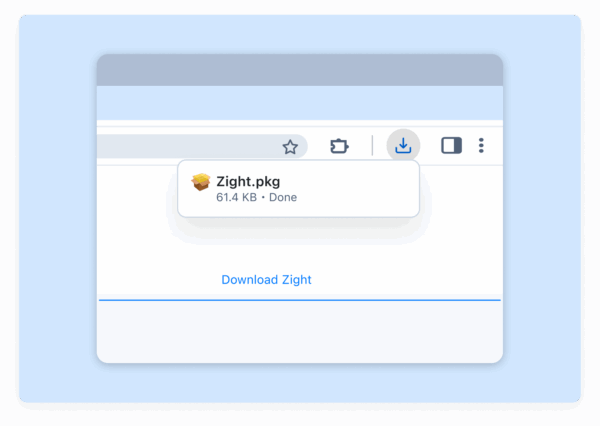
Download Zight for Mac, Windows, or install the Chrome extension. The app lives in your menu bar (Mac) or system tray (Windows), so it’s always one click away. Once installed, sign in or create a free account — it takes about 60 seconds.
Step 2: Start a GIF Recording
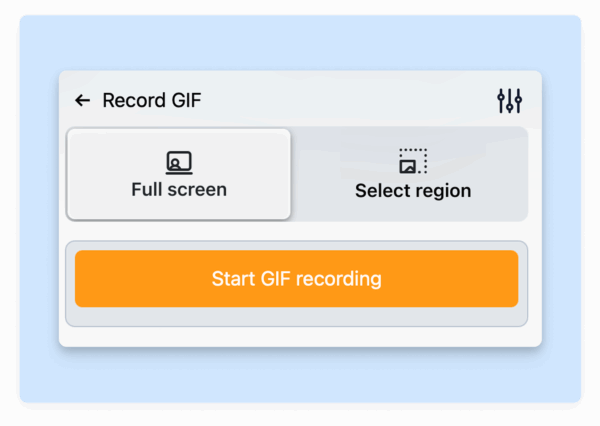
Click the Zight icon and select GIF as your capture type. You can also use the keyboard shortcut for even faster access — on Mac it’s Cmd + Shift + 6 by default (customizable in Preferences). A crosshair will appear so you can select exactly which area of your screen to record.
Step 3: Select Your Recording Area
Click and drag to define the region you want to capture. You can record your full screen, a single application window, or a custom-sized area. Pro tip: Smaller recording areas produce smaller, higher-quality GIFs, so crop to just the UI element or interaction that matters.
Step 4: Record Your Action
Perform the action you want to capture — navigate the menu, trigger the animation, reproduce the bug, whatever it is. Zight records everything in the selected region in real time. Keep it short and focused; the best GIFs are under 10 seconds.
Step 5: Stop Recording and Share Instantly
Click the stop button in the recording toolbar or press Escape. Zight automatically:
- Processes your recording into an optimized GIF
- Uploads it to the cloud
- Copies a shareable link to your clipboard
Paste that link into Slack, Jira, a GitHub issue, an email — anywhere. The recipient sees an inline, auto-playing GIF. No attachments, no “download to view,” no friction.
Why This Beats a Traditional Video to GIF Converter
- One step, not two. No recording a video first and converting it second.
- No file uploads. Your GIF is hosted and shareable the moment you stop recording.
- Optimized automatically. Zight handles frame rate, dimensions, and compression so you don’t have to.
- Works everywhere. Mac, Windows, Chrome — even across different devices with the same account.
- Pairs with screenshots and video. Need a quick screenshot with annotations instead? Or a full screen recording with audio? Same app, same workflow.
Method 2: Convert an Existing Video File to GIF Online (Free)
Already have a video file (MP4, MOV, WebM, AVI) on your computer and just need to turn it into a GIF? These free browser-based converters handle the job without any software installation.
EZGif — Best Free Browser-Based Converter
EZGif has been the go-to free video to GIF converter for years, and for good reason. It’s fast, handles files up to 200 MB, and gives you granular control over the output.
- Go to ezgif.com/video-to-gif
- Upload your video file or paste a URL
- Set the start time, end time, frame rate (fps), and output size
- Click Convert to GIF
- Use EZGif’s built-in optimizer to compress the result if needed
- Download the GIF to your computer
Pros: Free, no account required, lots of editing options (crop, resize, add text, adjust speed, optimize file size).
Cons: Ad-heavy interface, no cloud hosting (you have to save the file and upload it elsewhere), manual process every time.
CloudConvert — Best for Batch Conversions
CloudConvert supports 200+ file formats and is especially useful if you need to convert multiple videos to GIF in one session.
- Go to cloudconvert.com and select MP4 → GIF (or your input format)
- Upload one or more video files
- Adjust resolution, frame rate, and trim points in the settings
- Click Convert and download the results
Pros: Clean interface, batch processing, supports rare formats, API available for developers.
Cons: Free tier limited to 25 conversions per day, larger files may require a paid plan.
Canva — Best for Adding Text and Branding
If your GIF needs text overlays, branding elements, or a polished look for marketing, Canva’s free video editor can export animations as GIFs.
- Upload your video clip to a Canva project
- Trim, add text, apply filters, or overlay brand elements
- Click Share → Download and select GIF as the file type
Pros: Beautiful output, design flexibility, great for marketing GIFs.
Cons: Slower workflow for simple conversions, requires a Canva account, limited GIF optimization controls.
Method 3: Convert Video to GIF Using Desktop Software
If you convert videos to GIFs regularly, a desktop app gives you more control and faster processing — especially with large or high-resolution files.
Adobe Photoshop
Photoshop has supported GIF creation for decades and remains one of the most powerful options for fine-tuning output quality.
- Go to File → Import → Video Frames to Layers
- Select your video file and choose the range to import
- Adjust individual frames in the Timeline panel if needed
- Go to File → Export → Save for Web (Legacy)
- Choose GIF format, set colors (128 recommended), and adjust dithering
- Save the file
Pros: Maximum control over quality, color palette, frame timing, and optimization.
Cons: Requires a Creative Cloud subscription (~$23/month), steep learning curve, overkill for simple conversions.
FFmpeg (Command Line — Free and Open Source)
For developers and power users, FFmpeg is the gold standard. It’s a free, open-source command-line tool that converts virtually any media format — and produces some of the highest-quality GIFs when configured properly.
Here’s the two-pass method that produces optimal results:
# Step 1: Generate an optimized color palette ffmpeg -i input.mp4 -vf "fps=12,scale=480:-1:flags=lanczos,palettegen" palette.png # Step 2: Use the palette to create a high-quality GIF ffmpeg -i input.mp4 -i palette.png -lavfi "fps=12,scale=480:-1:flags=lanczos [x]; [x][1:v] paletteuse" output.gifWhat this does: Generates a custom 256-color palette from your specific video, then uses that palette to produce a GIF with significantly better color accuracy and smaller file size than a single-pass conversion.
Pros: Free, produces the best quality-to-size ratio, scriptable for batch workflows, no GUI overhead.
Cons: Command-line only, intimidating for non-technical users, requires installation via Homebrew (Mac), Chocolatey (Windows), or package manager (Linux).
GIPHY Capture (Mac Only — Free)
GIPHY Capture is a lightweight Mac app that records your screen directly as a GIF, similar to Zight but without cloud hosting or shareable links.
Pros: Free, simple, purpose-built for GIF creation.
Cons: Mac only, limited editing tools, no automatic sharing or link generation, files stay local.
Video to GIF Converter Comparison Table
Here’s how the most popular video to GIF converter options stack up across the features that matter most:
| Tool | Price | Platform | Screen Recording | Convert Existing Video | Cloud Hosting / Share Link | GIF Optimization | Best For |
|---|---|---|---|---|---|---|---|
| Zight | Free plan available | Mac, Windows, Chrome | ✅ Built-in | — | ✅ Automatic | ✅ Automatic | Teams who need fast screen-to-GIF sharing |
| EZGif | Free | Browser | — | ✅ Up to 200 MB | — | ✅ Manual controls | One-off conversions of existing video files |
| CloudConvert | Free (25/day) | Browser | — | ✅ Batch support | — | ✅ Basic | Batch conversions and rare formats |
| Canva | Free plan available | Browser | — | ✅ | — | Limited | Marketing GIFs with text/branding |
| Photoshop | $23/month | Mac, Windows | — | ✅ | — | ✅ Advanced | Designers needing pixel-level control |
| FFmpeg | Free (open source) | Mac, Windows, Linux | — | ✅ Any format | — | ✅ Best quality/size | Developers and batch automation |
| GIPHY Capture | Free | Mac only | ✅ | — | — (upload to GIPHY) | ✅ Basic | Casual GIF creation on Mac |
How to Optimize Your GIFs (Reduce File Size Without Killing Quality)
GIF is an inherently inefficient format — it uses lossless compression on a per-frame basis with a 256-color limit. That means an unoptimized 5-second GIF can easily balloon to 20–50 MB. Here’s how to keep your GIFs lean and sharp:
1. Reduce Dimensions
Most GIFs don’t need to be 1920px wide. Resize to 480–720px on the longest edge. This alone can cut file size by 60–80%. When recording with Zight, select only the relevant portion of your screen rather than capturing the entire display.
2. Lower the Frame Rate
Video runs at 24–60 fps, but GIFs look smooth at 10–15 fps. Dropping from 30 fps to 12 fps cuts the number of frames (and file size) by 60% with minimal perceptible difference for most UI demos and quick tutorials.
3. Trim Aggressively
Every extra second adds dozens of frames. Cut the beginning and end so the GIF starts and stops at exactly the relevant moment. The ideal GIF is 3–7 seconds.
4. Limit the Color Palette
GIFs support a maximum of 256 colors per frame. For UI recordings and simple animations, 64–128 colors often look identical to 256 but with significantly smaller files. Both EZGif and Photoshop let you adjust this.
5. Apply Lossy Compression
Tools like EZGif’s optimizer and Gifsicle (command-line) offer lossy compression that can reduce GIF size by 30–50% with barely visible quality loss. A lossy value of 80–120 in Gifsicle is a good starting point.
Target File Sizes by Platform
| Platform | Max GIF Size | Recommended Target |
|---|---|---|
| Slack | 20 MB | Under 5 MB |
| GitHub Issues / PRs | 10 MB | Under 5 MB |
| Email (Gmail, Outlook) | 25 MB attachment | Under 3 MB |
| GIPHY Upload | 100 MB | Under 8 MB |
| Twitter / X | 15 MB (auto-converts to video) | Under 5 MB |
| Notion | 5 MB (inline) | Under 3 MB |
When you use Zight, optimization happens automatically — the tool balances quality and file size without requiring you to touch any of these settings manually.
Real-World Use Cases: How Teams Use GIFs to Work Faster
Understanding the why behind video to GIF conversion helps you build better workflows. Here’s how different teams actually use GIFs day-to-day:
Engineering: Bug Reports That Actually Get Fixed
Instead of writing “there’s a flicker on the dropdown when you hover quickly,” a developer records a 4-second GIF with Zight, pastes the link into a Jira ticket, and the engineer fixing it sees exactly what’s happening. No back-and-forth, no “I can’t reproduce it.” Teams using visual bug reports resolve issues up to 3x faster than text-only tickets.
Customer Success: Support Replies That Resolve on First Touch
A support agent records a quick GIF showing the customer exactly where to click and what to expect. The customer follows along without needing to schedule a call or watch a 5-minute video. First-contact resolution rates improve significantly when visual aids are included in responses.
Product Management: Feature Demos for Stakeholders
Instead of writing a paragraph describing a new feature’s behavior, a PM records a GIF of the interaction and drops it into the spec document or Slack channel. Stakeholders understand instantly — and the GIF becomes part of the documentation.
Marketing: Social Content That Stops the Scroll
Product marketing teams convert short demo videos into GIFs for social media, email campaigns, and landing pages. Auto-playing GIFs in email have been shown to increase click-through rates by up to 26% compared to static images (according to email marketing benchmarks from Litmus).
Choosing the Right Video to GIF Converter for Your Workflow
With so many options, here’s a simple decision framework:
- You need to record your screen and share a GIF fast → Use Zight. One step, automatic cloud hosting, shareable link copied to clipboard. Ideal for bug reports, quick demos, and async communication.
- You have an existing video file you want to convert → Use EZGif for a free, quick one-off conversion, or CloudConvert if you have multiple files.
- You need a polished GIF with branding or text → Use Canva for design-forward output.
- You need maximum quality control → Use Photoshop or FFmpeg for pixel-level precision and the best quality-to-file-size ratio.
- You’re a developer automating GIF creation → Use FFmpeg with a script. It’s free, open source, and produces the best results when configured properly.
For most professionals — especially those in product, engineering, design, and customer success — the fastest path is skipping the “record a video, then convert it” workflow entirely. Zight’s screen-to-GIF recording eliminates the conversion step, the file management, and the sharing friction all at once.
Frequently Asked Questions
What is the best free video to GIF converter?
It depends on your workflow. For converting existing video files in a browser, EZGif is the best free option — no account required, granular controls, and it handles files up to 200 MB. For creating GIFs from your screen without a separate conversion step, Zight offers a free plan that records and exports GIFs with automatic cloud hosting.
How do I convert a video to GIF without losing quality?
Some quality loss is inherent in the GIF format (256-color limit), but you can minimize it: keep the resolution at 480–720px wide, use 10–15 fps, reduce the color palette to 128 colors, and apply the FFmpeg two-pass palette method for the best results. Trimming your clip to only the essential frames also helps maintain sharpness.
Can I convert an MP4 to GIF on Mac without installing software?
Yes. Browser-based tools like EZGif, CloudConvert, and Canva let you upload an MP4 and download a GIF entirely in your browser, with no software install required. If you want a native Mac app that also provides screen recording and automatic sharing, Zight installs in your menu bar and is available in seconds.
Is a GIF better than a short video?
For content under 10 seconds that needs to auto-play inline and doesn’t require audio — like bug reports, UI demos, and quick how-tos — a GIF is better because it plays instantly with zero viewer effort. For anything longer, or content that benefits from narration, a short video (MP4 or WebM) is the better format.
How do I reduce GIF file size?
Five techniques, in order of impact: (1) Reduce dimensions to 480px wide, (2) Lower frame rate to 10–12 fps, (3) Trim to only the essential frames, (4) Reduce the color palette to 64–128 colors, and (5) Apply lossy compression with EZGif’s optimizer or Gifsicle. Combining all five can reduce a 20 MB GIF to under 3 MB.
What video formats can I convert to GIF?
Most video to GIF converters support MP4, MOV, WebM, AVI, MKV, and FLV. MP4 (H.264 codec) is the most universally supported input format. If you have a less common format, CloudConvert and FFmpeg handle the widest range of inputs.
Can I make a GIF from a YouTube video?
Yes. EZGif allows you to paste a YouTube URL directly and convert a segment to GIF. Alternatively, you can use Zight to record the portion of the video playing on your screen as a GIF — useful when the video is behind a login or the direct URL approach doesn’t work. Always respect copyright when creating GIFs from others’ content.
Start Creating GIFs in Seconds
The best video to GIF converter is the one that fits your workflow without adding steps. If you’re converting an existing video file, EZGif and CloudConvert are excellent free tools. If you’re recording something on your screen — a bug, a demo, a quick how-to — Zight eliminates the conversion step entirely and gives you a shareable GIF link in seconds.
Try Zight for free — download for Mac, Windows, or Chrome and create your first GIF in under 30 seconds. No credit card, no conversion tools, no friction.












