

Screen Recorder for Customer Support: How to Resolve Tickets 2–3x Faster With Video
Every support agent knows the pain: a customer submits a vague ticket — “it’s broken” — and what follows is a 6-message email thread just to understand the problem. Now multiply that by 40 tickets a day. A screen recorder for customer support eliminates the back-and-forth entirely. Instead of writing a 300-word explanation of where to click, you record a 45-second video walkthrough and drop the link into the ticket. The customer sees exactly what to do, first try. Resolution time drops. CSAT goes up. Your queue shrinks.
⚡ Quick Answer — Screen Recorder for Customer Support
Zight is an async screen recording, screenshot, and GIF tool that lets customer support teams record their screen, annotate screenshots, and share instant links — all without scheduling a single call. Support agents use Zight to create step-by-step video replies that resolve tickets on the first response. Teams using screen recording for support tickets report up to 67% fewer follow-up messages per ticket and measurably higher customer satisfaction scores.
In this guide, you’ll learn exactly how to set up and use a screen recorder to transform your support workflow — from choosing the right tool to building a reusable video library that saves your team hours every week.
Why Support Teams Need a Screen Recorder in 2025
Text-based support has a fundamental problem: it’s slow, ambiguous, and exhausting for both sides. Consider the typical lifecycle of a “how do I export my data?” ticket:
- Customer writes in with a vague question.
- Agent writes a multi-step text reply with numbered instructions.
- Customer gets lost at step 3 and replies back.
- Agent asks for a screenshot to understand where the customer is stuck.
- Customer sends a blurry photo of their monitor taken with a phone.
- Agent finally understands, writes another reply.
- Ticket resolved — 4 days and 7 messages later.
Now picture the alternative: the agent records a 60-second screen recording walking through the exact steps, pastes the link, and the customer watches it once. Done. One reply. One touch. That’s the power of screen recording for support tickets — and it’s why high-performing support teams at SaaS companies have adopted it as a core workflow, not a nice-to-have.
The data backs this up. According to Forrester Research, viewers retain 95% of a message when they watch it in a video, compared to just 10% when reading text. For support, that means fewer confused follow-ups and faster time-to-resolution.
How to Use a Screen Recorder for Customer Support: Step-by-Step
Below is the complete workflow for integrating screen recording into your support operation. Each step is designed to be implemented immediately — no complex setup required.
Step 1: Choose a Screen Recorder Built for Support Speed
Not every screen recorder works well for customer support. You need a tool that prioritizes speed to share — the time between deciding to record and having a link in the customer’s inbox. Consumer tools like OBS or free browser recorders add friction: file exports, manual uploads, link generation. By the time you’ve shared the video, you could have just typed the answer.
What to look for in a screen recorder for customer support:
- Instant shareable links — No file downloads, no attachments, no “your video is processing.”
- Cloud hosting included — The link should just work, without the customer installing anything.
- Screenshot + GIF + video in one tool — Not every reply needs a full video; sometimes an annotated screenshot is faster.
- Team management — Collections, shared folders, and admin controls for multi-agent teams.
- Cross-platform — Your agents may be on Mac, Windows, or Chrome.
Zight’s screen recorder checks every box. It runs natively on Mac, Windows, and Chrome, and every recording is instantly uploaded to the cloud with a shareable link copied to your clipboard. There’s no rendering wait, no file management — just record, stop, paste. For support teams handling dozens of tickets per day, those saved seconds compound into hours.
Step 2: Install Zight and Configure Your Support Shortcuts
Once you’ve selected your tool, optimize it for speed. In Zight, this means:
- Download the desktop app from zight.com/screen-recorder or add the Chrome extension.
- Set your keyboard shortcut — The default is
Ctrl+Shift+6(Windows) orCmd+Shift+6(Mac) to start a screen recording instantly. - Enable “auto-copy link” — This ensures the shareable link hits your clipboard the moment you stop recording. Zero extra clicks.
- Set your default recording mode — For most support replies, “Screen Only” is ideal. Enable “Screen + Camera” when you want to add a face for empathy on escalated tickets.
- Organize team collections — Create folders like “Onboarding Walkthroughs,” “Billing FAQs,” and “Bug Workarounds” so agents can share from an existing library instead of re-recording.
Pro tip: If your team uses Zendesk, Intercom, Freshdesk, or Slack, Zight links render as rich previews automatically. The customer sees a thumbnail and clicks to watch — no friction.
Step 3: Record Your First Support Reply (Under 90 Seconds)
Here’s the real workflow, in practice:
- Read the ticket and identify the core issue.
- Open the relevant screen — the settings page, the feature in question, the admin dashboard.
- Hit your keyboard shortcut to start recording.
- Narrate as you go: “Hey! Let me show you exactly how to do this…” Keep it casual and direct.
- Walk through the steps on screen, clicking through exactly as the customer would.
- Stop the recording. Zight auto-uploads it and copies the link.
- Paste the link into your ticket reply with a one-line summary: “Here’s a quick walkthrough — should take about 45 seconds to watch.”
That’s it. The entire process takes less time than writing a detailed text response — and the customer actually understands it on the first try.
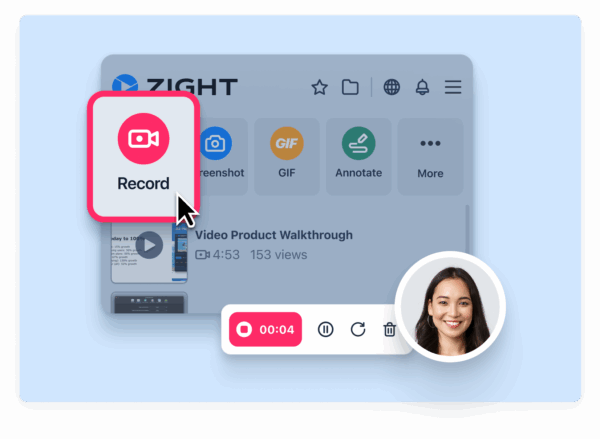
Step 4: Use Annotations and GIFs for Quick Clarifications
Not every ticket needs a full video. For simple “where do I find X?” questions, Zight’s annotation and GIF tools are often faster:
- Annotated screenshot: Capture the relevant screen, draw an arrow to the button, add a text callout. Share. Done in 10 seconds.
- GIF recording: Record a 5-second loop showing the exact click sequence. GIFs auto-play in most email clients and help desk tools — no “play” button required.
- Full screen recording: Reserve this for multi-step processes, bug explanations, or escalated tickets where tone matters.
Matching the format to the complexity of the question is what separates a support team that uses screen recording from a support team that’s great at it.
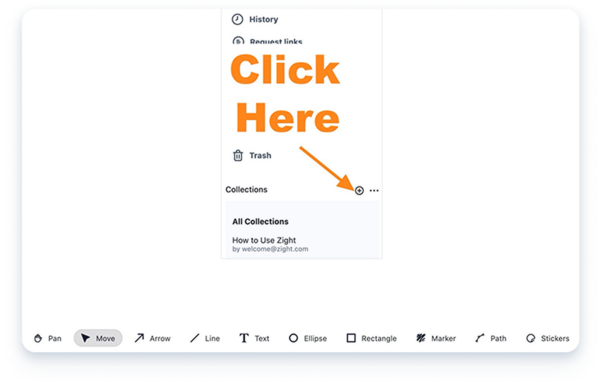
Step 5: Build a Reusable Video Library for Common Questions
This is where the ROI multiplies. Every support team has a set of questions that come in weekly — or daily. Instead of recording the same answer repeatedly:
- Identify your top 20 repeat tickets from the last 90 days.
- Record a polished walkthrough for each one using Zight.
- Organize them in shared collections within your Zight team workspace.
- Create a quick-reference document mapping ticket keywords to video links.
- Embed the library in your internal wiki or help desk macros so any agent can find and share the right video in seconds.
A team of 10 agents each spending 3 minutes per ticket on repeat questions, handling 5 such tickets per day, wastes 150 agent-minutes daily — over 12 hours per week. A reusable video library reclaims almost all of it.
Step 6: Ask Customers to Send Screen Recordings Too/h3>
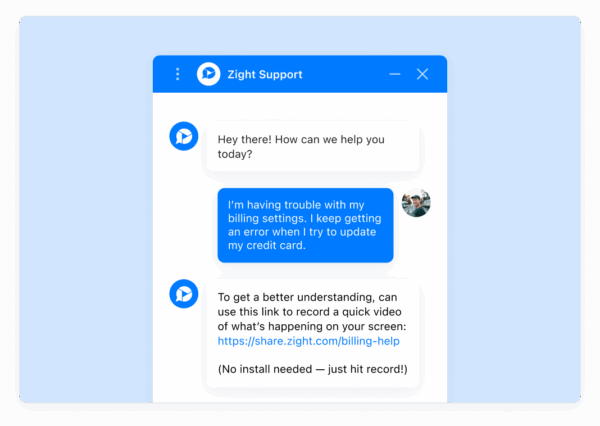
Customer support screen sharing isn’t just about your replies — it’s about the incoming information, too. Instead of decoding “the button doesn’t work,” ask the customer to show you:
- Add a line to your auto-reply template: “If possible, record a quick screen recording showing the issue — you can use a free tool like Zight at zight.com.”
- Include the request in your help center’s “Submit a Ticket” form.
- For enterprise accounts, offer a Zight license to key contacts so they can send annotated recordings directly.
When customers send a screen recording of their bug, your engineering team can see the exact browser, the exact sequence of clicks, and the exact error — often resolving the issue without a single follow-up question.
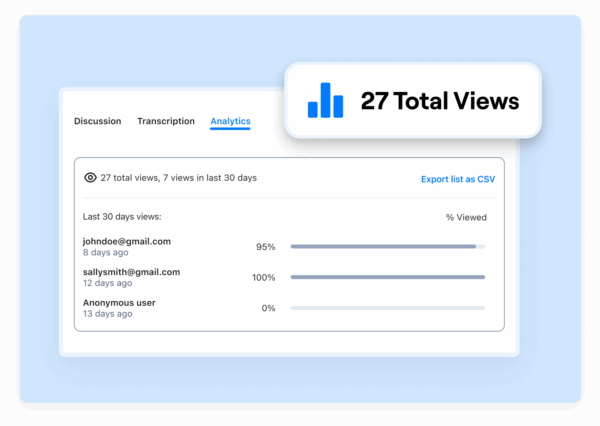
Step 7: Track Performance and Optimize
Zight’s analytics show you who viewed your recording and for how long. Use this data to improve your support operation:
- View tracking: If a customer didn’t watch the video, follow up with a nudge — don’t assume they saw it.
- Drop-off points: If viewers consistently stop at the 30-second mark, your recordings might be too long. Aim for 30–90 seconds.
- Team adoption: Monitor which agents are using screen recording and correlate it with their first-contact resolution rates.
- CSAT correlation: Compare satisfaction scores on tickets with video replies vs. text-only replies. Most teams see a 15–25% lift.
Screen Recorder for Customer Support: Tool Comparison
Choosing the right tool matters. Here’s how Zight compares to common alternatives support teams evaluate:
| Feature | Zight | Loom | ScreenRec | OBS (Free) |
|---|---|---|---|---|
| Instant shareable link | ✅ Auto-copied on stop | ✅ | ✅ | ❌ Manual upload |
| Screenshot + annotation | ✅ Built-in | ❌ | ❌ | ❌ |
| GIF recording | ✅ Native | ❌ | ❌ | ❌ |
| Screen + webcam | ✅ | ✅ | ✅ | ✅ |
| Team workspace & collections | ✅ | ✅ (Business plan) | ❌ | ❌ |
| View analytics | ✅ | ✅ | Limited | ❌ |
| Mac, Windows, Chrome | ✅ All three | ✅ | Windows + Chrome | Windows + Mac |
| Help desk link previews | ✅ Rich thumbnails | ✅ | Basic | N/A |
| All-in-one (video + screenshot + GIF) | ✅ Single tool | ❌ Video only | ❌ Video only | ❌ Video only |
The key differentiator: Zight is the only tool that combines screen recording, screenshots, annotated images, and GIFs in a single application. For support teams, this means one tool replaces three — reducing context-switching and keeping agents in flow.
Real-World Use Cases: How CS Teams Use Screen Recording Daily
To see the full range of Zight use cases for teams, visit the use cases page. Here are the most common support-specific scenarios:
Bug Reproduction and Escalation
When a customer reports a bug, the support agent reproduces it on screen while recording. The video goes directly to the engineering team — no written reproduction steps needed, no ambiguity about browser versions or click sequences. Engineering sees exactly what the agent sees.
Onboarding and Setup Walkthroughs/h3>
New customers often flood support with “how do I get started?” questions during their first week. A set of 5–10 onboarding screen recordings in a shared collection lets agents respond instantly: “Great question — here’s a 60-second walkthrough.” This reduces onboarding ticket volume by 30–50% for most teams.
Feature Education and Upsell
When a customer asks “can your product do X?” — instead of a text description, record yourself doing it. The customer sees the feature in action, which is far more persuasive than a bullet-point list. Support becomes a revenue channel.
Handling Sensitive or Frustrated Customers
For escalated tickets, a screen recording with your webcam on adds a human element that text can never match. The customer sees a real person genuinely working to help them. Tone, empathy, and facial expressions de-escalate tension faster than any canned response.
Tips for Better Support Screen Recordings
After helping thousands of support teams adopt screen recording, here are the patterns that separate good from great:
- Keep it under 90 seconds. If your recording exceeds 2 minutes, split it into two videos or rethink whether a screenshot would suffice.
- Start with the outcome. “By the end of this, you’ll have your data exported” — the customer knows what they’re about to learn.
- Use the customer’s name. “Hey Sarah, let me show you…” feels personal. It takes one second and changes the entire tone.
- Zoom in on relevant areas. Don’t make the customer squint at a full-screen recording to find a 16px button.
- Use annotations as signposts. Arrows, highlights, and text callouts make screenshots and GIFs self-explanatory.
- End with a clear next step. “Try this out and let me know if you hit any snags” — close the loop.
- Don’t over-polish. Support recordings should feel helpful and quick, not produced. Authenticity builds trust.
Frequently Asked Questions
What is the best screen recorder for customer support teams?
Zight is the best screen recorder for customer support teams in 2025 because it combines screen recording, annotated screenshots, and GIF creation in a single tool with instant shareable links. Unlike video-only tools, Zight lets agents choose the right format for every ticket — a quick annotated screenshot for simple questions, a GIF for short visual answers, and a full screen recording for complex walkthroughs. It runs on Mac, Windows, and Chrome with team workspaces for shared video libraries.
How does screen recording help resolve support tickets faster?
Screen recording eliminates the back-and-forth that inflates ticket resolution time. Instead of writing multi-paragraph instructions and waiting for the customer to ask clarifying questions, agents record a visual walkthrough that shows the exact clicks, menus, and steps. Customers understand the solution on the first reply, which reduces follow-up messages by up to 67% and cuts average resolution time significantly. Visual communication removes ambiguity that text-based support inherently creates.
Can customers view Zight screen recordings without installing any software?
Yes. Every Zight recording generates a cloud-hosted shareable link. Customers click the link and watch instantly in their browser — no downloads, no accounts, no plugins. The link renders as a rich preview with a thumbnail in most help desk tools (Zendesk, Intercom, Freshdesk) and email clients, so customers can see what they’re about to watch before clicking.
Is Zight better than Loom for customer support use cases?
For customer support specifically, Zight offers a significant advantage over Loom because it includes annotated screenshots and GIF recording alongside screen recording. Support agents don’t always need a full video — often a quick annotated screenshot or a 5-second GIF is the fastest and clearest response. With Loom, you’d need a separate screenshot tool, which means more apps, more context-switching, and slower responses. Zight consolidates everything into one workflow.
How do I get my entire support team set up with screen recording?
Start by signing up for a Zight team plan, which gives you centralized admin controls, shared collections, and team analytics. Invite your agents, have each person install the desktop app or Chrome extension, and assign keyboard shortcuts. Then dedicate one hour to recording walkthroughs for your 10 most common tickets. Store them in a shared collection so every agent has access from day one. Most teams are fully operational within a single afternoon.
Start Resolving Tickets Faster Today
Your customers don’t want to read a novel about where to click. They want to see it. And your agents don’t want to spend 8 minutes typing what they could show in 45 seconds.
A screen recorder for customer support isn’t a productivity hack — it’s a fundamental shift in how your team communicates. Faster resolutions. Happier customers. Less agent burnout. Smaller queues.
Zight gives your support team screen recording, annotated screenshots, and GIF creation in one tool — with instant shareable links that work everywhere your customers are.
Try Zight free → Record your first support reply in under 60 seconds. Your ticket queue will thank you.













Leave a Reply