
Getting the right context should not require three follow ups.
If you work in support, engineering, customer success, or IT, you know how troubleshooting usually unfolds. A ticket comes in with a short description. You ask for a screenshot. Then a recording. Then browser details. Then logs. By the time everything arrives, the issue has stalled, the customer is waiting, and engineering still does not have the full picture.
We expanded Request Links to change that workflow.
You can now collect screen recordings, technical Data Logs, files, and images from a single structured request. Instead of piecing together context across emails and chat threads, your team gets what it needs upfront. The result is clearer bug reports, faster troubleshooting, and fewer unnecessary meetings.
Why We Expanded Request Links
Teams were already using Request Video to collect screen recordings from customers and teammates. It worked well for visual walkthroughs and reproducing issues. But troubleshooting rarely stops at video.
Support teams often need more than a recording. They may need a screenshot of a specific error state, a configuration file or exported report, detailed browser and environment information, or console and network logs. In many cases, they also need to see the exact steps that led to the issue.
Instead of sending separate instructions or chasing attachments across different channels, we built a more complete workflow. Now you can request exactly what your team needs, all within one structured experience that is easy for the recipient and organized for your team.
What You Can Collect
Request Links now support multiple response types within the same workflow:
- Screen recordings with screen, camera, or both
- Automatic Data Logs for technical troubleshooting
- File uploads such as exports, reports, or system logs
- Image uploads such as screenshots or visual proof
Submissions happen entirely in the browser and are automatically organized in your Zight workspace. Recipients do not need to create an account or install anything. They can respond from Safari, Chrome, Firefox, Brave, or Opera, whether they are on desktop or mobile.
This flexibility lets you request exactly what the situation calls for while keeping the experience consistent for your team and your customers.
Request Video: See the Issue as it Happens
Sometimes a screenshot is not enough. A written description can miss critical details about timing, clicks, or unexpected behavior.
With Request Video, you send a link and let anyone record what is happening on their screen. They can capture their screen, camera, or both, directly from the browser. The process is straightforward for the recipient and structured for your team.
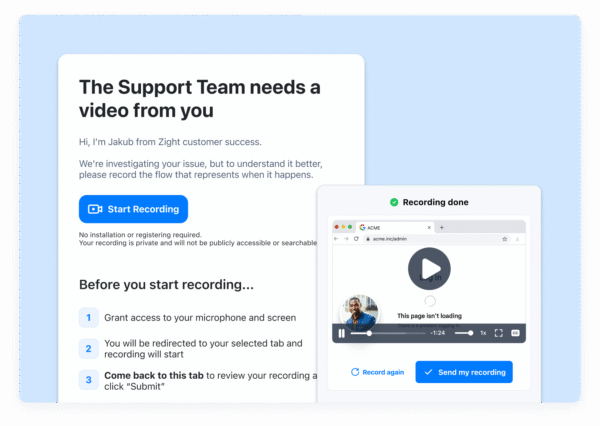
Teams use Request Video to reproduce hard to catch bugs with real user steps, replace live troubleshooting calls with short async recordings, collect onboarding walkthroughs from customers, gather internal updates without scheduling time, and escalate issues to engineering with full visual context.
Instead of interpreting a written explanation, your team sees the exact clicks, errors, and flows in real time. That clarity reduces misunderstandings and shortens the path to resolution.
Add Data Logs for Deeper Troubleshooting
When issues move beyond visual bugs, technical context becomes essential.
With Data Logs enabled, each video submission can automatically include browser and version details, operating system information, screen resolution, network type, console logs, and network logs. This eliminates the common follow up questions that slow down escalations and frustrate customers.
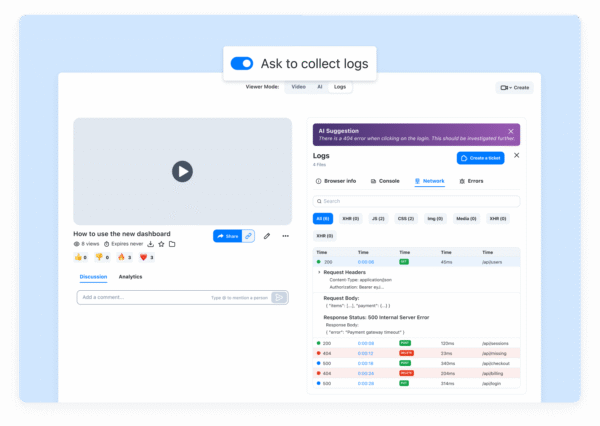
Data Logs are optional for each request, so you can turn them on only when deeper troubleshooting is needed. Admins can also set default titles and messages for Request Video to keep communication consistent across the team.
Engineering teams receive the technical environment details alongside the recording, allowing them to diagnose issues with fewer reproduction attempts. For complex or intermittent bugs, the combination of video plus logs often makes the difference between guessing and confidently identifying the root cause.
Request Files and Images: Collect Everything Else
Not every workflow requires a recording. In many cases, what you need is a specific document, export, or screenshot.
You can now request files and images within the same structured workflow. That might include screenshots of error messages, configuration files for debugging, exported billing reports, onboarding documents, design assets, or log files for IT troubleshooting.
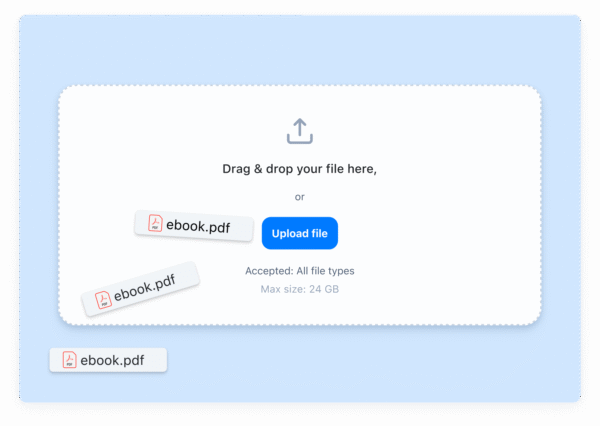
Instead of asking someone to attach files over email or Slack, you send a request that guides them through exactly what to provide. Submissions are organized in your workspace and ready to review, share, or add to a Collection. The result is a cleaner, more trackable process for collecting supporting materials.
How Teams use Request Links
Customer Support
A customer reports that a dashboard is not loading correctly. Instead of scheduling a call, you send a Request Video link with Data Logs enabled. The customer records their screen showing the error, and their browser and console logs are automatically attached. Engineering reviews everything in one place, and the ticket moves from a vague description to an actionable diagnosis in a single step.
Customer Success
During onboarding, a customer struggles to connect an integration. You request a short screen recording, a screenshot of their integration settings, and an exported configuration file. Within minutes, you can see exactly where the setup broke down and guide them forward without another live session.
Product and Engineering
A beta user reports a UI inconsistency. Instead of recreating the issue from a brief description, you receive a visual walkthrough along with browser and operating system details and console logs. Product can validate the experience quickly, and engineering can prioritize and resolve the issue faster.
IT and Internal Teams
An employee reports that a company tool is not functioning as expected. You request a screenshot of the error, a recording of the steps leading up to it, and relevant system logs. The issue is resolved without multiple help desk exchanges or screen sharing sessions.
Built to Work Anywhere
Request Links can be created from the Zight web app, the Chrome extension, or the Mac desktop app. Recipients can respond directly from Safari, Chrome, Firefox, Brave, or Opera, including mobile browsers. No downloads. No accounts required.

It works where your users already are, which makes adoption simple and friction low.
Organized in Your Zight Workspace
All submissions are securely stored in your Zight dashboard under the original request link, making it easy to track, manage, and revisit responses.
Why this Matters
Most delays in troubleshooting are not caused by complex problems. They are caused by missing context.
When teams rely on written descriptions, screenshots, or fragmented conversations, critical details get lost. That leads to follow up questions, extra meetings, and longer resolution times.
Request Links eliminate that friction at the source. Instead of guessing what happened, teams see exactly what happened, complete with environment details when needed.
The result:
- Faster issue resolution
- Fewer meetings and back and forth
- Cleaner handoffs between support and engineering
- More confident decisions
In the last month alone, teams saved over 1,000 hours by replacing explanations with clear visual context. When you remove ambiguity, everything moves faster.
See it in Action
If you missed our recent walkthrough, you can watch the full replay to see Request Video, Data Logs collection, mobile browser support, and new request types demonstrated in real workflows.

Make it Your Default
Request Video remains free for now because we want teams to fully integrate it into their process and experience the impact firsthand.
Replace the guesswork. Replace the extra calls. Replace the long threads.
Make “Can you show me?” your default.
Start using Request Links today.












