

Remote work is booming, with 36 million Americans expected to work from home by 2025. But communication challenges – like miscommunication, tech issues, and inefficient meetings – are holding teams back. Text-only tools often fail to convey tone and context, leading to misunderstandings and delays.
The solution? Visual feedback. By using screenshots, screen recordings, and video instructions, teams can simplify complex ideas, improve task performance, and reduce back-and-forth communication. Visual tools make it easier to share feedback, solve problems, and keep everyone aligned.
Key Takeaways:
- Why text fails: Misinterpretation, lack of tone, and slow response times.
- Benefits of visuals: 67% of people complete tasks better with visual instructions.
- Practical tools: Screenshots with notes, screen recordings, and step-by-step videos.
- Top tool: Zight streamlines visual feedback with features like annotation, video recording, and integrations with Slack and Microsoft Teams.
Visual communication is transforming remote work by bridging gaps text can’t. With tools like Zight, teams can collaborate faster and more effectively, no matter where they are.
Introduction to Webvizio | How to Collect and Share Visual Feedback with Webvizio | Full Demo
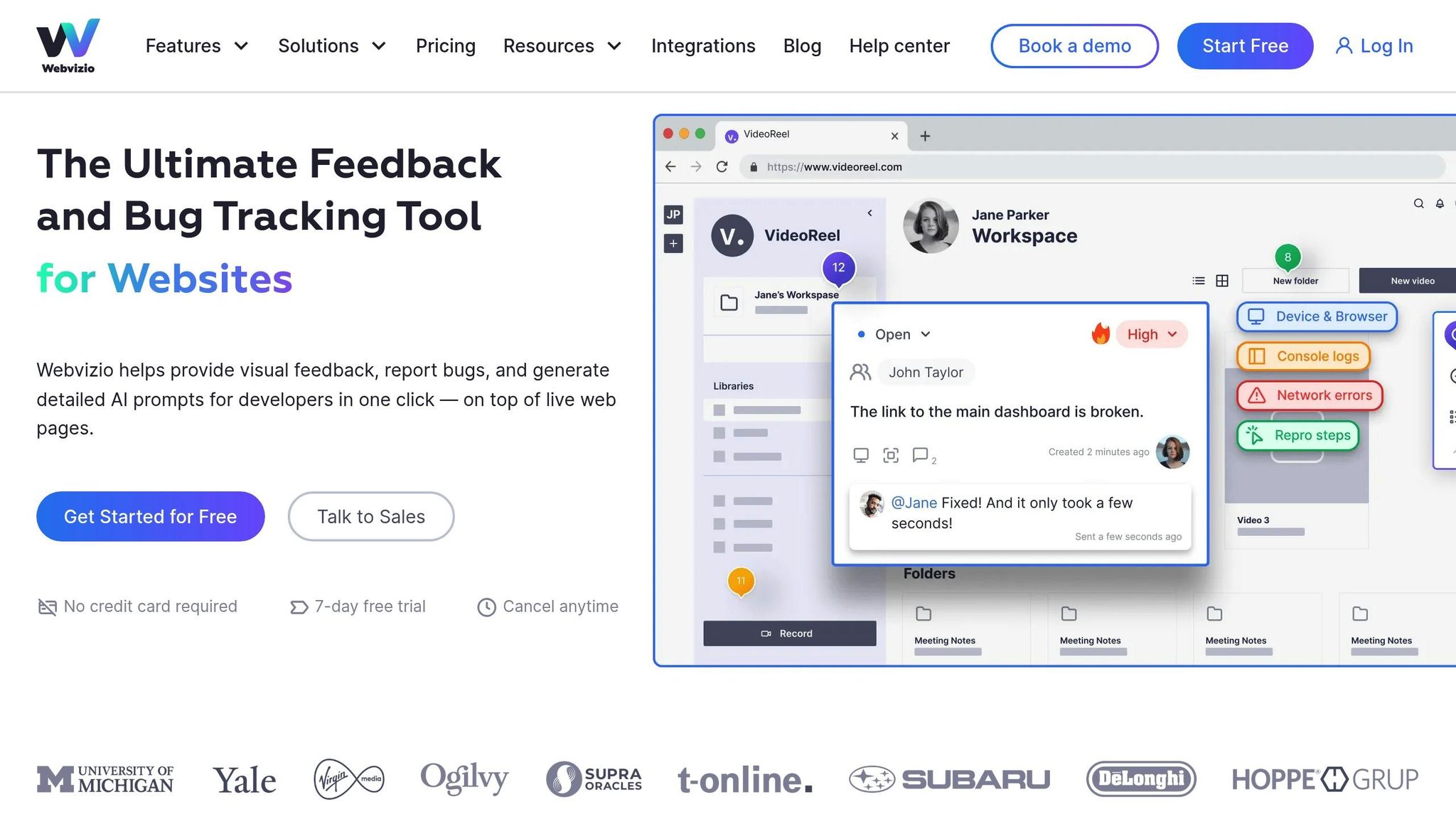
How Visual Feedback Solves Remote Work Problems
Remote teams often face communication hurdles, but visual feedback offers a powerful way to overcome them. By replacing confusing text exchanges with clear, engaging visuals, teams can improve how they share information, make decisions, and collaborate. Let’s explore how visual feedback transforms remote collaboration.
What Visual Feedback Means
Visual feedback uses tools like images, videos, screen recordings, and annotations to make communication clearer and more effective. Instead of relying solely on written messages that can easily be misinterpreted, teams can visually demonstrate their points. Did you know that visuals are processed 60,000 times faster than text? This makes them an efficient way to break through language barriers and avoid misunderstandings. It goes beyond simple screenshots – think annotated images, detailed screen recordings, step-by-step guides, and even interactive elements.
Main Benefits of Visual Feedback
Visual feedback directly addresses the challenges of remote work. Here’s how:
- Improved Task Performance: A striking 67% of people complete tasks more successfully when instructions are delivered as graphics or videos. By visually demonstrating problems and solutions, teams avoid miscommunication and unnecessary back-and-forth exchanges.
- Faster Decision-Making: A quick screen recording or visual explanation allows for real-time reviews, discussions, and approvals, speeding up workflows.
- Enhanced Engagement: Visuals hold attention better – 48% of workers respond more to video, while 37% engage better with visuals. This means clearer communication and better follow-through on tasks.
- Streamlined Collaboration: Instead of wading through endless email threads, visual feedback centralizes comments and discussions directly on visuals. This creates a single, accessible source of truth, saving time and simplifying project tracking.
- Inclusive Communication: Some team members may find it easier to express ideas visually than through written words. This opens the door for more diverse ideas and ensures everyone’s input is understood.
Organizations using visual tools report impressive time savings. For instance, visual feedback often reduces the need for follow-up meetings, as teams come into discussions already aligned. Considering that 75% of employees felt collaboration suffered during the pandemic, and nearly half say they’d prefer more visual collaboration, it’s clear that this approach is a step in the right direction.
Practical Ways to Use Visual Feedback
Here’s how you can turn visual feedback into actionable tools to improve communication in remote teams. These methods help bridge gaps and ensure everyone stays on the same page.
Using Screenshots with Notes
Screenshots paired with annotations are a simple yet effective way to eliminate confusion. Instead of relying on long-winded explanations, use screenshots to visually capture the issue and add clear notes or highlights. This method ensures everyone understands the exact point of focus.
For instance, drawing an arrow to a problem area, circling a button, or adding a text box with specific feedback can make your message far clearer. It eliminates the guesswork for your team, reducing unnecessary back-and-forth communication.
Annotation tools make this process even easier. When reviewing a website design, for example, instead of saying, “The navigation seems off”, you can take a screenshot, circle the navigation elements in question, and add a quick note explaining your concerns.
This technique is particularly helpful for tasks like design reviews, bug reports, content feedback, and documenting processes. It’s a straightforward way to prevent misunderstandings while keeping your team aligned.
Screen Recordings for Showing How Things Work
Building on annotated screenshots, screen recordings take clarity to the next level by showing workflows in action. These recordings are especially useful for explaining processes, navigating software, and sharing project updates. They provide a dynamic, visual context that written instructions simply can’t match.
Here’s a compelling stat: Viewers retain 95% of information when presented in video form, compared to just 10% when reading text. Whether you’re explaining a tricky issue, giving feedback, or showcasing a new feature, screen recordings make the message stick.
Screen recordings are particularly valuable for:
- Onboarding and training new hires
- Troubleshooting technical challenges
- Demonstrating products or workflows
- Collaborating on presentations or documents
To make your recordings effective, keep them concise, ensure crisp audio and video quality, and focus on the essentials. Adding narration and visual cues can guide viewers through the content smoothly. For more complex topics, consider breaking the recording into short, labeled segments to make them easier to digest.
Creating Step-by-Step Video Instructions
When it comes to transferring knowledge in remote teams, step-by-step video instructions are a game-changer. These training videos simplify learning by breaking down workflows, tools, and concepts into manageable, visual steps.
Video instructions work for virtually everything – from explaining company policies to illustrating project management processes. To keep them engaging, you can mix formats like recorded webinars, animated videos, or live demonstrations.
“Almost all quality improvement comes via simplification of design, manufacturing, layout, processes, and procedures.” – Tom Peters, Business Management Expert
Make your instructions clear and easy to follow by incorporating visual aids such as screenshots, diagrams, or short video clips. For example, instead of saying, “Click the settings icon in the top-right corner,” show an image or video of the actual button.
Encourage subject-matter experts to document their workflows and include a feedback loop to refine the instructions over time. Ask employees or users to test the videos and highlight any areas of confusion, then schedule periodic updates to keep the content accurate and relevant.
“I think it’s very important to have a feedback loop, where you’re constantly thinking about what you’ve done and how you could be doing it better.” – Elon Musk, CEO of SpaceX and Tesla
sbb-itb-5d91f01
Visual Feedback vs Text Communication Comparison
Remote teams often face communication challenges that text alone can’t resolve. A closer look reveals how visual feedback outshines text communication in delivering clarity and fostering engagement.
Visual vs. Text Communication: A Comparison
Here’s a breakdown of how visual feedback and text communication measure up across key factors for remote teams:
| Factor | Visual Feedback | Text Communication |
|---|---|---|
| Clarity & Understanding | Uses screenshots, recordings, and annotations to convey precise meaning | Relies on interpretation, often leading to confusion |
| Speed of Communication | Delivers immediate clarity through visual context | May require multiple exchanges to clarify meaning |
| Context Preservation | Retains full context, including non-verbal details | Often misses critical contextual elements |
| Problem-Solving Efficiency | Facilitates quick consultations and faster decisions | Can be slower due to ambiguity |
| Engagement Level | Encourages personal connections and meaningful interactions | Can feel detached and impersonal |
| Complex Concept Explanation | Simplifies complicated ideas with visual steps | Struggles to effectively communicate complex ideas |
The table above highlights the strengths of visual feedback, especially for remote collaboration. Unlike static text or spreadsheets, visual tools ensure that big ideas are communicated clearly and don’t get lost in translation during email threads or chat exchanges.
Text communication often lacks the depth and nuance of in-person interactions. For instance, describing a software issue in a long email can leave team members scratching their heads. But a quick screen recording that shows the problem step-by-step? That makes it instantly understandable and actionable.
Visual feedback also captures non-verbal cues, offering a richer and more immediate context compared to text-based communication. Beyond just improving clarity, it strengthens team bonds. Remote employees feel more aligned with company goals and better understand their roles when feedback is delivered visually. It also demonstrates that their work is seen and appreciated, which boosts morale and connection.
Additionally, video meetings and visual tools create a more natural flow, mimicking the spontaneity of in-person discussions. This informal exchange of ideas enhances collaboration and fosters a sense of teamwork.
Using Zight for Visual Feedback
Zight is a game-changer for teams looking to go beyond plain text communication. Trusted by over 5 million users, it streamlines visual feedback to improve productivity and strengthen collaboration efforts. Let’s dive into how Zight’s features make it a go-to tool for visual feedback in any teamwork scenario.
Zight Features for Visual Feedback
Zight makes capturing, annotating, and sharing visual content seamless. With just a few clicks, users can grab full or partial screenshots, which are automatically saved to the cloud. From there, these images can be edited using built-in tools to crop, rotate, scale, or even redact sensitive information.
Its screen recording feature is equally powerful, enabling users to capture their entire screen or specific areas. You can add audio, webcam overlays, and even make real-time annotations while recording. For quick explanations or step-by-step processes, Zight also lets you create loopable GIFs – perfect for showcasing workflows in a visually engaging way.
The platform doesn’t stop there. Its AI-powered tools provide extras like transcription, summaries, and translations, making visual content more accessible for teams spread across different locations or languages.
Zight integrates effortlessly with popular tools like Slack, Microsoft Teams, and Jira, allowing users to share visuals within their existing workflows without skipping a beat.
“One tool to record, share, and explain your work so your team stays aligned and moves faster.” – Zight
With Zight, sharing screenshots and videos becomes up to 10 times faster than traditional methods, eliminating the need for multiple tools to handle visual communication. This all-in-one platform ensures teams can manage their visual feedback efficiently and without hassle.
How Zight Works for Real-Time and Delayed Collaboration
Zight’s features are designed to support both immediate and asynchronous collaboration. For live interactions, annotated screenshots and shareable links make feedback quick and easy – no need to deal with bulky email attachments. For delayed collaboration, Zight organizes visuals into collections, ensuring continuity across projects.
“Zight makes it easy to save, annotate, and share screenshots, screen recordings, and GIFs. You can use it to record visual notes about anything you’re working on.” – Jeremy Caplan, Director of Teaching and Learning, CUNY’s Newmark Graduate School of Journalism
The platform’s automated two-way sync with Jira Service Management allows for instant updates, while its integration with Microsoft Teams makes visual replies during ongoing conversations a breeze. Whether it’s real-time or asynchronous, Zight keeps teams connected and on the same page.
Conclusion: Improving Remote Work with Visual Feedback
Remote work doesn’t have to be riddled with miscommunication. Visual feedback changes the game for remote teams, making it easier to explain complex ideas and reducing the risk of misinterpreted text-based communication.
The numbers back this up: digital collaboration platforms can increase productivity by 27% and reduce project delivery times by as much as 70%. On top of that, 67% of people perform tasks more effectively when given visual instructions. These stats highlight why visual communication is a must-have for remote teams.
“Visual collaboration in remote work bridges the gap caused by physical distance, making complex ideas simpler to understand and tasks easier to manage.” – allo.io
By swapping out lengthy text for annotated visuals, screenshots, and recordings, teams can avoid costly delays and ensure everyone is on the same page. This shared visual context speeds up feedback loops, streamlines decision-making, and keeps everyone aligned with the overall goals.
To make this shift, having the right tools is critical. That’s where Zight comes in. Its features for screen capture, video recording, and seamless sharing make visual communication effortless. With AI-powered tools, integrations with popular workplace apps, and support for both real-time and asynchronous collaboration, Zight ensures teams can communicate visually without missing a beat.
The future of remote work lies in blending the flexibility of working from anywhere with the clarity that visual feedback provides. Teams that embrace these tools can handle complex projects, minimize misunderstandings, and stay productive – no matter where they are.
FAQs
How does visual feedback help remote teams work more efficiently and make better decisions?
Visual feedback plays a crucial role in improving remote teamwork by making communication more direct and easier to understand. It helps cut down on misunderstandings by offering clear, visual context for tasks, ensuring everyone is aligned. This not only reduces errors but also eliminates unnecessary rework, saving time and boosting productivity.
It’s also a great way to break down complex ideas into simpler, more actionable insights. Teams can use visual feedback to make real-time adjustments, enabling quicker and smarter decision-making. By simplifying collaboration, it helps remote teams work more effectively and efficiently.
How can visual feedback tools like Zight help improve remote collaboration?
Visual feedback tools like Zight play a key role in improving remote collaboration by adding clarity through visual context. Instead of relying solely on text-based explanations, teams can use features like annotated screenshots or screen recordings to simplify design reviews. This ensures everyone understands the details, reducing confusion and speeding up approval processes.
Zight also allows team members to work together on visual content in real-time, making it easier to exchange ideas, give feedback, and make quicker decisions. With options like video recording, GIF creation, and step-by-step guides, Zight equips remote teams with the tools they need to communicate clearly and maintain productivity, no matter where they’re working from.
Why is visual feedback more effective than text for remote collaboration?
When it comes to remote collaboration, visual feedback often outshines text-based communication. Why? Because it simplifies complex ideas and reduces the chances of miscommunication. Tools like screen recordings, annotated screenshots, and videos offer a level of clarity and context that words alone sometimes struggle to provide.
Incorporating visuals into your workflow can save time by cutting down on lengthy explanations and avoiding confusion. It also helps minimize the need for excessive meetings, allowing remote teams to communicate more effectively and stay on the same page, no matter where they are.












