
How to Give Design Feedback Remotely (Without Another 30-Minute Meeting)
If you’ve ever typed “can we hop on a quick call?” into Slack just to explain why a button feels off, you already know the problem. Learning how to give design feedback remotely shouldn’t require scheduling a meeting, waiting for everyone to join, sharing your screen, and then watching half the team multitask while one person talks. In 2024, product teams lose an average of 31 hours per month in unnecessary meetings — and design review syncs are some of the worst offenders. There’s a faster, clearer, more respectful way to do it: record your screen, narrate your thoughts, annotate the mockup, and share a link. Done.
⚡ Quick Answer — How to Give Design Feedback Remotely
The most effective way to give design feedback remotely is to record a short screen capture with voice narration, annotate key areas of the design, and share an instant link with your team — no meeting needed. Zight is an async design feedback tool for Mac, Windows, and Chrome that lets you screen record design reviews, annotate Figma screenshots, and create shareable links in seconds. It replaces “let me walk you through it” calls with clear, replayable visual feedback that designers can review on their own time.
This guide walks you through a complete, step-by-step process for giving remote design feedback that’s actually useful — the kind that reduces revision cycles, respects everyone’s focus time, and kills the “can we sync?” reflex for good. Whether you’re a PM reviewing mockups, a UX lead doing a heuristic review, or a creative director managing a distributed design team, this workflow will save you hours every week.
Why Design Feedback Meetings Are Broken
Before we get into the how-to, let’s be honest about why this problem exists. Design feedback is inherently visual. You can’t describe a spacing issue in a Slack message and expect a designer to understand exactly what you mean. So what does every team default to? A meeting.
But meetings are a terrible medium for design feedback. Here’s why:
- They’re synchronous. Everyone has to be online at the same time, which is brutal for distributed teams across time zones.
- They’re unstructured. Feedback bounces between stakeholders without a clear record of who said what or why.
- They’re not replayable. A designer can’t “re-watch” a meeting to catch the nuance of feedback they missed while taking notes.
- They interrupt deep work. A 30-minute meeting doesn’t cost 30 minutes — it costs the 90 minutes of focus time around it.
- They produce vague action items. “Make the header feel more modern” is not actionable. Pointing at a specific element and saying “try reducing this padding by 8px and swapping to the 600-weight font” is.
The root cause isn’t laziness or poor communication skills. It’s a tooling gap. Teams need a way to give feedback that’s visual, specific, narrated, and asynchronous. That’s exactly where screen recording plus annotation fills the gap — and it’s why the ability to give feedback on a mockup without a meeting has become a core workflow for high-performing product teams.
What You Need to Give Design Feedback Remotely (The Async Stack)
You don’t need a complicated setup. Here’s the minimum viable async feedback stack:
| What You Need | Why It Matters | How Zight Covers It |
|---|---|---|
| Screen recording with audio | Shows exactly what you’re looking at while explaining your reasoning | Zight’s screen recorder captures screen + microphone + webcam in one click |
| Screenshot annotation | Lets you draw arrows, highlight areas, and add text callouts to specific design elements | Zight’s annotation tools include arrows, boxes, blur, text, and numbered steps |
| Instant shareable link | No file attachments, no “can you see my screen?” — just a URL anyone can open | Every Zight capture auto-uploads and generates a shareable link immediately |
| Team workspace | Keeps all feedback organized by project so nothing gets lost in Slack threads | Zight for Teams provides shared collections and team-wide access |
| Works across platforms | Your team is on Mac, Windows, and Chrome — the tool needs to work everywhere | Zight offers native apps for Mac, Windows, and a Chrome extension |
Now let’s walk through the exact step-by-step process.
Step 1: Open the Design in Your Browser or Design Tool
Start by pulling up the design you need to review. This could be a Figma prototype, an InVision link, a staging URL, a Sketch file viewed in your browser, or even a PDF of print mockups. The beauty of screen-based feedback is that it doesn’t matter what tool the designer used — if you can see it on your screen, you can record feedback on it.
Pro tip: If you’re reviewing a Figma file, open it in presentation mode or use the prototype view. This lets you give feedback on the actual user experience rather than getting distracted by layers, frames, and design-tool UI elements. You want your recording to show the design the way a user would see it.
Step 2: Screen Record Your Design Review With Narration
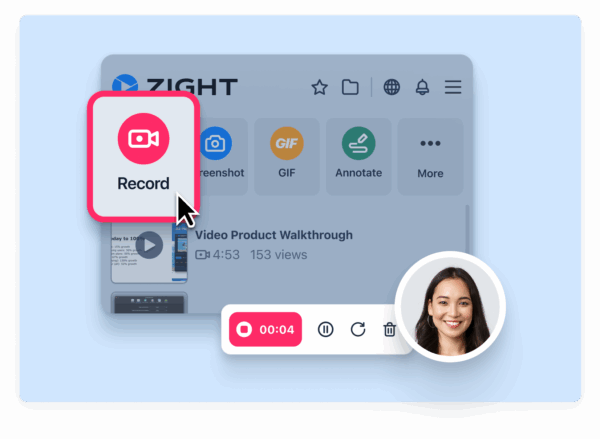
This is the core of the workflow — and the step that replaces the meeting entirely. Open Zight (keyboard shortcut: Shift + Command + 6 on Mac or Alt + Shift + 6 on Windows), select the area of your screen showing the design, and hit record.
As you record, talk through your feedback out loud while moving your cursor to point at specific elements. This is what makes async design feedback so much richer than written comments: the designer can see exactly where you’re looking and hear the reasoning behind your feedback simultaneously.
Here’s a framework for structuring your narration:
- Start with context (5 seconds): “I’m looking at the checkout flow mockup, version 3, specifically the payment step.”
- State what’s working (15–30 seconds): “The hierarchy here is much better than v2 — the primary CTA is clearly dominant, and the trust badges beneath the button are a nice addition.”
- Walk through specific issues (1–3 minutes): Move your cursor to each element as you discuss it. “This input field label is truncated on the right — can we either abbreviate it or increase the field width by about 40px? Also, the error state color here doesn’t meet our accessibility contrast ratio.”
- End with a clear priority signal (10 seconds): “The field truncation is a must-fix, the contrast issue is important, the rest is nice-to-have for this sprint.”
Most effective design feedback recordings are between 1 and 5 minutes. If your feedback is running longer than 5 minutes, you’re probably covering too many screens — split it into separate recordings, one per screen or flow.
When you use Zight to screen record a design review, you can optionally enable your webcam overlay. This adds a face-cam bubble to the recording, which makes feedback feel more personal and less like a list of demands — especially important if you’re a creative director giving feedback to a junior designer.
Step 3: Annotate a Figma Screenshot for Precise, Pinpointed Feedback
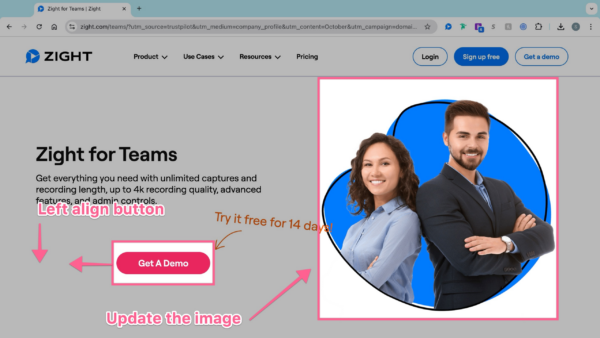
Screen recordings are great for walkthrough-style feedback, but sometimes you need to annotate a Figma screenshot to call out a specific detail that’s easier to mark up than to describe verbally. This is where Zight’s screenshot + annotation workflow shines.
Take a screenshot of the design (Shift + Command + 5 on Mac), and Zight opens an annotation editor immediately. From here, you can:
- Draw arrows pointing to specific UI elements that need changes
- Add numbered callouts (1, 2, 3) so designers can work through issues in order
- Highlight areas with colored boxes to frame regions of the screen
- Add text annotations directly on the screenshot with specific instructions
- Blur sensitive data if the design includes real user information or unreleased branding
The combination of a screen recording (for the “big picture” walkthrough) plus annotated screenshots (for pixel-level specifics) gives designers everything they need to execute feedback without a single follow-up question. Using Zight’s annotation features, you turn vague “this doesn’t feel right” feedback into “move this element 12px left, swap this color to #2D2D2D, and increase the line-height to 1.5.”
Step 4: Share the Link (Not a File) in Your Team’s Workflow
Every recording and annotated screenshot you create with Zight automatically uploads to the cloud and generates a shareable link. This link is copied to your clipboard the instant the upload finishes — no exporting, no uploading to Google Drive, no attaching files to Jira tickets manually.
Paste the link wherever your team actually works:
- Slack: Drop the link in your design channel. Zight links auto-unfurl with a preview thumbnail so the designer can see what the feedback is about before clicking.
- Jira / Linear / Asana: Add the link to the relevant ticket as a comment. Now the feedback lives alongside the task — not buried in a Slack thread from three days ago.
- Figma comments: Paste the Zight link as a Figma comment on the specific frame. The designer gets notified in Figma and can watch the feedback in context.
- Email: For stakeholders who aren’t in your project management tool, just email the link. It works in any browser with no login required.
The key insight here: a link is frictionless. The recipient doesn’t need to download a file, install a plugin, or have a Zight account. They click, they watch, they understand. This is what makes async design feedback actually work at scale — the feedback is as easy to consume as it is to create.
Step 5: Organize Feedback in a Shared Team Collection
One-off feedback links work fine for small teams. But if you’re running design reviews across multiple projects, sprints, or client accounts, you need organization. Zight for Teams lets you create shared collections — think of them as folders that your entire team can access.
Create a collection for each project or sprint (e.g., “Q1 Dashboard Redesign — Feedback”), and every screen recording and annotated screenshot goes into that collection. Now your designers have a single place to find all feedback, your PM has a record of every review cycle, and your creative director can audit feedback quality across the team.
This also solves the “I gave you feedback on this two weeks ago” problem. Instead of scrolling back through Slack history, just open the collection and find the recording. It’s timestamped, searchable, and permanent.
How to Give Design Feedback Remotely: Best Practices That Actually Matter
The five steps above give you the workflow. These best practices make the feedback itself more effective:
Be Specific — Not Subjective
Bad: “The hero section feels off.”
Good: “The hero headline is competing with the subheadline because they’re the same visual weight. Try bumping the headline to 48px/700 and dropping the subheadline to 18px/400 with 60% opacity.”
Screen recordings make specificity easier because you can literally point at what you’re talking about. Use that advantage.
Separate “Must Fix” From “Nice to Have”
Designers shouldn’t have to guess which of your ten pieces of feedback are blocking launch. Use the end of your recording to explicitly tier your feedback: “Items 1 and 3 are blockers; the rest can wait for the next iteration.”
Record One Flow at a Time
A 12-minute recording covering the entire app is overwhelming. A 2-minute recording focused on the signup form is actionable. Break your feedback into short, focused recordings — one per screen, flow, or component.
Lead With What’s Working
Async feedback strips out tone and body language, which means it can feel harsher than intended. Start every recording with 15–30 seconds of what the designer nailed. This isn’t just politeness — it tells the designer what to preserve as they iterate.
Replace “What Do You Think?” Messages With Recordings
This is the mindset shift. Every time you catch yourself typing “can we hop on a quick call to go over the designs?” — stop. Open Zight, record a 3-minute walkthrough instead, and paste the link. You just saved two people 30 minutes and produced a permanent, replayable record of the feedback.
Async Design Feedback vs. Live Meetings: A Side-by-Side Comparison
| Factor | Live Design Review Meeting | Async Feedback With Zight |
|---|---|---|
| Time to deliver feedback | 30–60 min (including scheduling, waiting, small talk) | 2–5 min to record, instant link to share |
| Time zones | Requires overlapping hours — painful for global teams | Works across any time zone; designer watches when ready |
| Replayability | None — unless someone remembered to hit “record” on Zoom | Every recording is permanently saved and replayable |
| Specificity | Verbal descriptions of visual elements are imprecise | Cursor movement + annotations point at exact pixels |
| Context switching | Interrupts deep work for both reviewer and designer | Reviewer records when convenient; designer watches when convenient |
| Documentation | Meeting notes are often incomplete or never written | The recording IS the documentation |
| Scalability | Every additional reviewer adds scheduling complexity | Multiple reviewers can share links independently |
This isn’t to say live meetings are never appropriate — complex strategic discussions, kickoff alignments, and emotional conversations still benefit from real-time interaction. But tactical design feedback — “here’s what to change and why” — is almost always better async.
Who This Workflow Is For
This async design feedback approach works for anyone who reviews visual work remotely:
- Product managers reviewing mockups before sprint planning
- UX researchers providing heuristic evaluations on prototypes
- Creative directors overseeing multiple designers across projects
- Engineers flagging implementation concerns in design handoff
- Clients and stakeholders who need to approve designs without learning Figma
- QA teams reporting visual bugs with exact screen recordings showing the issue
If any of these describe you, you can start using this workflow in the next five minutes with a free Zight account.
Frequently Asked Questions
What is the best way to give design feedback remotely without a meeting?
The best way to give design feedback remotely without a meeting is to use an async design feedback tool like Zight. Record your screen while narrating your thoughts, annotate screenshots for pixel-level precision, and share an instant link. The designer can watch the feedback on their own schedule, replay it as needed, and act on specific, visual instructions — no calendar invite required.
Can I annotate a Figma screenshot and share it with my team?
Yes. With Zight, you can take a screenshot of any Figma design (or any screen content), open it in the built-in annotation editor, add arrows, text callouts, numbered markers, highlights, and blur effects, then share the annotated image as an instant link. Your team can view it in any browser without needing a Zight account or any special software.
How long should an async design feedback recording be?
The most effective async design feedback recordings are between 1 and 5 minutes. Focus on one screen, one flow, or one component per recording. If your feedback runs longer than 5 minutes, break it into separate recordings so designers can tackle them individually. Short, focused recordings are easier to watch, easier to act on, and less likely to bury critical feedback in a long video.
Does the person receiving my feedback need to install Zight to view it?
No. Every screen recording and annotated screenshot you create with Zight generates a shareable link that opens in any web browser. The recipient doesn’t need a Zight account, a desktop app, or any plugin. They click the link, watch the recording (or view the annotated image), and they’re done. This makes it easy to share feedback with external clients, contractors, or stakeholders who aren’t part of your internal tooling.
Is Zight free to use for design feedback?
Zight offers a free plan that includes screen recording, screenshot capture, and basic annotation features — more than enough to start giving async design feedback today. For teams that need shared collections, advanced collaboration features, and admin controls, Zight offers paid plans through Zight for Teams.
Stop Scheduling Meetings for Feedback You Can Record in 3 Minutes
Every “quick sync” to review a design costs your team more than you think. It costs the designer their flow state. It costs the PM 20 minutes of scheduling overhead. It costs the creative director another block of dead time between meetings. And the worst part? The feedback delivered in that meeting evaporates the moment it ends — unless someone took perfect notes (they didn’t).
Async design feedback with Zight flips the entire model. You record once, the designer watches when they’re ready, the feedback is permanently documented, and nobody’s calendar takes a hit. It’s faster to give, easier to receive, and more effective than any live meeting for tactical visual feedback.
Ready to replace your next design review meeting with a 3-minute recording? Try Zight’s screen recorder for free and see how much faster your design feedback loops become.













Leave a Reply