
How to Create a Video Bug Report in Under 2 Minutes (Step-by-Step)
You just found a bug. Something broke, a button didn’t respond, an error message flashed on screen, or the whole workflow crashed. Now you need to explain exactly what happened to a developer — without spending 20 minutes writing a novel nobody wants to read. That’s why knowing how to create a video bug report is one of the most valuable skills for QA testers, customer success reps, and anyone who touches software. A video bug report captures the exact sequence of clicks, the error state, and the environment context in a single shareable link — no guesswork, no back-and-forth, no “can you try to reproduce it?”
⚡ Quick Answer
To create a video bug report, use a video bug report tool like Zight to record your screen the moment you encounter a bug, annotate the recording to highlight what went wrong, and share an instant link with your dev team. Zight is a screen recording, screenshot, and async video tool that generates a shareable link the second you stop recording — no file uploads, no compression wait, no context lost. The entire process takes under 2 minutes from “I found a bug” to “here’s exactly what happened.”
In this guide, you’ll learn the exact step-by-step process to record a software bug, annotate it with context a developer actually needs, and share it in a format that gets bugs fixed faster. Whether you’re a QA engineer filing dozens of reports a day, a customer success manager relaying client issues, or a non-technical team member who just wants to say “this thing is broken” without sounding vague — this workflow is for you.
Why Text-Only Bug Reports Fail (And Why Video Wins)
Before we dive into the how-to, let’s talk about why you’re here. Traditional bug reports are broken. A 2023 study by the Software Testing Club found that over 50% of bug reports are sent back for more information before a developer even starts investigating. The reason? Text descriptions are ambiguous, screenshots miss the sequence of events, and steps-to-reproduce lists are often incomplete or wrong.
Here’s what typically happens when you try to report a bug the old way:
- You notice the bug and scramble to remember exactly what you clicked.
- You write a paragraph describing the issue, guessing at the exact error wording.
- A developer reads it, can’t reproduce it, and asks follow-up questions.
- You try to reproduce it yourself, and it works fine this time.
- The ticket sits in the backlog, unresolved, for weeks.
A bug report with video eliminates steps 2 through 5. The developer sees exactly what you saw — the clicks, the timing, the error message, the browser, and the state of the application. There’s nothing to misinterpret.
What You Need to Create a Video Bug Report
You don’t need an expensive QA platform, a video editing suite, or any technical skills. Here’s the minimal setup:
| Requirement | What You Need | Zight’s Solution |
|---|---|---|
| Screen recording | A tool that captures your full screen or a specific window | Zight Screen Recorder — Mac, Windows, or Chrome extension |
| Annotation | Ability to draw arrows, boxes, or add text over the recording or screenshot | Zight Annotations — highlight errors directly on recordings and screenshots |
| Instant sharing | A link you can paste into Slack, Jira, Linear, email, or any ticket system | Auto-generated shareable link the moment you stop recording |
| Screenshot backup | A way to capture a still frame of the error state | Zight Screenshot App — capture and annotate in one click |
| No file management | Cloud-hosted so you never email a 200 MB video file | All recordings stored in Zight’s cloud, accessible via link |
That’s it. No complicated setup. No learning curve. If you can click “record” and “stop,” you can file a video bug report that a developer will actually thank you for.
How to Create a Video Bug Report: 6 Steps
Here’s the exact workflow to go from discovering a bug to handing a developer everything they need. Total time: under 2 minutes.
Step 1: Install Zight (One-Time, 30 Seconds)
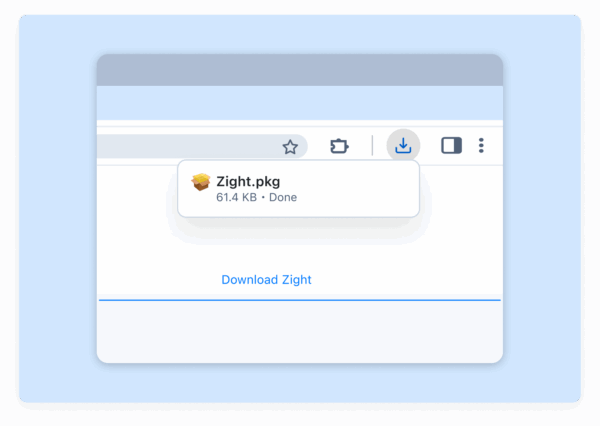
If you haven’t already, download Zight for Mac, Windows, or install the Chrome extension. The free plan includes screen recording, screenshots, and annotations — everything you need for bug reporting. Installation takes roughly 30 seconds, and you’ll have the app sitting in your menu bar or browser toolbar, ready to go the moment something breaks.
Head to zight.com/screen-recorder to get started. Once installed, sign in with your email or Google account and you’re live.
Pro tip: Set a keyboard shortcut for instant recording. On Mac, the default is Cmd + Shift + 6. On Windows, it’s Alt + Shift + 6. When a bug strikes, muscle memory is faster than mouse clicks.
Step 2: Reproduce the Bug (or Start Recording Immediately)
Here’s where most people make a mistake: they try to write down what happened after the bug is gone. Don’t do that. Instead, use one of two approaches:
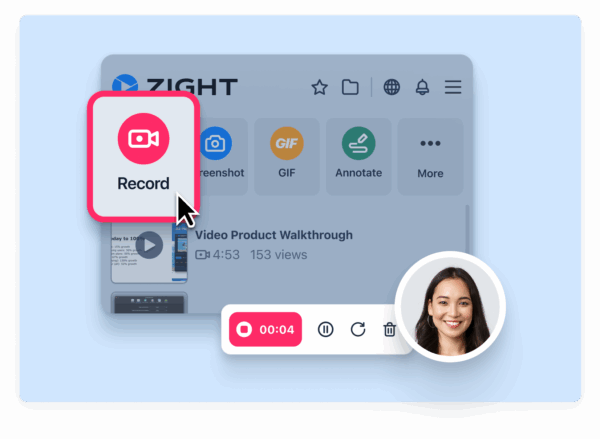
Approach A — You caught the bug live: If the bug is still visible on your screen (an error message, a broken UI element, a frozen state), hit your Zight record shortcut immediately. Capture the error as-is, then narrate what you were doing when it happened. This is the gold standard — a live capture of the bug in its natural habitat.
Approach B — You need to reproduce it: Start Zight recording before you begin the reproduction steps. Walk through the exact flow that triggered the bug. If it happens again, the developer gets the complete sequence. If it doesn’t, you still have a recording showing the expected behavior — which is useful context.
Either way, start recording first, explain later. You can always trim the beginning of the video, but you can never recover a bug you didn’t capture.
Step 3: Screen Record the Error Message and Surrounding Context
When you screen record an error message, capture more than just the error popup. Developers need context. Here’s what to include in your recording:
- The full browser/app window — not just the error dialog. Show the URL, the page state, and any surrounding UI elements.
- Your clicks leading up to the error — what did you click, type, or scroll through? Sequence matters.
- The error message itself — pause for 2–3 seconds on the error so the developer can read every word, including error codes.
- The console (if accessible) — if you’re comfortable opening browser dev tools (
F12orCmd + Option + I), briefly flash the Console tab. Red errors there are gold for debugging. - Your voice (optional but powerful) — narrate what you expected to happen vs. what actually happened. “I clicked ‘Submit,’ expected to see a confirmation, but instead got this 500 error.”
Zight records your screen and microphone simultaneously — no extra configuration needed. If you’d rather not narrate, the visual recording alone is still 10x more useful than a text-only report.
Step 4: Stop Recording and Annotate What Went Wrong
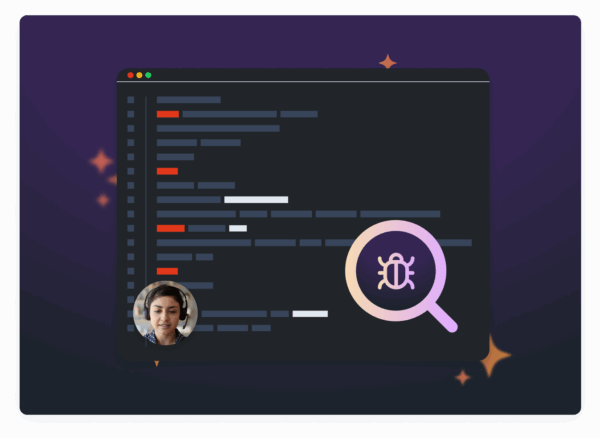
Hit your stop-recording shortcut or click the stop button. Zight immediately uploads the recording to the cloud and generates a shareable link. But before you share it, take 15 seconds to add annotations that direct the developer’s attention.
Using Zight’s annotation tools, you can:
- Draw arrows pointing to the exact UI element that broke.
- Add red boxes around error messages or unexpected behavior.
- Insert text callouts like “This field should show the user’s email, not ‘undefined’.”
- Highlight timestamps in the video where the bug occurs (especially useful for longer recordings).
If the bug is also visible in a single frame — like a broken layout or a persistent error — use Zight’s screenshot tool to grab an annotated still image as a companion to the video. Some developers prefer scanning a screenshot first, then watching the video for reproduction steps.
Step 5: Add Environment Details (The Developer’s Checklist)
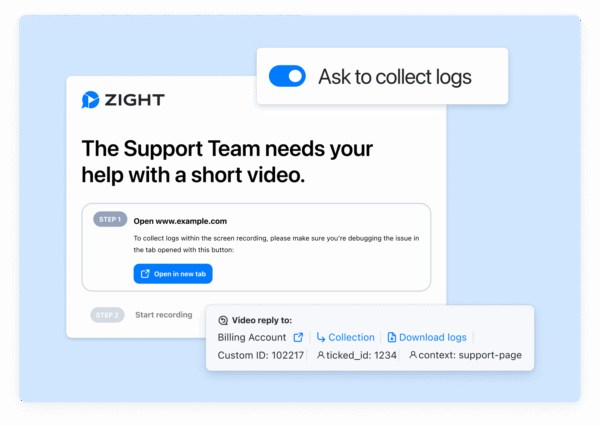
A great video bug report includes system context. When you share your Zight link, paste a quick environment summary alongside it. Here’s a template you can copy:
🐛 Bug Report Video: [Zight link] Browser: Chrome 125 / Safari 17.4 / Firefox 126 OS: macOS 14.5 / Windows 11 Screen resolution: 1920×1080 Account/User: [test account or user ID] Steps: See video — bug occurs at 0:32 Expected: [what should have happened] Actual: [what happened instead] Severity: [blocker / major / minor / cosmetic]This template, combined with a Zight video link, is the most complete bug report a developer can receive. It takes about 20 seconds to fill out, and it prevents the “what browser were you using?” follow-up that delays every fix by a day.
Step 6: Share the Video Bug Report Link Anywhere
Zight generates a shareable link instantly — no waiting for uploads, no file size limits, no attachment failures. Paste the link into:
- Jira, Linear, Asana, or any project management tool — most tools auto-embed the video preview.
- Slack or Microsoft Teams — the link unfurls with a thumbnail so the developer can preview without clicking.
- Email — for external bug reports (e.g., a customer success rep reporting a client’s issue to the engineering team).
- GitHub Issues or GitLab — paste the link in the issue description alongside your environment details.
- Zendesk, Intercom, or any support platform — customer success teams can attach Zight links to support tickets for instant escalation.
The developer clicks the link, watches a 30-second video, sees exactly what broke, and starts fixing it. No meetings. No “can you hop on a call to show me?” No 12-message Slack thread trying to describe a visual bug with words.
Why Zight Is the Fastest Video Bug Report Tool
There are dozens of screen recording tools on the market. Loom, Screencastify, OBS, native OS recorders — they all capture your screen. But bug reporting has specific requirements that most general-purpose tools handle poorly. Here’s why teams that file a lot of bug reports choose Zight:
| Feature | Zight | Loom | Screencastify | OBS |
|---|---|---|---|---|
| Instant shareable link | ✅ Immediate — link ready when you stop recording | ✅ After upload | ⚠️ Saves to Google Drive first | ❌ Local file — you upload manually |
| Built-in annotation | ✅ Arrows, boxes, text directly on recordings and screenshots | ❌ No annotation | ❌ No annotation | ❌ No annotation |
| Screenshot + video in one tool | ✅ Unified workflow | ❌ Video only | ❌ Video only | ❌ Video only |
| GIF creation | ✅ Record short interactions as GIFs — great for UI bugs | ❌ | ❌ | ❌ |
| Keyboard shortcut recording | ✅ One shortcut to start/stop | ⚠️ Available but slower | ⚠️ Chrome only | ✅ Customizable |
| No file management needed | ✅ Cloud-hosted by default | ✅ Cloud-hosted | ⚠️ Google Drive dependent | ❌ Local files |
| Works on Mac, Windows, Chrome | ✅ All three | ✅ All three | ⚠️ Chrome only (extension) | ✅ Mac/Windows (no Chrome ext) |
| Best for | Bug reports, async comms, QA | Async video messages | Education/tutorials | Streaming, advanced recording |
The combination of instant link generation + built-in annotations + screenshot/GIF/video in one tool is what makes Zight uniquely fast for bug reporting. You don’t switch between apps. You don’t upload files. You don’t wait.
Tips for Better Video Bug Reports (From QA Teams Who File Hundreds)
After talking to QA teams, customer success managers, and developers who receive these reports, here are the patterns that separate a “good enough” video from a “chef’s kiss” bug report:
Keep It Short — 30 to 90 Seconds Is Ideal
Developers are busy. A 5-minute video where the bug appears at minute 4:32 is almost as bad as a text-only report. Aim for 30–90 seconds. Show the setup (5 seconds), the reproduction steps (15–30 seconds), and the bug itself (10–20 seconds). If your recording runs longer, use Zight’s trimming feature to cut the dead time.
Narrate Like You’re Leaving a Voicemail for a Developer
Don’t script it. Just say what you’re doing: “I’m on the settings page. I’m clicking ‘Save.’ I expect a success toast. Instead — you can see — I’m getting a 403 error.” Casual narration adds more context than any written description. It’s the closest thing to having someone look over your shoulder.
Record One Bug Per Video
Don’t batch multiple bugs into a single recording. Each video should map to one ticket. This keeps things trackable, searchable, and assignable. If you found three bugs in one testing session, make three short recordings.
Use Annotations to Save the Developer’s Time
A red arrow pointing at the broken element with the text “this should say ‘Active’, not ‘null'” is worth a thousand words. Zight’s annotation features let you add these markers directly to your recording or screenshot so the developer doesn’t have to hunt for the issue.
How to Record a Software Bug: Use Cases by Team
Different teams encounter bugs in different contexts. Here’s how each can use the video bug report workflow:
QA Engineers and Testers
You’re running test cases all day. Keep Zight running in your menu bar. When a test fails, hit the shortcut, reproduce the issue, stop recording, annotate, and paste the link into your test management tool or Jira. You can file a complete bug report in the time it used to take to write the title.
Customer Success and Support Teams
A customer reports a bug over chat. Instead of asking them 15 clarifying questions, use Zight to screen record the error message on your end while replicating their steps. Or better — send the customer a Zight link and ask them to record their screen. Either way, the engineering team gets a visual report instead of a game of telephone.
Product Managers
You’re dogfooding the product and something feels off. It’s not a crash — it’s a UX issue, a slow transition, or a confusing flow. A video captures the feeling of the bug, not just the technical failure. Record your experience, annotate where the friction is, and share it with the team. This is how “it feels weird” becomes an actionable ticket.
Non-Technical Team Members (Marketing, Sales, Operations)
You don’t know what a 500 error means, and you shouldn’t have to. Just record your screen when something breaks, say “I clicked this and expected this, but got this instead,” and share the Zight link with the dev team. The video speaks for itself. No technical vocabulary required.
Frequently Asked Questions About Video Bug Reports
What is a video bug report and why is it better than a text report?
A video bug report is a screen recording that captures a software bug as it happens — including the user’s clicks, the application state, any error messages, and optionally voice narration explaining the issue. It’s better than a text report because it eliminates ambiguity. Developers see the exact bug instead of interpreting a written description, which reduces back-and-forth by up to 80% and speeds up resolution time significantly.
How do I create a video bug report for free?
You can create a video bug report for free using Zight’s free plan, which includes screen recording, screenshots, annotations, and instant link sharing. Install the Zight app for Mac, Windows, or Chrome, record your screen when you encounter a bug, annotate the recording to highlight the error, and share the auto-generated link. No credit card required for the free tier.
Can I use a video bug report tool with Jira or Linear?
Yes. Zight generates a shareable URL for every recording, and that link can be pasted into any tool that accepts URLs — including Jira, Linear, Asana, GitHub Issues, GitLab, Trello, Notion, Slack, and email. Most project management tools will auto-embed the video preview so the developer can watch it directly within the ticket.
How long should a video bug report be?
Aim for 30 to 90 seconds. Include a brief setup showing the starting state (5 seconds), the steps to reproduce the bug (15–30 seconds), and the bug itself with a pause on any error messages (10–20 seconds). If your recording runs longer, use Zight’s built-in trimming to remove dead time. One bug per video keeps things clean and trackable.
Do developers actually prefer video bug reports over written ones?
Overwhelmingly, yes. In a 2023 survey by LinearB, developers cited “unclear reproduction steps” as the #1 frustration with bug reports. A video removes that frustration entirely. Developers can see the exact browser, the exact sequence, and the exact error — which means they can start debugging immediately instead of spending time trying to understand or reproduce the issue.
Start Filing Video Bug Reports in Under 2 Minutes
Every minute you spend writing a text-only bug report is a minute wasted — for you and the developer who has to decode it. Video bug reports are faster to create, faster to understand, and faster to resolve. With Zight, the workflow is dead simple:
- Hit your keyboard shortcut to start recording.
- Show the bug on screen.
- Stop recording — your link is ready instantly.
- Annotate if needed.
- Paste the link into your ticket or chat.
That’s it. From “I found a bug” to “here’s exactly what happened” in under 2 minutes. No file uploads. No compression. No email attachments bouncing back because they’re too large. Just a link that shows everything.
Ready to try it? Download Zight’s free screen recorder and file your next bug report as a video. Your developers will thank you — and your bugs will get fixed faster.













Leave a Reply