
- Visual documentation uses tools like videos, diagrams, and guides to simplify communication.
- It improves retention: 50% of what people see and hear is remembered, compared to just 10% of what they read.
- Tools like Zight streamline creation with features like screen capture, annotations, and AI automation.
- Principles: Understand your audience, simplify visuals, and stay consistent.
- Tools: Platforms like Zight offer recording, editing, and sharing capabilities.
- Methods: Learn to create effective recordings, diagrams, and step-by-step guides.
- Feedback & Analytics: Use team input and data to refine and maintain documentation.
The EASIEST work documentation workflow TO STAND OUT at work and business
Basic Principles of Visual Documentation
Creating effective visual documentation hinges on a few key principles that ensure clarity and usability. By following these guidelines, you can craft visuals that not only meet your team’s needs but also deliver measurable results.Know Your Audience
The first step in creating impactful visual documentation is understanding who will use it. Research shows that over 70% of users prefer concise and straightforward information over lengthy, detailed explanations. However, what qualifies as “clear” can vary greatly depending on your audience’s background and expertise. For instance, a software engineer might need technical diagrams with detailed annotations, while a customer service representative would benefit more from simplified flowcharts or step-by-step guides. Interestingly, 70% of young professionals favor visually engaging content over plain text. This highlights the importance of customizing your visuals based on your audience’s preferences and expertise. Segment your audience by their experience level. For beginners, use plain language and straightforward instructions. For advanced users, include nuanced tips and deeper insights.“Recognizing the specific requirements and preferences of readers is crucial for effective communication. Consider what they seek from your content. Are they looking for detailed explanations or quick solutions? Understanding their perspective can lead to more meaningful interactions.” – Ana Crudu & MoldStud Research TeamFeedback from your audience is invaluable. Whether through surveys, informal check-ins, or quick feedback forms, gathering input helps you refine your content. In fact, 85% of creators who actively engage with their audience report improved comprehension of their materials. Once you understand your audience, focus on simplicity to make your visuals more accessible.
Keep It Clear and Simple
Simplicity doesn’t mean oversimplifying – it means removing obstacles to understanding. Clear, concise visuals are especially important in technical documentation. Use visual hierarchy and contrast to direct attention to essential elements. For example, darker or larger elements naturally draw the eye, so reserve these treatments for your most critical information. Group related items together using proximity to make connections easier to spot. Typography is another critical factor. Stick to no more than two fonts per document for a clean, cohesive look. Avoid overusing all-caps, bold, italics, or underlining as they can lose their impact when overdone. White space is your ally. It gives readers a visual break and enhances the readability of your content. Well-placed white space can even elevate the overall impression of your visuals. Alignment also plays a big role in maintaining a polished and professional appearance. Proper alignment connects elements visually, making the document easier to navigate. Once you’ve nailed simplicity, consistency becomes the next priority.Stay Consistent
Consistency in visual documentation not only builds trust but also makes information easier to digest. When users know what to expect, they can focus on the content instead of figuring out the structure. A well-organized and consistent design shows professionalism, while inconsistencies can create confusion and undermine credibility. Use consistent headers, callouts, and layouts to create a sense of structure and reliability. While not every document needs to look identical, predictable formats make navigation more intuitive. To maintain consistency across your team, establish a company style guide. This guide should outline details like color schemes, font choices, spacing rules, and commonly used visual elements. Templates based on these guidelines can minimize errors and speed up the creation process. Regularly review your documentation to ensure it aligns with your standards. Periodic audits can help identify areas for improvement, and tools that automate updates to colors, assets, and formatting can save time and effort. Finally, apply the principle of proximity by placing related visuals near their corresponding text. This creates logical patterns that make your documentation easier to follow.Tools for Creating and Managing Visual Documentation
The right tools can transform how your team creates, shares, and manages visual documentation, making workplace communication smoother and more efficient. A unified platform helps streamline workflows and ensures everyone stays on the same page. One standout option is Zight, a platform specifically designed for visual communication and documentation. With over 5 million users already on board, Zight combines all the essentials into one easy-to-use application. Let’s take a closer look at what it offers.Key Features of Zight
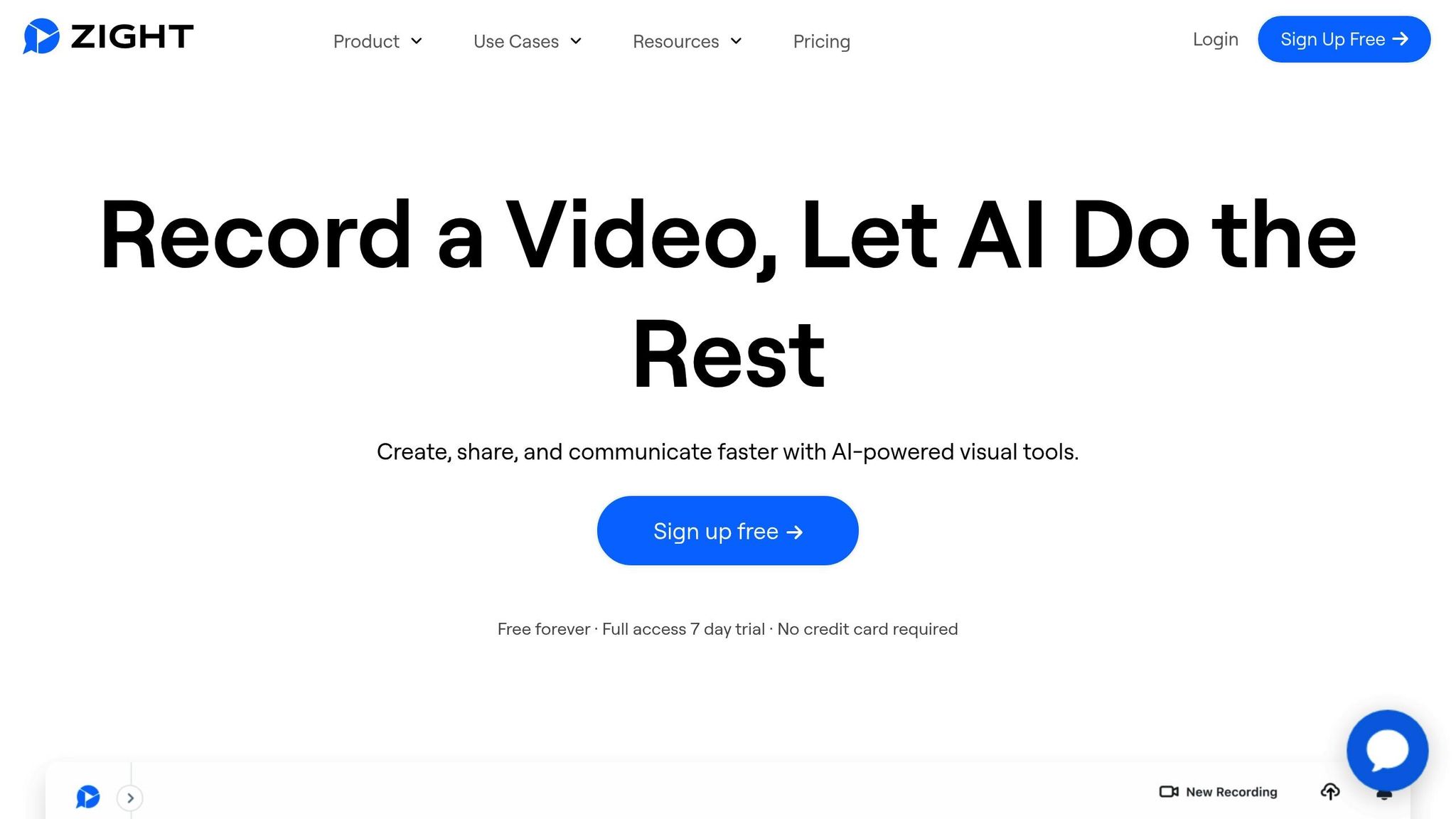 Zight is packed with tools that make creating and managing visual documentation a breeze. From screen captures to detailed walkthroughs, it covers all the bases.
 - Screen Capture and Recording: Whether you need a quick screenshot to highlight an issue or a video walkthrough for a complex process, Zight has you covered. It even supports webcam recording for more personalized explanations.
- Annotations: Add arrows, text boxes, highlights, and callouts to screenshots or videos to make your documentation clear and actionable. This eliminates back-and-forth communication caused by unclear instructions.
- GIF Creation: Sometimes, a short, looping animation explains things better than static images or lengthy videos. Zight lets you create 15-second GIFs on the free plan – perfect for quick demonstrations.
- Instant Sharing: Forget about uploading files to separate platforms. Zight generates a shareable link immediately after you create your content. It supports various formats like audio (.mp3, .wav), documents (.pdf), images (.jpg, .png, .gif), text (.txt, .csv), and videos (.mp4, .mov).
- Cloud Integration and Cross-Platform Access: Zight integrates with Google Drive, Dropbox, and OneDrive, and works seamlessly on Mac, Windows, Chrome, and iOS.
- Security Features: With password protection, link expiration options, and SOC 2 Type 2 compliance, Zight ensures your data stays secure.
- Automation and Organization: Features like scheduled screenshots and a comprehensive screenshot history make it easy to stay organized and find what you need quickly.
- AI-Powered Tools: Zight AI simplifies your workflow with features like smart titles, video summaries, auto-transcription with captions, AI translation, and smart chapters. It can even turn screen recordings into step-by-step guides, saving time and effort.
“The AI features you guys built are amazing for my use case, as I send a lot of videos to my team. It makes it nicer for them on the receiving end.” – Daniel R. Odio, CEO, Storytell.ai
Zight Pricing Plans
Zight offers flexible pricing to suit everyone from individuals to large organizations.| Plan | Price | Key Features | Best For |
|---|---|---|---|
| Free | $0/year | Up to 5-minute recordings, last 50 uploads, basic tools, 15-second GIFs | Individuals testing the platform |
| Pro | $7.95/month | Unlimited uploads and recording time, 4K recording, advanced editing | Individual professionals |
| Team | $8/month/user | Everything in Pro plus analytics, user management, team workspace | Small to medium teams (2+ users) |
| Enterprise | Custom quote | Advanced security, SSO support, custom data retention, advanced analytics | Large organizations |
How Zight Improves Team Collaboration
Zight doesn’t just provide tools – it transforms how teams work together. Visual communication through Zight addresses common collaboration challenges by making complex ideas easier to understand. Instead of typing out lengthy explanations, team members can record videos that convey both context and tone, reducing misunderstandings and keeping projects on track. The platform integrates seamlessly with tools like Slack and Microsoft Teams, bringing visual communication right into your existing workflow. For example, you can annotate screenshots to provide feedback in project channels, create visual SOPs directly in Teams, or share walkthrough videos without leaving the app. Edward Wikstrom, Director of Technology at St. Dominic High School, shares his experience:“Zight allows me to put together training and troubleshooting materials, reduce in-person meetings and trainings, and AI helps me quickly organize videos and turn them into print user guides.”This real-world example highlights how Zight can replace time-consuming meetings with reusable, easy-to-access resources. Plus, analytics in the Team and Enterprise plans offer insights into which guides are most engaging, helping you refine your strategy. With user management and a centralized workspace, Zight ensures your growing library of visual documentation is always accessible to the right people.
sbb-itb-5d91f01
Methods for Creating Visual Documentation
When it comes to visual documentation, the method you choose can make all the difference in how effectively you communicate your message. Whether you’re breaking down a complex workflow, mapping out a process, or walking someone through a task, picking the right approach ensures clarity and engagement. Here are three proven strategies to consider.Screen Recording and Annotation
Screen recordings with annotations are a great way to demonstrate software workflows, explain digital processes, or provide step-by-step guidance. They let viewers see exactly what’s happening on your screen, with visual cues highlighting key details.- Plan Ahead: Define your objective and outline the main points you want to cover. This helps keep your recording focused and avoids unnecessary detours. Close unrelated applications to minimize distractions.
- Set Up Your Environment: Decide whether to record your entire screen or just a specific window, depending on the task. Configure your audio inputs – use system sound for application audio and a microphone for narration. Record in a quiet space to ensure clear audio.
- Use Annotations Wisely: Add arrows, highlights, or callouts to emphasize important actions and draw attention to key buttons or menu items.
- Edit for Precision: Remove unnecessary segments and transitions to keep your recording concise. Blur sensitive information if it appears during the recording.
“Being video-first and visual in your workplace communication is a powerful antidote. It forces you to remove the mask and protection of written and edited comms.”
- Anjali Sud, Vimeo‘s CEO
- Add Interactive Features: Include clickable hotspots or branching scenarios to make the content more engaging. These elements are particularly useful in training materials, allowing users to test their understanding or explore different learning paths.
Using Diagrams and Flowcharts
Diagrams and flowcharts are perfect for breaking down complex processes. They visually represent how different steps or roles connect, making them especially useful for workflows involving multiple teams or systems.- Start with a Plan: Outline all the steps in the process and group them logically. Determine whether your goal is to document an existing process or design a new one, as this will influence your approach.
- Stick to Standard Symbols: Use universally recognized symbols for clarity – rectangles for tasks, diamonds for decisions, and circles for starting or ending points.
- Keep It Clean and Logical: Arrange your diagram in a natural flow (left to right or top to bottom) and use arrows to guide the reader. Avoid line crossovers whenever possible, and if they’re unavoidable, make overlaps clear. Maintain consistent spacing between elements.
- Incorporate Swimlanes: For processes involving multiple teams, use swimlanes to clearly define responsibilities. Mark decision points carefully, ensuring each branch has a clear outcome.
- Use Color Thoughtfully: Apply colors to highlight departments, priorities, or actions, but keep it simple to avoid clutter. Include a legend if you’re introducing unique color codes or symbols.
- Review for Accuracy: Share your diagram with team members to identify any missing steps or inconsistencies. Collaboration is key, especially for workflows that require precision.
Creating Step-by-Step Visual Guides
Step-by-step visual guides combine clear instructions with visuals, making them particularly effective for onboarding, documenting procedures, or creating quick-reference materials. They’re designed to be straightforward and easy to follow.- Capture Screenshots in Sequence: Take clear screenshots of each step, adding numbered callouts, arrows, or concise text descriptions. Ensure the images are detailed enough to avoid confusion.
- Maintain Consistency: Use a uniform layout, consistent annotations, and a cohesive color scheme throughout the guide. Templates can help keep everything aligned.
- Add Context to Each Step: Include brief explanations alongside each visual. Highlight the purpose of each step, expected outcomes, or how to handle potential errors.
- Test Your Guide: Break down complex procedures into manageable sections. Have someone unfamiliar with the process review the guide to identify any unclear parts.
- Keep It Updated and Accessible: Regularly update the guide to reflect changes in processes or interfaces. Make sure it’s mobile-friendly so it’s easy to access on various devices.
Measuring and Improving Visual Documentation
Visual documentation truly shines when its effectiveness is measured and refined over time. This ongoing effort ensures you understand what’s working, what isn’t, and where adjustments can make the biggest impact. Let’s dive into how team feedback and analytics can drive meaningful improvements.Gather Team Feedback
Your team is the best source for understanding whether visual documentation meets their needs. Their feedback can uncover gaps you may not notice and point out successes worth replicating across other projects. Incorporating regular feedback collection into your workflow is crucial. Anonymous surveys are a great tool for gathering honest opinions about the clarity, usefulness, and accessibility of your materials. For instance, you might ask if the documentation helped them complete tasks more efficiently or if any visual elements caused confusion. One-on-one meetings provide even deeper insights. These conversations allow you to explore specific challenges and gather targeted suggestions for improvement. Similarly, team check-ins during project reviews create opportunities to discuss how documentation fits into broader workflows.| Feedback Method | Best Use Case |
|---|---|
| Anonymous Surveys | Collecting candid feedback from large groups across departments |
| One-on-One Meetings | Addressing specific usability challenges and gathering detailed suggestions |
| Team Check-Ins | Evaluating how documentation supports overall workflows |
| Focus Groups | Diving into specific topics with selected team members |
Use Analytics for Insights
Analytics provide objective data to evaluate how your visual documentation performs in practice. Tools like Zight’s built-in analytics give you a clear picture of what resonates with your team and what might need tweaking. Metrics such as view counts, engagement rates, and completion rates for screen recordings or step-by-step guides reveal how users interact with your content. For example, if viewers consistently stop watching at a specific point in a video, that section might need reworking for better clarity or flow. Tracking how much time users spend on particular content can also help you adjust its length and complexity. Observing patterns – like peak times for accessing documentation – can guide decisions on when to release updates or new materials. Additionally, monitoring search queries and content requests can highlight gaps in your library, helping you prioritize future updates.Regular Updates and Maintenance
As software interfaces change, processes evolve, and team structures shift, visual documentation can quickly become outdated. Regular updates ensure your materials stay relevant and easy to follow. Set update schedules based on the importance of each document. For instance, critical process guides may need monthly reviews, while general reference materials could be updated quarterly. Aligning updates with product release cycles ensures major changes are addressed promptly.- Schedule updates based on importance: High-priority guides might need more frequent reviews.
- Assign clear ownership: Designate team members responsible for keeping materials current.
- Audit regularly: Check for outdated elements and make necessary adjustments.
Conclusion and Key Takeaways
Visual documentation is reshaping the way teams communicate, collaborate, and share knowledge in today’s fast-paced workplace. By replacing dense text with clear visuals, teams can bridge communication gaps, speed up training, and align processes more effectively.Summary of Key Principles
Creating effective visual documentation starts with some essential principles. Understanding your audience ensures that your content connects with the people who need it, while clarity and simplicity make even the most complex concepts easier to grasp. Visuals play a huge role in improving comprehension. Maintaining consistency – whether in visual styles, fonts, or icons – provides a polished and professional experience. This consistency not only builds trust but also reduces the mental effort required to process information. Breaking tasks into clear, actionable steps, supported by high-quality visuals and minimal text, ensures instructions are practical and easy to follow. Traditional text-heavy instructions simply don’t meet the needs of today’s users.“Clear and organized documentation helps teams work together, reduces confusion and keeps critical information intact.” – HR AcuityTesting your documentation with a small group, gathering feedback, and using version control to track updates are all vital steps to keep your materials relevant and effective. These principles work together to ensure your documentation truly serves the needs of your team.
How Zight Supports Visual Documentation
Zight brings all the tools you need for visual documentation into one easy-to-use platform. Trusted by over 5 million users, Zight combines screenshots, videos, recordings, and GIFs into a single solution. Its design is built around the principles of clarity, consistency, and audience focus. With unlimited cloud storage, teams never have to worry about running out of space for their visual content. Admin controls make it easy for organizations to manage users and enforce policies across the board. Plus, built-in analytics provide valuable insights into how your visual content performs, helping you identify what works and what needs improvement. Zight’s AI-powered features are a game-changer for busy teams. The platform can automatically break down videos into step-by-step instructions with matching screenshots, saving countless hours of manual effort. AI-generated summaries, titles, and transcriptions also make creating content faster and easier.“The AI features you guys built are amazing for my use case, as I send a lot of videos to my team. It makes it nicer for them on the receiving end.” – Daniel R. Odio, CEO, Storytell.aiWhether you’re crafting visual SOPs, recording software walkthroughs, or building help desk resources, Zight provides the tools you need to scale your visual documentation as your organization grows.












