
Adding Themes in Google Slides
Google Slides makes it easy to apply themes to your deck. Whether you’re creating a webinar, internal pitch, or client-facing presentation, adding a theme helps keep your slides visually cohesive. This tutorial walks you through how to access the theme menu, choose or import a theme, like your company’s slide template, and apply it across your presentation.
Step 1: Access the Theme Options
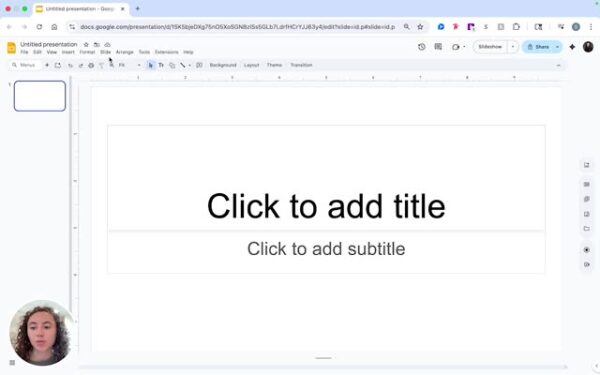
- Go to the top menu and click on “Slide.” Then, select “Change theme” from the dropdown.
Step 2: Select or Import a Theme
- Choose from the themes provided by Google Slides, or if you have a custom theme, import it. For instance, to import a company slide deck, search or locate your theme, such as “webinar template.”

Step 3: Insert and Apply the Theme
- Click on “Insert,” select the theme you want (e.g., Zight Blue), and click on “Import theme.”

Step 4: Add a New Slide
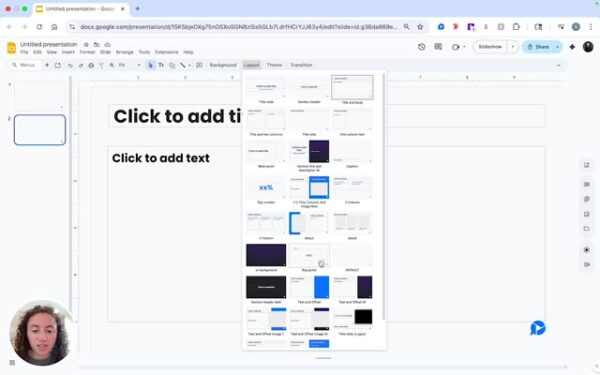
- To add a new slide, click “Add” and then go up to “Layout” to select from the imported slide designs.

Step 5: Choose a Slide Design
- Select a design that fits your content, like “About” for introducing a topic, or a layout for numbers, which is pre-made.
The Ultimate Guide to Adding Themes in Google Slides
A well-designed presentation can make all the difference when it comes to engaging your audience. Whether you are preparing for a webinar, client pitch, internal meeting, or training session, visual consistency is key. Google Slides makes it easy to create cohesive, professional decks with themes that align with your brand or project.
Adding a theme ensures that your presentation looks unified from the first slide to the last. It saves time, eliminates formatting inconsistencies, and helps your audience focus on your message rather than mismatched colors or fonts. In this guide, we’ll explore how themes work in Google Slides and how you can use them to elevate your presentations.
What a theme does in Google Slides
A theme is a preset combination of colors, fonts, and layout designs that determine how your slides look. Instead of manually styling each slide, a theme automatically applies a consistent design across your presentation.
Themes control the background color, font size, and text style, and even set the design for elements like titles, bullet points, and charts. Google Slides includes several built-in themes, but you can also import custom templates that match your company branding.
This feature helps you maintain a professional appearance while saving time on formatting.
Why using themes is essential
Consistency is essential in any presentation. Without a theme, it is easy for slides to look disorganized or off-brand. A theme provides a framework for how your content should appear, ensuring every slide aligns visually.
Using themes also improves collaboration. When teams work together in a shared Google Slides file, applying a common theme keeps the entire deck consistent. It also reduces the chances of teammates using different colors, fonts, or slide layouts.
For businesses, this is especially useful because it keeps presentations on brand without requiring design expertise.
Customizing your presentation with themes
Google Slides offers a variety of default themes that you can select when you start a new presentation. However, you can also customize these themes to better fit your needs.
If your company has a branded presentation template, you can upload it as a custom theme. This allows you to use your logo, brand colors, and preferred fonts in every deck. When you import a theme, Google Slides automatically applies its layout to your existing slides, giving them a cohesive new look.
You can even make slight adjustments, such as changing background colors or replacing images, without affecting the overall structure of the theme. This flexibility makes it easy to personalize your presentation while maintaining consistency.
Keeping your slides organized and cohesive
Applying a theme does more than improve aesthetics—it creates structure. Each layout in a theme is designed for a specific type of content, such as a title slide, section header, or data visualization.
When adding new slides, you can select from predefined layouts that match your chosen theme. This keeps text alignment and spacing consistent across every page. It also ensures your audience can easily follow your story as your presentation flows naturally from one idea to the next.
Using a single theme throughout your presentation eliminates visual clutter and gives your content a polished, professional feel.
Importing custom themes
If you already have a branded presentation created in PowerPoint or another Google Slides file, you can import that theme into a new project. This feature is especially useful for marketing, sales, or leadership teams that want to maintain a consistent brand look across multiple presentations.
To do this, open the “Change theme” menu in Google Slides and choose the option to import a theme. Then, select the existing deck that contains the design you want to reuse. Once imported, the theme will automatically apply to your current slides.
This method saves time and helps ensure that every presentation your team creates reflects your brand identity.
Tips for choosing the right theme
Selecting the right theme depends on the type of presentation you are creating. A bold, colorful theme might work well for creative pitches, while a minimalist design is better suited for formal or data-heavy presentations.
Keep these tips in mind:
-
Choose colors that align with your brand or message.
-
Avoid overly complex backgrounds that distract from your content.
-
Use simple fonts that are easy to read on both large screens and mobile devices.
-
Maintain consistent font sizes for headings and body text.
A good theme should support your message, not overshadow it.
Conclusion
Adding a theme to your Google Slides presentation is one of the easiest ways to create a cohesive, branded, and professional deck. It ensures every slide looks consistent and visually appealing without requiring complex design skills.
Whether you use a built-in theme or import your own company template, this simple feature helps you save time, improve collaboration, and maintain a strong visual identity.
The next time you build a presentation, start by selecting the right theme. You’ll notice how much more polished and engaging your slides look when everything works together visually.
Frequently Asked Questions
A theme is a preset design that controls your slides’ colors, fonts, and layouts. It helps make your presentation look consistent and professional.
Yes. When you switch to a new theme, your existing content stays in place but updates to match the new style.
Yes. Upload the PowerPoint file into Google Slides, then import the theme to apply it.
Go to Slide > Edit theme. From there, you can adjust colors, fonts, and backgrounds to match your preferences or branding.
A theme controls the overall design of your presentation, while a layout defines how content is arranged on an individual slide.
Yes. After you create or import a custom theme, save that deck as a template or make a copy whenever you start a new project.
Company themes ensure brand consistency across all materials. Using them keeps colors, fonts, and logo placement aligned with brand standards.












